1. Utangulizi
This manual provides detailed instructions for the installation, operation, and maintenance of your CP PLUS 4MP Smart Wi-Fi CCTV Camera, model CP-E41Q. Please read this manual thoroughly before using the product to ensure proper function and safety. Keep this manual for future reference.
2. Taarifa za Usalama
- Ensure the power supply matches the camera's requirements.
- Do not expose the camera to water or moisture. This product is designed for indoor use only.
- Epuka kuweka kamera kwenye jua moja kwa moja au karibu na vyanzo vya joto.
- Do not attempt to disassemble or modify the camera. Contact authorized service personnel for repairs.
- Weka kamera na vifaa vyake mbali na watoto.
3. Yaliyomo kwenye Kifurushi
Thibitisha kuwa vipengee vyote vipo kwenye kifurushi chako:
- CP PLUS CP-E41Q Camera
- Adapta ya Nguvu
- Kebo ya Kuchaji
- Simama
- Kuweka Screws
- Mwongozo wa Mtumiaji (hati hii)
Picha: CP PLUS CP-E41Q Camera and included accessories. This image displays the main camera unit, power adapter, charging cable, stand, and mounting screws, which are typically found in the product packaging.
4. Bidhaa Imeishaview
The CP PLUS CP-E41Q is a 4MP Smart Wi-Fi CCTV Camera designed for indoor security. It features 360° pan and tilt capabilities, 15-meter night vision, two-way audio, and smart detection functions to enhance your home or office security.
Sifa Muhimu:
- Azimio la Ultra HD la 4MP: Captures clear 2560x1440 video.
- Pan ya 360° na Inamisha: Offers 355° horizontal pan and 71° vertical tilt for wide coverage.
- 15M IR Night Vision: Provides clear surveillance in low-light conditions up to 15 meters.
- Sauti ya Njia Mbili: Huruhusu mawasiliano ya wakati halisi kupitia kamera.
- Smart Detection Suite: Includes motion detection, human detection, sound detection, and motion tracking with instant alerts.
- Cloud Recording & MicroSD Support: Flexible storage options up to 256GB.
- CTC Cyber Secure Tech: Ensures data privacy and security.

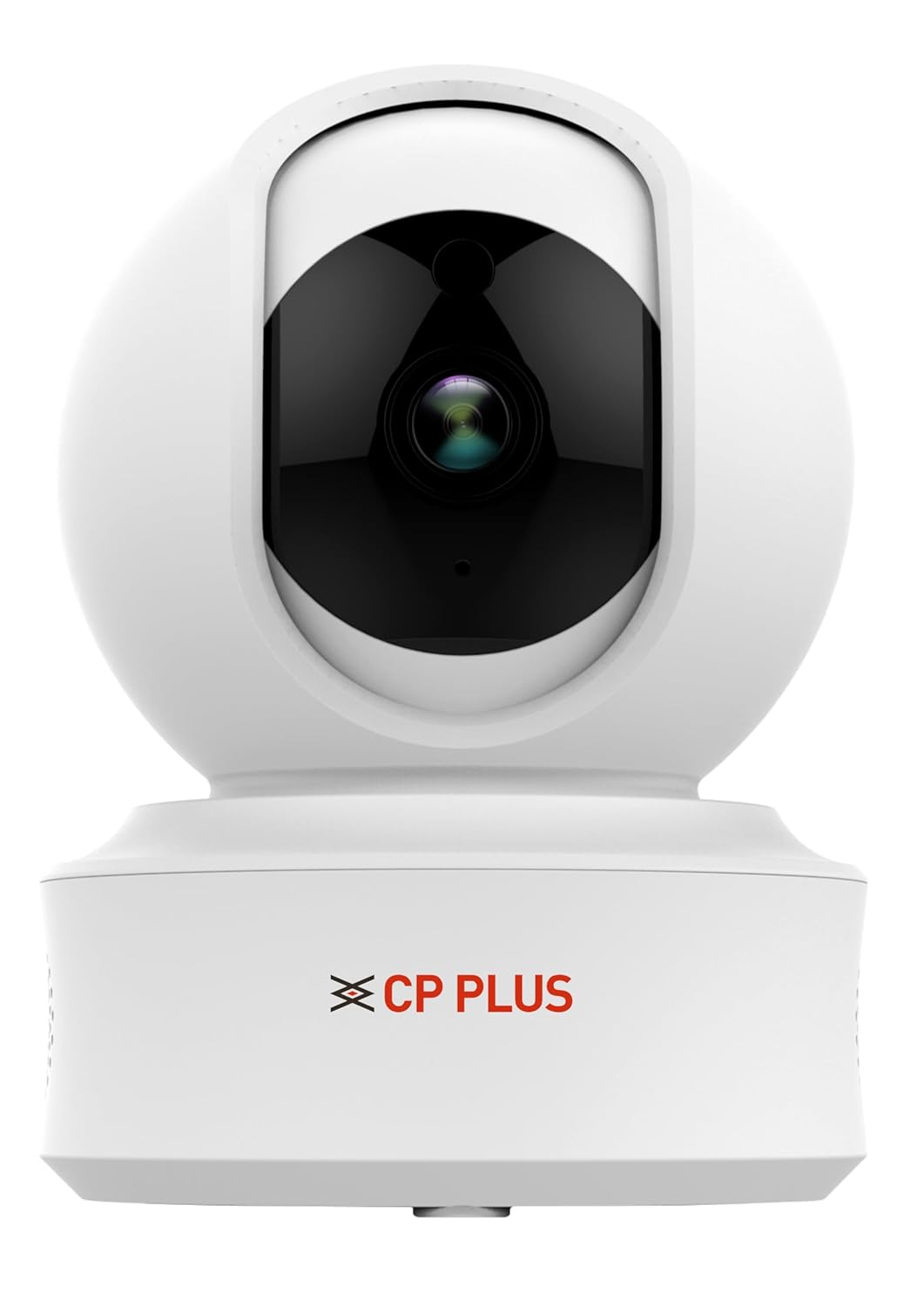
Picha: Mbele view of the CP PLUS CP-E41Q Smart Wi-Fi Camera. This image shows the camera lens, indicator lights, and the CP PLUS branding on the base.
5. Mwongozo wa Kuweka
5.1 Ufungaji wa Kimwili
- Chagua Mahali: Select an indoor location with a stable Wi-Fi signal and a power outlet nearby. The camera can be placed on a tabletop or mounted on a ceiling/wall using the provided stand and screws.
- Washa: Connect the charging cable to the camera and the power adapter, then plug the adapter into a power outlet. The camera will power on and initiate its startup sequence.
- Ingiza Kadi ya MicroSD (Si lazima): If you plan to use local storage, gently insert a MicroSD card (up to 256GB, Class 10 or higher recommended) into the designated slot on the camera. Ensure the camera is powered off before inserting or removing the card.
5.2 App Installation and Network Connection (EZYKAM+ App Integration)
To set up your camera and connect it to your Wi-Fi network, follow these steps using the EZYKAM+ app:
- Pakua Programu ya EZYKAM+: Download the "EZYKAM+" app from the Apple App Store (for iOS devices) or Google Play Store (for Android devices).
- Sajili Akaunti: Open the app and register a new user account or log in if you already have one.
- Ongeza Kifaa: On the app's home page, click the "+" icon to add a new device. Select the model number of your camera (CP-E41Q) from the list.
- Unganisha kwa Wi-Fi: Enter your Wi-Fi network name (SSID) and password when prompted in the app. Ensure your phone is connected to a 2.4GHz Wi-Fi network, as the camera supports 2.4GHz only.
- Changanua Nambari ya QR: The app will generate a QR code. Hold your phone with the QR code in front of the camera lens (approximately 15-20 cm away) until you hear a voice prompt from the camera indicating successful scanning ("Heard the beep").
- Kamilisha Usanidi: Wait for the camera's indicator light to turn steady blue, signifying a successful connection and configuration. The camera is now ready for use.
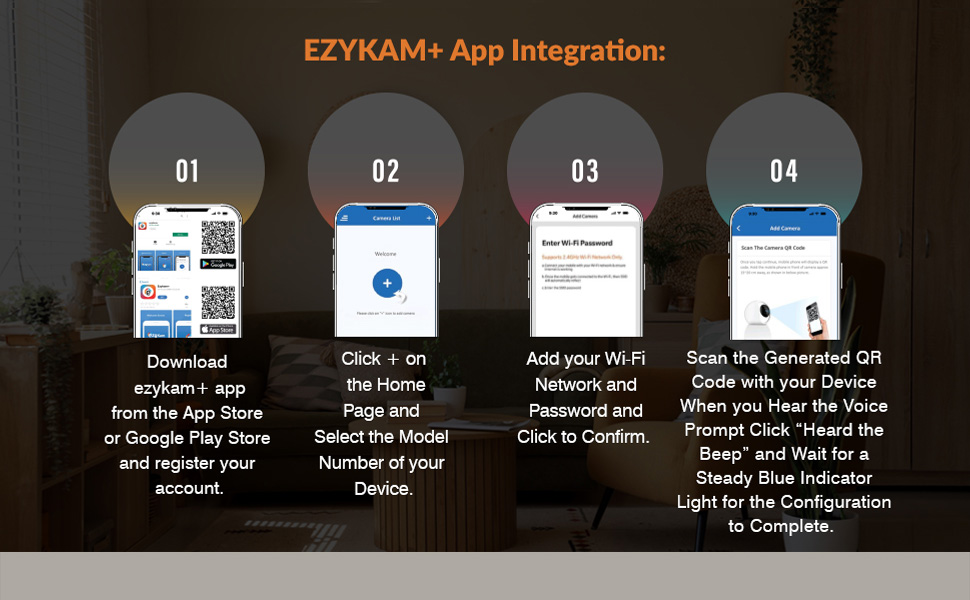
Picha: EZYKAM+ App Integration Steps. This visual guide illustrates the four main steps for connecting the camera to the EZYKAM+ mobile application: downloading the app, adding the device, entering Wi-Fi details, and scanning the QR code.
6. Maagizo ya Uendeshaji
Once your camera is set up and connected, you can access and control it via the EZYKAM+ app.
6.1 Ishi View na Udhibiti wa Pan & Tilt
- Open the EZYKAM+ app and select your CP-E41Q camera from the device list to access the live video feed.
- Use the on-screen joystick or swipe gestures to control the camera's 355° pan (horizontal rotation) and 71° tilt (vertical movement) to view maeneo tofauti.

Picha: CP PLUS CP-E41Q demonstrating 360-degree view. This image shows the camera's ability to pan and tilt, providing full room coverage without blind spots, as indicated by the circular arrows around the camera.
6.2 Sauti ya Njia Mbili
- Kutoka kwa moja kwa moja view screen, tap the microphone icon to enable two-way audio.
- Press and hold the talk button to speak through the camera's speaker. Release to listen.

Picha: CP PLUS CP-E41Q Two-Way Communication feature. This image depicts a user interacting with someone via the camera's two-way audio function, allowing for remote conversation.
6.3 Maono ya Usiku
- Kamera hubadilisha kiotomatiki hadi hali ya kuona usiku ya infrared (IR) katika hali ya mwanga mdogo, ikitoa video nyeusi na nyeupe iliyo wazi hadi mita 15.
- You can manually toggle night vision settings (Auto/On/Off) within the app's camera settings.
6.4 Kurekodi na Kuhifadhi
- Kurekodi Kadi ya MicroSD: If a MicroSD card is inserted, the camera will record continuously or based on motion detection, depending on your settings. Access recorded footagkupitia kipengele cha uchezaji cha programu.
- Kurekodi kwa Wingu: Subscribe to CP PLUS cloud storage services for secure, off-site storage of your video recordings. This ensures footage is safe even if the camera is tampered na.

Picha: CP PLUS CP-E41Q Cloud Recording feature. This image illustrates how video data is securely stored in the cloud, accessible from various devices, ensuring memories are safely preserved.
6.5 Smart Detection Suite
Configure these features in the EZYKAM+ app settings for your camera:
- Utambuzi wa Mwendo: Receive instant alerts on your smartphone when motion is detected in the camera's field of view.
- Kugundua Binadamu: Advanced algorithms differentiate human shapes from other moving objects, reducing false alarms.
- Utambuzi wa Sauti: Get alerts for unusual sounds detected by the camera's microphone.
- Kufuatilia kwa Motion: When motion is detected, the camera can automatically pan and tilt to follow the moving object or person.
- King'ora kilichojengwa ndani: Activate the camera's siren remotely or set it to trigger automatically upon detection of suspicious activity.

Picha: CP PLUS CP-E41Q Motion Tracking feature. This image demonstrates the camera's ability to automatically track movement, ensuring continuous surveillance of moving subjects.

Picha: CP PLUS CP-E41Q Sound Detection feature. This image illustrates the camera's capability to detect and alert users to sounds, providing an additional layer of security monitoring.

Picha: CP PLUS CP-E41Q Built-in Siren feature. This image shows the camera's siren function, designed to deter intruders or alert occupants to detected security events.
6.6 Hali ya Faragha
- Activate Privacy Mode through the EZYKAM+ app to temporarily disable video recording and live viewing, ensuring privacy when desired. The camera lens will physically retract or turn away.

Picha: CP PLUS CP-E41Q Privacy Mode. This image illustrates the camera in privacy mode, where the lens is obscured or retracted, ensuring personal privacy when monitoring is not required.
7. Matengenezo
- Kusafisha: Tumia kitambaa laini na kikavu kusafisha lenzi ya kamera na mwili. Usitumie visafishaji vya kioevu au vifaa vya abrasive.
- Sasisho za Firmware: Regularly check the EZYKAM+ app for available firmware updates. Keeping your camera's firmware updated ensures optimal performance, security, and access to new features.
- Mzunguko wa Nguvu: Ikiwa kamera itakumbwa na matatizo, jaribu kuiondoa kwenye chanzo cha umeme kwa sekunde 10 kisha uichome tena.
8. Utatuzi wa shida
| Tatizo | Sababu inayowezekana | Suluhisho |
|---|---|---|
| Kamera imeshindwa kuunganisha kwenye Wi-Fi. | Incorrect Wi-Fi password, weak signal, 5GHz network used. |
|
| Hakuna mipasho ya video ya moja kwa moja. | Camera offline, network issue, app error. |
|
| Motion detection alerts are too frequent or not working. | Sensitivity settings, detection zone. |
|
| Ubora duni wa kuona usiku. | Obstructions, IR reflection. |
|
9. Vipimo
| Nambari ya Mfano | CP-E41Q |
| Azimio | 4MP (2560x1440) |
| Safu ya Kugeuza/kuinamisha | Pan: 355 °, Tilt: 71 ° |
| Maono ya Usiku | 15 meters IR Night Vision |
| Muunganisho | Wi-Fi (GHz 2.4 pekee) |
| Chaguzi za Hifadhi | MicroSD card (up to 256GB), Cloud Recording |
| Sauti | Sauti ya Njia Mbili |
| Vipengele vya Kugundua | Motion Detection, Human Detection, Sound Detection, Motion Tracking |
| Chanzo cha Nguvu | Umeme wa Cord |
| Matumizi ya Ndani/Nje | Ndani |
| Vipimo (LxWxH) | 7.7 x 7.7 x 10.7 cm |
| Uzito | 176 g |
10. Udhamini na Msaada
Bidhaa za CP PLUS zimeundwa kwa ajili ya kutegemewa na utendaji. Kwa maelezo ya udhamini, tafadhali rejelea kadi ya udhamini iliyojumuishwa na bidhaa yako au tembelea CP PLUS rasmi. webtovuti. Weka risiti yako ya ununuzi kama uthibitisho wa ununuzi.
For technical support, troubleshooting assistance, or service inquiries, please contact CP PLUS customer support through their official channels. You can typically find contact information on the CP PLUS website or within the EZYKAM+ app.
Rasilimali za Mtandaoni: For additional guides, FAQs, and software downloads, visit the official CP PLUS support page.


