1. Utangulizi
Thank you for choosing the Phomemo M221 Thermal Label Printer. This manual provides essential information for setting up, operating, and maintaining your device. The M221 is designed for efficient label printing without the need for ink or toner, supporting a wide range of label types for various applications.
2. Yaliyomo kwenye Kifurushi
Tafadhali thibitisha kuwa vipengee vyote vipo kwenye kifurushi chako:
- Printa ya Lebo ya Phomemo M221
- 3 Rolls of Label Paper (Size: 1.57''x1.18'' / 40x30mm)
- Kebo ya Kuchaji ya USB
- Mwongozo wa Mtumiaji (hati hii)
3. Bidhaa Imeishaview
The Phomemo M221 is a versatile thermal label printer capable of printing labels with widths ranging from 0.78 inches to 3.14 inches (20-80 mm). It utilizes direct thermal printing technology, eliminating the need for ink cartridges or toner. The M221 is suitable for creating various labels, including barcodes, QR codes, address labels, clothing tags, product labels, cable labels, jewelry labels, and folder labels.
Key enhancements in the M221 model include:
- Clearer Printing: Upgraded internal structure for smoother and more defined thermal prints.
- Easier Label Loading: Features an integrated label roll fixer for one-step installation, simplifying the process.
- Reduced Print Offsets: Precision-corrected print head and a stable integrated fixer ensure labels remain centered during printing, minimizing alignment issues.

Image: The Phomemo M221 printer shown with several rolls of labels and printed examples, including a 'Merry Christmas' label.

Image: Various label examples, including a barcode, product information, and a 'Thank You' sticker, demonstrating the printer's versatility.

Image: Visual representation of label durability, highlighting features such as water resistance, scratch resistance, tear resistance, and easy-peel adhesive.
4. Kuweka
4.1. Kuchaji Printer
Before first use, ensure the printer is fully charged using the provided USB cable. Connect the cable to the printer's charging port and a compatible USB power source.
4.2. Installing Label Rolls
The M221 features an integrated label roll fixer for simplified installation:
- Fungua jalada la juu la kichapishi.
- Insert the label roll into the designated compartment. Ensure the labels feed out from the top and are aligned correctly.
- Upole clamp the label roll with the side baffles of the integrated fixer to secure it in the center position.
- Funga kifuniko cha juu.

Image: A hand demonstrating the one-step label installation process in the Phomemo M221 printer, highlighting the print width range.
5. Maagizo ya Uendeshaji
5.1. Kuunganisha kwenye Kifaa Chako
The Phomemo M221 typically connects to a mobile device or computer via Bluetooth or USB. Refer to the specific instructions provided with your printer for pairing with your operating system (iOS, Android, Windows, macOS).
5.2. Kuchapisha Lebo
Once connected, use the Phomemo application or compatible software on your device to design and print labels. Ensure your label design fits within the printer's supported print width (0.78''-3.14'').

Image: The Phomemo M221 printer in use on a wooden counter, printing labels for various products in a retail or bakery setting.
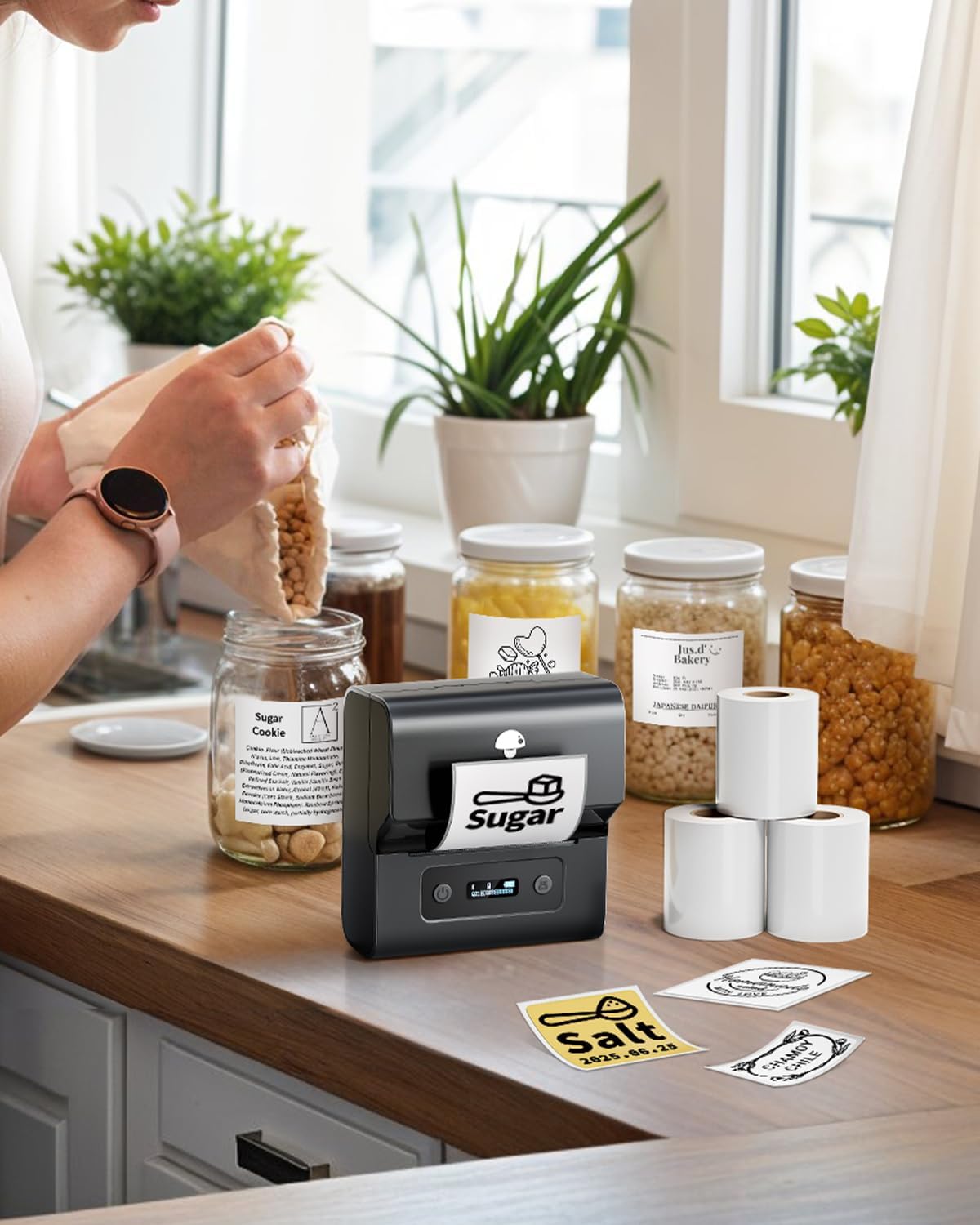
Image: The Phomemo M221 printer on a kitchen counter, used for labeling food storage containers, demonstrating its utility in a home environment.

Image: The Phomemo M221 printer on an office desk, used for organizing documents and creating labels, showcasing its application in a professional setting.
6. Matengenezo
6.1. Kusafisha Kichwa cha Uchapishaji
To ensure optimal print quality, regularly clean the print head. Turn off the printer and allow it to cool. Use a soft, lint-free cloth lightly dampened with isopropyl alcohol to gently wipe the print head. Allow it to dry completely before closing the cover and resuming operation.
6.2. Usafishaji wa Jumla
Wipe the exterior of the printer with a soft, dry cloth. Avoid using harsh chemicals or abrasive materials.
7. Utatuzi wa shida
7.1. Poor Print Quality / Faint Prints
- Ensure the label roll is inserted correctly and is thermal paper.
- Safisha kichwa cha kuchapisha kama ilivyoelezwa katika sehemu ya Matengenezo.
- Angalia kiwango cha betri; betri ya chini inaweza kuathiri ubora wa uchapishaji.
7.2. Labels Not Feeding / Paper Jams
- Verify the label roll is properly seated and secured by the side baffles.
- Ensure there are no obstructions in the label path.
- Check that the label roll is not too tight or too loose.
7.3. Print Offsets / Misaligned Prints
- Confirm the label roll is centered and firmly held by the integrated fixer.
- Ensure the label design in your application is correctly aligned with the label size.
7.4. Printer Not Connecting
- Ensure the printer is powered on and has sufficient battery.
- Restart the printer and your connecting device.
- Check Bluetooth settings on your device and ensure the printer is discoverable.
8. Vipimo
- Mfano: Phomemo M221
- Mbinu ya Uchapishaji: Thermal ya moja kwa moja
- Upana wa Chapisha: 0.78'' - 3.14'' (20mm - 80mm)
- Ink/Toner: Haihitajiki
- Muunganisho: Bluetooth, USB (specifics may vary by model variant)
- Included Labels: 3 rolls of 1.57''x1.18'' (40x30mm)
- ASIN: B0FKGNQ289
- Tarehe ya Kwanza Inapatikana: Agosti 17, 2023
9. Udhamini na Msaada
For warranty information, technical support, or further assistance, please refer to the official Phomemo website or contact Phomemo customer service directly. Details can typically be found on the product packaging or the official brand store.
You can visit the Phomemo Store for more information: Phomemo Official Store


