Utangulizi
This manual provides instructions for the setup, operation, and maintenance of your HyperX Cloud Alpha 2 Wireless Gaming Headset. Please read this manual thoroughly before using the product to ensure proper functionality and to maximize your user experience.

Image: HyperX Cloud Alpha 2 Wireless Gaming Headset with its RGB Base Station, showcasing kifurushi kamili cha bidhaa.
Ni nini kwenye Sanduku
- Kichwa cha sauti cha Michezo ya Kubahatisha
- Kituo cha Msingi
- Maikrofoni inayoweza kutenganishwa
- Kebo ya USB-C hadi USB-C
- USB-C hadi Adapta ya USB-A
- 3.5 mm Headset Audio Cable
- Mwongozo wa Kuanza Haraka
Sanidi
1. Kuchaji Kifaa cha Sauti
Before initial use, fully charge the headset. Connect the headset to a power source using the provided USB-C to USB-C cable or USB-C to USB-A adapter. A full charge can provide up to 250 hours of battery life in 2.4GHz mode or 125 hours with simultaneous connection.

Image: A visual representation highlighting the headset's battery life capability of up to 250 hours on a single charge.
2. Kuunganisha Kituo cha Msingi
Connect the RGB Base Station to your PC or console using the appropriate USB cable. The base station acts as a central hub for audio control and connectivity.

Image: A hand interacting with the RGB Base Station, demonstrating its function as an audio control hub.
3. Software Installation (HyperX NGENUITY)
For full customization and optimal performance, download and install the HyperX NGENUITY software from the official HyperX website. This software allows for equalization adjustments, audio controls, and lighting customization for the RGB Base Station.
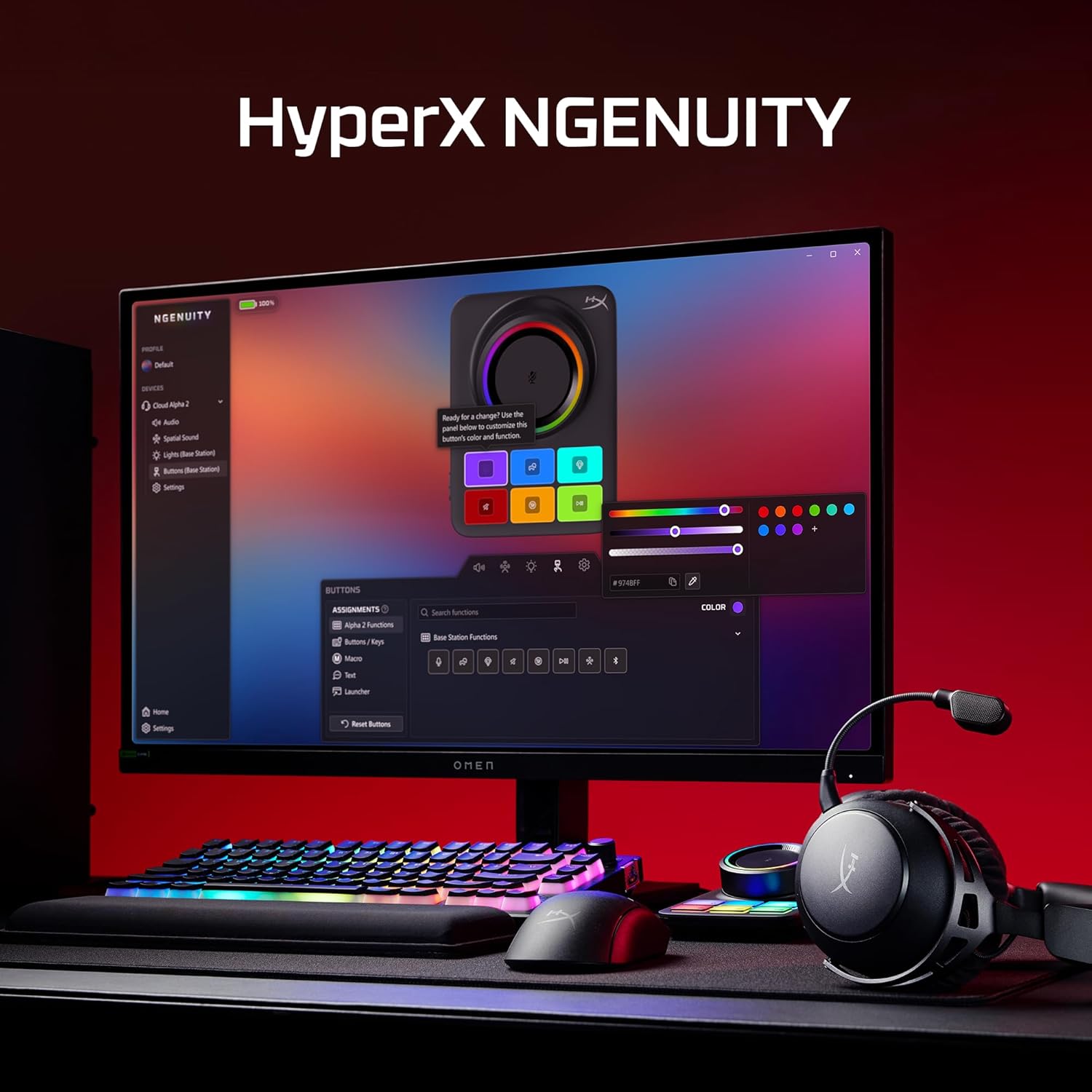
Image: A computer screen displaying the HyperX NGENUITY software, illustrating its interface for customizing headset and base station settings.
4. Kuambatanisha Kipaza sauti
Insert the detachable boom microphone into the designated port on the headset. Ensure it is securely connected for clear voice communication.

Picha: Maelezo ya kina view of the detachable 10mm boom microphone, highlighting its position on the headset.
Maagizo ya Uendeshaji
Njia za Muunganisho
- 2.4GHz Isiyo na Waya: Connects to PC, PS5, PS4, Nintendo Switch, Mac via the Base Station for low-latency audio.
- Bluetooth: Connects to mobile devices for audio and calls.
- Muunganisho wa Sambamba: The headset supports simultaneous 2.4GHz and Bluetooth connections, allowing you to listen to audio from two sources concurrently.
- Waya ya 3.5mm: Use the included 3.5mm headset audio cable for wired connection to devices like Xbox.

Image: A user demonstrating the headset's ability to maintain simultaneous 2.4GHz and Bluetooth connections.

Image: Icons illustrating the headset's compatibility across multiple platforms including PC, PlayStation, Nintendo Switch, Mac, mobile devices, and Xbox via 3.5mm connection.
Vidhibiti vya vifaa vya sauti
- Gurudumu la Kiasi: Hurekebisha kiwango cha pato la sauti.
- Kitufe cha kunyamazisha: Toggles microphone mute. An LED indicator on the boom mic shows mute status.
- Kitufe cha Utendakazi: Controls media playback and call management.
- Swichi ya Hali Isiyotumia Waya: Selects between 2.4GHz and Bluetooth modes.

Picha: Maelezo ya kina view of the headset's onboard controls, including the volume wheel, mute button, multifunction button, and wireless mode switch.
Sifa za Sauti
The headset features 53mm dual-chamber drivers designed to provide clear audio with distinct bass and treble frequencies. Spatial audio can be enabled and customized through the HyperX NGENUITY software for an immersive sound experience.

Image: A visual representation of the headset's 53mm dual-chamber drivers in action, emphasizing sound clarity.
Matengenezo
Kusafisha
- Use a soft, dry cloth to clean the headset and base station.
- Kwa pedi za masikioni, futa kwa upole kwa d kidogoamp kitambaa ikiwa ni lazima, na uache kikauke kabisa kabla ya kutumia.
- Epuka kutumia kemikali kali au vifaa vya abrasive.
Hifadhi
Store the headset in a cool, dry place away from direct sunlight and extreme temperatures. When not in use, the headset's 90° rotating earcups allow for flat storage.

Image: The headset positioned to highlight its comfortable design and flexible earcups, suitable for storage.
Utunzaji wa Betri
Ili kuongeza muda wa matumizi ya betri, epuka kutoa chaji kamili ya vifaa vya sauti vya kichwani mara kwa mara. Chaji vifaa vya sauti vya kichwani mara kwa mara, hata kama havitumiki kila wakati.
Kutatua matatizo
Hakuna Sauti / Sauti ya Chini
- Ensure the headset is powered on and connected to the correct source (2.4GHz, Bluetooth, or 3.5mm).
- Check the volume wheel on the headset and the system volume on your device.
- Verify that the correct audio output device is selected in your operating system's sound settings.
- For 2.4GHz connection, ensure the Base Station is properly connected and recognized by your system.
Maikrofoni Haifanyi kazi
- Ensure the detachable boom microphone is securely inserted into the headset.
- Check if the microphone mute button on the headset is disengaged (LED indicator off).
- Verify that the correct microphone input device is selected in your operating system's sound settings and communication applications.
- If using the internal microphone, ensure the boom mic is detached.
Masuala ya Muunganisho
- GHz 2.4: Ensure the Base Station is within range and free from interference. Try reconnecting the headset to the Base Station.
- Bluetooth: Ensure Bluetooth is enabled on your device and the headset is in pairing mode. Remove previous pairings and attempt to pair again.
- Jumla: Restart both the headset and the connected device.
Software (NGENUITY) Issues
- Ensure you have the latest version of HyperX NGENUITY installed.
- Check for firmware updates for both the headset and the Base Station within the NGENUITY software.
- If the software is not recognizing the device, try restarting the application or your computer.
Vipimo
| Kipengele | Maelezo |
|---|---|
| Jina la Mfano | HyperX Cloud Alpha 2 - Wireless Gaming Headset |
| Nambari ya Mfano | AJ5C7AA |
| Teknolojia ya Uunganisho | 2.4 GHz Wireless, Bluetooth 5.2, 3.5 mm Jack |
| Rangi zisizo na waya | Mita 20 (Bluetooth) |
| Madereva | 53mm Dual-Chamber |
| Majibu ya Mara kwa mara | 20 Hz |
| Impedans | 64 ohm |
| Maisha ya Betri | Up to 250 hours (2.4GHz mode) |
| Maikrofoni | Detachable 10mm Boom Mic, Internal Mics |
| Nyenzo | Stainless steel, aluminum forks |
| Uzito wa Kipengee | Gramu 345 (wakia 12.2) |
| Vipimo (LxWxH) | Inchi 7.24 x 3.6 x 8.11 |
| Utangamano wa Jukwaa | PC, PS5, PS4, Nintendo Switch, Mac, Mobile, Xbox (wired) |
Taarifa ya Udhamini
For detailed warranty information regarding your HyperX Cloud Alpha 2 Wireless Gaming Headset, please refer to the official HyperX webtovuti au kadi ya udhamini iliyojumuishwa na bidhaa yako. Sheria na masharti ya udhamini yanaweza kutofautiana kulingana na eneo.
Msaada
If you require further assistance or have questions not covered in this manual, please visit the official HyperX support website for FAQs, drivers, and contact information. You can also find additional resources and community forums there.
Official HyperX Webtovuti: www.hyperx.com/support


