1. Utangulizi
This manual provides essential information for setting up, operating, maintaining, and troubleshooting your Alienware Aurora R16 Gaming Desktop. Please read this manual thoroughly before using your system to ensure optimal performance and longevity.

Figure 1.1: Alienware Aurora R16 Gaming Desktop with included keyboard and mouse.
The Alienware Aurora R16 features the new Legend 3 design, focusing on minimalism and functionality while optimizing for any desktop gaming setup.

Figure 1.2: The Alienware Aurora R16's Legend 3 design emphasizes a minimalist and functional aesthetic.
2. Ni nini kwenye Sanduku
Thibitisha kuwa vipengele vyote vipo kwenye kifurushi:
- Alienware Aurora R16 Kompyuta ya Michezo ya Kubahatisha
- Cable ya Nguvu
- Kibodi
- Kipanya
- Hati (Mwongozo wa Kuanza Haraka, Taarifa za Usalama)
If any items are missing or damaged, contact Alienware support immediately.
3. Usanidi wa Awali
Follow these steps to set up your Alienware Aurora R16 Desktop:
- Fungua Mfumo: Ondoa kwa uangalifu desktop kutoka kwenye kifungashio chake.
- Unganisha Pembeni:
- Connect your monitor(s) to the appropriate display ports (DisplayPort, HDMI) on the graphics card.
- Connect the keyboard and mouse to available USB ports.
- Unganisha vifaa vingine vyovyote kama vile spika, vipokea sauti vinavyobanwa kichwani au viendeshi vya nje.

Figure 3.1: Rear I/O ports for connecting display, USB devices, and audio.

Figure 3.2: Front I/O ports including USB 3.2 Gen 1, USB 3.2 Gen 2 Type-C, and headphone/line out.
- Unganisha kwa Nishati: Plug the power cable into the power supply unit on the back of the desktop, then plug the other end into a wall outlet or surge protector.
- Washa: Press the power button located on the front of the desktop. The system will boot up and guide you through the Windows 11 Pro initial setup.
4. Kuendesha Eneo-kazi Lako
4.1 Uanzishaji wa Kwanza na Usanidi wa Windows
Upon first power-on, the system will guide you through the Windows 11 Pro setup process. Follow the on-screen instructions to configure your region, language, network settings, and user account.
4.2 Kituo cha Amri cha Alienware
The Alienware Command Center software allows you to customize your system's performance profiles, monitor thermals, and manage lighting effects. This software is pre-installed and can be accessed from the Windows Start Menu.

Figure 4.1: Alienware Command Center interface for system customization.
4.3 Utendaji na Michezo
Your Alienware Aurora R16 is equipped with a 14th Gen Intel Core i9-14900KF processor and NVIDIA GeForce RTX 4080 SUPER graphics, designed for high-performance gaming and demanding applications. Ensure your graphics drivers are up to date for optimal performance.

Figure 4.2: The Alienware Aurora R16 is designed for immersive gaming experiences.

Kielelezo cha 4.3: Example of a complete gaming setup featuring the Alienware Aurora R16.
5. Matengenezo
5.1 Kusafisha
Regular cleaning helps maintain system performance and longevity:
- Tumia kitambaa laini, kisicho na rangi ili kufuta sehemu ya nje ya eneo-kazi.
- For dust accumulation in vents, use compressed air. Ensure the system is powered off and unplugged before cleaning.
- Epuka kutumia cleaners kioevu moja kwa moja kwenye vipengele.
5.2 Mtiririko wa Hewa na Upoezaji
The Aurora R16 features an optimized airflow design and a 240mm liquid CPU cooler to ensure efficient thermal management. Ensure the desktop is placed in a well-ventilated area and that air vents are not obstructed.

Figure 5.1: Optimized internal design for efficient airflow and cable management.
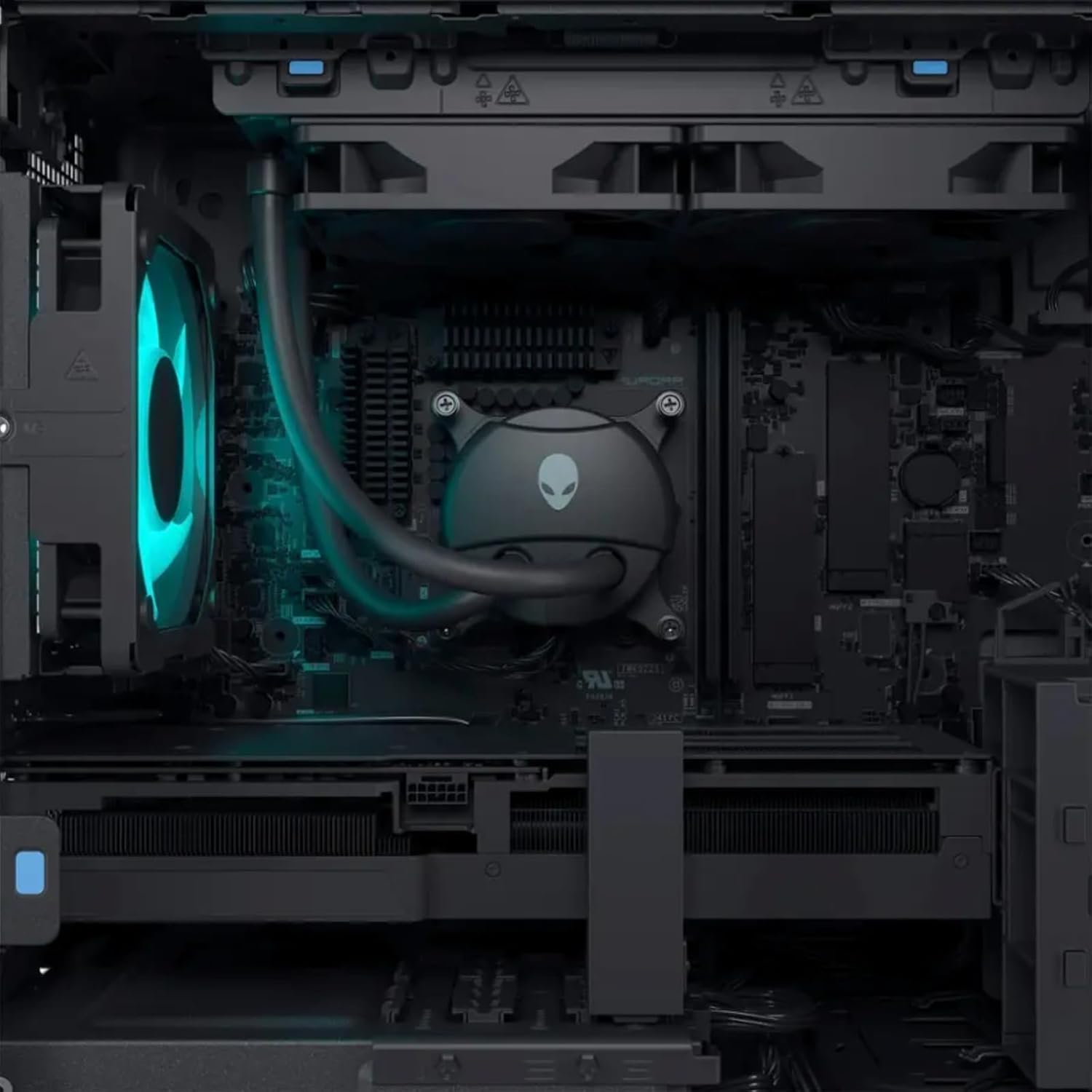
Kielelezo 5.2: Ndani view highlighting the liquid CPU cooling system and other components.

Kielelezo 5.3: Juu-chini view of the internal layout, showing components and fan.

Figure 5.4: Angled internal view, providing a clearer look at the internal structure.
6. Utatuzi wa shida
This section provides solutions to common issues. For more complex problems, refer to the Alienware support webtovuti au wasiliana na usaidizi wa kiufundi.
| Tatizo | Suluhisho linalowezekana |
|---|---|
| Mfumo hauwashi. |
|
| Hakuna onyesho kwenye kichungi. |
|
| System is running slow or freezing. |
|
| Peripheral (keyboard/mouse) not responding. |
|
7. Vipimo
Detailed technical specifications for the Alienware Aurora R16 Gaming Desktop:
| Sehemu | Vipimo |
|---|---|
| Kichakataji | 14th Gen Intel Core i9-14900KF (24 Cores, 32 Threads, up to 6 GHz) |
| Kadi ya Picha | NVIDIA GeForce RTX 4080 SUPER 16GB GDDR6X |
| RAM | Up to 64GB DDR5 RAM (5600MHz) |
| Hifadhi | Up to 8TB SSD + 2TB HDD |
| Mfumo wa Uendeshaji | Windows 11 Pro |
| Muunganisho wa Waya | Wi-Fi 6E (802.11ax), Bluetooth |
| CPU Cooling System | Liquid Cooling (240mm) |
| GPU Cooling System | Kupoeza Hewa |
| Onyesha Bandari | 4 x DisplayPort 1.4, 1 x Mini DisplayPort (Total 5 DisplayPort Outputs) |
| Bandari za USB | 3 x USB-C 3.2, 5 x USB-A 3.2, 4 x USB-A 2.0 (Total 12 USB Ports) |
| Vipimo (HxWxD) | Inchi 7.76 x 18.05 x 16.5 |
| Uzito | Pauni 33.89 |
8. Udhamini na Msaada
8.1 Taarifa ya Udhamini
Your Alienware Aurora R16 Gaming Desktop comes with a standard manufacturer's warranty. For detailed terms and conditions, including warranty duration and coverage, please refer to the warranty documentation included with your product or visit the official Alienware support webtovuti.
8.2 Msaada wa Kiufundi
For technical assistance, driver downloads, or further troubleshooting, please visit the official Alienware support website or contact their customer service. Have your product's serial number ready when contacting support.
Msaada wa Alienware Webtovuti: support.dell.com/alienware


