Utangulizi
This manual provides comprehensive instructions for the setup, operation, and maintenance of your V7 Dual Bay Docking Station USB 3.0. This device is designed to provide convenient access to 2.5-inch and 3.5-inch SATA hard disk drives (HDDs) and solid-state drives (SSDs), offering high-speed data transfer and a standalone cloning function.
Tafadhali soma mwongozo huu kwa makini kabla ya kutumia bidhaa ili kuhakikisha utendakazi sahihi na kuzuia uharibifu.
Yaliyomo kwenye Kifurushi

Image: The side of the V7 Dual Bay Docking Station packaging, detailing the included items.
Thibitisha kuwa bidhaa zote zilizoorodheshwa hapa chini zipo kwenye kifurushi chako:
- 1x V7 Dual Bay Docking Station
- 1x USB 3.0 A to B Cable
- 1x DC 12V/3A Power Adapter
- 1x Mwongozo wa Mtumiaji (hati hii)
Bidhaa Imeishaview
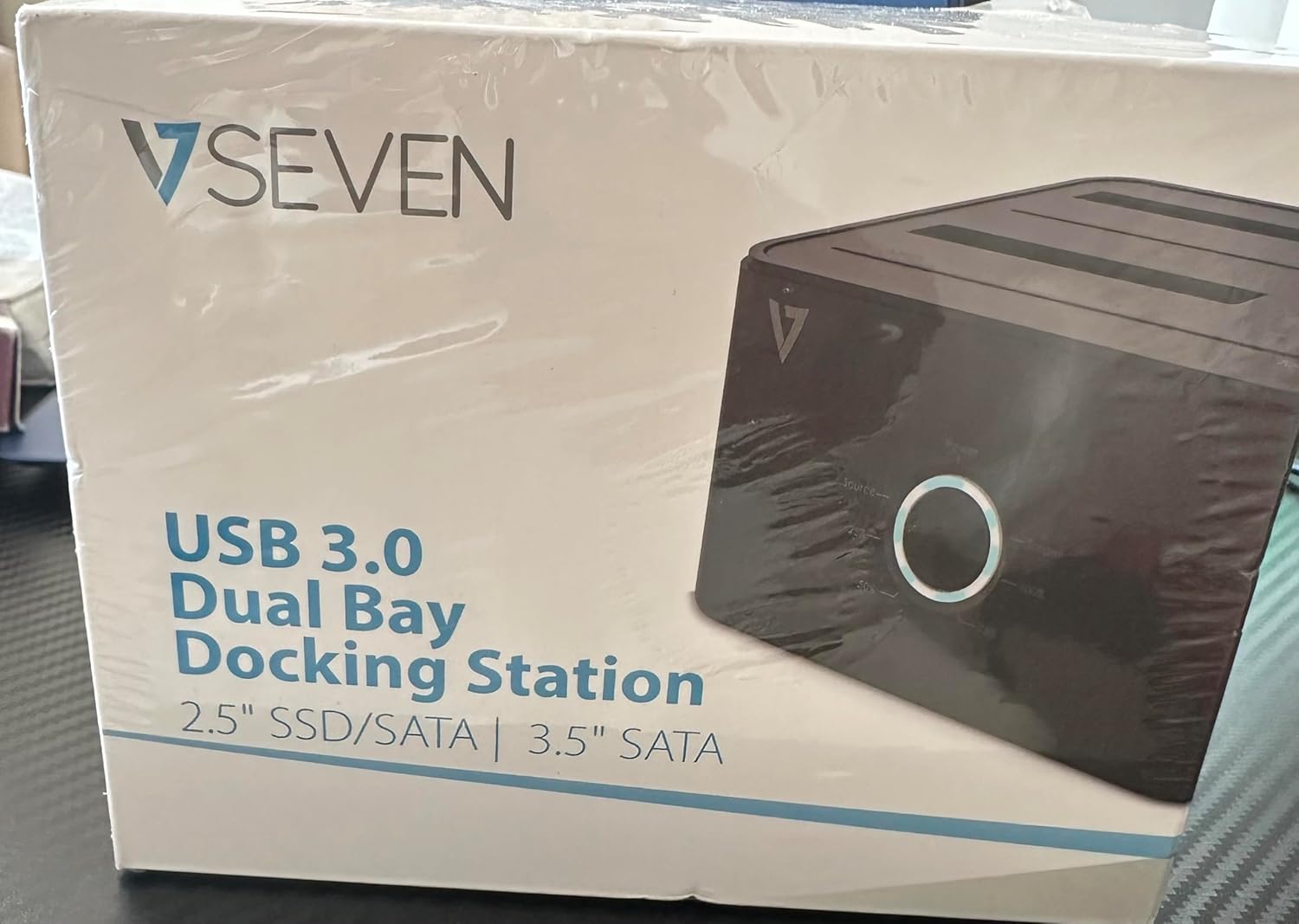
Image: The front of the V7 Dual Bay Docking Station packaging, displaying the product and its name.
The V7 Dual Bay Docking Station provides a versatile solution for managing your 2.5-inch and 3.5-inch SATA drives. Key features include:
- USB 3.0 Super-Speed Data Transfer: Achieves speeds up to 5 Gbps, significantly faster than USB 2.0.
- Ubunifu wa Dual Bay: Supports two SATA I/II/III HDDs or SSDs simultaneously.
- Standalone Clone Function: Allows direct cloning of one drive to another without requiring a computer.
- Onyesho la LED: Provides status indication during operation, especially for cloning.
- Nyenzo Zilizotumiwa tena: Constructed with recycled materials, contributing to environmental sustainability.

Image: The back of the V7 Dual Bay Docking Station packaging, illustrating key features and benefits, including the use of recycled materials.
Bandari na Viashiria:
- USB-B Port (1x): Connects the docking station to your computer.
- SATA Drive Bays (2x): For inserting 2.5-inch or 3.5-inch SATA HDDs/SSDs.
- DC Power Input (1x): Kwa ajili ya kuunganisha adapta ya umeme ya 12V/3A.
- Power Button/LED: Controls power and indicates operational status.
- Clone Button/LEDs: Initiates the cloning process and indicates progress.
Sanidi
- Unganisha Nguvu: Insert the DC 12V/3A power adapter into the "DC Power Input" port on the docking station, then plug the adapter into a wall outlet.
- Ingiza Hifadhi:
- Gently slide your 2.5-inch or 3.5-inch SATA HDD/SSD into the drive bay(s) until it is securely seated. Ensure the SATA connector aligns correctly.
- For cloning, insert the source drive into Bay 1 (Source) and the target drive into Bay 2 (Target). The target drive must be equal to or larger in capacity than the source drive.
- Connect to Computer (for data transfer): If you intend to use the docking station for data transfer with a computer, connect one end of the USB 3.0 A to B cable to the USB-B port on the docking station and the other end to an available USB 3.0 port on your computer.
- Washa: Press the power button on the docking station. The power LED should illuminate.
Maagizo ya Uendeshaji
A. Data Transfer Mode (Connected to Computer)
- Ensure the docking station is powered on and connected to your computer via the USB 3.0 cable.
- Ingiza diski moja au mbili za SATA kwenye bays.
- Your operating system should detect the drives as external storage. You may need to initialize and format new drives through Disk Management (Windows) or Disk Utility (macOS) before use.
- You can now access, read, and write data to the inserted drives as you would with any external storage device.
- Always safely eject the drives from your operating system before powering off the docking station or removing the drives.
B. Standalone Clone Function (Without Computer)
The clone function allows you to duplicate a source drive to a target drive without a computer connection. The target drive must have a capacity equal to or greater than the source drive.
- Maandalizi:
- Hakikisha kituo cha kuunganisha kimetenganishwa na kompyuta yoyote.
- Weka Chanzo Hifadhi (the drive you want to copy FROM) into Ghorofa 1.
- Weka Lengo Lenye Kuelekezwa (the drive you want to copy TO) into Ghorofa 2.
- Warning: All data on the target drive will be erased during the cloning process. Back up any important data on the target drive before proceeding.
- Anzisha Clone:
- Nguvu kwenye kituo cha docking.
- Press and hold the "Clone" button for approximately 3-5 seconds until the clone progress LEDs begin to flash.
- Thibitisha Ulinganisho:
- Release the "Clone" button. The 25% progress LED should start blinking.
- Bonyeza kitufe cha "Clone" tena kwa ufupi ili kuthibitisha na kuanza mchakato wa clone.
- Fuatilia Maendeleo: The progress LEDs (25%, 50%, 75%, 100%) will illuminate sequentially to indicate the cloning status.
- Kukamilika: When the 100% LED remains solid, the cloning process is complete.
- Zima na Ondoa: Zima kituo cha kuegesha kabla ya kuondoa viendeshi.
Matengenezo
- Weka kituo cha kupakia mizigo kikiwa safi na bila vumbi. Tumia kitambaa laini na kikavu kwa kusafisha.
- Epuka kuhatarisha kifaa kwenye joto kali, unyevunyevu au jua moja kwa moja.
- Usijaribu kutenganisha au kutengeneza kifaa mwenyewe. Hii itabatilisha udhamini.
- Hakikisha uingizaji hewa mzuri karibu na kifaa wakati wa operesheni.
Kutatua matatizo
| Tatizo | Sababu inayowezekana | Suluhisho |
|---|---|---|
| Kifaa hakijawashwa. | Adapta ya umeme haijaunganishwa au hitilafu. | Ensure the power adapter is securely connected to both the docking station and a working power outlet. Try a different outlet. |
| Drives not detected by computer. | USB cable not connected properly; drive not seated correctly; drive uninitialized/unformatted. | Check USB cable connection. Re-seat the drive(s). For new drives, initialize and format them via Disk Management (Windows) or Disk Utility (macOS). Try a different USB port on your computer. |
| Clone function not starting. | Incorrect drive placement; target drive too small; clone button not held long enough. | Ensure source drive is in Bay 1 and target drive in Bay 2. Verify target drive capacity is equal to or larger than source. Hold the clone button for 3-5 seconds until LEDs flash. |
| Kasi ya polepole ya uhamishaji data. | Connected to USB 2.0 port; faulty USB cable. | Ensure the docking station is connected to a USB 3.0 port on your computer. Try a different USB 3.0 cable. |
Vipimo
- Mfano: 9UDBBS-BLK
- Kiolesura cha maunzi: USB 3.0 (ya nyuma inaoana na USB 2.0)
- Kasi ya Kuhamisha Data: Up to 5 Gbps (USB 3.0 Super-Speed)
- Utangamano wa Hifadhi: 2.5" and 3.5" SATA I/II/III HDDs and SSDs
- Viwanja vya Hifadhi: 2
- Bandari: 1x USB-B (Host), 2x SATA (Internal), 1x DC Power Input
- Ingizo la Nguvu: DC 12V/3A (12 Watts)
- UPC: 662919116557
- Mtengenezaji: Kampuni ya Ingram Micro Inc
- Nyenzo: Made from Recycled Materials
Udhamini na Msaada
For warranty information and technical support, please refer to the official V7 webtovuti au wasiliana na mchuuzi wako. Weka uthibitisho wako wa ununuzi kwa madai ya udhamini.
Kwa usaidizi zaidi, tafadhali tembelea: www.v7world.com/support (Kutampkiunga hiki, kiunga halisi kinaweza kutofautiana)