1. Utangulizi
This manual provides detailed instructions for the setup, operation, and maintenance of your 8BitDo Retro R8 Mouse with Charging Dock. Please read this manual thoroughly before using the product to ensure optimal performance and longevity.

Image 1.1: The 8BitDo Retro R8 Mouse with its charging dock.
2. Yaliyomo kwenye Kifurushi
Thibitisha kuwa vipengee vyote vipo kwenye kifurushi chako:
- 8BitDo Retro R8 Mouse - N Edition x 1
- Gati ya kuchaji x 1
- 2.4G adapter x 1
- Kebo ya USB x 1
- Mwongozo wa maagizo x 1
3. Bidhaa Imeishaview
The 8BitDo Retro R8 Mouse is designed for precision and versatility, featuring a PAW 3395 optical sensor and Kailh Sword GM X Micro Switches. It offers multiple connectivity options and customizable controls.
3.1 Sifa za Kipanya
- Kihisi cha Macho cha PAW 3395: Provides 6 sensitivity levels from 50 DPI to 26,000 DPI for precise tracking.
- Kailh Sword GM X Micro Switches: Engineered for up to 100 million clicks, offering tactile feedback.
- Vifungo Vinavyoweza Kupangwa: Customizable side buttons for personalized control.
- Left/Right-Hand Mode Switching: Symmetrical design for comfortable use by both left and right-handed users.
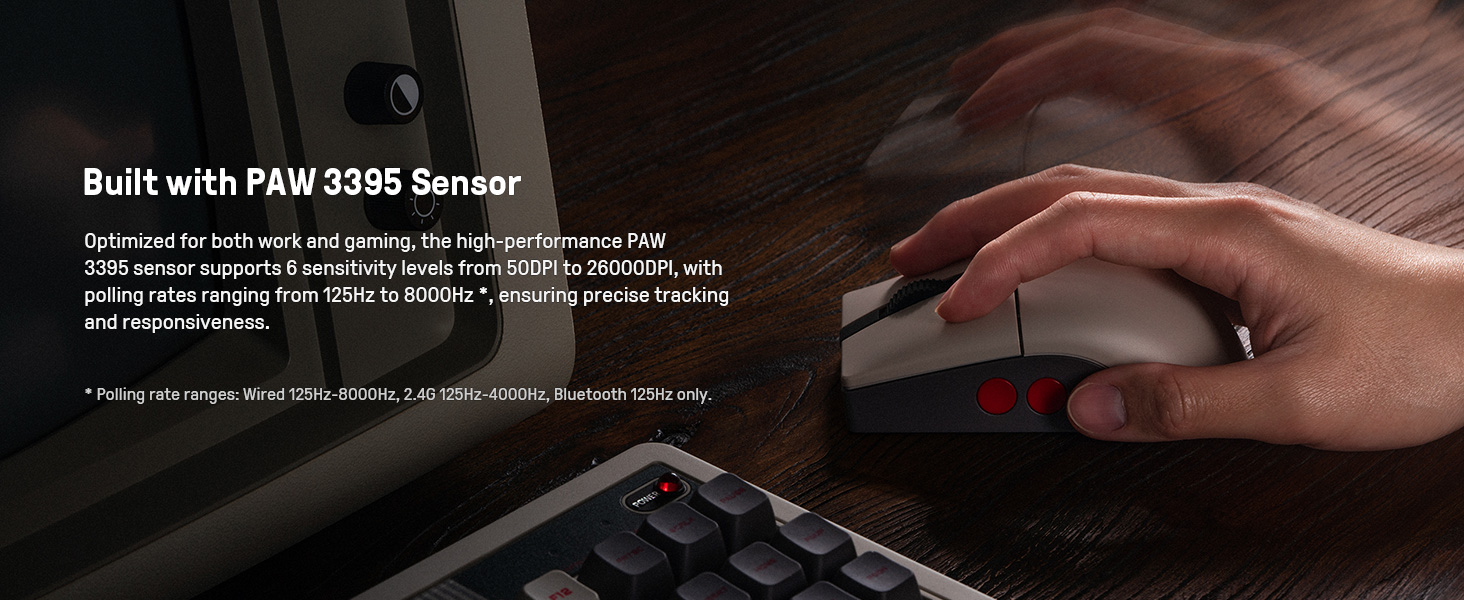
Image 3.1: The mouse highlighting its PAW 3395 sensor for precise tracking.
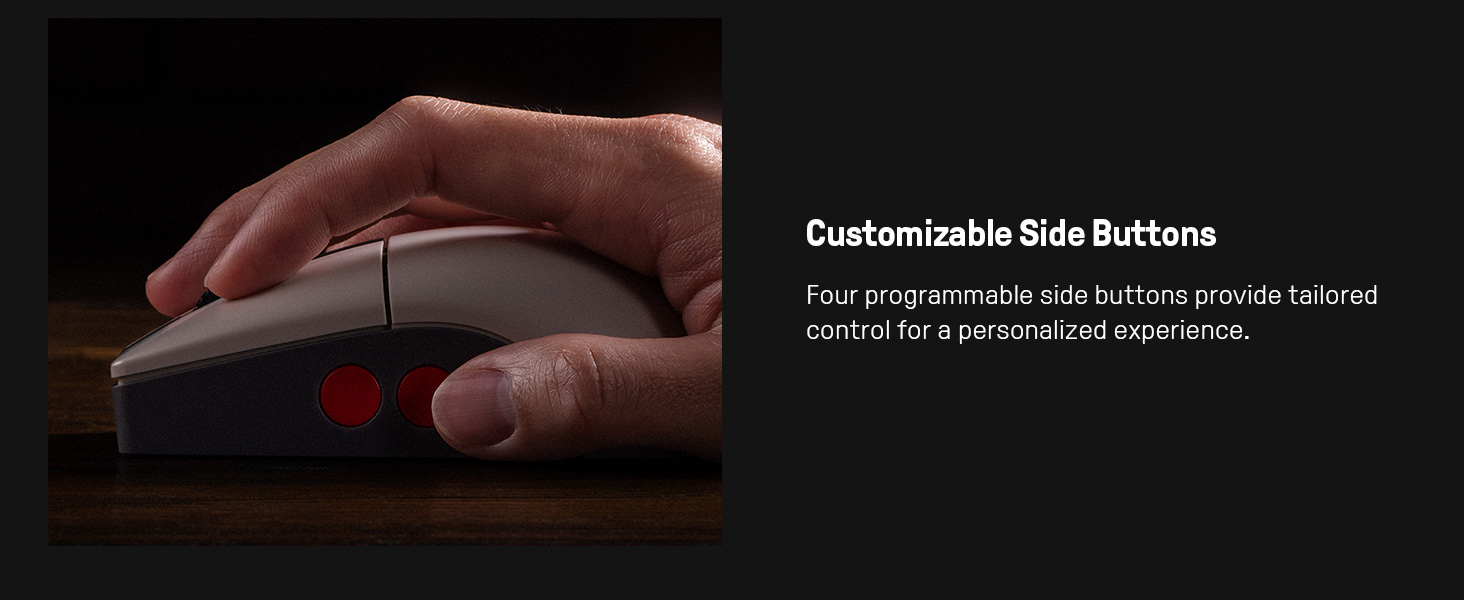
Image 3.2: Close-up of the mouse showing the customizable side buttons.
3.2 Charging Dock Features
- Utendaji wa Kuchaji: Keeps the mouse powered.
- 2.4G Adapter Storage: Doubles as a storage compartment for the 2.4G wireless adapter.
- Kiendelezi cha Mawimbi: Extends the wireless signal for robust connectivity.
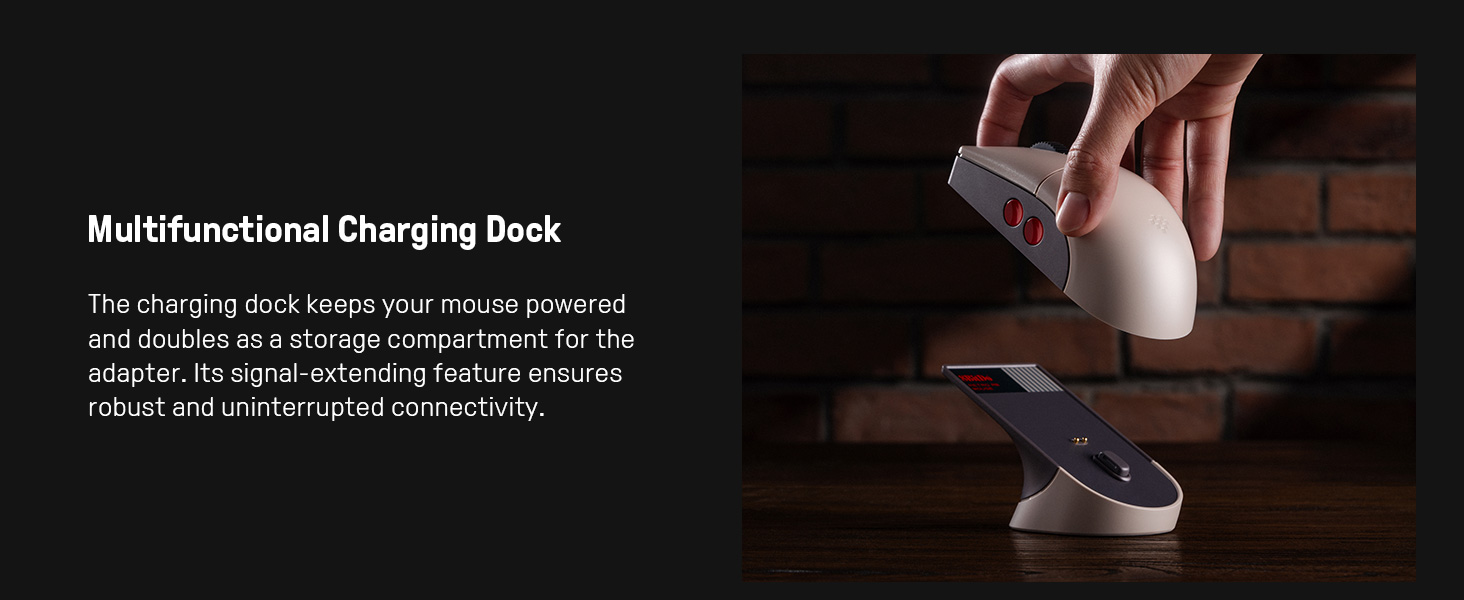
Image 3.3: The multifunctional charging dock, also serving as a signal extender and adapter storage.
4. Kuweka
4.1 Kuchaji Kipanya
- Connect the USB cable to the charging dock and a power source (e.g., computer USB port, USB wall adapter).
- Place the 8BitDo Retro R8 Mouse onto the charging dock. Ensure the charging contacts align. The mouse will begin charging.
4.2 Kuunganisha Kipanya
The mouse supports three connection modes: 2.4G Wireless, Bluetooth, and Wired USB-C.
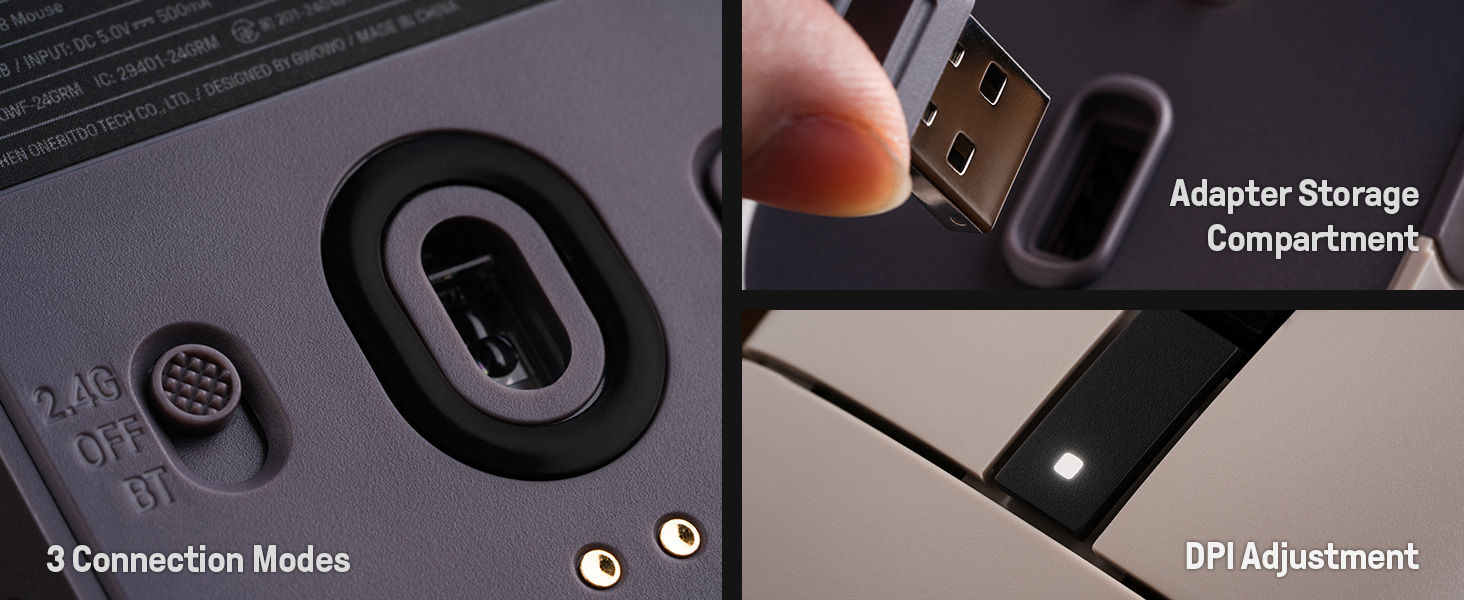
Image 4.1: The bottom of the mouse showing the connection mode switch and the adapter storage compartment.
4.2.1 2.4G Muunganisho Usiotumia Waya
- Locate the 2.4G wireless adapter, typically stored in the charging dock or the mouse's bottom compartment.
- Insert the 2.4G adapter into an available USB port on your computer.
- Telezesha swichi chini ya kipanya hadi nafasi ya "2.4G".
- Kipanya kinapaswa kuunganishwa kiotomatiki kwenye kompyuta yako.

Image 4.2: The 2.4G USB adapter being inserted into its storage slot on the charging dock.
4.2.2 Muunganisho wa Bluetooth
- Telezesha swichi chini ya kipanya hadi nafasi ya "BT".
- Press and hold the "PAIR" button on the bottom of the mouse for 3 seconds until the LED indicator starts blinking rapidly.
- Kwenye kompyuta au kifaa chako, nenda kwenye mipangilio ya Bluetooth na utafute vifaa vipya.
- Select "8BitDo Retro R8 Mouse" from the list of available devices to pair.
4.2.3 Muunganisho wa USB-C wa Waya
- Connect the USB-C end of the provided cable to the mouse and the USB-A end to your computer.
- The mouse will automatically switch to wired mode and function without needing a battery charge.
5. Maagizo ya Uendeshaji
5.1 Marekebisho ya DPI
The mouse supports 6 levels of DPI adjustment. You can cycle through these levels using the dedicated DPI button or through the 8BitDo Ultimate Software V2.
5.2 Vifungo vinavyoweza kupangwa
The 8BitDo Retro R8 Mouse features programmable side buttons. These can be customized using the 8BitDo Ultimate Software V2 to assign specific functions or macros.
5.3 Left/Right-Hand Mode Switching
The mouse's symmetrical design allows for easy switching between left-hand and right-hand modes. This can be configured via the 8BitDo Ultimate Software V2.
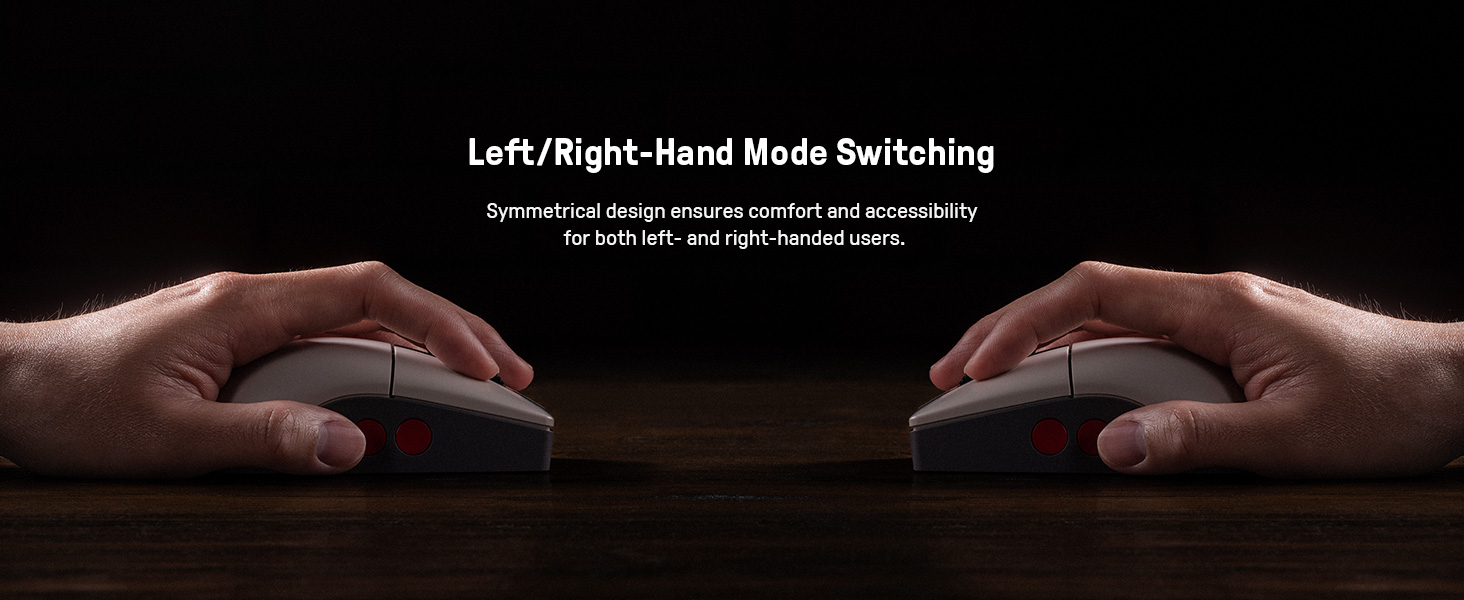
Image 5.1: Illustration of the mouse's symmetrical design for left/right-hand use.
5.4 8BitDo Ultimate Software V2
For advanced customization, download and install the 8BitDo Ultimate Software V2 on your PC. This software allows you to:
- Map buttons to different functions.
- Unda na ugawanye makro.
- Adjust DPI sensitivity levels.
- Fine-tune polling rate, scroll direction, and lift-off distance.
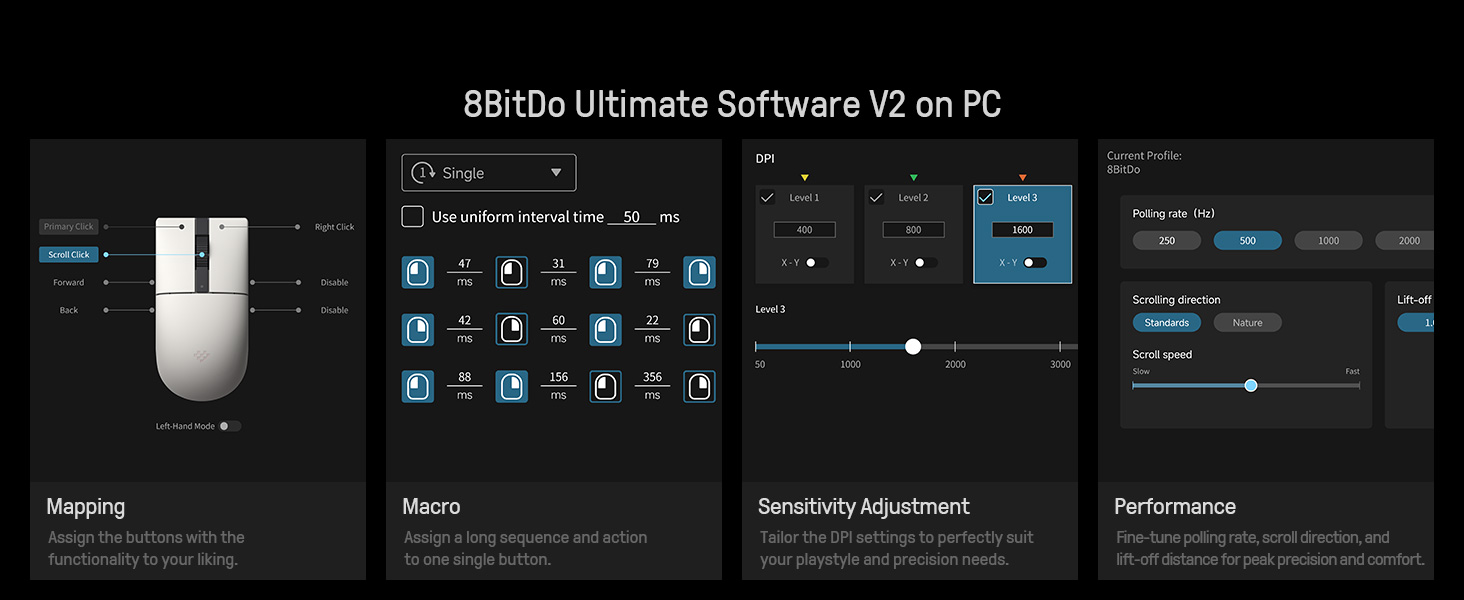
Image 5.2: The 8BitDo Ultimate Software V2 interface for advanced customization.
5.5 Marekebisho ya Kiwango cha Kura
The polling rate can be adjusted via the Ultimate Software V2. Polling rate ranges are: Wired 250Hz-8000Hz, 2.4G 250Hz-4000Hz, Bluetooth 125Hz only.
6. Matengenezo
- Kusafisha: Use a soft, dry cloth to clean the mouse and charging dock. Avoid using harsh chemicals or abrasive materials.
- Hifadhi: Store the mouse and dock in a cool, dry place when not in use.
- Utunzaji wa Betri: To prolong battery life, avoid fully discharging the mouse frequently. Charge it regularly.
7. Utatuzi wa shida
- Panya haijibu: Ensure the mouse is charged and the connection mode switch (2.4G, BT, OFF) is in the correct position. For 2.4G, verify the adapter is securely plugged in. For Bluetooth, ensure it's paired correctly. Try a wired connection to rule out wireless issues.
- Kuchelewa au Kukata Muunganisho: For wireless connections, ensure the mouse is within range of the adapter/device. Minimize interference from other wireless devices. The charging dock acts as a signal extension for 2.4G.
- Masuala ya malipo: Check the USB cable and power source. Ensure the mouse is correctly seated on the charging dock.
- Programu haigundui kipanya: Ensure the mouse is connected to the PC (preferably wired or 2.4G for initial setup) and the 8BitDo Ultimate Software V2 is up to date.
8. Vipimo
| Kipengele | Maelezo |
|---|---|
| Nambari ya Mfano | 6922621507093 |
| Muunganisho | Bluetooth LE 5.3, Wireless 2.4G, Wired USB |
| Kihisi | Kihisi cha Macho cha PAW 3395 |
| Msururu wa DPI | 50 - 26,000 DPI (6 levels) |
| Swichi ndogo | Kailh Sword GM X (100 million click lifespan) |
| Kiwango cha Kupigia Kura (Ya waya) | 250Hz - 8000Hz |
| Polling Rate (2.4G) | 250Hz - 4000Hz |
| Kiwango cha Kupigia Kura (Bluetooth) | 125Hz |
| Chanzo cha Nguvu | Inaendeshwa na Betri (betri 1 ya Ion ya Lithium imejumuishwa) |
| Uzito wa Kipengee | Pauni 1.19 |
| Vipimo vya Bidhaa | Inchi 11.81 x 9.84 x 15.75 |
9. Video Rasmi ya Bidhaa
Video 9.1: Utangulizi mfupiview video demonstrating the features and usage of the 8BitDo Retro R8 Mouse, including its adapter storage and customizable buttons.
10. Udhamini na Msaada
For warranty information and technical support, please refer to the official 8BitDo website or contact their customer service. Protection plans may also be available for purchase separately.
- Mpango wa Ulinzi wa Miaka 3: Inapatikana kwa ununuzi.
- Mpango wa Ulinzi wa Miaka 4: Inapatikana kwa ununuzi.
- Ulinzi kamili: Mpango wa kila mwezi unaojumuisha ununuzi unaostahiki wa zamani na ujao.


