Utangulizi
The MCHOSE V9 PRO Wireless Gaming Headset delivers an immersive audio experience with 7.1 surround sound, low-latency wireless connectivity, and an AI noise-canceling microphone. This manual provides detailed instructions for setup, operation, and maintenance to ensure optimal performance.
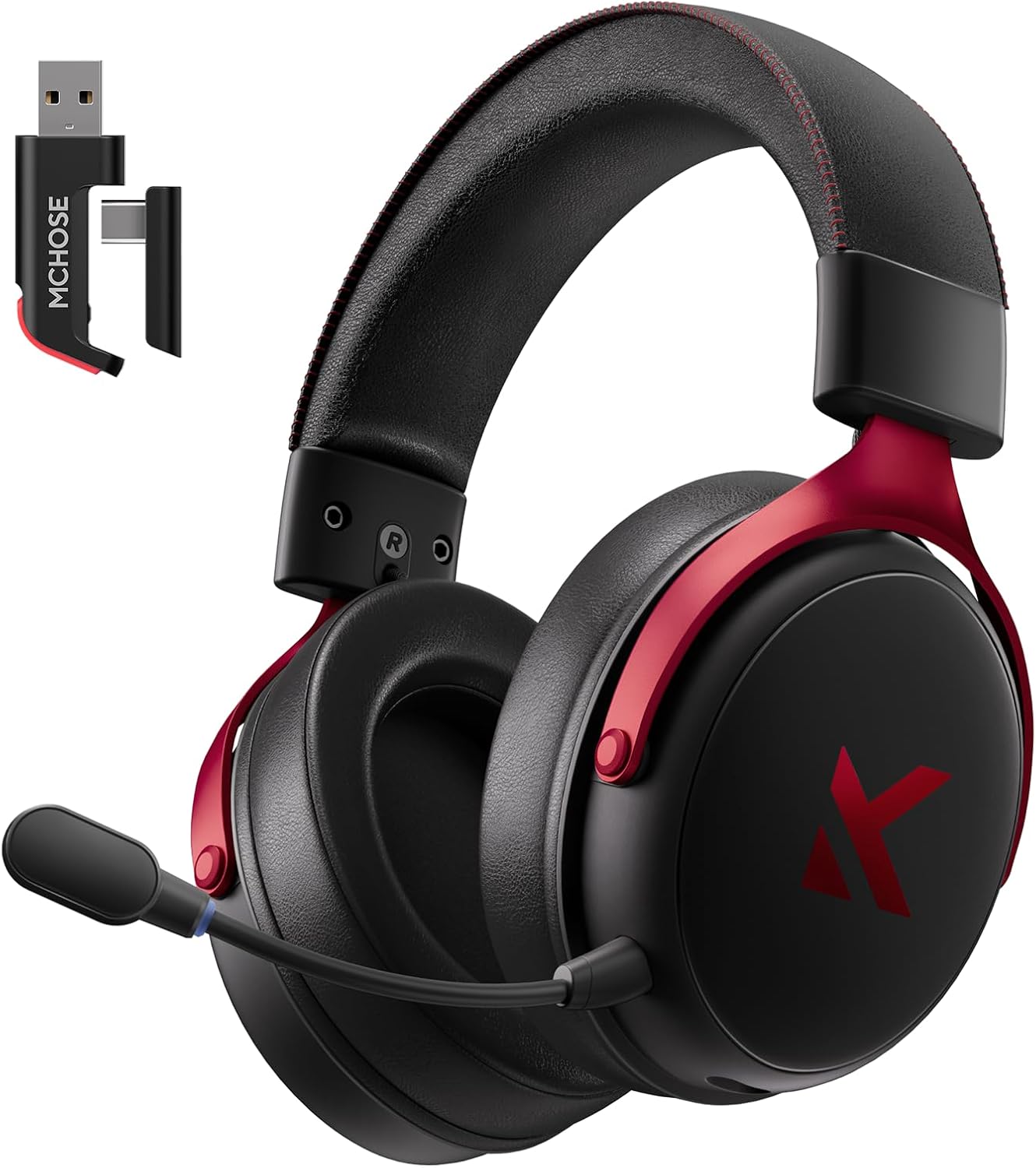
Image: MCHOSE V9 PRO Wireless Gaming Headset with its 2.4GHz USB receiver.
Yaliyomo kwenye Kifurushi
Thibitisha kuwa bidhaa zote zilizoorodheshwa hapa chini zimejumuishwa kwenye kifurushi chako:
- Kifaa cha Kusikiliza cha Michezo cha McOSE V9 PRO Bila Waya
- 2.5GHz Receiver (USB-A & Type-C compatible)
- Kebo ya Kuchaji ya USB-C
- Maikrofoni inayoweza kutenganishwa
- Foam Windscreen (pre-installed on microphone)
- Mwongozo wa Mtumiaji

Image: Diagram illustrating the headset, receiver, cables, microphone, and user manual.
Bidhaa Imeishaview
Vidhibiti na Viashiria

Image: Handy guide showing the location and function of buttons and indicator lights on the headset.
- Kitufe cha Nguvu: Long press for approximately 3 seconds to power on/off.
- Kubadilisha Modi ya Muunganisho: Double-click the power button to switch between 2.4GHz wireless, Bluetooth, and wired modes.
- Kubadilisha Modi ya Mchezo/Muziki: Triple-click the power button to switch between Game Mode 1, Game Mode 2, and Music Mode.
- Cheza/Sitisha: Bonyeza kitufe cha nguvu mara moja.
- Jibu/Maliza Simu: Bonyeza kitufe cha nguvu mara moja.
- Kataa Simu: Bonyeza kitufe cha kuwasha kwa muda mrefu kwa takriban sekunde 1.5.
- Kitufe cha Maikrofoni: Bofya mara moja ili kuwasha/kuzima maikrofoni.
- Gurudumu la Kiasi: Slide upwards to increase volume, slide downwards to decrease volume.
Taa za Kiashiria
- Bluetooth (BT) Waiting for Connection: Taa nyekundu na bluu zinawaka kwa kutafautisha.
- 2.4G Waiting for Connection: Red and green lights flash alternately.
- Inachaji: Nuru nyekundu inabakia kuwaka.
- Imechajiwa kikamilifu: Mwangaza wa samawati unaendelea kuwaka.
- 2.4G Mode Active: Mwanga wa kijani.
- Bluetooth Mode Active: Nuru ya bluu.
- Microphone Active: Blue light on microphone tip.
Kuanzisha na Muunganisho
2.4GHz Wireless Connection (PC, PS5, PS4, Switch)
- Remove the 2.4GHz USB receiver from its storage slot on the headset.
- Plug the 2.4GHz receiver into an available USB-A port on your computer or gaming console. For devices with only USB-C ports, detach the USB-A adapter from the receiver and plug in the USB-C end.
- Press and hold the power button on the headset for approximately 3 seconds to power it on.
- Double-click the power button to ensure the headset is in 2.4GHz wireless mode (indicated by a green light). The headset should automatically connect to the receiver.
Bluetooth Wireless Connection (Mobile Phone, Tablet, PC, Switch)
- Press and hold the power button on the headset for approximately 3 seconds to power it on.
- Double-click the power button to switch the headset to Bluetooth mode (indicated by a blue light flashing alternately with red).
- On your device (phone, tablet, PC, Switch), navigate to Bluetooth settings and search for "MCHOSE V9 PRO".
- Select the headset to pair. Once connected, the blue light will remain steady.
Wired Connection (PC, PS5, PS4, Switch, Mobile Phone, Tablet)
The headset supports a wired connection via the included USB-C cable. This mode is primarily for charging and can also be used for audio if wireless options are not preferred or available.
- Connect the USB-C cable to the headset's charging port.
- Connect the other end of the USB-C cable to your device.
- The headset will function as a wired device.
Usanidi wa Maikrofoni
- Plug the detachable microphone into the designated port on the left earcup of the headset. Ensure it is securely inserted.
- Rekebisha mkao wa maikrofoni ili upokeaji sauti bora zaidi.
- Single-click the microphone button on the headset to toggle the microphone on or off. A blue light on the microphone tip indicates it is active.
Video: This video demonstrates the initial setup of the MCHOSE V9 PRO Wireless Gaming Headset, including connecting the 2.4GHz receiver, powering on, switching modes, and attaching the microphone.
Software Installation and Customization (MCHOSE HUB)
The MCHOSE HUB software allows for advanced customization of your headset's audio settings. It is compatible with Windows 10 and above.
Hatua za Ufungaji
- Tembelea MCHOSE rasmi webtovuti (duka la mchose).
- Navigate to the 'Support' section and click on 'Drivers & Firmwares'.
- Locate the 'V9 / V9 Pro Driver' and download the desktop driver.
- Before installing the driver, ensure the 2.4GHz receiver is plugged into your computer.
- Install the downloaded driver and follow the on-screen instructions.
- Once installed, open the MCHOSE HUB application. You can switch the application language to English from the settings.
Video: This video guides you through the process of connecting and installing the MCHOSE desktop driver for your headset.
Audio Equalizer Customization
The MCHOSE HUB features a customizable equalizer to fine-tune your audio output.
- In the MCHOSE HUB, right-click on 'Speakers' and select 'Equalizer'.
- Enable the equalizer.
- Adjust the frequency bands as needed to create your desired sound profile.
- You can save your custom settings as a preset or choose from official presets like Dance, Rap, Metal, Jazz, etc.
- You can also restore the default equalizer settings.

Image: Screenshot of the MCHOSE HUB software interface displaying the audio equalizer settings.
7.1 Sauti ya Kuzunguka
Enable 7.1 surround sound for enhanced spatial awareness in games and movies.
- In the MCHOSE HUB, right-click on 'Speakers' and select 'Xear Surround Headphone'.
- Enable Xear Surround.
- Choose between 'Music/Gaming mode' or 'Movie mode' based on your content.
- Adjust the 'Room Size' for optimal effect.

Image: Visual representation of 7.1 surround sound technology with the MCHOSE V9 PRO headset.
Voice Effects (Magic Voice)
The software includes various voice effects for fun or specific communication needs.
- In the MCHOSE HUB, right-click on 'Mic' and select 'Xear Magic Voice'.
- Enable 'Magic Voice' and choose from different voice effects.
Kupunguza Kelele za AI kwa Maikrofoni
Enhance microphone clarity by enabling AI noise reduction.
- In the MCHOSE HUB, right-click on 'Mic' and select 'AI NoiseReduction'.
- Enable 'AI NoiseReduction' to filter out background noise.
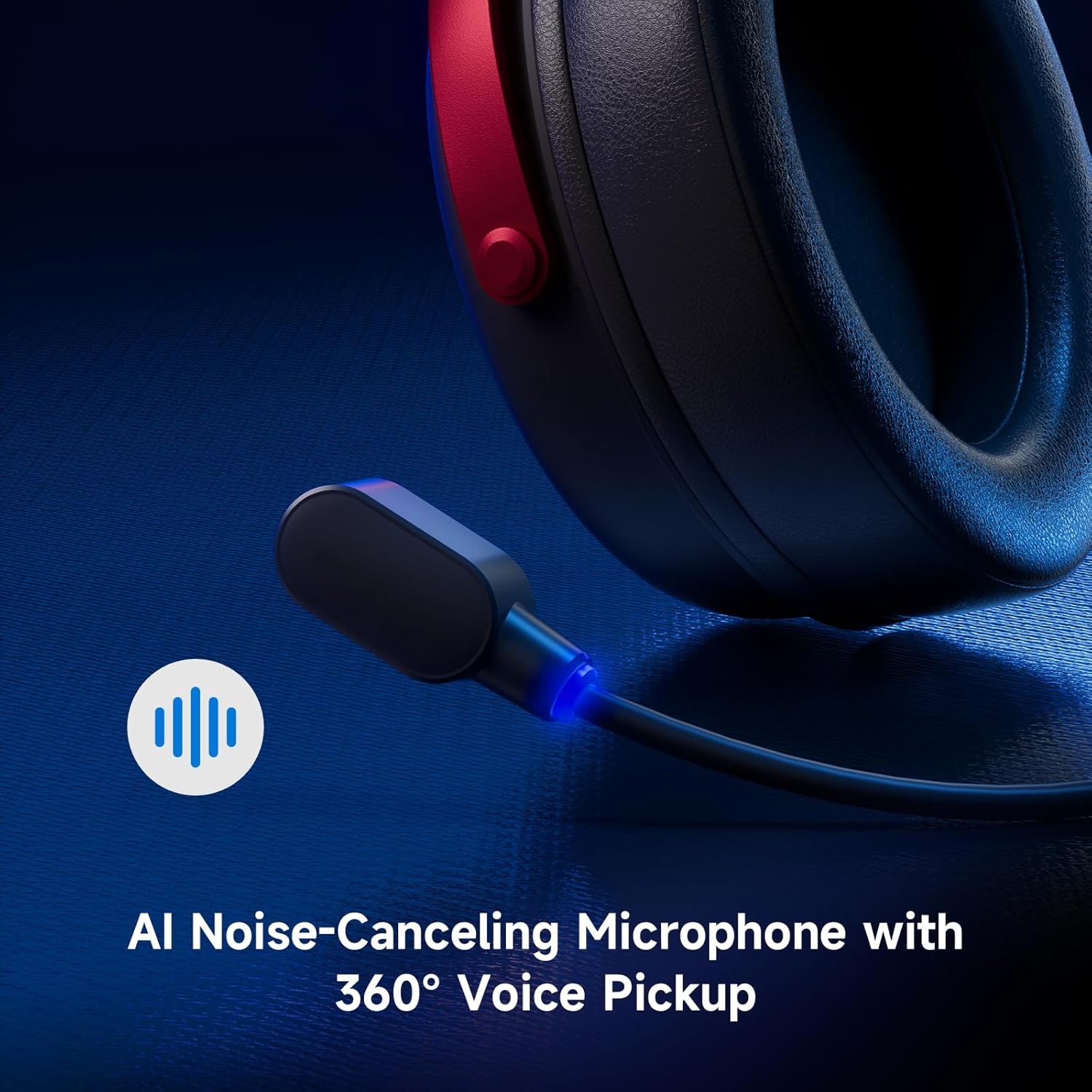
Image: Close-up of the AI Noise-Canceling Microphone on the MCHOSE V9 PRO headset.
Maagizo ya Uendeshaji
Washa/Zima
To power on the headset, press and hold the power button for approximately 3 seconds. To power off, repeat the action.
Kubadilisha Modes
Double-click the power button to cycle through 2.4GHz wireless, Bluetooth, and wired connection modes. The indicator light color will change accordingly (Green for 2.4GHz, Blue for Bluetooth).
Triple-click the power button to switch between Game Mode 1, Game Mode 2, and Music Mode, optimizing audio profiles for different content.
Udhibiti wa Kiasi
Use the volume wheel located on the earcup to adjust the audio output level. Slide up to increase volume, slide down to decrease volume.
Nyamazisha maikrofoni
Single-click the microphone button to mute or unmute the microphone. The blue light on the microphone tip indicates its active status.
Matengenezo
- Kusafisha: Tumia kitambaa laini na kavu kusafisha vifaa vya sauti. Epuka kutumia kemikali kali au vifaa vya abrasive.
- Hifadhi: Hifadhi vifaa vya sauti mahali pa baridi, pakavu mbali na jua moja kwa moja na joto kali.
- Utunzaji wa Betri: Kwa muda bora wa matumizi ya betri, epuka kutoa chaji kamili ya vifaa vya sauti vya masikioni mara kwa mara. Ichaji mara kwa mara.
- Maikrofoni: Handle the detachable microphone carefully. Ensure the foam windscreen is properly seated.
Kutatua matatizo
- Hakuna Sauti/Sauti ya Chini:
- Check headset volume wheel and device volume settings.
- Ensure the headset is correctly connected (2.4GHz receiver, Bluetooth, or wired).
- Thibitisha kuwa kifaa sahihi cha kutoa sauti kimechaguliwa katika mipangilio ya sauti ya kompyuta yako.
- Maikrofoni Haifanyi kazi:
- Ensure the microphone is securely plugged into the headset.
- Check if the microphone is muted (blue light on tip should be on).
- Thibitisha kuwa kifaa sahihi cha kuingiza maikrofoni kimechaguliwa katika mipangilio ya sauti ya kifaa chako.
- If using MCHOSE HUB, check AI Noise Reduction settings.
- Connection Issues (2.4GHz/Bluetooth):
- Ensure the headset is in the correct connection mode (green light for 2.4GHz, blue for Bluetooth).
- Kwa 2.4GHz, jaribu kuunganisha kipokezi kwenye mlango tofauti wa USB.
- For Bluetooth, try unpairing and re-pairing the headset with your device.
- Hakikisha vifaa vya sauti vimechajiwa.
- Software Not Detecting Headset:
- Ensure the 2.4GHz receiver is plugged into the computer before launching the MCHOSE HUB.
- Restart the MCHOSE HUB application and/or your computer.
Vipimo
| Jina la Mfano | V9 Pro |
| Chapa | MCHOSE |
| Teknolojia ya Uunganisho | 2.4GHz Wireless, Bluetooth (BT 5.1), Wired |
| Viendesha Sauti | 53mm Neodymium Drivers with Bio-cellulose Diaphragm |
| Sauti ya Kuzunguka | 7.1 Sauti ya Kuzunguka |
| Maikrofoni | AI Noise-Canceling Microphone with 360° Voice Pickup |
| Muda wa Kusubiri Usiotumia Waya | 15ms (TOPSPEED 2.4GHz) |
| Maisha ya Betri | Hadi Saa 250 za Muda wa Kucheza |
| Toleo la Bluetooth | 5.1 |
| Msururu wa Bluetooth | Hadi Mita 40 |
| Vifaa Sambamba | PC, Laptop, Switch, PS5, PS4, Mobile Phone, Tablet |
| Uzito | Pauni 0.60 (takriban g 275) |
| Nyenzo | Metal, Plastic, Polyurethane (PU) |
| Uwekaji wa Masikio | Juu ya Sikio |
Udhamini na Msaada
MCHOSE products are designed for quality and reliability. For warranty information, technical support, or to contact customer service, please visit the official MCHOSE webtovuti kwenye duka la mchose. You can find detailed warranty policies and support contact information in the 'Support' section of the webtovuti.


