Utangulizi
This manual provides detailed instructions for the setup, operation, and maintenance of your LENRUE E-1103 Computer Speaker Soundbar. Please read this manual thoroughly before using the product to ensure proper function and longevity.

Image: The LENRUE E-1103 Computer Speaker Soundbar, a sleek black soundbar with RGB lighting on the ends and a USB-A cable with a USB-C adapter.
Yaliyomo kwenye Kifurushi
Thibitisha kuwa vipengee vyote vipo kwenye kifurushi:
- LENRUE E-1103 Computer Speaker Soundbar
- Adapta ya USB-C
- Mwongozo wa Mtumiaji (hati hii)
Bidhaa Imeishaview
The LENRUE E-1103 features a compact soundbar design with integrated stereo speakers and touch-controlled ambient lighting. It connects via a single USB cable for both power and audio.
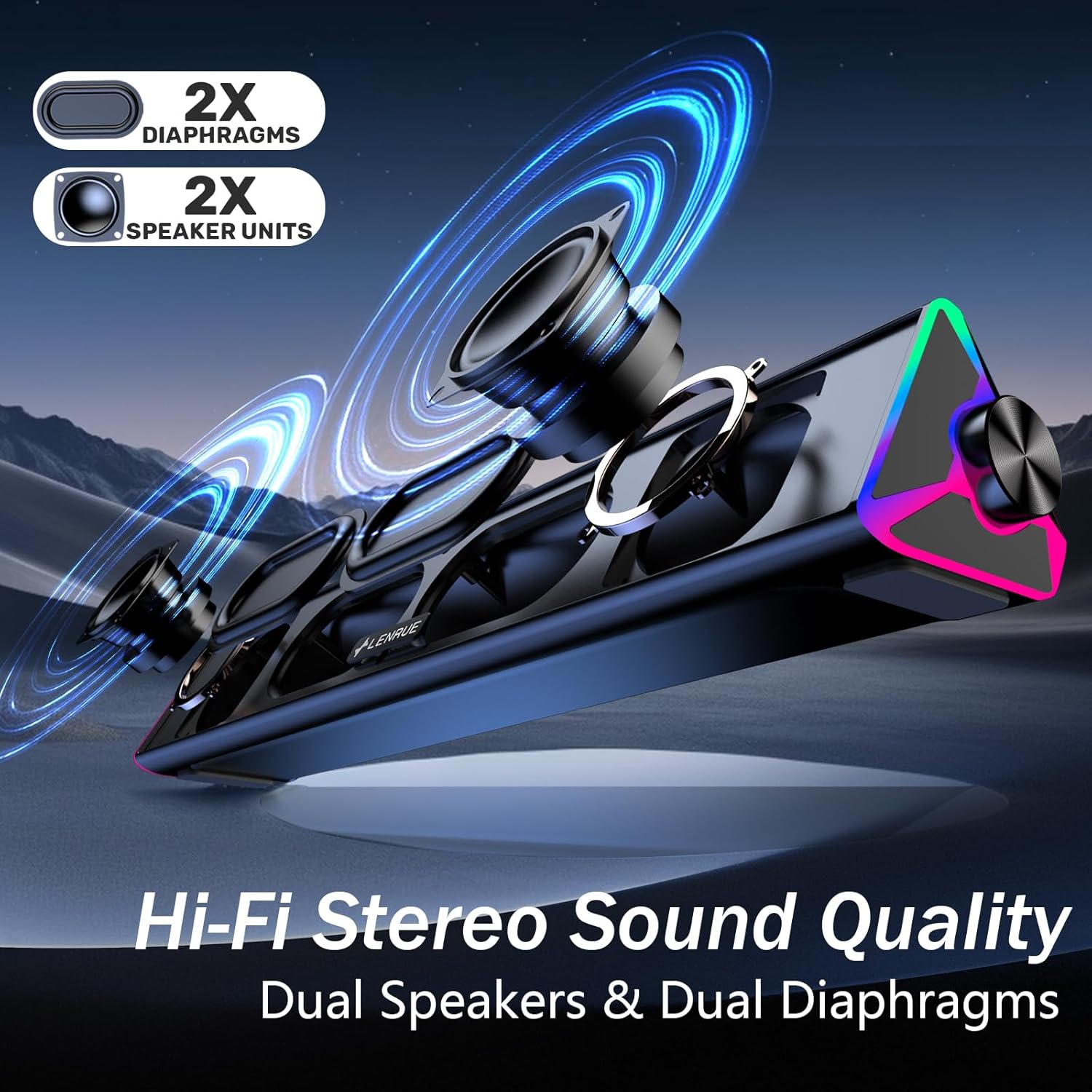
Picha: Ililipuka view of the LENRUE E-1103 speaker, highlighting its dual speaker units and dual diaphragms for stereo sound.
Vipengele Muhimu:
- Spika Grille: Front-facing mesh covering the speaker drivers.
- Kitovu cha Sauti: Located on the right side, for adjusting audio output level.
- Kihisi cha Kugusa: Integrated into the right side for controlling the ambient lighting.
- USB Cable (USB-A): Main connection for power and audio.
- Adapta ya USB-C: For compatibility with USB-C ports.
- Mwangaza wa RGB: Dynamic lighting effects on both ends of the soundbar.
Sanidi
Follow these steps to set up your LENRUE E-1103 speaker:
- Uwekaji: Position the soundbar on a stable surface, such as your desktop, beneath your monitor, or in front of your laptop. Ensure the speaker grille faces towards you for optimal sound delivery.
- Connect to Power and Audio:
- Kwa Mlango wa USB-A: Plug the USB-A connector of the speaker's cable directly into an available USB-A port on your computer (desktop PC or laptop).
- Kwa Mlango wa USB-C: Attach the included USB-C adapter to the USB-A connector of the speaker's cable, then plug the USB-C adapter into an available USB-C port on your computer.

Image: A visual guide demonstrating how to connect the LENRUE E-1103 speaker to a laptop using either the standard USB-A cable or the included USB-C adapter.
The speaker is plug-and-play; no additional drivers or software installation is required.
- Initial Volume Adjustment: After connecting, ensure your computer's audio output is set to the LENRUE E-1103 speaker. Adjust the volume using the physical volume knob on the right side of the speaker. It is recommended to start with a lower volume and gradually increase it to a comfortable listening level.

Image: A diagram illustrating the compact dimensions of the LENRUE E-1103 speaker and its single USB cable for both power and audio, designed to minimize cable clutter.
Maagizo ya Uendeshaji
Udhibiti wa Sauti:
The speaker features a rotary volume knob located on the right side. Rotate the knob clockwise to increase the volume and counter-clockwise to decrease it. For optimal sound, ensure your computer's system volume is also appropriately set.

Image: A three-step visual guide showing how to adjust the volume, including checking computer settings and using the speaker's physical volume knob.
Ambient Lighting Control:
The LENRUE E-1103 includes dynamic RGB lighting on both ends. To control the lighting:
- Washa/Zima: Gently touch the touch-sensitive area near the volume knob on the right side of the speaker. Each touch will toggle the lighting on or off.
- The lighting features a soft breathing effect, providing ambient illumination.

Image: A close-up of the right side of the LENRUE E-1103 speaker, highlighting the touch control icon for activating or deactivating the gentle breathing ambient lighting.
Matengenezo
Proper maintenance ensures the longevity and performance of your speaker:
- Kusafisha: Use a soft, dry, lint-free cloth to wipe the surface of the speaker. Do not use liquid cleaners, aerosols, or solvents, as these may damage the finish or internal components.
- Hifadhi: Wakati haitumiki kwa muda mrefu, hifadhi kipaza sauti mahali penye baridi, pakavu mbali na jua moja kwa moja na halijoto kali.
- Epuka unyevu: Keep the speaker away from water and high humidity environments.
- Kushughulikia kwa Uangalifu: Epuka kumwangusha au kumfanya mzungumzaji aathiriwe sana.
Kutatua matatizo
If you encounter issues with your LENRUE E-1103 speaker, refer to the following common problems and solutions:
| Tatizo | Sababu inayowezekana | Suluhisho |
|---|---|---|
| Hakuna sauti kutoka kwa spika. |
|
|
| Sauti imepotoshwa au haieleweki. |
|
|
| Ambient lights are not working. |
|
|
| Speaker not recognized by computer. |
|
|
Vipimo
| Kipengele | Maelezo |
|---|---|
| Chapa | LENRUE |
| Jina la Mfano | E-1103 |
| Teknolojia ya Uunganisho | USB |
| Njia ya Pato la Sauti | Stereo |
| Kiwango cha Juu cha Pato la Spika | 5 Watts |
| Majibu ya Mara kwa mara | 20 kHz |
| Vipimo vya Bidhaa | 2.5"D x 15"W x 2.5"H (cm 6.35 D x 38.1cm W x 6.35cm H) |
| Uzito wa Kipengee | Wakia 15.3 (Gramu 435) |
| Rangi | Nyeusi |
| Matumizi Yanayopendekezwa | For Computers (Desktop PCs, Laptops, Monitors) |
| Utangamano | Windows PCs, some macOS and Chrome OS laptops. Not compatible with Xbox gaming systems or Projectors. |
Udhamini na Msaada
LENRUE products are designed for reliability and performance. For warranty information or technical support, please refer to the contact details provided on the product packaging or the official LENRUE webtovuti. Weka risiti yako ya ununuzi kama dhibitisho la ununuzi kwa madai ya udhamini.
Kwa msaada zaidi, tafadhali tembelea LENRUE Store on Amazon.


