1. Utangulizi
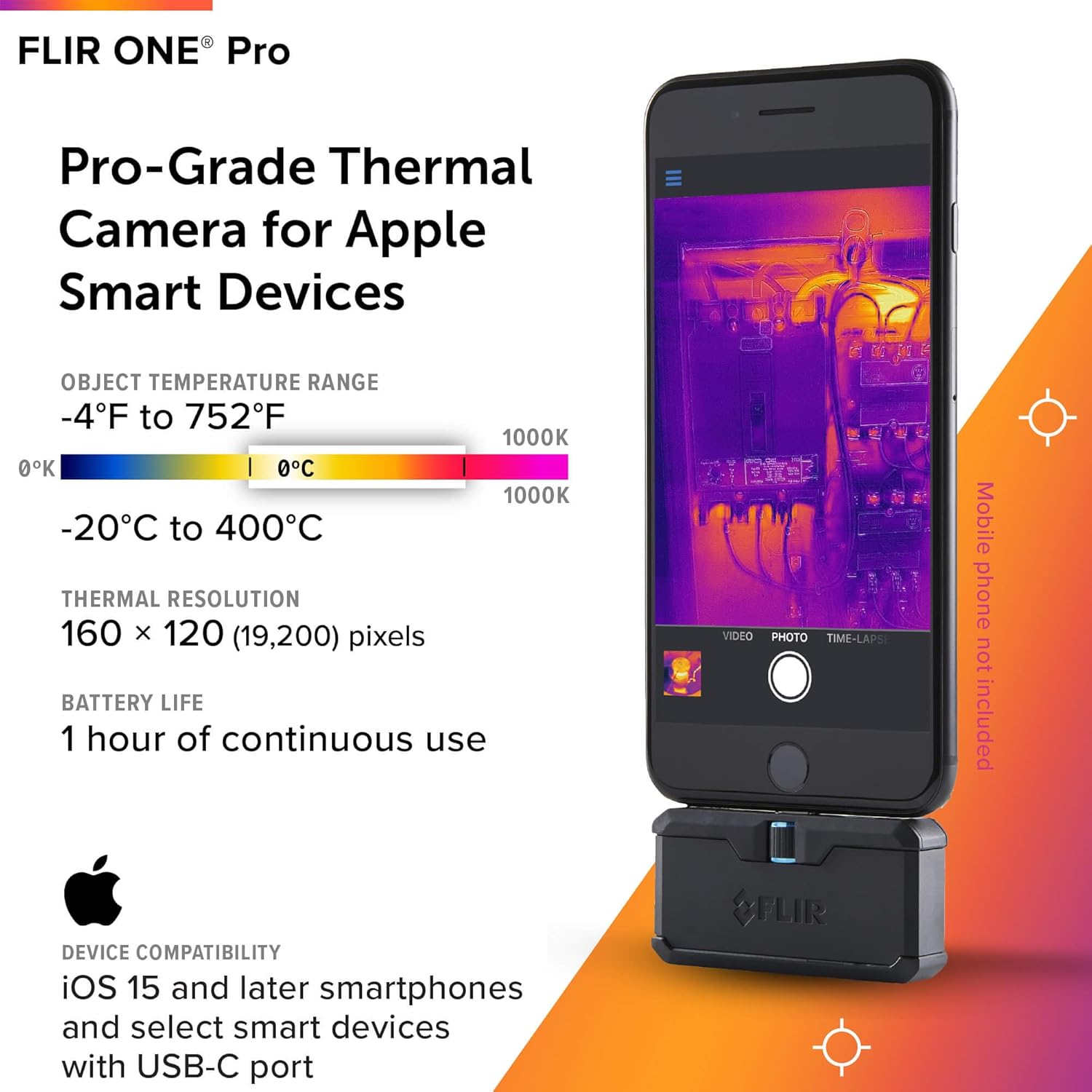
The FLIR ONE Pro is a thermal imaging camera designed to connect directly to iOS smartphones equipped with a USB-C port, specifically iPhone 15 and newer models. This device enables users to visualize heat signatures, detect temperature differences, and identify potential issues in various environments. It integrates advanced thermal technology with the convenience of a smartphone interface.

Vipengele muhimu ni pamoja na:
- Azimio Bora: VividIR technology enhances image clarity to 480x360 from a native 160x120 infrared resolution.
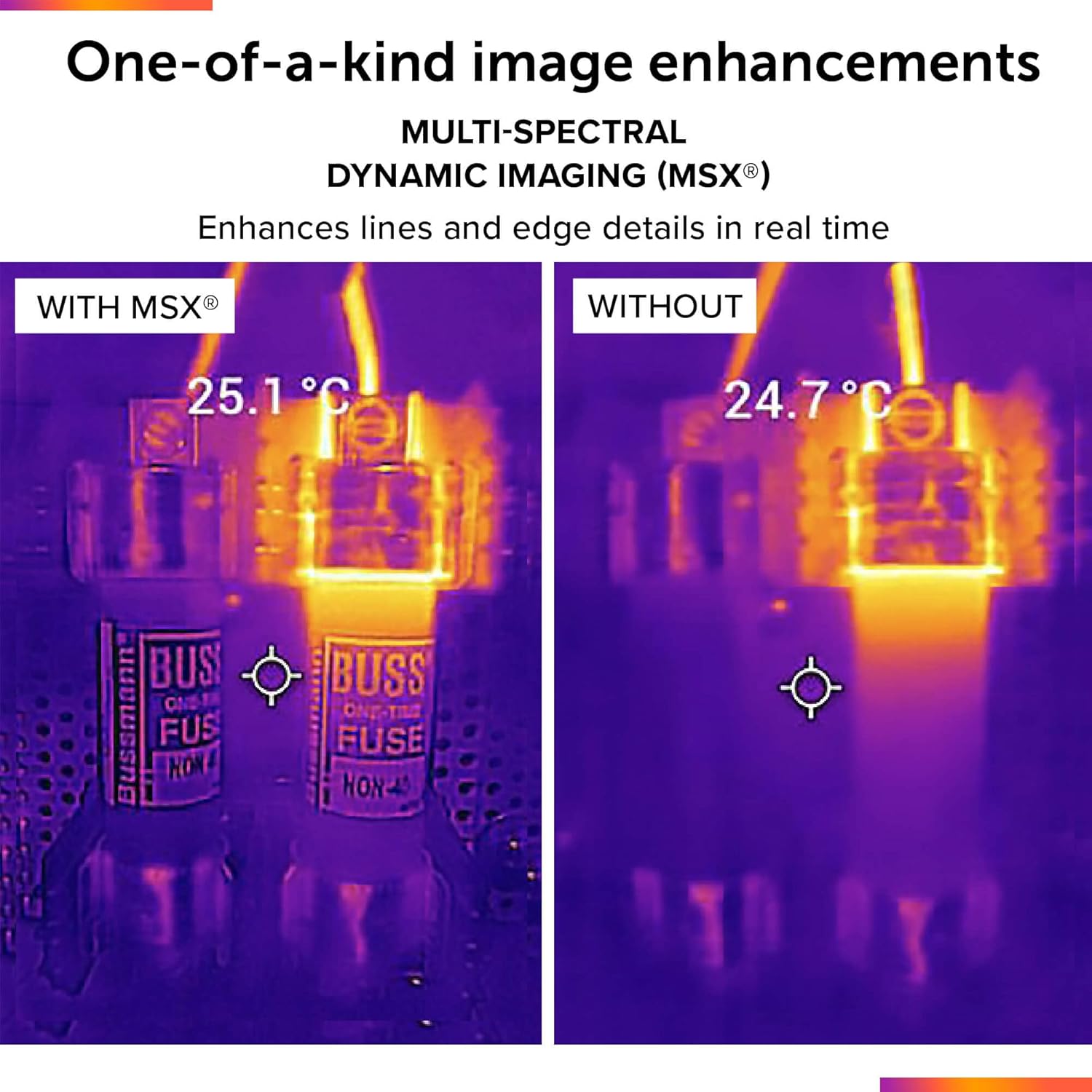
- MSX Technology: Merges thermal and visual images in real-time to provide enhanced detail.
- Kiwango Kina cha Halijoto: Capable of measuring temperatures up to 400°C (752°F).
- Uimara: Designed to withstand drops from 1.5 meters and offers jobsite toughness.
2. Kuweka
2.1 Yaliyomo kwenye Kifurushi
The FLIR ONE Pro package typically includes:
- FLIR ONE Pro Thermal Camera
- Kebo ya Kuchaji ya USB-C
- Kesi ya Kubeba Kinga
- Mwongozo wa Kuanza Haraka
2.2 Kuchaji Kifaa
Before initial use, fully charge the FLIR ONE Pro using the provided USB-C cable. The device has its own internal battery and does not draw power from your smartphone for operation. A full charge typically provides 45 minutes to 1 hour of continuous use.
2.3 Installing the FLIR ONE App
Download and install the official FLIR ONE App from the Apple App Store on your compatible iOS smartphone (iPhone 15 or newer with USB-C).
2.4 Connecting to Your Smartphone
- Ensure the FLIR ONE Pro is charged.
- Press the power button on the bottom of the FLIR ONE Pro. The LED indicator will illuminate. Wait for the LED to change from orange to blinking green, indicating it is ready.
- Open the FLIR ONE App on your iPhone.
- Carefully plug the FLIR ONE Pro's USB-C connector into your iPhone's USB-C port.
- If your iPhone has a protective case, adjust the length of the USB-C connector using the blue knob on the FLIR ONE Pro to ensure a secure connection. The connector can extend up to 4 mm.

3. Maagizo ya Uendeshaji
3.1 Operesheni ya Msingi
Once connected and the app is open, the FLIR ONE Pro will display a live thermal feed on your iPhone screen. You can switch between video, photo, and time-lapse modes within the app. The app interface allows for various adjustments and settings.

3.2 Understanding Thermal Images (MSX Technology)
The FLIR ONE Pro utilizes MSX (Multi-Spectral Dynamic Imaging) technology. This feature overlays key details from the visible light camera onto the thermal image, enhancing clarity and making it easier to identify objects and structures within the thermal scene. This results in sharper, more detailed thermal images.
3.3 Usahihi wa Kipimo cha Joto
The device measures temperature with an accuracy of ±3°C or ±5%, whichever is greater, under specific conditions: when the unit's ambient temperature is between 15°C and 35°C, and the scene temperature is between 5°C and 120°C.
3.4 Using Thermal Inspection Guides
The FLIR ONE App includes step-by-step inspection guides. These guides assist in addressing common faults and performing accurate home inspections, such as identifying air leaks, moisture buildup, and insulation issues.

3.5 Saving and Analyzing Images
Captured thermal images are saved as standard .JPG files on your iPhone. These files also contain embedded thermal data for every pixel. For advanced analysis, these images can be transferred to a computer and processed using the free FLIR Tools application, available from the FLIR website. This allows for further adjustments to color schemes, temperature scaling, and detailed spot temperature readings within user-defined regions.


4. Matengenezo
4.1 Kusafisha
To clean the FLIR ONE Pro, gently wipe the exterior with a soft, damp cloth. Ensure the lenses are free of dust and debris for optimal image quality. Do not use abrasive cleaners or solvents.
4.2 Kudumu
The FLIR ONE Pro is built for jobsite conditions, rated to withstand drops from 1.5 meters (5.9 feet). Its rugged enclosure provides protection against water and dust, contributing to its longevity in various working environments.
5. Utatuzi wa shida
5.1 Masuala ya Kawaida na Suluhu
- Kifaa hakiunganishi: Ensure the FLIR ONE Pro is fully charged and powered on. Verify the USB-C connector is securely seated in your iPhone's port. Adjust the connector length if using a phone case.
- App not launching or freezing: Close and restart the FLIR ONE App. Ensure your iPhone's operating system is up to date. If the issue persists, try reinstalling the app.
- Ubora duni wa picha: Clean the thermal and visual lenses. Ensure proper focus and distance from the target. Check app settings for MSX and VividIR to ensure they are enabled.
- Maisha mafupi ya betri: Ensure the device is fully charged before use. Battery life is approximately 45-60 minutes of continuous operation.
5.2 Msaada Zaidi
If you encounter issues not resolved by the above steps, refer to the FLIR ONE App's help section or visit the official FLIR support website for detailed troubleshooting guides and contact information.
6. Vipimo
| Kipengele | Vipimo |
|---|---|
| Nambari ya Mfano | 435-0008-03 |
| Azimio la joto | 160 x 120 (pikseli 19,200) |
| Super Resolution (VividIR) | 480 x 360 |
| Azimio la Visual | 1440 x 1080 HD |
| Kiwango cha Joto la Kitu | -20°C hadi 400°C (-4°F hadi 752°F) |
| Usahihi | ±3°C or ±5% (within 15°C-35°C ambient, 5°C-120°C scene) |
| Maisha ya Betri | Approx. 45-60 minutes continuous use |
| Muunganisho | USB-C (for iPhone 15 and newer) |
| Vipimo vya Bidhaa | Inchi 2.6 x 1.3 x 0.6 (68 x 34 x 14 mm) |
| Uzito wa Kipengee | 1.29 wakia |
| Kuacha Ukadiriaji | Mita 1.5 (futi 5.9) |
7. Udhamini na Msaada
For warranty information and technical support, please refer to the documentation included with your product or visit the official FLIR Systems website. FLIR Systems is the manufacturer of this device.
Online resources and support can typically be found at the FLIR Store on Amazon or the main FLIR webtovuti.


