1. Utangulizi na Zaidiview
The CME H4MIDI WC is a versatile and advanced USB Host MIDI Interface designed for musicians, producers, and guitarists. It provides seamless connectivity between various MIDI devices, offering robust routing, filtering, and mapping capabilities without requiring a computer for standalone operation. Its compact design and flexible power options make it ideal for both studio and live performance environments.

This manual provides detailed instructions for setting up, operating, and maintaining your H4MIDI WC, ensuring you can fully utilize its extensive features.
2. Sifa Muhimu
- Standalone USB Host: Connect class-compliant USB MIDI instruments directly to your MIDI hardware without a computer. Supports up to 8 USB MIDI device ports via a standard USB hub.
- Multi-Mode Flexibility: Connect to your computer via USB-C for 4 inputs and 4 outputs of virtual MIDI ports. Compatible with MacOS, Windows, iOS, Android, Linux, and ChromeOS.
- Standalone Dual Power: Flexible power options with 5V USB or 9V DC, suitable for studio or stage kutumia.
- Udhibiti wa MIDI wa Wakati Halisi: Configure MIDI thru, split, merge, mapper, and filter options using HxMIDI Tools (Windows, macOS, iOS, Android) for advanced MIDI routing and processing.
- Optional WIDI Bluetooth MIDI: Expand capabilities with the optional WIDI Core module for wireless MIDI connectivity.

3. Kuweka
To set up your CME H4MIDI WC, follow these steps:
- Muunganisho wa Nishati: Connect the H4MIDI WC to a power source using either a 5V USB-C cable or a standard 9V DC power supply.
- Viunganisho vya MIDI: Connect your 5-pin DIN MIDI devices to the MIDI IN and MIDI OUT ports on the H4MIDI WC.
- USB MIDI Connections: Connect your class-compliant USB MIDI instruments to the USB-A host port. For multiple USB devices, use a standard USB hub connected to the USB-A port.
- Muunganisho wa Kompyuta (Si lazima): For computer-based control and virtual MIDI ports, connect the H4MIDI WC to your computer via the USB-C port.
- WIDI Core Installation (Optional): If using WIDI Bluetooth MIDI, insert the WIDI Core module into its designated slot.

4. Njia za Uendeshaji
The H4MIDI WC supports several operating modes to accommodate diverse MIDI setups:
4.1. Simple Mode: USB MIDI to 5-pin DIN (Standalone)
In this mode, the H4MIDI WC acts as a bridge, allowing USB MIDI devices to communicate directly with 5-pin DIN MIDI hardware without the need for a computer. Simply connect your USB MIDI controller to the USB-A host port and your 5-pin DIN MIDI device to the MIDI IN/OUT ports.

4.2. Expand Mode: Multiple USB Host Ports
Utilize a standard USB hub connected to the H4MIDI WC's USB-A host port to expand your USB MIDI connectivity up to 8-in-8-out host ports. This allows for simultaneous connection and control of multiple USB MIDI devices alongside your 5-pin DIN MIDI gear.

4.3. Advanced Mode: Virtual MIDI Ports via USB-C
When connected to a computer via USB-C, the H4MIDI WC provides 4 inputs and 4 outputs of virtual MIDI ports. This enables seamless integration with your Digital Audio Workstation (DAW) and other music software, allowing for complex MIDI routing and control within your computer environment.

4.4. Innovate Mode: WIDI Bluetooth MIDI (Optional)
For wireless MIDI connectivity, the H4MIDI WC supports the optional WIDI Core module. This provides ultra-low latency Bluetooth MIDI, allowing you to connect compatible wireless MIDI devices and reduce cable clutter in your setup.

4.5. Customize Mode: HxMIDI Tools Software
The HxMIDI Tools software (available for Windows, macOS, iOS, and Android) provides comprehensive control over the H4MIDI WC's MIDI routing, filtering, and mapping capabilities. This allows for precise customization of MIDI messages to suit your specific workflow and device requirements.

4.6. Video ya Maonyesho ya Bidhaa
Watch this official video from CME Pro to see the H4MIDI WC in action and understand its various functionalities and applications.
5. Muunganisho
The H4MIDI WC offers comprehensive connectivity options:
- 5-pin DIN MIDI: Two input and two output ports for traditional MIDI hardware.
- USB-A Host: One port for connecting class-compliant USB MIDI devices. Expandable up to 8-in-8-out via a USB hub.
- USB-C Client: One port for connecting to computers, providing 4-in-4-out virtual MIDI ports.
- WIDI Bluetooth MIDI: Optional wireless connectivity via the WIDI Core module, offering 1-in-1-out BLE MIDI and 1-to-4/4-to-1 group connectivity.

6. Nguvu
The CME H4MIDI WC can be powered in two ways:
- 5V USB Power: Connect a standard USB-C cable to a 5V USB power adapter or a computer's USB-C port.
- Nguvu ya DC ya 9V: Use a standard 9V DC power supply (center negative, 1A minimum) for standalone operation, particularly useful for integration with guitar pedalboards.
7. Matengenezo
To ensure the longevity and optimal performance of your H4MIDI WC, follow these general maintenance guidelines:
- Weka kifaa kikiwa safi kwa kukifuta kwa kitambaa laini na kikavu. Epuka kutumia visafishaji au viyeyusho vyenye kukwaruza.
- Kinga kifaa kutokana na halijoto kali, unyevunyevu, na jua moja kwa moja.
- Epuka kuangusha kifaa au kukiathiri vibaya.
- Ensure all cables are connected securely but without excessive force to prevent damage to the ports.
8. Utatuzi wa shida
If you encounter issues with your H4MIDI WC, consider the following troubleshooting steps:
- Hakuna Nguvu: Verify that the power cable is securely connected and the power source (USB adapter or 9V DC supply) is functioning correctly.
- Hakuna Ishara ya MIDI: Check all MIDI and USB cable connections. Ensure that your connected devices are powered on and sending/receiving MIDI data.
- Incorrect MIDI Routing/Behavior: Connect the H4MIDI WC to a computer and use the HxMIDI Tools software to review and adjust your MIDI routing, filtering, and mapping settings. Ensure the correct presets are loaded.
- Kifaa cha USB Hakitambuliwi: Confirm that your USB MIDI device is class-compliant. If using a USB hub, ensure it is powered and functioning correctly.
- WIDI Bluetooth Issues: Ensure the optional WIDI Core module is correctly installed. Refer to the WIDI Core manual for specific Bluetooth pairing and troubleshooting steps.
- Sasisho la Firmware: Check the CME Pro website for the latest firmware updates for your H4MIDI WC, as updates can resolve known issues and improve performance.
For persistent issues, please refer to the support section on the CME Pro webtovuti.
9. Vipimo
| Sifa | Thamani |
|---|---|
| Nambari ya Mfano | H4MIDI WC |
| Uzito wa Kipengee | Wakia 3.06 (gramu 86.75) |
| Vipimo vya Bidhaa | Inchi 1.5 x 5.51 x 1.3 (38 x 140 x 33 mm) |
| Teknolojia ya Uunganisho | 5-pin DIN MIDI (2-in-2-out), USB-A Host (up to 8-in-8-out), USB-C Client (4-in-4-out virtual MIDI), Optional WIDI Bluetooth MIDI |
| Idadi ya Vituo | 128 |
| Vifaa Sambamba | Class Compliant USB MIDI hardware devices, Groovebox, Sampler, MIDI Controller, MIDI Keyboard, PC, Mac, Mobile, Tablet, Pedalboard, Guitar Pedal |
| Programu Inayotumika | All music software, major DAWs and music apps. Includes HxMIDI Tools (Win/Mac/iOS/Android) |
| Utangamano wa Mfumo wa Uendeshaji | MacOS, Windows, iOS, Android, Linux, ChromeOS |

10. Udhamini na Msaada
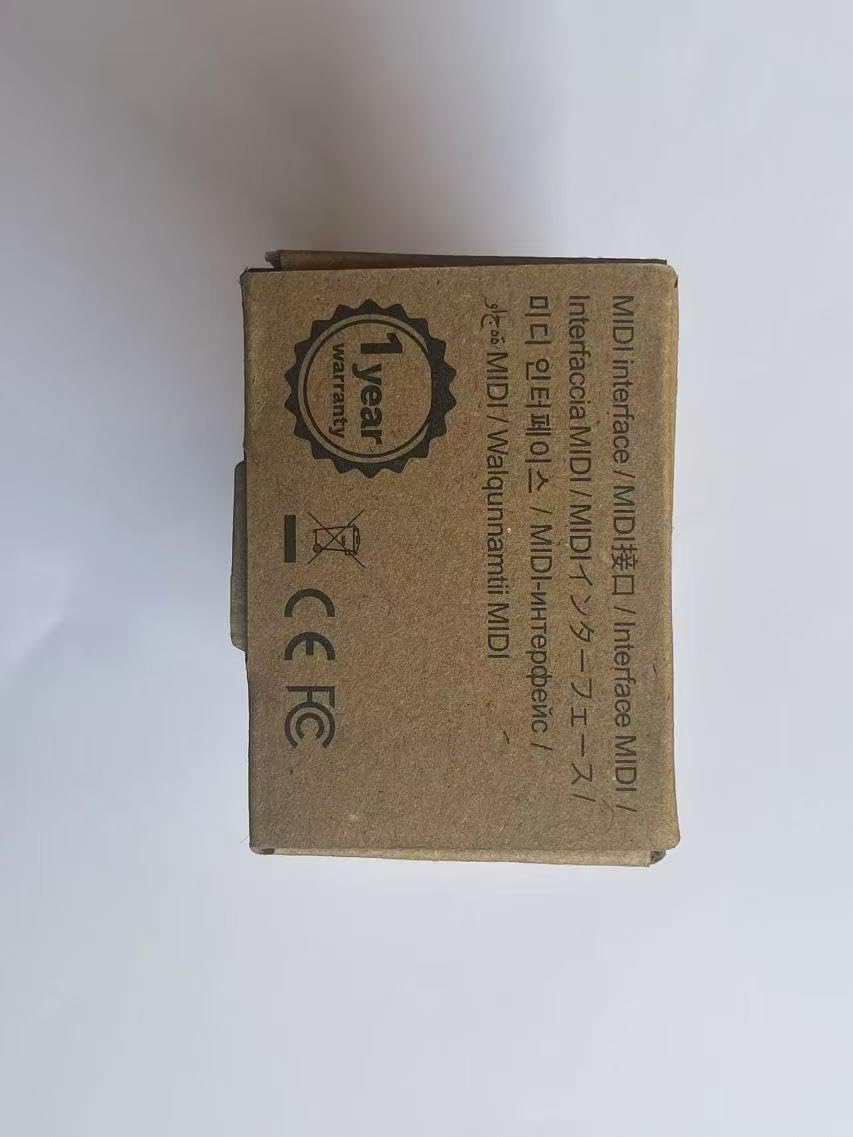
Udhamini: The CME H4MIDI WC comes with a 1-year warranty from the date of purchase. Please retain your proof of purchase for warranty claims.
Usaidizi: For technical assistance, product inquiries, or warranty support, please visit the official CME Pro support page:
CME offers reliable, people-centric support within 24 hours and provides lifetime updates via HxMIDI Tools.


