Utangulizi
This user manual provides comprehensive instructions for the setup, operation, and maintenance of your Kogan 55" QLED 4K 144Hz Smart AI Google TV (Model: KAQL55XQ98GSTA). Please read this manual thoroughly before using your TV to ensure proper functionality and to maximize your viewuzoefu. Weka mwongozo huu kwa marejeleo ya baadaye.

Figure 1: Kogan 55" QLED 4K 144Hz Smart AI Google TV
This image shows the Kogan 55-inch QLED 4K 144Hz Smart AI Google TV from the front, highlighting its slim bezels and the vibrant display. The Kogan logo is visible on the bottom left, and the screen displays a colorful abstract pattern, emphasizing its QLED technology.
Sanidi
Kufungua na Ukaguzi wa Awali
Carefully remove the TV from its packaging. Inspect the TV and all accessories for any signs of damage. If any damage is found, do not proceed with setup and contact Kogan customer support immediately.
Attaching the Stand or Wall Mounting
Your TV comes with a stand for tabletop placement. For wall mounting, a VESA-compatible wall mount (not included) is required. Refer to the wall mount's instructions for proper installation.
- Ufungaji wa Stendi:
- Weka TV uso chini kwenye sehemu laini na safi ili kuzuia uharibifu wa skrini.
- Pangilia mabano ya kusimama na matundu ya skrubu chini ya TV.
- Salama kusimama kwa kutumia screws zinazotolewa. Hakikisha stendi imefungwa kwa uthabiti.
- Uwekaji Ukuta:
This TV supports wall mounting. Ensure you use a compatible wall mount and follow the manufacturer's instructions for safe and secure installation. Professional installation is recommended for wall mounting.
Kuunganisha Pembeni
Connect your external devices such as set-top boxes, gaming consoles, or sound systems to the TV's input ports (HDMI, USB, etc.).
- Viunganisho vya HDMI: Use HDMI cables for high-definition video and audio. This TV features multiple HDMI inputs.
- Viunganisho vya USB: Unganisha vifaa vya USB kwa uchezaji wa midia.
- Muunganisho wa Nishati: Chomeka waya wa umeme kwenye ingizo la umeme la TV, kisha kwenye soketi ya ukutani.
Maagizo ya Uendeshaji
Usanidi wa Mara ya Kwanza na Google TV
Upon first power-on, the TV will guide you through the initial setup process, including network connection, Google account login, and channel scanning. Google TV integrates your favorite streaming services and content into one personalized hub.

Figure 2: Google TV Interface in Use
This image depicts two individuals comfortably seated in a living room, viewing the Kogan Google TV. The TV screen displays the Google TV interface with various streaming app icons and content recommendations, illustrating the user-friendly nature of the smart TV system.

Figure 3: Detailed Google TV Home Screen
This image provides a closer look at the Google TV home screen, showcasing content recommendations like "Nine Perfect Strangers" and various app icons such as Netflix, YouTube, and Prime Video. The interface is clean and organized, making content discovery intuitive.

Figure 4: All Your Favorite Apps
This image highlights the extensive selection of streaming applications available on the Kogan Google TV. It displays numerous popular app logos, including Netflix, Prime Video, Disney+, YouTube, and Stan, emphasizing the TV's capability to serve as a comprehensive entertainment hub.
Sifa Muhimu na Kazi
- Teknolojia ya QLED: Experience mesmerizing color reproduction and vibrant visuals thanks to Quantum Dot Technology.
- Ubora wa 4K UHD: Enjoy stunning clarity and detail with 3840 x 2160 pixel resolution.

Figure 5: Ultra HD (4K) Visual Comparison
This image visually compares Full HD and Ultra HD (4K) resolutions using a scenic view of boats on clear water. The 4K side demonstrates significantly clearer picture quality and sharper colors, illustrating the enhanced immersive viewing experience provided by 4K resolution.
- Kiwango cha Kuonyesha upya Kinachobadilika cha 144Hz (VRR): Achieve smoother and tear-free visuals, especially beneficial for fast-paced scenes and gaming.

Figure 6: 144Hz Variable Refresh Rate in Action
This image illustrates the benefit of a 144Hz Variable Refresh Rate (VRR) for gaming. It shows a split screen with a racing game, comparing the visual quality "Without 144Hz VRR" (blurry) and "With 144Hz VRR" (sharp and smooth), highlighting the enhanced gaming experience.
- Dolby Vision™: Enjoy cinematic immersion with lifelike and vibrant visuals.
- High-Dynamic Range (HDR): Delivers brighter highlights, better contrast, and more realistic colors.
- Google Chromecast iliyojengwa ndani: Stream content directly from your smartphone, laptop, or tablet to your TV.
- Google Play Store: Access over 400,000 movies, TV episodes, live TV, and a wide range of applications.
- Makadirio ya Mwendo na Fidia ya Mwendo (MEMC): Improves clarity and reduces blur in fast-moving scenes for smoother visuals.
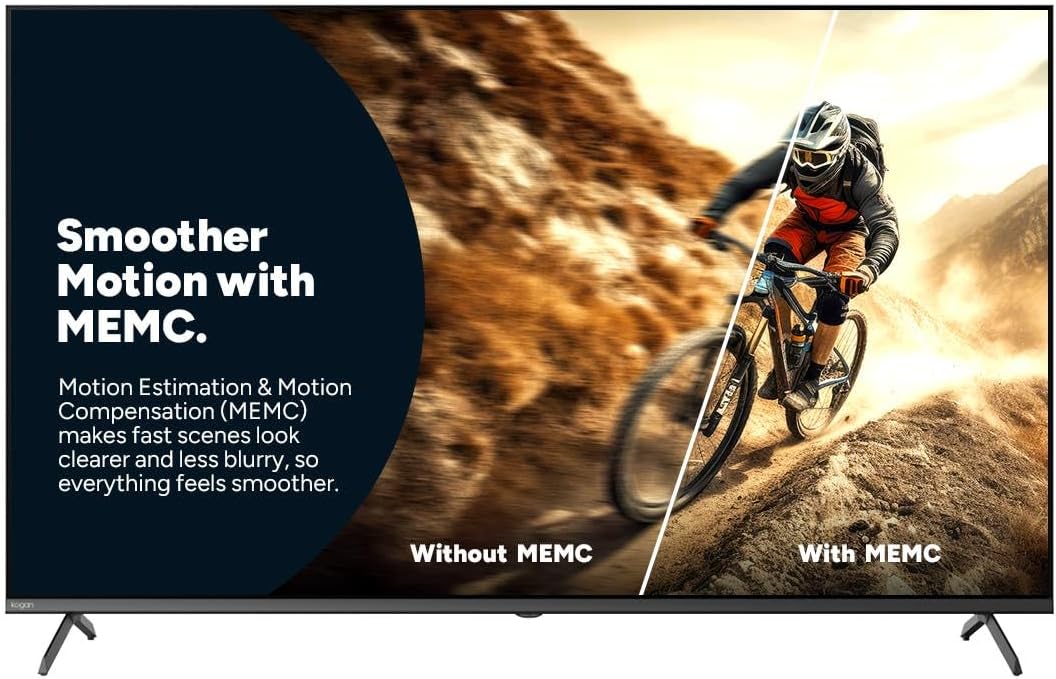
Figure 7: Smoother Motion with MEMC
This image demonstrates the effect of Motion Estimation & Motion Compensation (MEMC). It shows a split view of a cyclist in motion, comparing the visual "Without MEMC" (blurry) and "With MEMC" (clearer and smoother), illustrating how MEMC enhances the clarity of fast-paced scenes.
- Hali ya Kuchelewa Kidogo Kiotomatiki (ALLM): Automatically reduces response time for an ultra-smooth and lag-free gaming experience.
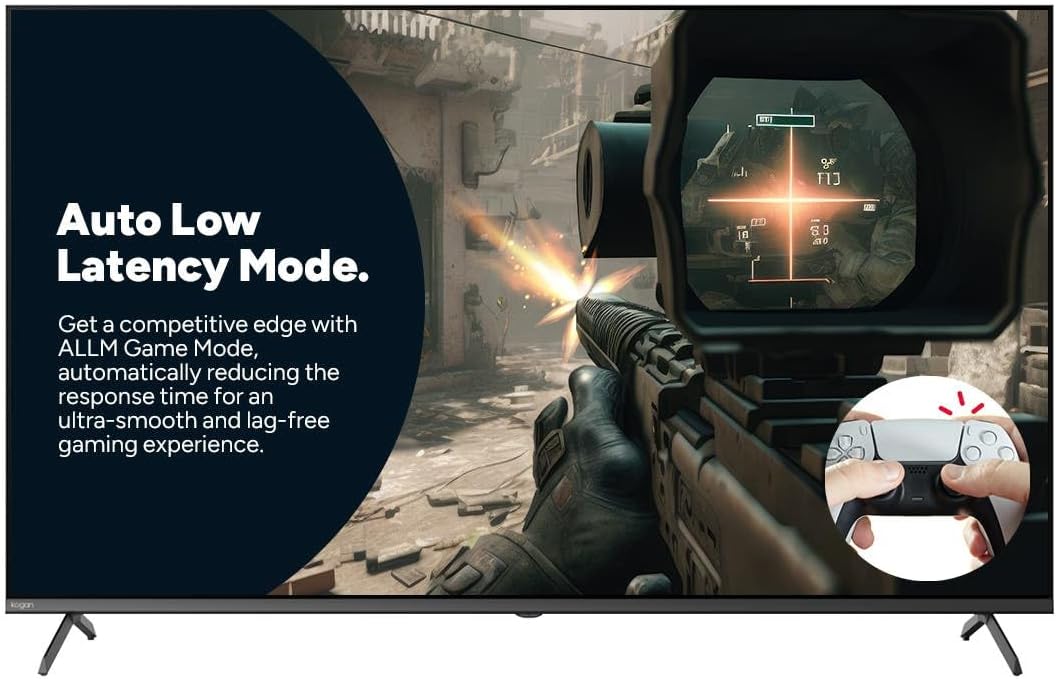
Figure 8: Auto Low Latency Mode for Gaming
This image highlights the benefits of Auto Low Latency Mode (ALLM) for gaming. It features a first-person shooter game scene, emphasizing how ALLM automatically reduces response time, providing a competitive edge with ultra-smooth and lag-free gameplay.
Matumizi ya Kidhibiti cha Mbali
The included remote control allows you to navigate the Google TV interface, adjust settings, change channels, and control connected devices. Familiarize yourself with the button layout for optimal use.
Matengenezo
Kusafisha TV
- Skrini: Futa skrini kwa upole kwa kitambaa laini kisicho na pamba. Kwa alama za ukaidi, tumia kisafisha skrini kilichoundwa mahususi kwa ajili ya TV, kinachowekwa kwenye kitambaa, na si moja kwa moja kwenye skrini.
- Fremu: Futa fremu ya TV na uiweke kwa kitambaa laini na kikavu.
- Usitumie: Epuka kutumia visafishaji abrasive, nta au viyeyusho kwani vinaweza kuharibu umalizio wa TV.
Utunzaji wa Jumla
- Hakikisha kuna uingizaji hewa wa kutosha karibu na TV ili kuzuia joto kupita kiasi.
- Weka TV mbali na jua moja kwa moja, vyanzo vya joto na vumbi vingi.
- Chomoa TV kutoka kwa mkondo wa umeme wakati wa dhoruba ya umeme au inapoachwa bila kutunzwa kwa muda mrefu.
Kutatua matatizo
If you encounter issues with your Kogan TV, refer to the following common problems and solutions. If the problem persists, contact Kogan customer support.
| Tatizo | Sababu / Suluhisho linalowezekana |
|---|---|
| Hakuna Nguvu | Check if the power cord is securely plugged into the TV and the wall outlet. Ensure the wall outlet has power. Try a different outlet. |
| Hakuna Picha / Sauti | Verify the correct input source is selected (e.g., HDMI 1, TV). Check cable connections to external devices. Ensure volume is not muted or too low. |
| Udhibiti wa Mbali Haifanyi kazi | Angalia na ubadilishe betri. Hakikisha kuwa hakuna vizuizi kati ya kidhibiti cha mbali na kihisi cha IR cha TV. |
| Ubora duni wa Picha | Check antenna/cable connection. Adjust picture settings (brightness, contrast, sharpness). Ensure the source content is high quality. |
| Hakuna Muunganisho wa Mtandao | Check Wi-Fi router and modem. Reconnect to the Wi-Fi network in TV settings. Try restarting the TV and router. |
Vipimo
| Kipengele | Maelezo |
|---|---|
| Chapa | Kogan |
| Jina la Mfano | Kogan 55" QLED 4K 144Hz Smart AI Google TV |
| Nambari ya Mfano | KAQL55XQ98GSTA |
| Ukubwa wa skrini | Inchi 55 |
| Teknolojia ya Kuonyesha | QLED |
| Azimio | 4K (3840 x 2160) |
| Kiwango cha Kuonyesha upya | 144 Hz |
| Mfumo wa Uendeshaji | Google TV |
| Ukubwa wa RAM | GB 3 |
| Vipengele Maalum | Chromecast, Dolby Vision, HDR, MEMC, ALLM |
| Teknolojia ya Uunganisho | USB, HDMI |
| Ingizo la Sauti Inaoana | USB, HDMI |
| Voltage | 240 Volts |
| Uzito wa Kipengee | 18.2 kg |
| Vipimo vya Kifurushi | 134 x 85 x 14 cm |
Udhamini na Msaada
For warranty information and technical support, please refer to the warranty card included with your product or visit the official Kogan website. You can also contact Kogan customer service directly for assistance with product issues or inquiries.
Kogan Support: https://www.kogan.com/au/help/


