Utangulizi
The YANZEO SR290 is a versatile handheld terminal designed for efficient data capture, combining UHF RFID reading capabilities with 1D/2D QR barcode scanning. This device offers multiple connectivity options and reading modes, making it suitable for various environments such as retail stores, supermarkets, and warehouses. Its robust design ensures durability for daily operational demands.

Figure 1: YANZEO SR290 Handheld Terminal Barcode Scanner. This image displays the main unit of the scanner along with its USB dongle and cables, highlighting its compact and ergonomic design.
Sanidi
Yaliyomo kwenye Kifurushi
Before beginning, please ensure all items are present in the package:
- YANZEO SR290 Handheld Terminal
- Kebo ya Kuchaji ya USB
- Dongle ya USB Isiyotumia Waya ya 2.4G
- Mwongozo wa Mtumiaji (hati hii)
Kuchaji Kifaa
The SR290 is equipped with a 2000mAh lithium-ion battery. For optimal performance, fully charge the device before first use.
- Unganisha kebo ya kuchaji ya USB kwenye mlango wa kuchaji wa kichanganuzi.
- Unganisha ncha nyingine ya kebo ya USB kwenye adapta ya umeme inayooana (haijajumuishwa) au mlango wa USB wa kompyuta.
- The indicator lights on the device will show charging status. A full charge typically takes several hours.

Figure 2: The SR290 scanner connected to a laptop via USB, illustrating its connectivity options and highlighting its 2000mAh battery capacity for long-lasting performance.
Washa/Zima
Locate the power button on the device. Press and hold the power button for a few seconds to turn the scanner on or off. The device will emit an audible beep and indicator lights will illuminate upon successful power-on.
Operating Modes and Connectivity
Chaguzi za Muunganisho
The YANZEO SR290 offers three primary methods for connecting to your host device:
- Bluetooth: For wireless connection to Bluetooth-enabled devices like smartphones, tablets, or computers. Effective range is approximately 0-20 meters in an open environment.
- 2.4G Isiyo na Waya: Utilizes a dedicated USB dongle for wireless connection to computers. Offers an extended range of approximately 0-80 meters in an open environment.
- USB yenye waya: Direct connection via USB cable for reliable and secure data transmission, also used for charging.
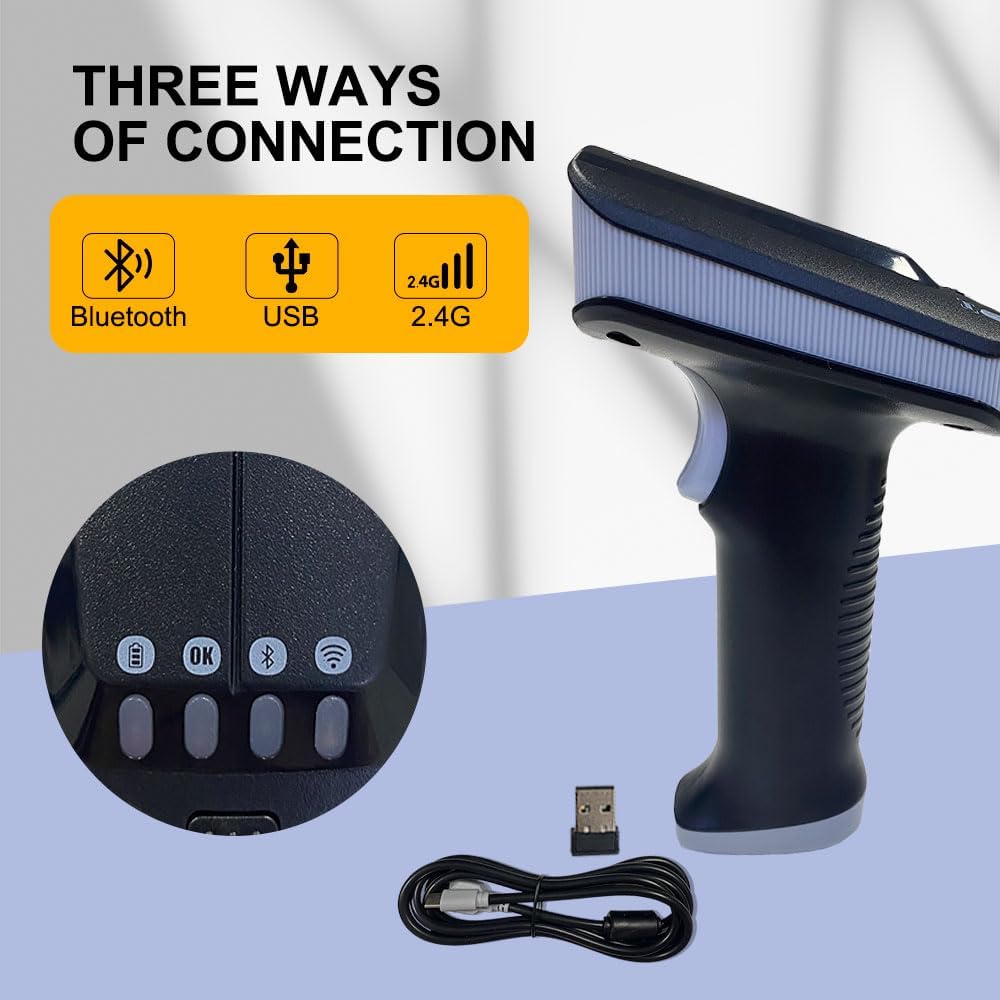
Figure 3: Illustration of the three connection methods: Bluetooth, USB, and 2.4G wireless, along with the 2.4G USB dongle and USB cable.

Figure 4: Diagram showing the wireless communication distances for 2.4G (0-80m) and Bluetooth (0-20m) in an open environment.
Multiple Reading Modes
The SR290 supports various data capture modes to meet diverse operational needs:
- RFID Tags Pekee: Dedicated mode for reading UHF RFID tags.
- 1D-2D QR Barcodes Only: For scanning traditional 1D barcodes and 2D QR codes.
- RFID Tags and 1D 2D QR Codes Simultaneously: A combined mode for comprehensive data capture.
To switch between modes, use the dedicated mode switching key on the device. Refer to the indicator lights for the active mode.

Figure 5: Visual representation of the scanner's ability to read 1D barcodes, 2D QR codes, and RFID tags.

Kielelezo 6: Kina view of the mode switching key and instructions for selecting UHF-Mode, Barcode Mode, or UHF+Barcode Mode.
Mchakato wa Kuchanganua
To scan a barcode or RFID tag:
- Ensure the scanner is powered on and connected to your host device.
- Select the appropriate reading mode (RFID, Barcode, or combined).
- Point the scanner's reading window at the barcode or RFID tag.
- Press the trigger button. The scanner will emit a light beam or RFID signal.
- Upon successful read, the scanner will provide vibration feedback and/or an audible beep, and the indicator lights will change. The data will be transmitted to the connected device.
Vipengele na Viashiria
The SR290 is designed with user feedback and clear indicators:
- Maoni ya Mtetemo: The device provides tactile feedback upon successful scans, confirming data capture.
- Four-Color Indicator Lights: A set of four distinct colored lights (Red, Yellow, Blue, Green) provide visual cues for battery status, connection status, and scanning feedback.

Kielelezo 7: Karibu view of the SR290's indicator lights and a visual representation of its vibration feedback capability.
Kudumu na Kubuni
The YANZEO SR290 is built for demanding environments, featuring:
- Uimara Bora: Engineered to withstand a 1.5-meter drop onto a concrete floor, ensuring resilience in active work settings.
- Muundo wa Ergonomic: The handheld form factor is designed for comfortable grip and prolonged use, reducing operator fatigue.

Figure 8: Depiction of the SR290's drop-proof design, illustrating its ability to withstand a 1.5-meter fall onto a hard surface.
Matengenezo
Kusafisha Kifaa
To maintain optimal performance and hygiene, regularly clean your SR290 scanner:
- Tumia kitambaa laini kisicho na pamba kidogo dampimefungwa kwa maji au suluhisho la kusafisha lisilo na abrasive.
- Wipe the exterior of the device, paying attention to the scanning window.
- Usitumie kemikali kali, miyeyusho, au vifaa vya kukwaruza, kwani hivi vinaweza kuharibu kifaa.
- Hakikisha hakuna kioevu kinachoingia kwenye mlango wa kuchaji au nafasi zingine.
Utunzaji wa Betri
To maximize the lifespan of the lithium-ion battery:
- Epuka kutoa betri kikamilifu mara kwa mara.
- Hifadhi kifaa mahali pa baridi, kavu wakati haitumiki kwa muda mrefu.
- Charge the device regularly, even if not in daily use, to prevent deep discharge.
Kutatua matatizo
This section addresses common issues you might encounter with your YANZEO SR290 scanner.
Kifaa Hakiwashi
- Angalia Betri: Ensure the battery is charged. Connect the scanner to a power source and allow it to charge for at least 30 minutes before attempting to power on again.
- Kitufe cha Nguvu: Confirm you are pressing and holding the power button for the required duration (typically 2-3 seconds).
Masuala ya Kuchanganua
- Incorrect Mode: Verify that the scanner is set to the correct reading mode (RFID, 1D/2D Barcode, or combined) for the item you are trying to scan.
- Umbali/Pembe: Adjust the distance and angle between the scanner and the barcode/RFID tag. Ensure the entire code/tag is within the scanning area.
- Uharibifu: Inspect the barcode or RFID tag for damage, smudges, or poor print quality.
- Mambo ya Mazingira: Strong ambient light can sometimes interfere with barcode scanning. Try scanning in a different lighting condition.
Matatizo ya Muunganisho
- Uunganisho wa Bluetooth:
- Ensure Bluetooth is enabled on your host device and the scanner is in Bluetooth pairing mode.
- Delete previous pairings on your host device and re-pair.
- Check the distance between the scanner and host device; ensure it's within the 20m range.
- Muunganisho wa Waya wa 2.4G:
- Ensure the 2.4G USB dongle is securely plugged into your computer.
- Verify the scanner is in 2.4G wireless mode.
- Check the distance between the scanner and the dongle; ensure it's within the 80m range.
- Muunganisho wa USB wa Waya:
- Hakikisha kebo ya USB imeunganishwa salama kwenye kichanganuzi na kifaa cha mwenyeji.
- Jaribu mlango tofauti wa USB kwenye kompyuta yako.
- Jaribu kwa kebo tofauti ya USB ikiwa inapatikana.
Vipimo
Detailed technical specifications for the YANZEO SR290:
| Kipengele | Vipimo |
|---|---|
| Nambari ya Mfano | SR290 |
| Vipimo vya Kifurushi | Inchi 7.68 x 4.21 x 3.27 |
| Uzito wa Kipengee | 12.1 wakia |
| Aina ya Betri | Betri 1 ya Lithium Polymer (imejumuishwa) |
| Uwezo wa Betri | 2000mAh |
| Teknolojia ya Uunganisho | Bluetooth, Kebo ya USB, Waya ya 2.4G |
| Wireless 2.4G Range | 0-80m (open environment) |
| Msururu wa Bluetooth | 0-20m (open environment) |
| Vifaa Sambamba | Kompyuta ya Mezani, Kompyuta Mpakato, Simu Mahiri |
| Chanzo cha Nguvu | Inaendeshwa na Betri |
| Mtengenezaji | YANZEO |
| Tarehe ya Kwanza Inapatikana | Februari 15, 2024 |
Udhamini na Msaada
YANZEO products are manufactured to high quality standards. For information regarding warranty coverage, technical support, or service, please contact YANZEO customer support.
You can find more information and contact details on the official YANZEO webtovuti:


