Utangulizi
This manual provides comprehensive instructions for the setup, operation, and maintenance of your Blaupunkt 43QD7050 43-inch 4K Ultra HD QLED Google TV. Please read this manual thoroughly before using the television to ensure proper functionality and safety.

Picha: Mbele view of the Blaupunkt 43QD7050 QLED Google TV, highlighting its display and features.
Taarifa Muhimu za Usalama
Daima fuata tahadhari za msingi za usalama unapotumia televisheni hii ili kupunguza hatari ya moto, mshtuko wa umeme, na majeraha. Weka mwongozo huu kwa marejeleo ya baadaye.
- Usiweke televisheni kwenye mvua au unyevu.
- Usizuie fursa za uingizaji hewa.
- Hakikisha msingi sahihi wa waya wa umeme.
- Chomoa runinga wakati wa dhoruba za umeme au wakati haijatumika kwa muda mrefu.
- Rejelea huduma zote kwa wahudumu waliohitimu.
Ni nini kwenye Sanduku
Thibitisha kwamba vipengele vyote vipo unapofungua televisheni yako.
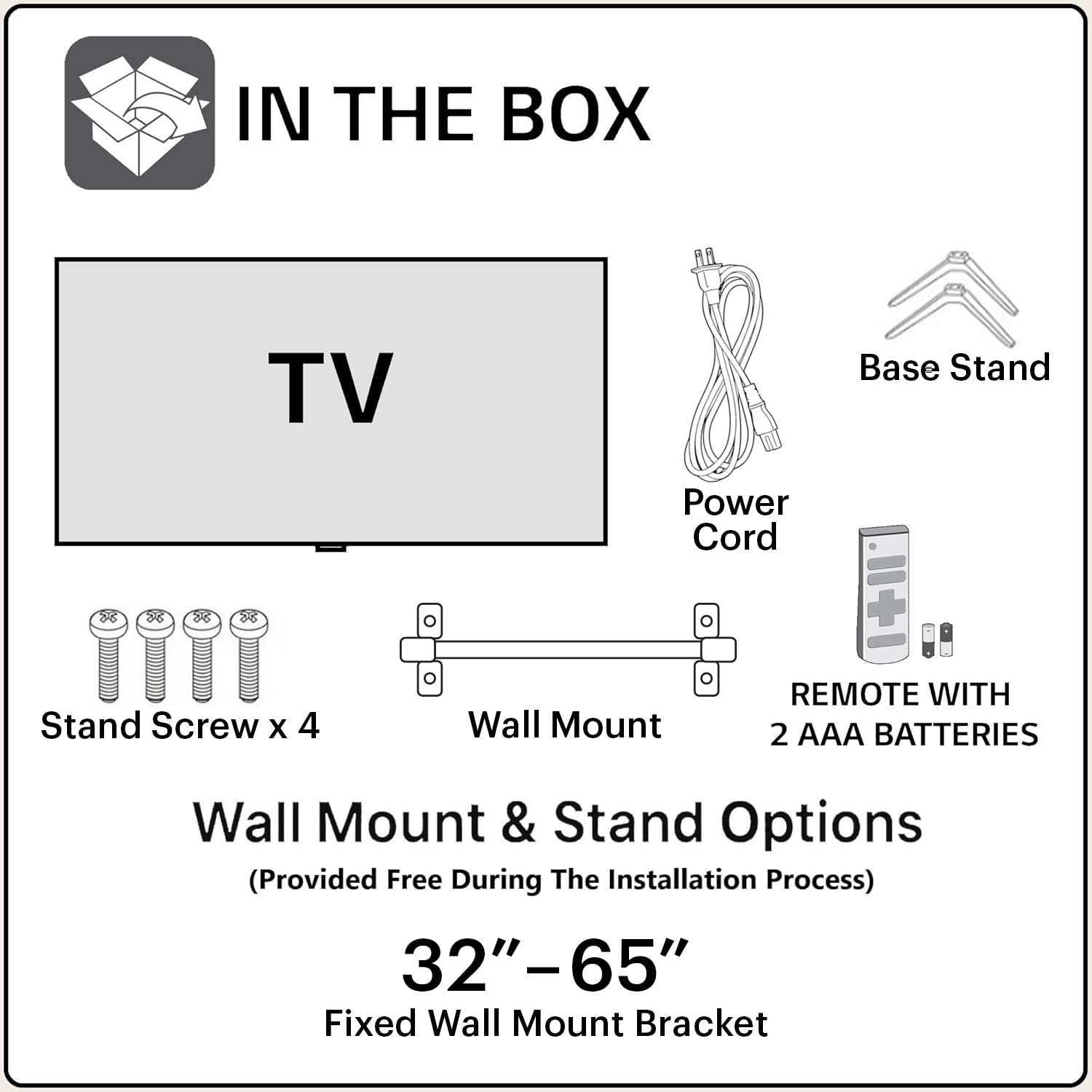
Image: Diagram showing the items included in the product packaging: TV, remote control, wall mount, stand screws, power cord, and AAA batteries.
- 1 x Blaupunkt 43QD7050 LED TV
- 1 x Udhibiti wa Mbali
- 1 x Wall Mount Bracket (for 32"-65" models)
- Betri 2 x AAA (kwa udhibiti wa mbali)
- 1 x Nguvu ya Nguvu
- 1 x Base Stand Set (with 4 stand screws)
- Mwongozo wa Mtumiaji (hati hii)
Zaidi ya Kimwiliview
Mbele View

Picha: Mbele view ya televisheni, kipindiasing the screen and minimal bezels.
Upande View

Picha: Side profile ya televisheni, ikionyesha muundo wake mwembamba.
Nyuma View na Bandari

Picha: Nyuma view of the television, detailing the location of various input and output ports.
The rear panel of the TV includes various ports for connectivity:
- Bandari za HDMI (x3): For connecting devices like gaming consoles, set-top boxes, and Blu-ray players. One port supports eARC.
- Bandari za USB (x2): Kwa kuunganisha vifaa vya hifadhi ya USB.
- Bandari ya Ethernet: Kwa uunganisho wa mtandao wa waya.
- Uingizaji wa Antena/Kebo: Kwa kuunganisha antenna au cable TV.
- Sauti Kati: Kwa kuunganisha mifumo ya sauti ya nje.
- Ingizo la Nguvu: Kwa kuunganisha kamba ya nguvu.
Mwongozo wa Kuweka
1. Ufungaji wa Stendi (Si lazima)
If you choose to place the TV on a stand, follow these steps:
- Weka kwa uangalifu TV kifudifudi kwenye sehemu laini na bapa ili kuzuia uharibifu wa skrini.
- Pangilia stendi za msingi na matundu ya skrubu chini ya TV.
- Salama kila msimamo na skrubu zilizotolewa.
2. Kuweka Ukuta (Si lazima)
The TV comes with a wall mount bracket. Professional installation is recommended for wall mounting. Ensure the wall can support the weight of the TV.
- Refer to the wall mount bracket's instructions for specific installation details.
- Ensure adequate ventilation around the mounted TV.
3. Kuunganisha Pembeni
Connect your external devices to the appropriate ports on the TV's rear panel.
- HDMI: Use HDMI cables to connect devices like set-top boxes, gaming consoles, or Blu-ray players.
- USB: Ingiza viendeshi vya USB kwa uchezaji wa midia.
- Ethaneti: Connect an Ethernet cable for a stable wired internet connection.
- Nguvu: Unganisha kebo ya umeme kwenye kifaa cha kuingiza umeme cha TV na kisha kwenye plagi ya ukutani.

Image: Visual representation of the TV's connectivity options including HDMI, Bluetooth, Dual Band Wi-Fi, and USB.
4. Washa Washa na Usanidi wa Google TV
- Chomeka TV kwenye kituo cha umeme.
- Bonyeza kitufe cha Kuwasha/kuzima kwenye kidhibiti cha mbali au TV.
- Fuata maagizo kwenye skrini ili kukamilisha usanidi wa kwanza, ikijumuisha uteuzi wa lugha, muunganisho wa mtandao (Wi-Fi au Ethernet), na kuingia katika akaunti ya Google.
Maagizo ya Uendeshaji
Kazi za Udhibiti wa Mbali

Image: Layout of the Blaupunkt TV remote control, showing buttons for power, navigation, volume, and quick access to streaming services.
The remote control allows you to navigate the TV's features:
- Kitufe cha Nguvu: Huwasha au kuzima TV.
- Pedi ya Kusogeza (Juu/Chini/Kushoto/Kulia/Sawa): Kwa urambazaji wa menyu na uteuzi.
- Kitufe cha Nyuma: Inarudi kwenye skrini iliyotangulia.
- Kitufe cha Nyumbani: Inafikia skrini ya kwanza ya Google TV.
- Sauti Juu/Chini: Hurekebisha kiwango cha sauti.
- Kitufe cha kunyamazisha: Inanyamazisha au kuzima sauti.
- Vifungo vya Ufikiaji Haraka: Dedicated buttons for Netflix, Prime Video, YouTube, and other services.
- Kitufe cha Mratibu wa Google: Huwasha udhibiti wa sauti.
Uelekezaji wa Kiolesura cha Google TV
Google TV organizes your content from various streaming services into a personalized home screen.

Image: Screenshot of the Google TV interface, displaying personalized movie and show recommendations and a unified watchlist.
- Use the navigation pad to browse through recommended content, apps, and settings.
- Select an item by pressing the OK kitufe.
- Access the full list of installed apps from the "Apps" tab.
Vipengele vya Smart
- Udhibiti wa Sauti (Msaidizi wa Google): Press the Google Assistant button on your remote and speak commands to search for content, control smart home devices, or get information.
- Kuakisi skrini: Cast content from your compatible smartphone or tablet to the TV using the built-in casting feature.
- Programu na Michezo: Access a wide range of applications and games from the Google Play Store.

Image: Display of the TV screen showcasing a selection of over 10,000 available apps and games, including popular streaming services.
Matengenezo
- Kusafisha skrini: Gently wipe the screen with a soft, lint-free cloth. For stubborn marks, use a screen cleaner specifically designed for televisions, applied to the cloth, not directly to the screen.
- Kusafisha Baraza la Mawaziri: Tumia kitambaa laini na kavu kuifuta kabati ya TV. Usitumie visafishaji vya abrasive au vimumunyisho.
- Masasisho ya Programu: The TV may receive automatic software updates. Ensure your TV is connected to the internet to receive these updates, which improve performance and add new features.
Kutatua matatizo
Rejelea sehemu hii kwa masuluhisho ya masuala ya kawaida.
| Tatizo | Suluhisho linalowezekana |
|---|---|
| Hakuna nguvu | Hakikisha kwamba waya wa umeme umechomekwa kwa usalama kwenye TV na plagi ya umeme inayofanya kazi. Angalia mwanga wa kiashirio cha nguvu kwenye TV. |
| Hakuna picha, lakini sauti iko | Check the input source. Press the "Input" button on the remote to cycle through sources. Ensure external devices are powered on and connected correctly. |
| Hakuna sauti, lakini picha iko | Check the volume level and ensure the TV is not muted. Verify audio settings in the TV menu. If using external speakers, check their connections and power. |
| Udhibiti wa mbali haufanyi kazi | Badilisha betri kwenye kidhibiti cha mbali. Hakikisha kuwa hakuna vizuizi kati ya kidhibiti cha mbali na kihisi cha IR cha TV. |
| Ubora wa picha duni | Check the cable connections. Adjust picture settings (brightness, contrast, sharpness) in the TV menu. For external devices, ensure they are outputting at the correct resolution. |
| Matatizo ya muunganisho wa Wi-Fi | Restart your router and modem. Go to the TV's network settings and reconnect to your Wi-Fi network. Ensure the TV is within range of your router. |
Vipimo
Detailed technical specifications for the Blaupunkt 43QD7050 QLED Google TV.

Image: Diagram illustrating the physical dimensions of the Blaupunkt 43QD7050 TV, including screen size, width, height, and depth.
| Kipengele | Maelezo |
|---|---|
| Mfano | 43QD7050 |
| Ukubwa wa skrini | Inchi 43 (sentimita 108) |
| Teknolojia ya Kuonyesha | QLED |
| Azimio | 4K Ultra HD (3840 x 2160) |
| Kiwango cha Kuonyesha upya | 60 Hz |
| Mfumo wa Uendeshaji | Google TV |
| Pato la Sauti | 60 Watts |
| Sifa za Sauti | Dolby Digital Plus, DTS TruSurround, CyberSound Gen2 Technology |
| Muunganisho | Dual Band Wi-Fi, 3 HDMI ports (eARC support), 2 USB ports, Ethernet, Bluetooth |
| Vipengele Maalum | 4K HDR, Google Assistant, Screen Mirroring, HDR 10+ |
| Kumbukumbu (RAM/Hifadhi) | RAM ya GB 2 / Hifadhi ya GB 16 |
| Vipimo vya Bidhaa (LxWxH) | 97 x 10 x 55 cm (bila kusimama) |
| Uzito wa Kipengee | 5.9 kg |
| Mwaka wa Mfano | 2024 |

Image: Representation of the MediaTek MT9602 processor, highlighting its quad-core ARM Cortex A53 CPU and Mali-G52MC1 GPU for performance.
Udhamini na Msaada
Your Blaupunkt 43QD7050 television comes with a manufacturer's warranty.
- Dhamana ya Bidhaa: Mwaka 1 kutoka tarehe ya ununuzi.
- Remote Accessories Warranty: Miezi 6 kutoka tarehe ya ununuzi.
- Dai la Udhamini: The brand warranty can be availed using the purchase invoice.
- Vipengee Havijafunikwa: Light bleeding and dot issues (Mura issues) occurring within acceptable Mura Inspection standards (2% guideline) are not considered panel defects and are not covered.
For customer support, service requests, or further inquiries, please contact:
- Mawasiliano Bila Kulipishwa: 1800-274-4342
- Barua pepe ID: consumercare@blaupunkttv.in
- Anwani ya Mtengenezaji: B-29,30,31, Phase-II, Noida, Gautam Buddha Nagar, Uttar Pradesh, 201301, India.
Please have your product model number (43QD7050) and purchase invoice ready when contacting support.


