1. Utangulizi
This manual provides instructions for the installation, configuration, and operation of the Grandstream GWN7802 16-Port Gigabit Ethernet Layer 2+ Managed Network Switch. Please read this manual thoroughly before attempting to install or operate the device.
2. Bidhaa Imeishaview
The Grandstream GWN7802 is a Layer 2+ managed network switch designed for small to medium-sized businesses. It features 16 Gigabit Ethernet ports and 4 SFP ports, providing high-performance connectivity and advanced management capabilities for robust network infrastructure.
2.1 Sifa Muhimu
- 16 Gigabit Ethernet ports for high-speed wired connections.
- 4 SFP ports for fiber optic uplinks.
- Layer 2+ management features including VLAN, QoS, IGMP Snooping.
- Chuma imara casing for durability.
- Easy management via web user interface or console port.
3. Vifaa Zaidiview
Familiarize yourself with the physical components of the GWN7802 switch.
3.1 Jopo la mbele
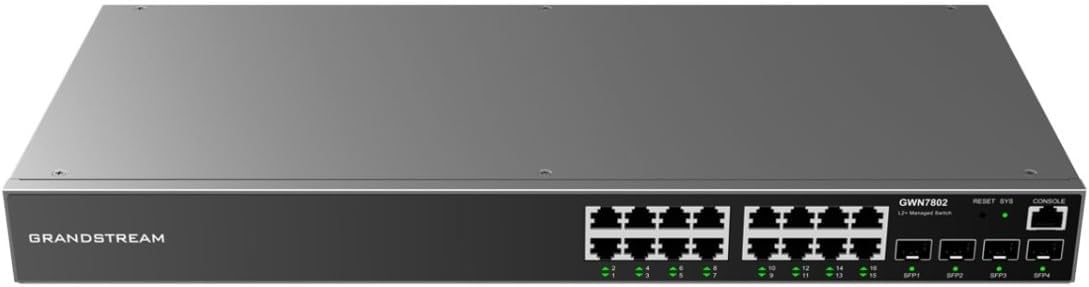
Kielelezo cha 1: Mbele view of the Grandstream GWN7802 switch. This image displays the 16 Gigabit Ethernet ports, 4 SFP ports, RESET button, SYS LED indicator, and CONSOLE port.
- Lango la Ethaneti (1-16): RJ45 ports for connecting network devices.
- SFP Ports (SFP1-SFP4): Slots for SFP transceivers to establish fiber optic connections.
- Kitufe cha WEKA UPYA: Used to reset the device to factory defaults (press and hold for 10 seconds).
- SYS LED: Kiashiria cha hali ya mfumo.
- Mlango wa CONSOL: RJ45 port for command-line interface (CLI) access.
3.2 Paneli ya Nyuma

Kielelezo cha 2: Nyuma view of the Grandstream GWN7802 switch. This image highlights the AC power input connector and the grounding screw.
- Uingizaji wa Nguvu ya AC: Connector for the power cord (100-240V AC, 50/60Hz).
- Parafujo ya Kutuliza: For connecting a grounding wire (recommended for safety).
4. Kuweka na Kuweka
4.1 Yaliyomo kwenye Kifurushi
Thibitisha kuwa bidhaa zifuatazo zimejumuishwa kwenye kifurushi chako:
- Grandstream GWN7802 Network Switch
- Kamba ya Nguvu
- Rack-mount brackets (if applicable)
- Mwongozo wa Ufungaji wa Haraka
If any items are missing or damaged, please contact your vendor for assistance.
4.2 Kuweka Swichi
The GWN7802 can be placed on a desktop or mounted in a standard 19-inch equipment rack.
4.2.1 Uwekaji wa Eneo-kazi
Place the switch on a flat, stable surface. Ensure adequate ventilation around the device to prevent overheating.
4.2.2 Uwekaji wa Raka (Si lazima)
If rack-mounting, attach the provided rack-mount brackets to the sides of the switch using the included screws. Secure the switch into a standard 19-inch equipment rack.
4.3 Nguvu ya Kuunganisha
- Unganisha ncha moja ya kamba ya umeme kwenye pembejeo ya nguvu ya AC kwenye paneli ya nyuma ya swichi.
- Unganisha ncha nyingine ya kebo ya umeme kwenye kituo cha umeme kilichowekwa msingi.
- Hakikisha chanzo cha nishati kiko ndani ya ujazo uliobainishwatage mbalimbali (100-240V AC).
- The SYS LED on the front panel will illuminate when power is supplied.
4.4 Kuunganisha Kebo za Mtandao
- Connect Ethernet cables from your network devices (computers, servers, other switches) to the RJ45 Ethernet ports (1-16) on the front panel.
- For fiber optic connections, insert compatible SFP transceivers into the SFP ports (SFP1-SFP4) and connect fiber optic cables.
- Verify that the link/activity LEDs for the connected ports are illuminated, indicating a successful connection.
5. Kuendesha Swichi
5.1 Viashiria vya LED
Paneli za mbele za LED hutoa habari ya hali:
- SYS LED:
- Kijani Kibichi: Kifaa kinafanya kazi kama kawaida.
- Kijani Inang'aa: Device is booting up or performing an operation.
- Imezimwa: Kifaa kimezimwa.
- Port LEDs (Ethernet/SFP):
- Kijani Kibichi: Kiungo kimeanzishwa.
- Kijani Inang'aa: Shughuli ya data.
- Imezimwa: Hakuna kiungo.
5.2 Ufikiaji wa Usanidi wa Awali
The GWN7802 can be managed via a web-based graphical user interface (GUI) or a command-line interface (CLI) through the console port.
5.2.1 Web Ufikiaji wa GUI
- Connect a computer to any Ethernet port of the GWN7802.
- Ensure your computer's IP address is in the same subnet as the switch's default IP address (refer to the Quick Installation Guide or manufacturer's documentation for the default IP).
- Fungua a web kivinjari na uweke anwani ya IP ya swichi.
- Enter the default username and password (typically "admin" for both, but verify with documentation).
- Follow the on-screen prompts to configure your network settings.
5.2.2 Console Port Access
For advanced configuration, connect a console cable (RJ45 to DB9) from the switch's CONSOLE port to your computer's serial port. Use a terminal emulation program (e.g., PuTTY, Tera Term) with the following settings:
- Kiwango cha Baud: 115200
- Sehemu za data: 8
- Usawa: Hakuna
- Weka Bits: 1
- Udhibiti wa Mtiririko: Hakuna
6. Matengenezo
6.1 Sasisho za Firmware
Regularly check the Grandstream website for the latest firmware versions. Firmware updates can provide new features, performance improvements, and security enhancements. Follow the instructions provided with the firmware package for the update process.
6.2 Kusafisha
To maintain optimal performance, keep the switch clean. Use a soft, dry cloth to wipe the exterior. Do not use liquid or aerosol cleaners. Ensure ventilation openings are free from dust and obstructions.
6.3 Mazingatio ya Mazingira
Operate the switch within its specified environmental limits (temperature, humidity). Avoid exposing the device to direct sunlight, excessive heat, or moisture.
7. Utatuzi wa shida
7.1 Hakuna Nguvu
- Hakikisha waya ya umeme imeunganishwa vizuri kwenye swichi na soketi ya umeme.
- Verify the electrical outlet is functional.
- Angalia kamba ya nguvu kwa uharibifu wowote.
7.2 Hakuna Kiungo kwenye Bandari
- Verify the Ethernet or fiber optic cable is properly connected at both ends.
- Angalia cable kwa uharibifu.
- Hakikisha kuwa kifaa kilichounganishwa kimewashwa na kufanya kazi ipasavyo.
- Jaribu kuunganisha kwenye mlango tofauti kwenye swichi.
7.3 Haiwezi Kufikia Web GUI
- Ensure your computer's IP address is in the same subnet as the switch.
- Verify the switch's IP address is correct.
- Futa akiba ya kivinjari chako au jaribu kivinjari tofauti.
- Zima kwa muda programu yoyote ya ngome kwenye kompyuta yako.
- If the IP address is unknown or forgotten, consider using the console port for access or performing a factory reset (see 7.4).
7.4 Rudisha Kiwanda
If you encounter persistent issues or forget the management credentials, you can reset the switch to its factory default settings. Onyo: Hii itafuta usanidi wote maalum.
- With the switch powered on, locate the RESET button on the front panel.
- Using a paperclip or a similar pointed object, press and hold the RESET button for approximately 10 seconds.
- Release the button when the SYS LED starts flashing rapidly.
- The switch will reboot with factory default settings.
8. Vipimo
Detailed technical specifications for the Grandstream GWN7802 switch.
| Kipengele | Thamani |
|---|---|
| Chapa | Grandstream |
| Jina la Mfano | GWN7802 |
| Nambari ya Mfano wa Ndani | IN-TISA-NSWSAR0377 |
| Bandari | 16x Gigabit Ethernet, 4x SFP |
| Kiwango cha Uhamisho wa Data | Gigabiti 16 kwa Sekunde |
| Nyenzo ya Kesi | Chuma |
| Vipimo vya Bidhaa (L x W x H) | Inchi 19.69 x 19.69 x 11.02 |
| Uzito wa Kipengee | Pauni 7.13 |
| Ingizo la Nguvu | 100-240V AC, 50/60Hz |
| Vifaa Sambamba | Desktop, Servers, Network Devices |
9. Taarifa za Usalama
- Usifunue kifaa kwa maji au unyevu.
- Usifungue au kujaribu kurekebisha kifaa. Rejelea huduma zote kwa wafanyikazi waliohitimu.
- Hakikisha kuweka msingi sahihi kwa usalama wa umeme.
- Tumia tu adapta ya nguvu iliyotolewa na kifaa.
- Weka kifaa mbali na vyanzo vya joto na jua moja kwa moja.
- Hakikisha uingizaji hewa wa kutosha ili kuzuia overheating.
10. Udhamini na Msaada
For warranty information and technical support, please refer to the official Grandstream website or contact your authorized Grandstream reseller. Keep your purchase receipt for warranty claims.
Grandstream Official Webtovuti: www.grandstream.com


