Utangulizi
The BuzzTV E5 is a 4K UHD Streaming Media Player designed to deliver an immersive viewing experience with its Android 11 operating system. This manual provides essential information to help you set up, operate, and maintain your device.
Yaliyomo kwenye Kifurushi
Thibitisha kuwa vipengee vyote vipo kwenye kisanduku:
- BuzzTV E5 Set Top Box
- Ugavi wa Nguvu wa USB Aina ya C
- 2 x Betri za AA
- IR-200 ya Mbali
- Setup/Help Card
- Kebo ya HDMI

The package includes the BuzzTV E5 Set Top Box, a USB Type-C power supply, two AA batteries for the remote, an IR-200 remote control, a setup/help card, and an HDMI cable.
Bidhaa Imeishaview
The BuzzTV E5 is a compact and powerful streaming device.

The device features multiple ports for connectivity, including USB 3.0, LAN, TF card slot, AV, Ethernet, HDMI, Optical, and USB-C power input.
Sifa Muhimu
- 4K UHD Streaming: Supports ultra-high-definition 4K resolution for crisp visuals.
- Utendaji Laini: Equipped with 2GB RAM and 32GB storage for responsive operation.
- Mfumo wa Uendeshaji wa Android 11: Access to a wide range of apps and streaming services with an intuitive interface.
- Easy Setup and Connectivity: HDMI output for TV connection and reliable Wi-Fi.
- Muundo Kompakt: Sleek, space-saving form factor.
Mwongozo wa Kuweka
Mpangilio wa Awali
Follow these steps for the initial setup of your BuzzTV E5:
- Unganisha kwenye TV: Connect the BuzzTV E5 to your television using the provided HDMI cable. Insert one end into the HDMI port on the E5 and the other into an available HDMI input on your TV.
- Muunganisho wa Nishati: Connect the USB Type-C power supply to the E5 and plug the adapter into a power outlet.
- Weka Betri: Open the battery compartment on the IR-200 remote control and insert the two AA batteries, ensuring correct polarity.
- Washa: Press the power button on the E5 device or the remote control to turn on the device.
- Usanidi wa Awali: Follow the on-screen instructions to select your language, connect to your Wi-Fi network, and log in with your Google account.

Hakikisha nyaya zote zimeunganishwa kwa usalama kabla ya kuwasha kifaa.
Maagizo ya Uendeshaji
Operesheni ya Msingi
Navigate the Android 11 interface using the IR-200 remote control.
- Urambazaji: Use the directional pad and 'OK' button to select items.
- Kitufe cha Nyumbani: Press the home button to return to the main screen.
- Kitufe cha Nyuma: Use the back button to go to the previous screen.
- Udhibiti wa Sauti: Rekebisha sauti kwa kutumia vitufe maalum vya sauti.
- Ufikiaji wa Programu: Access installed applications from the home screen or the Apps menu.
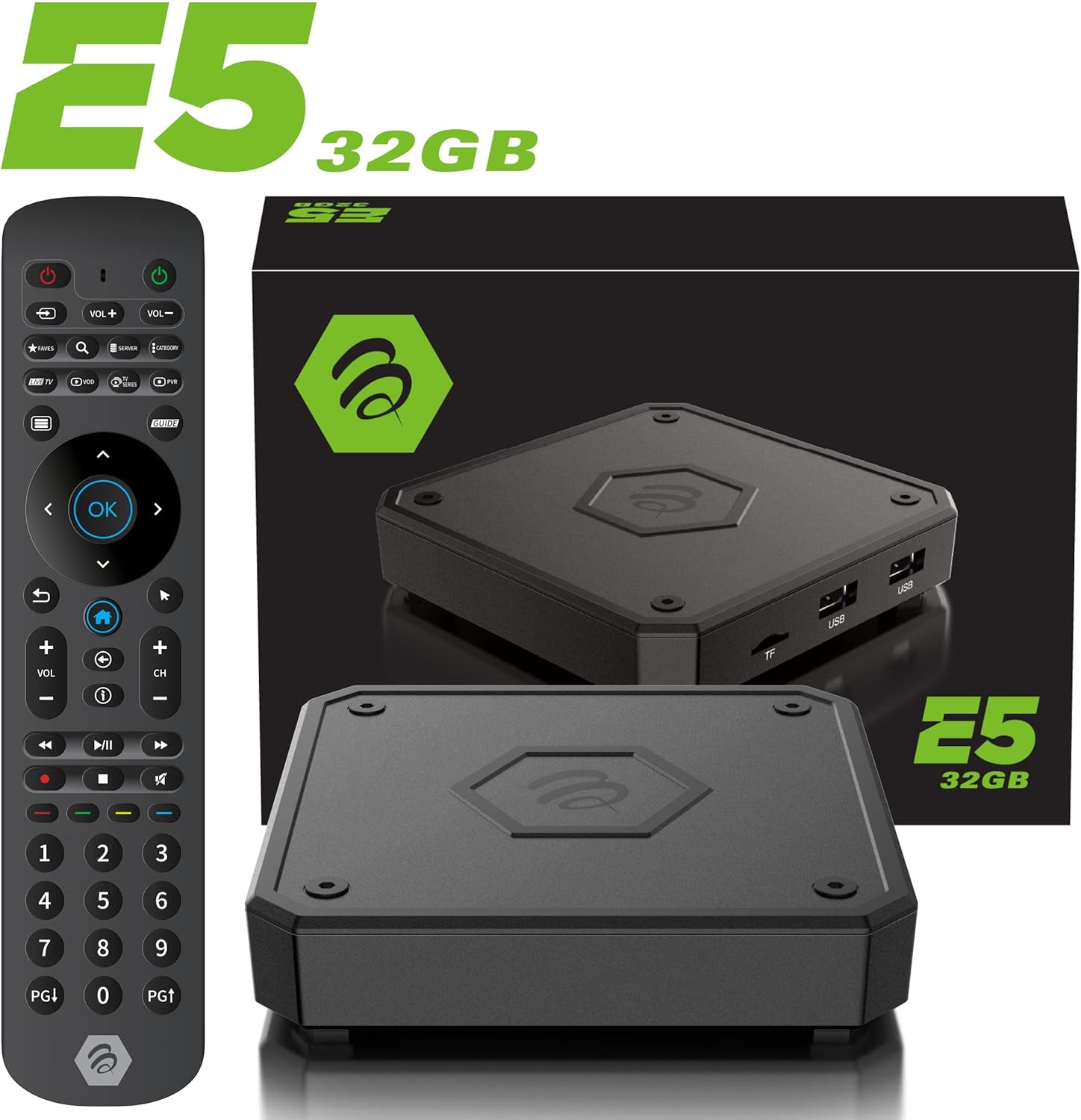
The IR-200 remote provides intuitive control over the BuzzTV E5's functions.
Muunganisho
Chaguzi za Muunganisho
- Wi-Fi: Supports dual-band Wi-Fi (2.4 GHz and 5 GHz) for wireless internet connection.
- Ethaneti: A Gigabit LAN port is available for wired internet connection.
- HDMI: HDMI 2.1 output for high-quality video and audio to your TV.
- USB 3.0: Kwa kuunganisha vifaa vya uhifadhi wa nje au vifaa vya pembeni.
- Toleo la Macho: For digital audio output to compatible sound systems.
Media Playback & Streaming
Media Playback and Streaming
The BuzzTV E5 supports various media formats and provides access to numerous streaming services via the Google Play Store.
- Huduma Zinazotumika: Access Netflix, Disney+, YouTube, Prime Video, Hulu, and many more.
- Local Media: Cheza media files from connected USB drives or TF cards.
Official Product Video: Introducing the BuzzTV 5th Generation Lineup
Video hii inatoa zaidiview of the BuzzTV 5th Generation lineup, highlighting key features and models.
Vipimo
Vipimo vya Kiufundi
| Kipengele | Maelezo |
|---|---|
| Jina la Mfano | E5 |
| Mfumo wa Uendeshaji | Android 11 |
| RAM | DDR ya GB 2 |
| Hifadhi | 32GB eMMC |
| Azimio | UHD 4K |
| Muunganisho | Wi-Fi (2T2R Dual Band), Ethernet (10/100 Mbps) |
| Bandari | HDMI 2.1, USB 3.0, USB 2.0, Optical Audio, Power Input, MicroSD |
| CPU | Amlogic S905X4 Quad-core 64bit Cortex-A55 |
| GPU | Mali-G31 MP2 |
| Bluetooth | 5.0 |
| Vipimo | Inchi 3 x 12 x 12 |
| Uzito | Pauni 1.83 |

Detailed technical specifications for the BuzzTV E5 model.
Kutatua matatizo
Masuala ya Kawaida na Suluhisho
- Hakuna Nguvu: Ensure the power adapter is securely connected to both the device and the power outlet. Check if the power button on the device is pressed.
- Hakuna Ishara kwenye Runinga: Verify the HDMI cable is correctly connected to both the E5 and the TV. Ensure your TV input is set to the correct HDMI port.
- Masuala ya Muunganisho wa Wi-Fi: Check your Wi-Fi router and ensure it's working. Re-enter your Wi-Fi password in the E5 settings.
- Kidhibiti cha Mbali hakijibu: Check if the batteries are correctly inserted and have sufficient charge. Re-pair the remote if necessary (refer to the setup card).
- Kugandisha/Kuanguka kwa Programu: Try restarting the application. If the issue persists, restart the BuzzTV E5 device.
Udhamini na Msaada
For warranty information and technical support, please refer to the official BuzzTV website or the contact information provided on your setup/help card. Keep your purchase receipt for warranty claims.
Online resources and FAQs may also be available on the BuzzTV support page.
Official Product Video: MAG555 Google TV 4K UHD Media Player With Voice Control And HDR From Infomir
This video provides an unboxing and setup guide for a similar Google TV media player, demonstrating general functionality and connectivity.
Official Product Video: MAG555 - revolutionize entertainment with the Google TV
This video showcases the features and user experience of the MAG555 Google TV, highlighting its entertainment capabilities.


