1. Utangulizi
This manual provides detailed instructions for the IINE Wireless Pro Controller, designed for use with Nintendo Switch, Switch OLED, and Switch Lite consoles. Please read this manual carefully before use to ensure proper operation and to maximize your gaming experience.

Image 1: The IINE Wireless Pro Controller, featuring a gold and green design with various buttons and joysticks.
2. Yaliyomo kwenye Kifurushi
Tafadhali angalia yaliyomo kwenye kifurushi unapoondoa sanduku ili kuhakikisha kuwa vipengee vyote vipo:
- 1 x IINE Wireless Pro Controller
- 1 x Cable ya kuchaji ya USB-C
- 1 x Mwongozo wa Maagizo (hati hii)

Image 2: Visual representation of the controller and its packaging, indicating the included items.
3. Mpangilio wa Kidhibiti
Familiarize yourself with the buttons and features of your IINE Wireless Pro Controller:
- Fimbo ya Analogi ya Kushoto: Kwa harakati na udhibiti wa kamera.
- Fimbo ya Analogi ya kulia: Kwa ajili ya kudhibiti kamera na kulenga.
- Pedi ya Mwelekeo (D-Pad): For menu navigation and specific in-game actions.
- Vifungo vya A/B/X/Y: Vifungo vya vitendo.
- Vifungo vya L/R: Vifungo vya mabega.
- Vifungo vya ZL/ZR: Vifungo vya kuchochea.
- Kitufe cha Kuondoa (-): Select/Back button.
- Kitufe cha Plus (+): Kitufe cha Anza/Sitisha.
- Kitufe cha Nyumbani: Returns to the Switch Home menu.
- Kitufe cha Picha ya Skrini: Hunasa picha za skrini.
- Kitufe cha Turbo (T): Activates/deactivates Turbo function.
- NFC Sensor: For Amiibo functionality (located near the center of the controller).
- Bandari ya USB-C: Kwa ajili ya kuchaji na kuunganisha kwa waya.
- Taa za Viashiria: Onyesha hali ya muunganisho na kiwango cha betri.
4. Kuweka na Kuunganisha
4.1 Initial Pairing with Nintendo Switch
- On your Nintendo Switch console, go to the HOME Menu.
- Select "Controllers" > "Change Grip/Order".
- While on the "Change Grip/Order" screen, press and hold the Kitufe cha Nyumbani on the IINE Pro Controller for 3-5 seconds until the indicator lights start flashing rapidly.
- Once the controller is successfully paired, the corresponding player indicator light(s) on the controller will remain solid.
4.2 Reconnecting to Nintendo Switch
If the controller has been previously paired, simply press the Kitufe cha Nyumbani to wake it up. It will automatically attempt to reconnect to the last paired Switch console.
Uunganisho wa waya 4.3
You can connect the controller to your Nintendo Switch dock using the provided USB-C cable. Ensure "Pro Controller Wired Communication" is enabled in the Switch System Settings (System > Controllers and Sensors > Pro Controller Wired Communication).
4.4 PC Steam Connection
The controller also supports PC Steam. Connect the controller to your PC via the USB-C cable. Your PC should recognize it as a gamepad. You may need to configure controller settings within Steam's Big Picture Mode or specific game settings.

Image 3: The controller shown alongside various Nintendo Switch models and a PC monitor, illustrating its broad compatibility.
5. Maagizo ya Uendeshaji
5.1 Wake Up Function
When the Switch console is in sleep mode, press the Kitufe cha Nyumbani on the controller to wake up the console and automatically reconnect the controller.
5.2 Kazi ya Turbo
The Turbo function allows for rapid, automatic pressing of a button. It supports both auto-fire and manual fire dual modes.
- To set Manual Turbo: Bonyeza na ushikilie Kitufe cha T, then press any of the A/B/X/Y/L/R/ZL/ZR buttons once. The button will now activate Turbo when held down.
- To set Auto Turbo: Bonyeza na ushikilie Kitufe cha T, then press the desired A/B/X/Y/L/R/ZL/ZR button twice. The button will now continuously activate Turbo without needing to be held.
- To cancel Turbo for a specific button: Bonyeza na ushikilie Kitufe cha T, then press the desired A/B/X/Y/L/R/ZL/ZR button a third time.
- To cancel all Turbo functions: Bonyeza na ushikilie Kitufe cha T kwa sekunde 5.
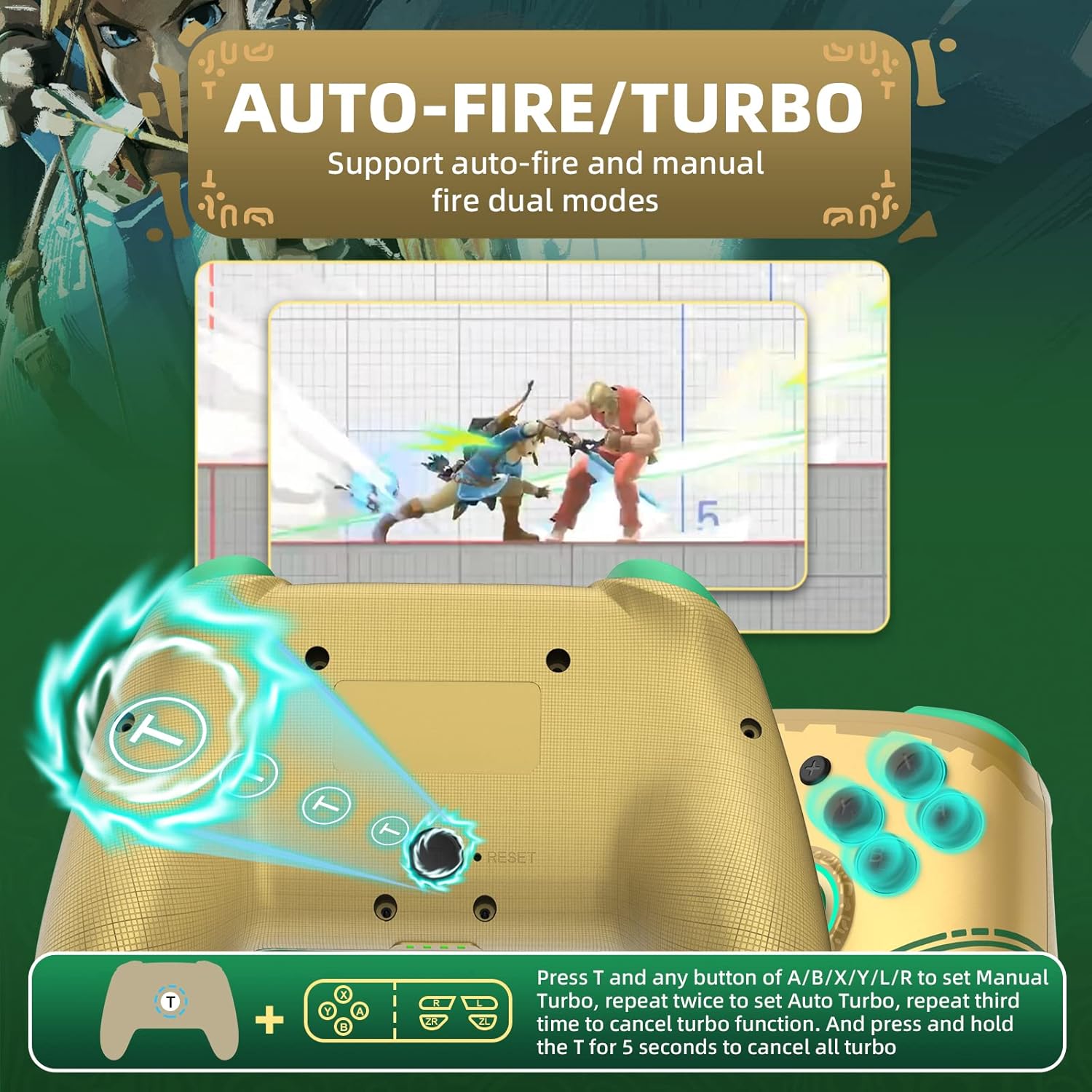
Image 4: Diagram illustrating the button combinations for setting and canceling the Turbo function on the controller.
5.3 Marekebisho ya Mtetemo
The controller features dual vibration feedback with 5 adjustable levels (0%, 30%, 50%, 70%, 100%).
- To adjust vibration intensity: Bonyeza na ushikilie Kitufe cha T, kisha bonyeza kitufe Directional Button Up to increase vibration or Directional Button Down to decrease vibration.
- Kiwango cha mtetemo chaguo-msingi ni 50%.

Image 5: Graphic showing the T button and directional buttons used to adjust the vibration intensity, with a scale from 0% to 100%.
Marekebisho ya Mwanga wa RGB wa 5.4
The controller features RGB lighting around the analog sticks, which can be customized.
- To change monochromatic light color: Bonyeza na ushikilie Kitufe cha T, kisha bonyeza kitufe Fimbo ya Analog ya Kushoto (L3) once. Repeat to cycle through colors.
- To activate colorful light mode: Bonyeza na ushikilie Kitufe cha T, then double-press the Fimbo ya Analog ya Kushoto (L3).
- Ili kurekebisha mwangaza: Bonyeza na ushikilie Kitufe cha T, kisha bonyeza kitufe Fimbo ya Analog ya Kulia (R3) kurekebisha viwango vya mwangaza.

Image 6: Instructions for changing the RGB light color and adjusting brightness using the T button and analog stick presses.
5.5 NFC/Amiibo Function
The controller supports NFC functionality for scanning Amiibo figures and cards.
- Ensure the NFC function is enabled in your game or Switch system settings.
- Place your Amiibo figure or card over the NFC sensor area, typically located near the center of the controller, between the analog sticks.
- The console will register the Amiibo data.

Image 7: Graphic highlighting the NFC area on the controller, indicating support for Amiibo scanning.
5.6 Motion Control (6-Axis Gyro)
The built-in 6-axis gyroscope provides precise motion control for compatible games, enhancing gameplay through features like visual angle adjustment, direction control, and aim shooting.

Image 8: Illustrations demonstrating the 6-axis gyro functionality for visual angle adjustment, direction control, and aim shooting in games.
6. Kuchaji Kidhibiti
The controller is equipped with a 600mAh high-capacity rechargeable battery.
- Connect the provided USB-C charging cable to the USB-C port on the controller.
- Connect the other end of the cable to a USB power source (e.g., Nintendo Switch dock, USB wall adapter, computer USB port).
- The indicator lights on the controller will show charging status. They will typically blink while charging and turn solid or off when fully charged.
- A full charge usually takes approximately 2-3 hours.
7. Matengenezo
- Weka kidhibiti kikavu na mbali na unyevu.
- Epuka kuweka kidhibiti kwenye halijoto kali.
- Safisha kidhibiti kwa kitambaa laini na kikavu. Usitumie kemikali kali au vifaa vya kukwaruza.
- Hifadhi kidhibiti mahali salama ili kuzuia uharibifu kutokana na matone au migongano.
8. Utatuzi wa shida
- Kidhibiti hakiunganishi:
- Hakikisha kuwa kidhibiti kimechajiwa.
- Repeat the initial pairing process (Section 4.1).
- Ensure the Switch console is updated to the latest firmware.
- Try connecting the controller via USB-C cable to the Switch dock.
- Reset the controller by inserting a thin object into the small reset hole (if present, usually on the back).
- Vifungo au vijiti vya kuchezea havijibu:
- Angalia ikiwa kidhibiti kimeunganishwa vizuri.
- Test the controller in Switch's "Calibrate Control Sticks" or "Test Input Devices" settings.
- Ensure no debris is obstructing the buttons or sticks.
- Vibration is not working:
- Check the vibration adjustment settings (Section 5.3) to ensure it's not set to 0%.
- Thibitisha kuwa mchezo unaocheza unaweza kutumia maoni ya mtetemo.
- NFC/Amiibo not detected:
- Ensure the Amiibo is placed correctly over the NFC sensor.
- Verify that the game or Switch system settings have NFC enabled.
9. Vipimo
| Kipengele | Maelezo |
|---|---|
| Nambari ya Mfano | Kidhibiti |
| Utangamano | Nintendo Switch, Switch OLED, Switch Lite, PC (Steam) |
| Muunganisho | Waya isiyotumia waya (Bluetooth), Yanayotumia waya (USB-C) |
| Uwezo wa Betri | 600mAh (Inachajiwa tena) |
| Kuchaji Bandari | USB-C |
| Vipengele Maalum | NFC, Turbo, Adjustable Vibration, RGB Lighting, Wake Up Function, 6-Axis Gyro Motion Control |
| Vipimo | 16.7 x 15.6 x 6.6 cm (takriban.) |
| Uzito | 280 g (takriban.) |
10. Udhamini na Msaada
For warranty information or technical support, please refer to the official IINE webtovuti au wasiliana na huduma kwa wateja wao moja kwa moja. Weka risiti yako ya ununuzi kama uthibitisho wa ununuzi.
For further assistance, you may visit the IINE Store on Amazon: IINE Official Store


