Utangulizi
Thank you for choosing the AUSDOM Wireless Keyboard and Mouse Combo. This manual provides detailed instructions for setting up, operating, and maintaining your new wireless peripheral set. Please read this manual thoroughly before use to ensure optimal performance and longevity of your product.
Yaliyomo kwenye Kifurushi
- 1 x AUSDOM Wireless Keyboard
- 1 x AUSDOM Wireless Mouse
- 1 x Kipokezi cha USB (kilichohifadhiwa kwenye sehemu ya betri ya kipanya)
- 1 x Cable ya kuchaji ya USB-C
- 1 x Mwongozo wa Mtumiaji
Bidhaa Imeishaview
The AUSDOM Wireless Keyboard and Mouse Combo offers a comfortable and efficient input solution. The keyboard features a full-size layout with a numeric keypad and shortcut keys, while the mouse provides adjustable DPI settings for precise control.

Image: The AUSDOM wireless keyboard and mouse combo, showing the full-size keyboard, the ergonomic mouse, and the compact USB receiver.

Image: A visual emphasizing the quiet operation of the keyboard's scissor-switch keys and the silent click mouse, designed for a focused work environment.
Vipengele vya Kibodi:
- Full-size layout with numeric keypad
- 16 multimedia and shortcut keys
- Slim and silent scissor-switch keys
- Inaweza kuchajiwa kupitia USB-C
Vipengele vya Panya:
- Silent click design
- 3 adjustable DPI levels (800/1200/1600)
- Kitufe cha kurudi
- Inaweza kuchajiwa kupitia USB-C
- Integrated USB receiver storage
Mwongozo wa Kuweka
Follow these steps to connect your AUSDOM Wireless Keyboard and Mouse Combo to your computer.

Image: Step-by-step visual guide for connecting the wireless keyboard and mouse, including powering on devices and inserting the USB receiver.
- Chaji Vifaa: Before first use, ensure both the keyboard and mouse are fully charged using the provided USB-C cable. Connect the cable to the charging port on each device and a USB power source. The charging indicator will turn off when fully charged.
- Tafuta Kipokeaji cha USB: The 2.4 GHz USB receiver is stored in the battery compartment on the underside of the mouse. Gently open the compartment cover and remove the receiver.
- Chomeka Kipokeaji: Insert the USB receiver into an available USB port on your computer (desktop, laptop, or all-in-one PC).
- Washa Kibodi: Locate the power switch on the side or back of the keyboard and slide it to the "ON" position.
- Nguvu Kwenye Kipanya: Tafuta swichi ya kuwasha umeme upande wa chini wa kipanya na uitelezeshe hadi mahali pa "WASHA".
- Muunganisho wa Kiotomatiki: The keyboard and mouse should automatically connect to your computer within a few seconds. No additional drivers are typically required for Windows operating systems.
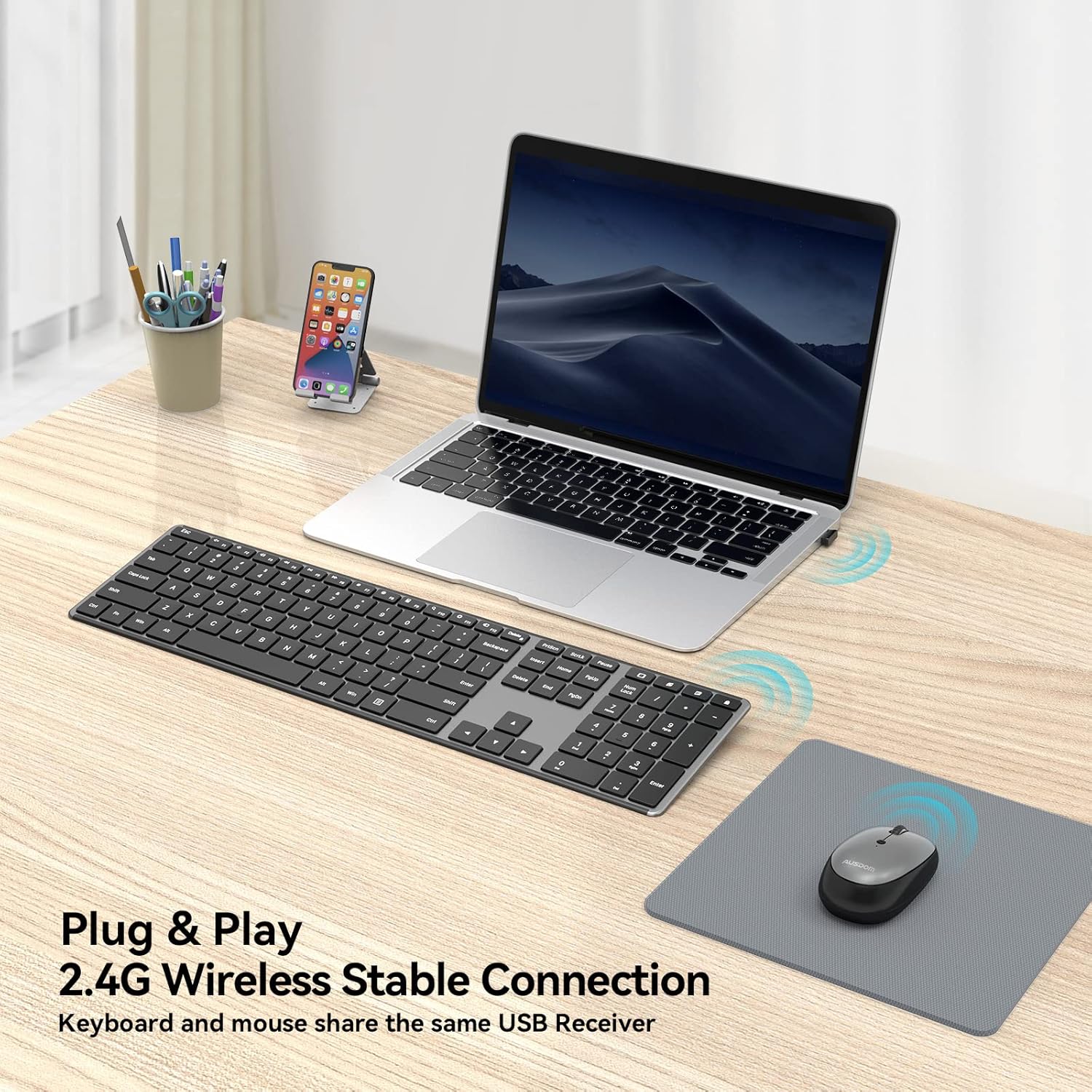
Image: The wireless keyboard and mouse connected to a laptop, illustrating the 2.4G wireless stable connection using a single USB receiver.

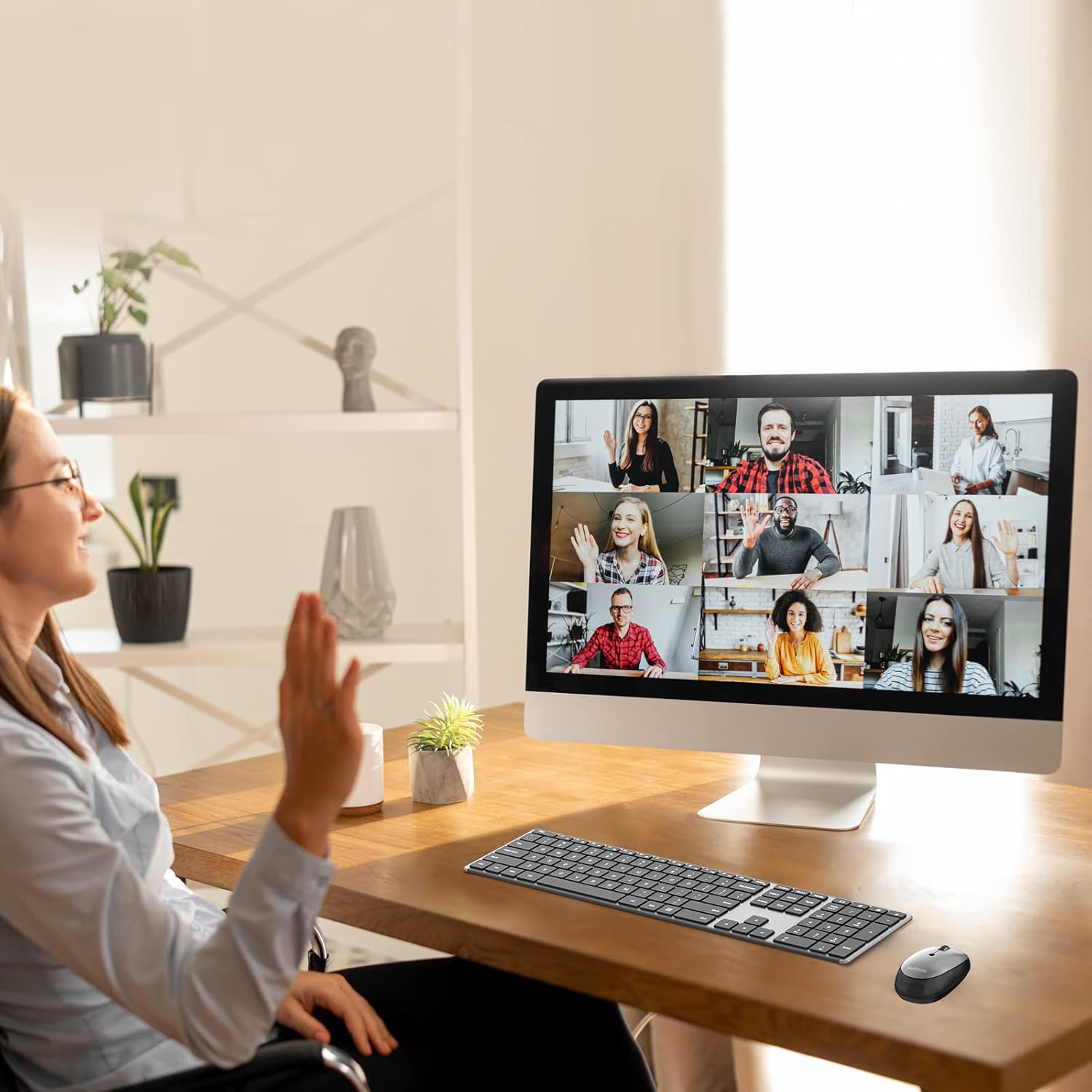
Image: The keyboard and mouse set up with a desktop computer, indicating its primary design for Windows devices including desktops, notebooks, and all-in-one PCs.
Maagizo ya Uendeshaji
Matumizi ya Kibodi:
The keyboard features a standard QWERTY layout with a numeric keypad and dedicated function keys. It is designed for quiet and comfortable typing.
Picha: Maelezo ya kina view of the keyboard highlighting the 16 convenient shortcut keys for various functions like volume control, media playback, and system settings.
Vifunguo vya njia ya mkato:
The keyboard includes 16 shortcut keys for quick access to common functions. These keys are typically activated by pressing the Fn ufunguo wakati huo huo na ufunguo wa chaguo-msingi unaotaka (F1-F12).
- Fn+F1: Nyamazisha
- Fn+F2: Sauti Chini
- Fn+F3: Volume Up
- Fn+F4: Wimbo Uliopita
- Fn+F5: Cheza/Sitisha
- Fn+F6: Wimbo Unaofuata
- Fn+F7: Mwangaza chini
- Fn+F8: Mwangaza Juu
- Fn+F9: Kikokotoo
- Fn+F10: tafuta
- Fn+F11: Mipangilio
- Fn+F12: Washa Kifaa
- Windows Search Key: Opens Windows Search.
- Open Browser Key: Launches default web kivinjari.
- Display Desktop Key: Minimizes all open windows.
- Ufunguo wa Kufunga Skrini: Locks the computer screen.
Kumbuka: Some multimedia features may not be available or function differently on Mac OS.
Matumizi ya Panya:
The wireless mouse offers precise tracking and silent clicks for a focused work environment.

Image: The silent mouse with its underside visible, indicating the DPI adjustment button, power switch, and the compartment for the USB receiver.
Marekebisho ya DPI:
The mouse features three adjustable DPI (Dots Per Inch) levels to control cursor sensitivity. Press the DPI button (usually located near the scroll wheel or on the underside) to cycle through the settings:
- 800 DPI: Slower cursor movement for precise tasks.
- 1200 DPI: Mwendo wa kawaida wa kielekezi.
- 1600 DPI: Faster cursor movement for quick navigation.
The mouse also includes a "Return Button" for quick navigation, typically functioning as a back button in web vivinjari.
Matengenezo
Inachaji:
Both the keyboard and mouse are equipped with built-in rechargeable batteries. Use the provided USB-C charging cable to recharge them.
- Connect the USB-C end of the cable to the charging port on the keyboard or mouse.
- Connect the USB-A end of the cable to a USB power adapter (not included), a computer's USB port, or a power bank.
- Chaji kamili huchukua takriban saa 1.5.
- A single full charge can provide over a month of usage time, depending on usage frequency.
- Vifaa vinaweza kutumika wakati wa kuchaji.

Image: The wireless keyboard and mouse connected to USB-C charging cables, illustrating the rechargeable feature and estimated charging/usage times.
Kuokoa Nishati:
To conserve battery life, both the keyboard and mouse feature power switches. Turn them off when not in use for extended periods.
Kusafisha:
To clean your devices, gently wipe them with a soft, damp cloth. Avoid using harsh chemicals or abrasive materials that could damage the surfaces.
Kutatua matatizo
If you encounter issues with your AUSDOM Wireless Keyboard and Mouse Combo, please refer to the following common solutions:
- Vifaa Havijibu:
- Hakikisha kibodi na kipanya vyote vimewashwa.
- Angalia ikiwa kipokezi cha USB kimechomekwa kwa usalama kwenye mlango wa USB unaofanya kazi kwenye kompyuta yako. Jaribu mlango tofauti wa USB.
- Verify that the devices are fully charged. Recharge them if the battery is low.
- Move the devices closer to the USB receiver to ensure they are within the 10m wireless range.
- Anzisha tena kompyuta yako.
- Muunganisho wa Mara kwa mara:
- Ensure there are no large metal objects or other wireless devices (e.g., Wi-Fi routers, other wireless peripherals) causing interference between the devices and the receiver.
- Try plugging the USB receiver into a different USB port, preferably one on the front of your computer if using a desktop.
- Kielekezi cha Panya Huruka au Si Sahihi:
- Safisha kihisi cha macho kwenye sehemu ya chini ya panya.
- Hakikisha unatumia kipanya kwenye sehemu inayofaa (isiyoakisi sana au inayoonekana wazi). Pedi ya kipanya inapendekezwa.
- Adjust the DPI settings using the DPI button on the mouse to find a comfortable sensitivity.
- Funguo za Kibodi Hazifanyi Kazi:
- Check for any debris under the non-functioning key.
- Hakikisha kibodi imejaa chaji.
- If only function keys are not working as expected, ensure you are pressing the Fn key if required, or check your operating system's settings for function key behavior.
- Compatibility Issues with Mac OS:
- This combo is primarily designed for Windows devices. While basic typing and pointing functions will work, some multimedia or shortcut keys may not be fully functional or may require specific software/driver installations on Mac OS.
Vipimo
| Kipengele | Maelezo |
|---|---|
| Nambari ya Mfano | KAM200 |
| Teknolojia ya Uunganisho | 2.4 GHz isiyo na waya |
| Rangi zisizo na waya | Hadi mita 10 (futi 33) |
| Vipimo vya Kinanda | Inchi 16.85 x 4.49 x 0.62 (sentimita 42.8 x 11.4 x 1.57) |
| Uzito wa Kibodi | Takriban wakia 12.8 (gramu 362.87) |
| Viwango vya DPI vya Kipanya | 800 / 1200 / 1600 DPI |
| Aina ya Betri | Lithiamu-Ioni Inayoweza Kuchajiwa Imejengewa Ndani |
| Kuchaji Bandari | USB-C |
| Muda wa Kuchaji | Takriban. 1.5 masaa |
| Muda wa Matumizi (Chaji Kamili) | Over 1 month (depending on usage) |
| Mifumo Sambamba ya Uendeshaji | Windows (Desktop, Laptop, All-in-One PC) |

Image: A visual representation of the keyboard and mouse dimensions, highlighting the ultra-slim design of the keyboard at 0.62 inches thick.
Udhamini na Msaada
AUSDOM provides a one-year warranty service for this product. If you encounter any problems during use, please contact AUSDOM customer support for assistance.
For warranty claims or technical support, please visit the official AUSDOM website or contact their customer service department through the contact information provided with your purchase.


