1. Utangulizi na Zaidiview
The Calix GigaCenter 844E-1 is a high-performance wireless router and modem designed to provide robust and reliable internet connectivity for home and small office environments. It supports dual-band Wi-Fi (2.4GHz and 5GHz) for optimal wireless performance and includes multiple Ethernet ports for wired connections. This manual provides detailed instructions for setting up, operating, maintaining, and troubleshooting your GigaCenter 844E-1 device.
2. Bidhaa za Bidhaa
- Wi-Fi ya Bendi-mbili: Supports 2.4GHz and 5GHz frequencies for flexible and high-speed wireless connections (802.11ac, 802.11n, 802.11a/g/b compatible).
- High LAN Data Rate: Capable of up to 1000 Mbps for fast wired connections.
- Bandari Nyingi: Includes Ethernet (RJ-45) ports (4 LAN ports), USB 2.0, and RJ-11 ports for versatile connectivity.
- Integrated Modem: Functions as both a router and a modem, simplifying network setup.
- Muundo Kompakt: Designed for efficient space utilization.
3. Yaliyomo kwenye Kifurushi
Tafadhali thibitisha kuwa vipengee vyote vipo kwenye kifurushi chako:
- Calix GigaCenter 844E-1 Wireless Router Modem
- Ugavi wa Nguvu ya Adapta ya AC
- (Optional: Ethernet Cable, Phone Cable - may vary by package)
4. Mwongozo wa Kuweka
Follow these steps to set up your Calix GigaCenter 844E-1:
- Kuweka Kifaa: Place the GigaCenter 844E-1 in a central location in your home, away from obstructions and sources of interference (e.g., microwaves, cordless phones). Ensure adequate ventilation.
- Unganisha Nguvu: Connect the provided AC Adapter Power Supply to the "POWER" port on the back of the GigaCenter 844E-1 and then plug the adapter into a standard electrical outlet. The Power indicator light on the front panel should illuminate.

Kielelezo 4.1: Mbele view of the Calix GigaCenter 844E-1 showing indicator lights and the included power adapter.
- Connect to Internet Source: Connect your internet service provider's (ISP) cable or fiber optic line to the appropriate WAN/Broadband port on the GigaCenter 844E-1. This port is typically labeled "ETH-WAN" or "Broadband". The Broadband indicator light should turn solid green once a connection is established.

Kielelezo 4.2: Upande view of the GigaCenter 844E-1 highlighting the ETH-WAN, Power, and Phone ports.
- Unganisha Vifaa Vinavyotumia Waya (Si lazima): Use standard Ethernet cables to connect computers, gaming consoles, or other network devices to the "ETHERNET 1-4" ports on the back of the GigaCenter 844E-1. The corresponding Ethernet indicator light will illuminate when a device is connected and active.

Figure 4.3: Top/back view of the GigaCenter 844E-1 displaying the USB, Reset, Ethernet (LAN), and Phone ports.
- Connect Phone Devices (Optional): If your service includes voice, connect analog phones to the "PHONE 1" or "PHONE 2" ports using RJ-11 cables.
- Muunganisho wa awali wa Wi-Fi:
- Locate the Wi-Fi Network Name (SSID) and Password (WPA Key) on the label usually found on the bottom or back of your GigaCenter 844E-1.
- Kwenye kifaa chako kisichotumia waya (laptop, simu mahiri, kompyuta kibao), tafuta mitandao ya Wi-Fi inayopatikana.
- Select your GigaCenter's SSID and enter the WPA Key when prompted.
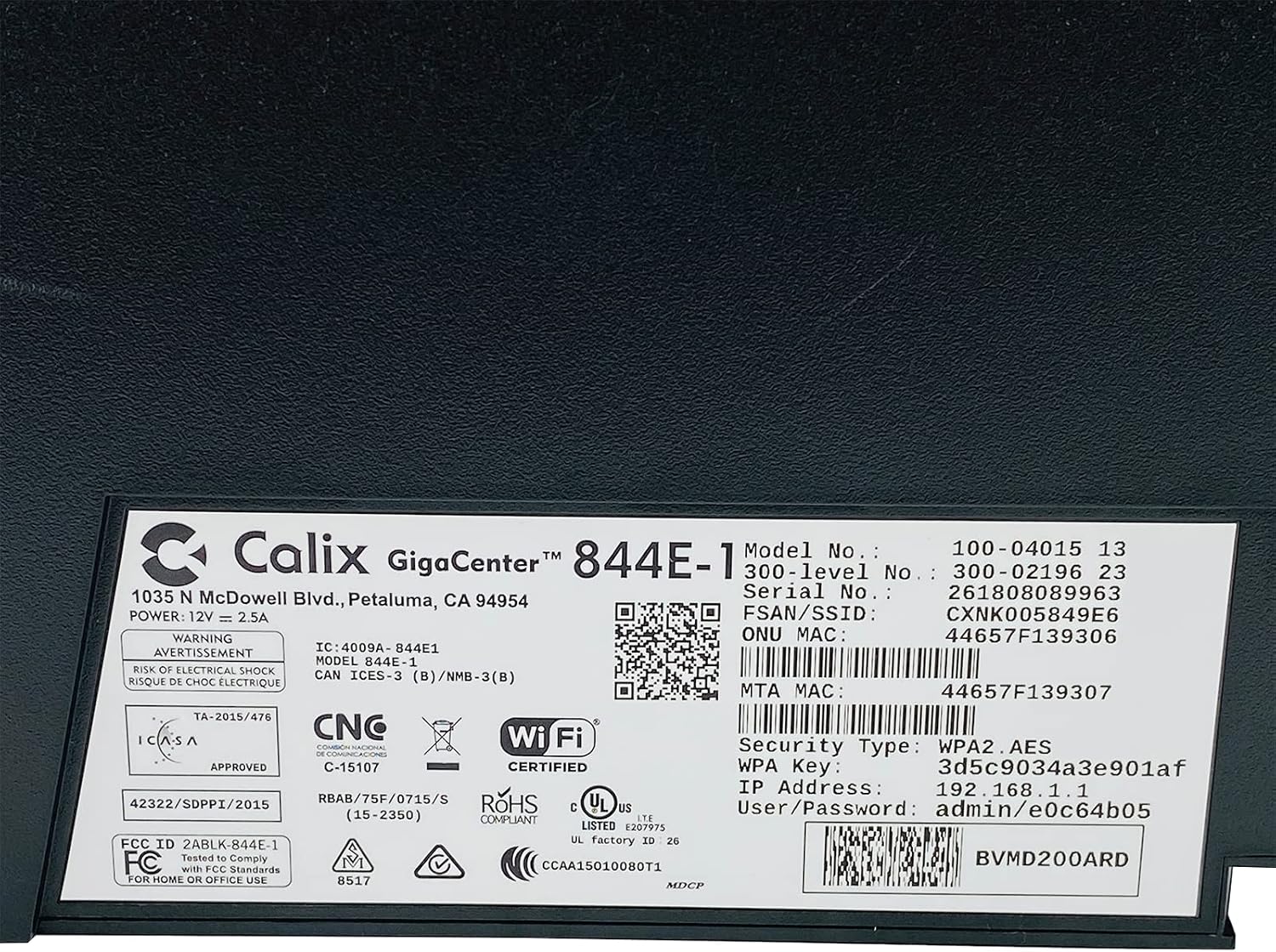
Kielelezo 4.4: Kina view of the bottom label, providing essential information such as model number, serial number, Wi-Fi SSID, and WPA Key for network access.
- Thibitisha Muunganisho: Mara tu imeunganishwa, fungua a web browser and try to access a webtovuti (kwa mfano, www.google.com). If successful, your GigaCenter 844E-1 is set up and ready for use.
5. Maagizo ya Uendeshaji
Taa 5.1 za Kiashiria
The front panel of the GigaCenter 844E-1 features several indicator lights that provide status information:
| Mwanga | Hali | Maelezo |
|---|---|---|
| NGUVU | Kijani Imara | Kifaa kimewashwa. |
| BROADBAND | Kijani Imara | Muunganisho wa mtandao unatumika. |
| HUDUMA | Kijani Imara | Service is active and provisioned. |
| WIFI 2.4 GHz | Solid Green/Flashing | 2.4 GHz Wi-Fi is active/data transfer. |
| WIFI 5 GHz | Solid Green/Flashing | 5 GHz Wi-Fi is active/data transfer. |
| ETHERNET 1-4 | Solid Green/Flashing | Wired connection active/data transfer. |
| PHONE 1-2 | Solid Green/Flashing | Phone service active/in use. |
| USB | Solid Green/Flashing | USB device connected/data transfer. |
| WPS | Kumulika | Uoanishaji wa WPS unaendelea. |
5.2 Kufikia Web Kiolesura
To configure advanced settings, you can access the GigaCenter's web kiolesura:
- Ensure your device is connected to the GigaCenter via Wi-Fi or Ethernet.
- Fungua a web browser and enter the IP Address (e.g., 192.168.1.1) found on the product label into the address bar.
- Enter the User/Password (e.g., admin/e0c64b05) from the product label when prompted.
- You can now configure settings such as Wi-Fi name, password, port forwarding, and parental controls.
6. Matengenezo
- Kusafisha: Tumia kitambaa laini na kavu kusafisha nje ya kifaa. Usitumie kusafisha kioevu au erosoli.
- Uingizaji hewa: Hakikisha nafasi za uingizaji hewa za kifaa hazijafungwa ili kuzuia joto kupita kiasi.
- Sasisho za Firmware: Periodically check with your Internet Service Provider (ISP) for available firmware updates to ensure optimal performance and security.
- Kuanzisha upya: If you experience connectivity issues, try restarting the device by unplugging the power adapter for 10 seconds and then plugging it back in.
7. Utatuzi wa shida
Sehemu hii inashughulikia masuala ya kawaida ambayo unaweza kukutana nayo:
7.1 Hakuna Muunganisho wa Mtandao
- Angalia Cables: Ensure all cables (power, internet source, Ethernet) are securely connected.
- Taa za Viashiria: Verify that the POWER, BROADBAND, and SERVICE lights are solid green. If not, refer to Section 5.1 or contact your ISP.
- Anzisha tena Kifaa: Power cycle the GigaCenter 844E-1 by unplugging it for 10 seconds and plugging it back in.
- ISP Outage: Check with your ISP for any service outagkatika eneo lako.
7.2 Wi-Fi Not Working or Slow
- Wi-Fi Lights: Ensure the WIFI 2.4 GHz and/or WIFI 5 GHz lights are solid green.
- Nenosiri: Double-check that you are entering the correct Wi-Fi password (WPA Key).
- Nguvu ya Mawimbi: Move closer to the GigaCenter 844E-1 to improve signal strength.
- Kuingilia: Punguza usumbufu kutoka kwa vifaa vingine vya kielektroniki.
- Uboreshaji wa Kituo: Fikia web interface to change Wi-Fi channels if experiencing congestion.
7.3 Haiwezi Kufikia Web Kiolesura
- Anwani ya IP: Confirm you are using the correct IP Address (e.g., 192.168.1.1).
- Muunganisho: Ensure your device is connected to the GigaCenter's network.
- Kitambulisho: Verify the User/Password from the product label.
- Firewall/Antivirus: Zima kwa muda ngome au programu yoyote ya kuzuia virusi kwenye kompyuta yako ambayo inaweza kuwa inazuia ufikiaji.
7.4 WPS Functionality
The WPS (Wi-Fi Protected Setup) button allows for easy connection of WPS-compatible devices without manually entering the password. Press the WPS button on the GigaCenter 844E-1 and then activate WPS on your client device within two minutes. The WPS light will flash during the pairing process.
8. Vipimo
| Kipengele | Maelezo |
|---|---|
| Mfano | GigaCenter 844E-1 (100-04015 13) |
| Chapa | Calix |
| Teknolojia ya Uunganisho | Wireless-Wi-Fi 802.11ac, Ethernet (RJ-45) Hub/Switch, 5G |
| Viwango visivyo na waya | 802.11ac, 802.11n, 802.11a/g/b |
| Darasa la Bendi ya Mara kwa mara | Bendi-mbili (GHz 2.4, GHz 5) |
| Maximum LAN Data Rate | 1000 Mbps |
| Bandari | 4 x Ethernet (RJ-45), 1 x USB 2.0, 2 x RJ-11 (Phone) |
| Vifaa Sambamba | Personal Computer, Network Devices |
| Matumizi Iliyopendekezwa | Nyumbani |
| Vipengee vilivyojumuishwa | Ugavi wa Nguvu |
| Uzito wa Kipengee | Pauni 3 |
9. Taarifa za Usalama
- Usifunue kifaa kwa maji au unyevu.
- Usifungue kifaa casing. Rejelea huduma zote kwa wafanyikazi waliohitimu.
- Tumia tu adapta ya nguvu iliyotolewa.
- Weka kifaa mbali na vyanzo vya joto na jua moja kwa moja.
- Hakikisha uingizaji hewa sahihi ili kuzuia overheating.
10. Udhamini na Msaada
For warranty information and technical support, please contact your Internet Service Provider (ISP) or the vendor from whom you purchased this device. The Calix GigaCenter 844E-1 is typically provided and supported by your ISP as part of your internet service package.
For general inquiries or to find more information about Calix products, you may visit the official Calix website (if available, search online for "Calix official webtovuti").


