1. Utangulizi
This manual provides essential information for setting up, operating, maintaining, and troubleshooting your Dell Latitude 5510 laptop. The Dell Latitude 5510 is a 15.6-inch Full HD notebook designed for efficient business and personal use, featuring a 10th Gen Intel Core i7-10610U processor, 16GB DDR4 RAM, and a 512GB M.2 NVMe SSD. This particular unit is a Certified Refurbished product, tested and certified to function like new.
2. Kuweka
2.1 Initial Power-On and Operating System Setup
Upon receiving your Dell Latitude 5510, connect the AC adapter to the laptop and a power outlet. Press the power button to turn on the device. Follow the on-screen prompts to complete the Windows 11 Pro operating system setup, including language selection, network connection, and user account creation.

Figure 1: Dell Latitude 5510 AC Adapter. This image shows the AC adapter and its connector, essential for powering and charging the laptop.
2.2 Viungo vya Kuunganisha
The Dell Latitude 5510 offers a variety of ports for connecting external devices:
- Bandari za USB 3.1: Unganisha vifaa vya USB kama vile diski kuu za nje, panya, au kibodi.
- Bandari ya HDMI: Connect to an external monitor or projector for video and audio output.
- Thunderbolt Ports (USB Type-C): Utilize for high-speed data transfer, video output, and power delivery.
- Jack ya Sauti ya Ulimwenguni: Unganisha vichwa vya sauti au vifaa vya sauti.
- Mlango wa Ethaneti wa RJ-45: Unganisha kwenye mtandao wa waya kwa ufikiaji wa mtandao.
- microSD 4.0 Memory Card Reader: Insert compatible memory cards for data transfer.
- SmartCard Reader (optional): For secure authentication.
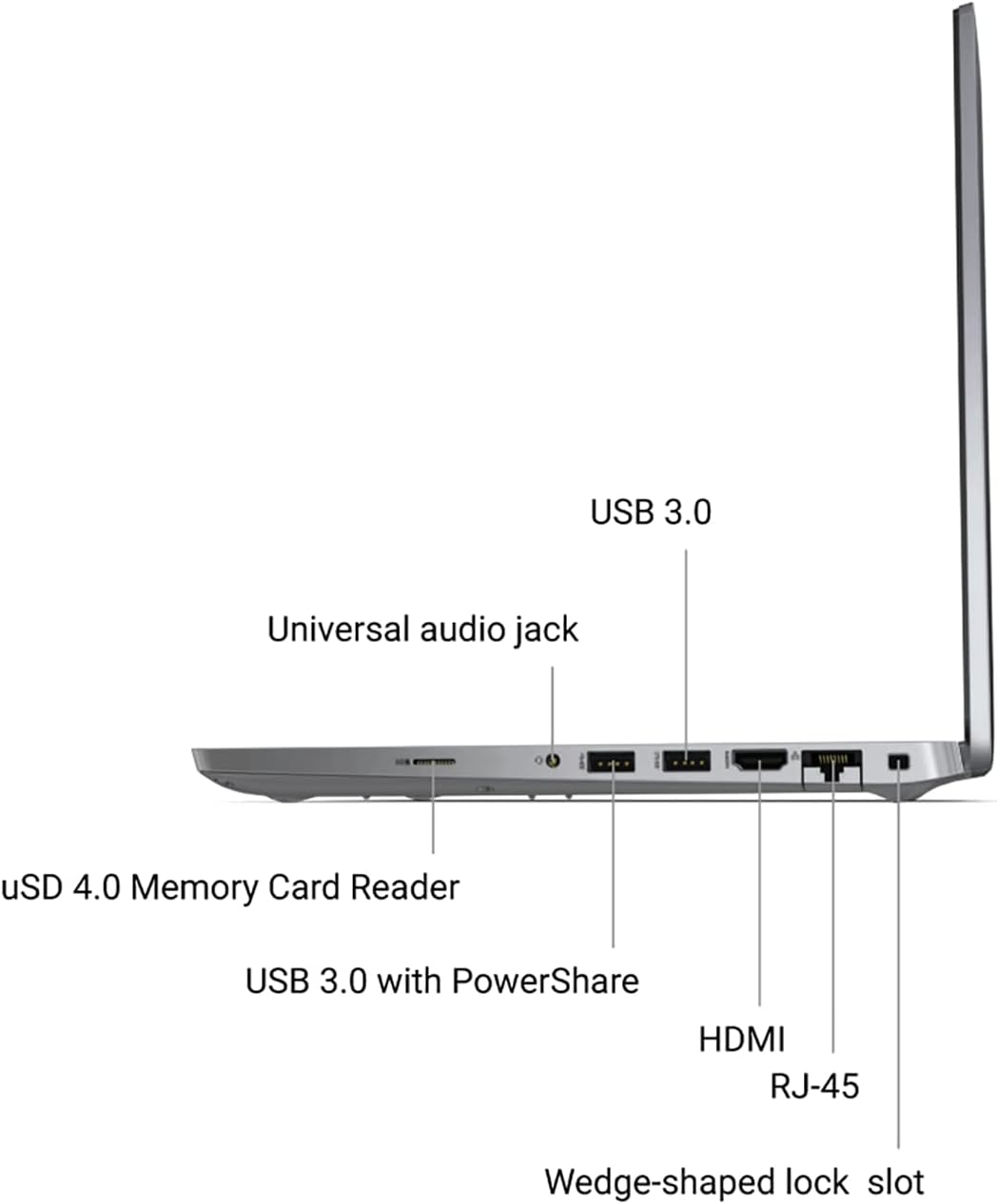
Figure 2: Left side of the Dell Latitude 5510, showing the universal audio jack, USB 3.0 with PowerShare, HDMI, and RJ-45 ports.

Figure 3: Right side of the Dell Latitude 5510, illustrating the Thunderbolt 4 ports with PowerDelivery and DisplayPort (USB Type-C) and the optional SmartCard Reader.
3. Kuendesha Laptop
3.1 Kibodi na Trackpad
The Dell Latitude 5510 features a full-sized keyboard for comfortable typing and a responsive trackpad for navigation. The trackpad supports multi-touch gestures for enhanced control.

Kielelezo 4: Juu-chini view of the Dell Latitude 5510 keyboard and trackpad, highlighting the layout and design.
3.2 Webcam
Iliyounganishwa webcam is located at the top center of the display. It includes a privacy shutter that can be manually slid to cover the lens when not in use, ensuring your privacy.

Kielelezo 5: Mbele view of the Dell Latitude 5510, showing the display and the integrated webcam with its privacy shutter.
4. Matengenezo
4.1 Utunzaji wa Betri
The Dell Latitude 5510 is equipped with a Lithium Ion battery. To maximize battery lifespan, avoid extreme temperatures and allow the battery to discharge partially before recharging. For optimal performance, use only the provided AC adapter.
Maagizo 4.2 ya Kusafisha
Regularly clean your laptop to ensure optimal performance and longevity. Use a soft, lint-free cloth slightly dampened with water or a screen cleaner for the display. For the keyboard and chassis, use a soft cloth and a mild cleaning solution. Avoid spraying liquids directly onto the laptop.
4.3 Internal Components and Upgrades
For advanced maintenance or upgrades, such as replacing the M.2 NVMe SSD or RAM, refer to the following video for guidance. Please note that opening the laptop may void certain warranties if not performed correctly.
Video 1: Dell Latitude 5501 Teardown and Upgrade Guide. This video demonstrates how to access and replace internal components like the M.2 SSD and RAM. While the video features a Dell Latitude 5501, the internal layout and procedures are largely similar to the 5510 model.
5. Utatuzi wa shida
5.1 Masuala ya Kawaida na Suluhu
- Kompyuta mpakato haiwaki: Ensure the AC adapter is securely connected and the power outlet is functional. Try a different outlet if necessary.
- Skrini ni tupu: Connect an external monitor to check if the issue is with the laptop's display. Restart the laptop.
- Utendaji wa polepole: Close unnecessary applications, check for malware, or consider upgrading RAM or SSD if performance issues persist.
- Pembeni hazitambuliki: Ensure the device is properly connected to the correct port. Try connecting to a different port or restarting the laptop.
6. Vipimo
| Kipengele | Vipimo |
|---|---|
| Chapa | Dell |
| Jina la Mfano | 5510 |
| Ukubwa wa skrini | Inchi 15 |
| Azimio la skrini | pikseli 1920 x 1080 (FHD) |
| Kichakataji | 10th Gen Intel Core i7-10610U (1.8 GHz, 8 Cores) |
| RAM | 16GB DDR4 |
| Hifadhi ngumu | 512GB SSD (M.2-NVMe) |
| Graphics Coprocessor | Picha za Intel Integrated |
| Mfumo wa Uendeshaji | Windows 11 Pro |
| Uzito wa Kipengee | Pauni 3.88 |
| Vipimo vya Bidhaa | Inchi 14 x 0.5 x 9 |
| Rangi | Nyeusi |
| Betri | Betri 1 za Lithium Ion zinahitajika (pamoja na) |
7. Udhamini na Msaada
This Dell Latitude 5510 is a Certified Refurbished product and comes with a minimum 90-day warranty. For specific warranty claims or technical support, please refer to the documentation provided with your purchase or contact the seller directly.


