1. Utangulizi
This manual provides detailed instructions for setting up, operating, and maintaining your Cudy M1200 AC1200 Whole Home Mesh WiFi System. This system is designed to eliminate WiFi dead zones and provide seamless, high-speed wireless coverage throughout your home or office.

Image 1.1: Three Cudy M1200 Mesh WiFi units, showcasing the compact and modern design of the system.
2. Yaliyomo kwenye Kifurushi
Thibitisha kuwa kifurushi chako kina vitu vifuatavyo:
- 3 x Cudy M1200 Mesh WiFi Units
- 3 x Adapta za Nguvu
- 1 x Cable ya Ethernet
- 1 x Quick Installation Guide (this document serves as a comprehensive guide)

Image 2.1: The retail packaging for the Cudy M1200 Mesh WiFi System, indicating a 3-pack configuration.
3. Bidhaa Imeishaview
3.1. Unit Layout
Each Cudy M1200 unit features a minimalist design with essential ports and indicators.
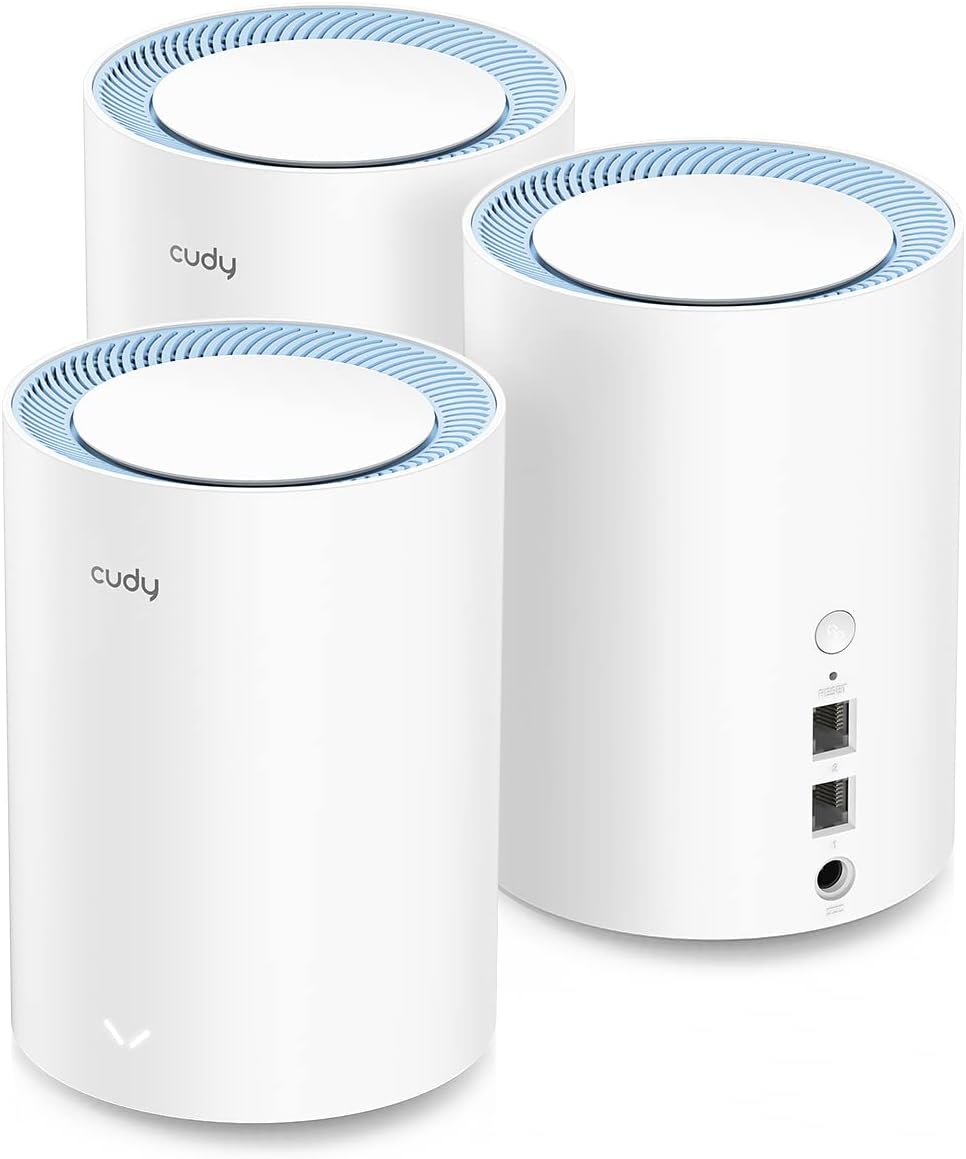
Picha ya 3.1: Nyuma view of a Cudy M1200 unit, displaying the power input, Ethernet ports, and the pairing button.
3.2. Bandari na Vifungo
- Bandari ya Umeme: Inaunganisha kwa adapta ya nguvu iliyojumuishwa.
- Ethernet Ports (LAN/WAN): Used for connecting to your modem/router or wired devices. These ports are auto-sensing.
- Kitufe cha Jozi: Used to establish a mesh connection between units.
- Badilisha Kitufe: (Often a small pinhole) Used to restore the unit to factory default settings.
3.3. Kiashiria cha LED
The LED indicator on the front of each unit provides status information:
- Bluu Mango: Unit is powered on and operating normally.
- Bluu Inayong'aa: Unit is starting up or searching for a mesh connection.
- Nyekundu Imara: No internet connection or an error has occurred.
4. Mwongozo wa Kuweka
Follow these steps to set up your Cudy M1200 Mesh WiFi System.
4.1. Initial Setup of the Main Unit
- Ondoa: Remove one Cudy M1200 unit from its packaging. This will be your main unit.
- Unganisha kwa Modem: Connect one end of the provided Ethernet cable to an Ethernet port on your existing modem or router, and the other end to any Ethernet port on the Cudy M1200 main unit.
- Washa: Connect the power adapter to the main unit and plug it into a power outlet. Wait for the LED indicator to turn solid blue, which may take a few minutes.
- Unganisha kwa WiFi: On your computer or smartphone, connect to the default WiFi network name (SSID) printed on the label at the bottom of the Cudy M1200 unit. The default password is also on this label.
- Ufikiaji Web Kiolesura: Fungua a web kivinjari na uingie
http://cudywifi.netor192.168.10.1in the address bar. Follow the on-screen instructions to configure your new WiFi network name (SSID) and password.
4.2. Pairing Satellite Units
Once the main unit is configured, you can easily add the other two units to create your mesh network.
- Power On Satellite Unit: Place a satellite unit in a central location within your home, ideally within range of the main unit. Connect its power adapter and plug it into a power outlet.
- Anzisha Kuoanisha: Press the 'Pair' button on the main Cudy M1200 unit. Then, within two minutes, press the 'Pair' button on the satellite unit.
- Thibitisha Muunganisho: The LED indicator on the satellite unit will flash blue during pairing and turn solid blue once a successful mesh connection is established.
- Rudia: Repeat steps 1-3 for the third Cudy M1200 unit.
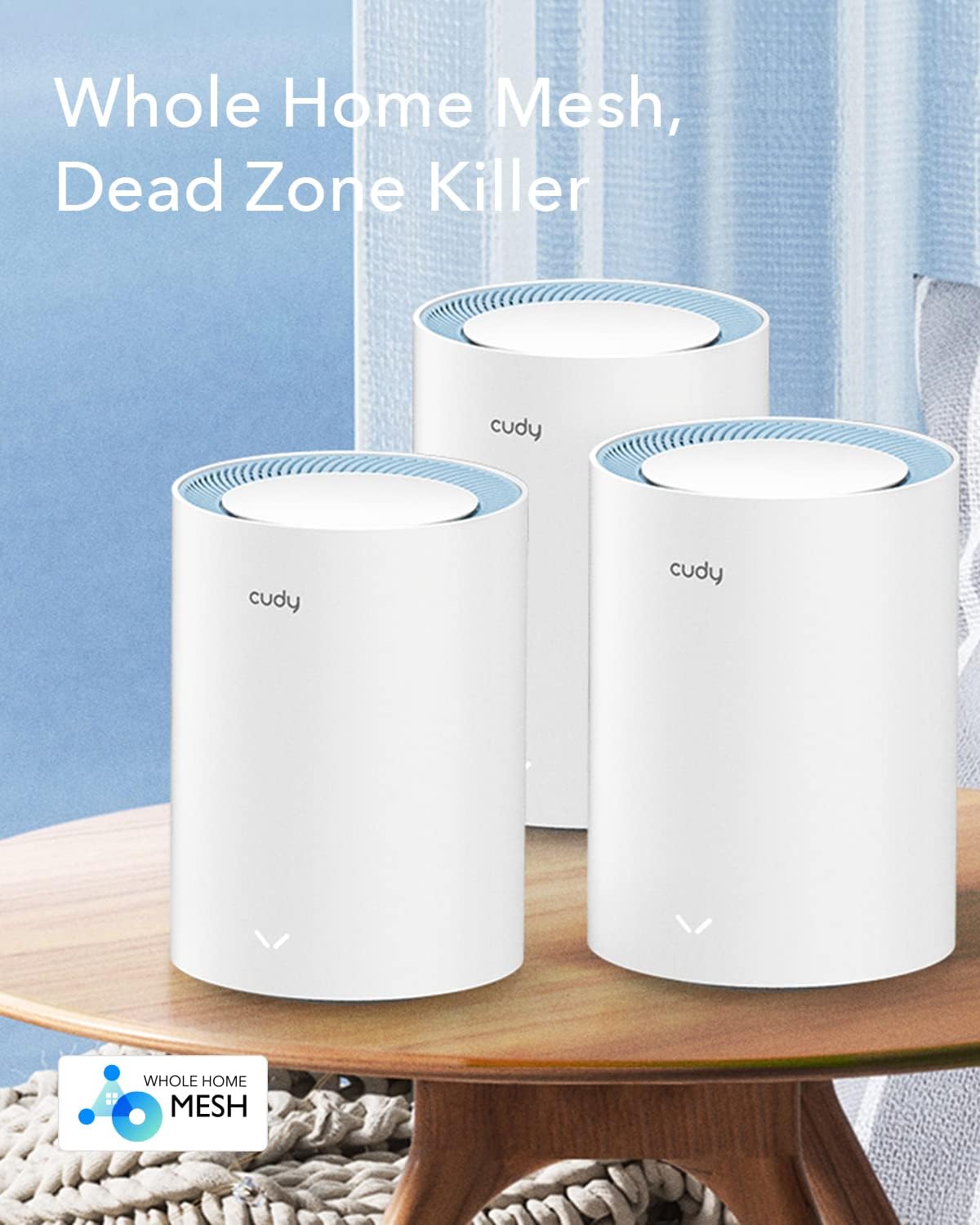
Image 4.1: The Cudy M1200 Mesh WiFi System units positioned on a table, illustrating their readiness for deployment in a home environment.
5. Maagizo ya Uendeshaji
5.1. Kuzurura bila Mfumo
The Cudy M1200 system supports seamless roaming. As you move around your home, your devices will automatically switch to the unit with the strongest WiFi signal without interruption, ensuring a consistent connection.
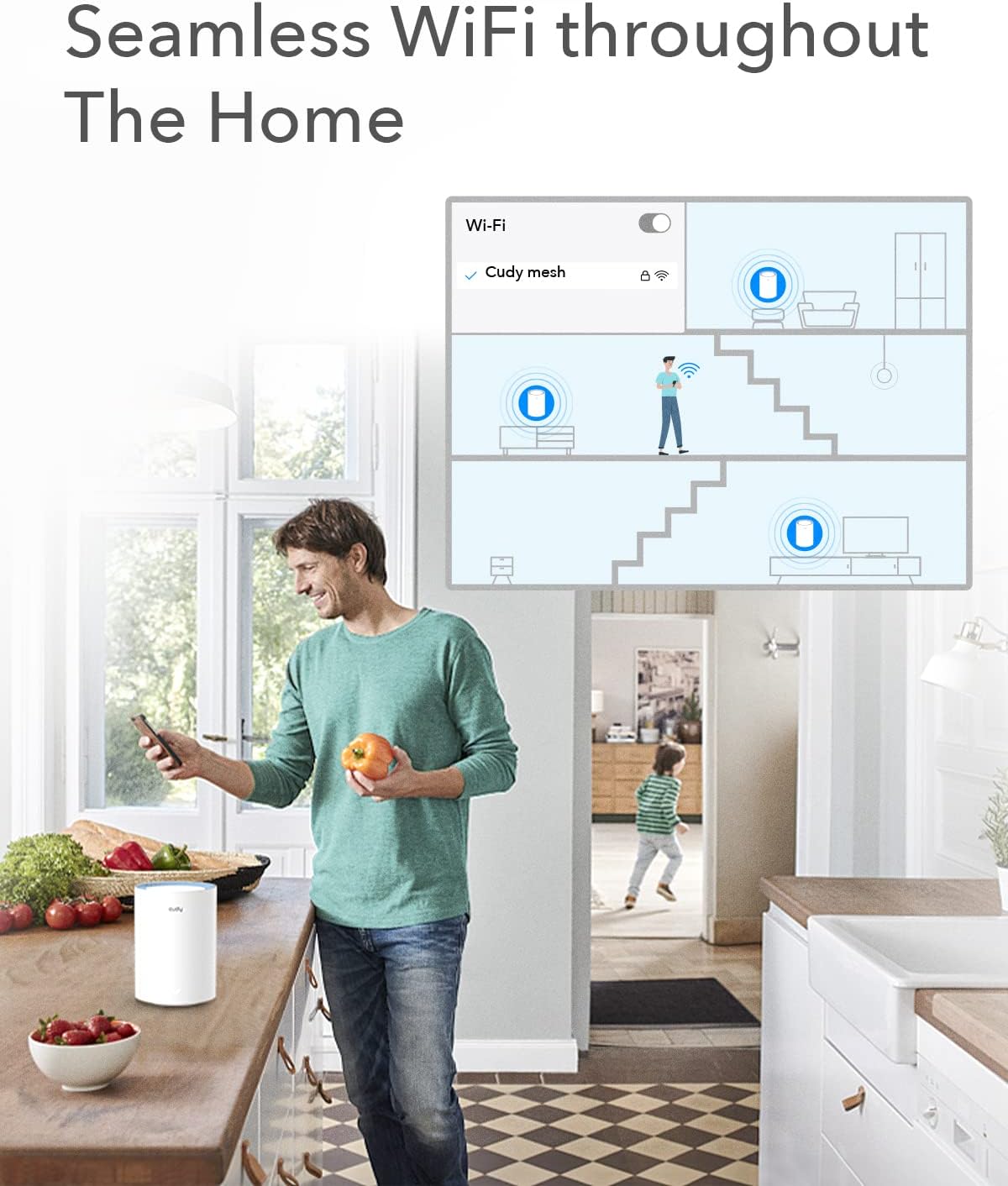
Image 5.1: A visual representation of seamless WiFi coverage provided by Cudy Mesh units across different floors of a house, showing a user maintaining connection while moving.
5.2. Dual-Band WiFi
The system operates on both 2.4GHz and 5GHz frequencies. You can configure separate SSIDs for each band or use a single SSID for both, allowing the system to intelligently assign devices to the optimal band.
5.3. Device Capacity
The Cudy M1200 Mesh WiFi System is designed to handle a large number of connected devices (100+), supporting various activities simultaneously without significant performance degradation.
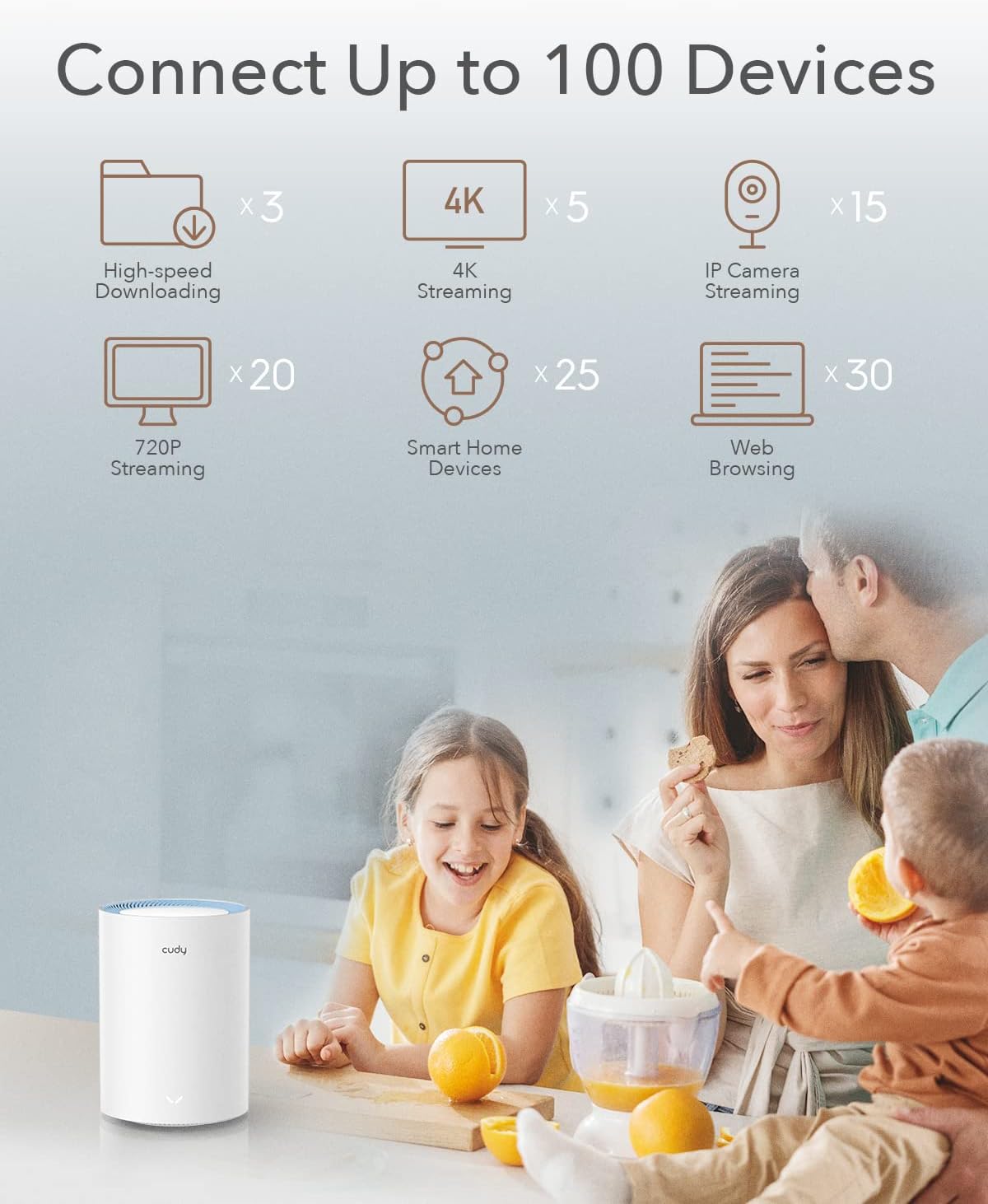
Image 5.2: An infographic demonstrating the Cudy M1200's capability to connect up to 100 devices, with examples like high-speed downloading, 4K streaming, and smart home devices.
6. Vipengele vya Juu
6.1. VPN Support
The Cudy M1200 includes VPN client support for OpenVPN, WireGuard, PPTP, and L2TP/Zerotier. This allows you to establish secure connections to VPN servers, protecting your online data and traffic.
6.2. DNS Encryption
Enhance your privacy with DNS encryption over Cloudflare, NextDNS, or Google DNS. This feature helps protect your browsing activity from being monitored.

Image 6.1: A visual representation of the Cudy M1200's security capabilities, highlighting VPN client options (L2TP, PPTP, OpenVPN, WireGuard) and DNS server encryption (Cloudflare, NextDNS, Google).
7. Matengenezo
- Sasisho za Firmware: Regularly check the Cudy website for firmware updates to ensure optimal performance and security. Updates can typically be installed via the web kiolesura.
- Uwekaji: For best coverage, place units in open areas, away from large metal objects, concrete walls, and other sources of interference.
- Kusafisha: Keep the units clean and free from dust to prevent overheating. Use a soft, dry cloth for cleaning.
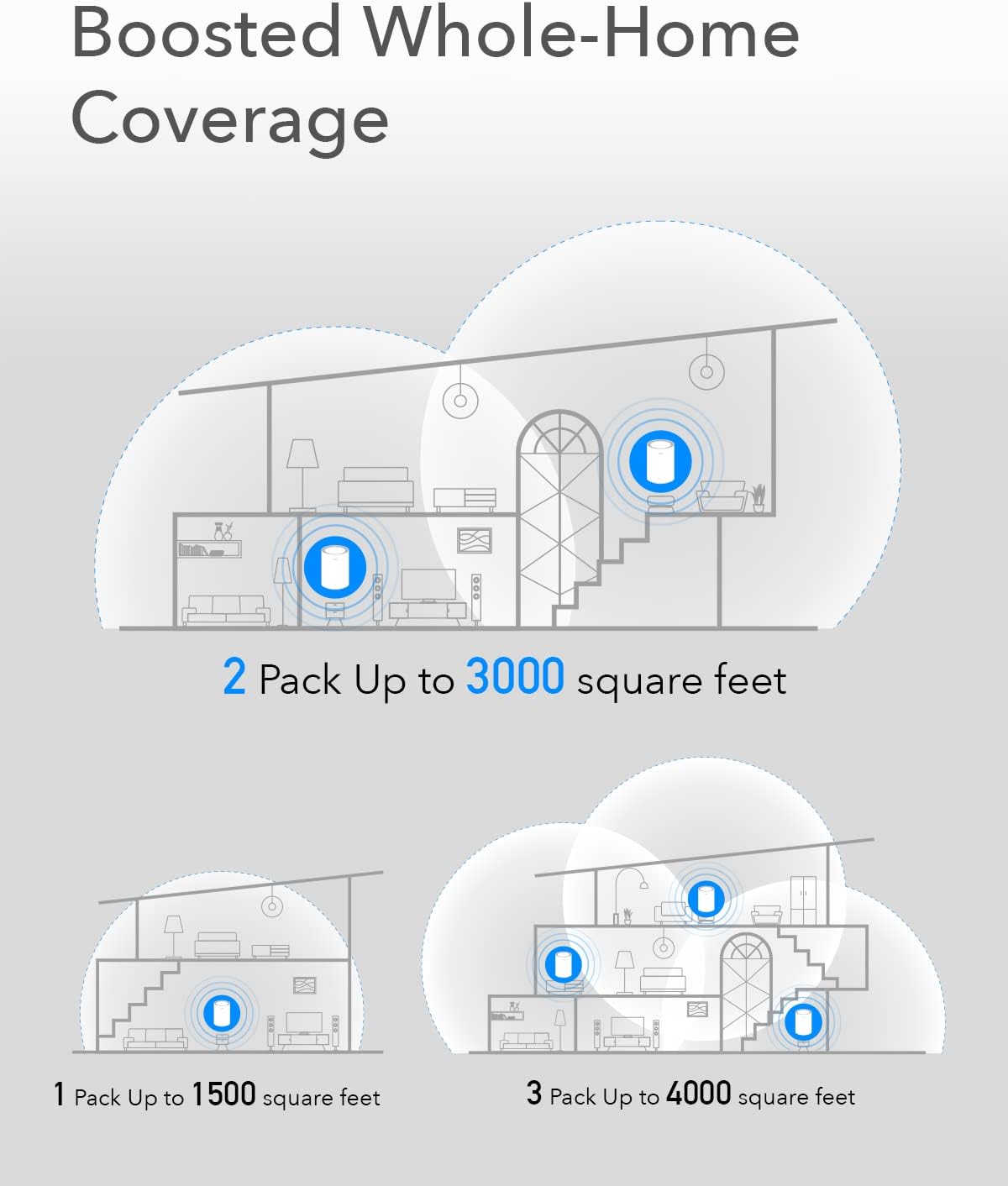
Image 7.1: Diagrams showing how the Cudy M1200 system provides boosted whole-home coverage, with 1 unit covering up to 1500 sq ft, 2 units up to 3000 sq ft, and 3 units up to 4000 sq ft.
8. Utatuzi wa shida
If you encounter issues with your Cudy M1200 Mesh WiFi System, refer to the following common solutions:
- Hakuna Muunganisho wa Mtandao:
- Angalia ikiwa modem yako inafanya kazi vizuri.
- Ensure the Ethernet cable between the main Cudy unit and your modem is securely connected.
- Restart your modem and the main Cudy unit.
- Weak WiFi Signal/Dead Zones:
- Relocate satellite units closer to the main unit or to areas with weaker signals.
- Ensure units are not obstructed by large objects or walls.
- Angalia vyanzo vya usumbufu (km, maikrowevi, simu zisizotumia waya).
- Satellite Unit Not Pairing:
- Ensure both the main unit and satellite unit are powered on.
- Press the 'Pair' button on the main unit first, then on the satellite unit within the specified timeframe.
- If issues persist, try resetting the satellite unit to factory defaults and attempting pairing again.
- Haiwezi Kufikia Web Kiolesura:
- Ensure your device is connected to the Cudy WiFi network.
- Thibitisha kuwa unatumia anwani sahihi:
http://cudywifi.netor192.168.10.1. - Futa akiba ya kivinjari chako au jaribu kivinjari tofauti.

Image 8.1: A comprehensive diagram showing a Cudy Mesh network providing reliable WiFi throughout a multi-level home, ensuring connectivity for various devices in every room and even outside.
9. Vipimo
| Kipengele | Maelezo |
|---|---|
| Jina la Mfano | M1200 |
| Kiwango kisicho na waya | 802.11ac/a/b/g/n |
| Darasa la Bendi ya Mara kwa mara | Bendi-mbili (GHz 2.4 & 5GHz) |
| Kasi isiyo na waya | Up to 300 Mbps (2.4GHz), 867 Mbps (5GHz) |
| Eneo la Chanjo | Up to 4,000 sq.ft (3-Pack) |
| Vifaa Vilivyounganishwa | 100+ |
| Vipengele Maalum | Access Point Mode, LED Indicator, Remote Access, VPN Client (OpenVPN, WireGuard, PPTP, L2TP/Zerotier), DNS Encryption |
| Teknolojia ya Uunganisho | Wi-Fi |
| Aina ya Antena | Ndani |
| Vipimo vya Bidhaa | Inchi 19.69 x 19.69 x 11.02 |
| Uzito wa Kipengee | Pauni 4.13 |
| Rangi | Nyeupe |
| Mtengenezaji | Shenzhen Cudy Technology Co., Ltd. |
10. Udhamini na Msaada
10.1. Taarifa za Udhamini
Cudy products typically come with a limited warranty. Please refer to the warranty card included with your product or visit the official Cudy webtovuti kwa sheria na masharti ya sasa ya udhamini.
10.2. Msaada wa Kiufundi
For technical assistance, troubleshooting, or further inquiries, please visit the official Cudy support website or contact their customer service. Contact details are usually available on the product packaging or the Cudy webtovuti.
Cudy Rasmi Webtovuti: www.cudy.com


