1. Utangulizi
This manual provides comprehensive instructions for the installation, operation, and maintenance of your TP-Link Archer C5 AC1200 Dual-Band Gigabit Wireless Wi-Fi Router. The Archer C5 is designed to provide seamless Wi-Fi coverage with its dual-band capabilities, offering speeds up to 750Mbps on the 5GHz band and up to 300Mbps on the 2.4GHz band. It features four external antennas for stable wireless connections and full Gigabit ports for high-speed wired connections.
Please read this manual carefully before using the device to ensure proper setup and optimal performance.
2. Yaliyomo kwenye Kifurushi
Thibitisha kuwa kifurushi chako kina vitu vifuatavyo:
- TP-Link Archer C5 Router
- Power Adapter (DC Adapter)
- Kebo ya Ethernet (RJ45)
- Quick Installation Guide (may be a separate document)
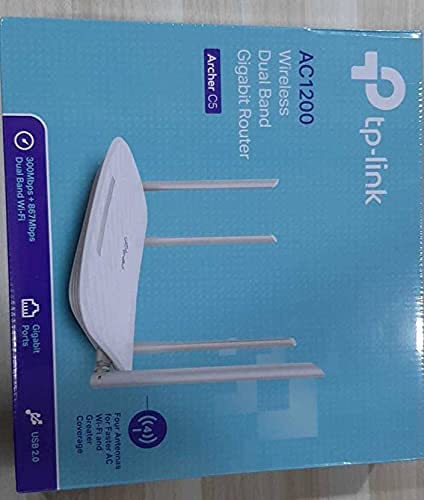
3. Bidhaa Imeishaview
3.1 Jopo la mbele

The front panel features LED indicators that provide information about the router's status, including power, internet connectivity, Wi-Fi status for both 2.4GHz and 5GHz bands, and LAN port activity.
3.2 Paneli ya Nyuma

The rear panel includes all physical connection ports and buttons:
- Ingizo la Nguvu: Inaunganisha kwa adapta ya nishati iliyotolewa.
- Kitufe cha Nguvu: Huwasha au kuzima kipanga njia.
- Mlango wa USB: For connecting USB storage devices to share files kwenye mtandao.
- Bandari ya WAN (Bluu): Connects to your modem for internet access. This is a Gigabit port.
- Milango ya LAN (Njano): Milango minne ya Gigabit Ethernet ya kuunganisha vifaa vya waya kama vile kompyuta, vifaa vya michezo ya kubahatisha, au TV mahiri.
- Badilisha Kitufe: Inatumika kurejesha kipanga njia kwa mipangilio chaguomsingi ya kiwanda.
- Kitufe cha WPS/Wi-Fi: Bonyeza ili kuwezesha WPS (Usanidi Uliolindwa wa Wi-Fi) kwa muunganisho rahisi, au bonyeza na ushikilie ili kuwasha/kuzima Wi-Fi.
4. Mwongozo wa Kuweka
Follow these steps to set up your TP-Link Archer C5 router:
- Zima Modem Yako: Ondoa nishati kutoka kwa modemu yako iliyopo.
- Unganisha Kipanga njia:
- Connect one end of the provided Ethernet cable to the WAN port (blue) on your Archer C5 router.
- Unganisha ncha nyingine ya kebo ya Ethernet kwenye mlango wa Ethernet wa modem yako.
- Washa Vifaa:
- Unganisha adapta ya umeme kwenye ingizo la umeme la kipanga njia na uichomeke kwenye soketi ya umeme.
- Power on your modem, then wait for it to fully boot up (usually indicated by stable LED lights).
- Power on the Archer C5 router. Wait for the LED indicators to stabilize, particularly the Internet LED.
- Unganisha kwenye Mtandao wa Wi-Fi wa Kipanga njia:
- Locate the Wi-Fi network name (SSID) and password printed on the label at the bottom of your router.
- On your computer or mobile device, select the router's Wi-Fi network and enter the password to connect.
- Fikia Web Kiolesura cha Usimamizi:
- Fungua a web kivinjari (kwa mfano, Chrome, Firefox) na chapa
http://tplinkwifi.netor192.168.0.1kwenye upau wa anwani. - Ingia kwa kutumia jina la mtumiaji na nenosiri chaguo-msingi (kawaida
adminkwa zote mbili, au kama ilivyoainishwa kwenye lebo ya kipanga njia). - Follow the Quick Setup wizard to configure your internet connection and personalize your Wi-Fi network name and password.
- Fungua a web kivinjari (kwa mfano, Chrome, Firefox) na chapa
- Optional: Use the TP-Link Tether App: Download the TP-Link Tether app from your mobile device's app store for easy setup and management.
5. Maagizo ya Uendeshaji
Once your router is set up, you can manage its functions through the web management interface or the TP-Link Tether app.
5.1 Wi-Fi ya Bendi-mbili
The Archer C5 operates on two Wi-Fi bands:
- Bendi ya GHz 2.4: Provides wider coverage and better penetration through walls, suitable for general internet use and older devices.
- Bendi ya GHz 5: Offers faster speeds and less interference, ideal for bandwidth-intensive activities like online gaming and HD video streaming.
You can configure separate SSIDs (network names) and passwords for each band or use a single SSID with Band Steering enabled (if available in your firmware) to allow the router to automatically assign devices to the best band.
5.2 Usimamizi wa Mtandao
Kupitia web interface, unaweza:
- Change Wi-Fi settings (SSID, password, security type).
- Set up a Guest Network for visitors.
- Configure parental controls to manage internet access for children.
- Prioritize devices or applications using Quality of Service (QoS).
- Dhibiti vifaa vilivyounganishwa.
- Access advanced settings like port forwarding, VPN server, and dynamic DNS.
6. Matengenezo
Matengenezo ya mara kwa mara husaidia kuhakikisha maisha marefu na utendakazi bora wa kipanga njia chako.
- Sasisho za Firmware: Mara kwa mara angalia afisa wa TP-Link website for firmware updates. Updating firmware can improve performance, add new features, and fix security vulnerabilities.
- Uwekaji wa Kimwili: Weka kipanga njia katikati, mbali na vizuizi na vifaa vinavyotoa mwingiliano wa sumakuumeme (kwa mfano, maikrofoni, simu zisizo na waya). Kuinua kipanga njia pia kunaweza kuboresha usambazaji wa ishara.
- Kusafisha: Weka kipanga njia kikiwa safi na bila vumbi. Hakikisha mashimo ya uingizaji hewa hayajazibwa ili kuzuia joto kupita kiasi.
- Inawasha upya: If you experience slow speeds or connectivity issues, try rebooting the router by unplugging its power adapter for 10 seconds and then plugging it back in.
7. Utatuzi wa shida
Sehemu hii inashughulikia masuala ya kawaida ambayo unaweza kukutana nayo na kipanga njia chako cha Archer C5.
7.1 Hakuna Ufikiaji wa Mtandao
- Angalia Viunganisho vya Cable: Hakikisha kuwa kebo ya Ethaneti kutoka kwa modemu yako imeunganishwa kwa usalama kwenye mlango wa bluu wa WAN wa kipanga njia.
- Hali ya Modem: Thibitisha kuwa modemu yako inafanya kazi ipasavyo na ina muunganisho wa intaneti unaotumika.
- LED za router: Check the Internet LED on the router. If it's off or red, there might be an issue with your internet service provider (ISP) or modem connection.
- Washa upya Vifaa: Power cycle your modem and then your router.
- Weka Anwani ya MAC: Some ISPs require MAC address cloning. Access the router's web interface and check WAN settings for this option.
7.2 Wi-Fi Signal Drops or is Weak
- Uwekaji wa Ruta: Sogeza kipanga njia hadi katikati, mbali na vikwazo na vyanzo vya kuingiliwa.
- Mwelekeo wa Antena: Adjust the four external antennas for optimal signal reception.
- Uingiliaji wa Kituo: Katika router web interface, try changing the Wi-Fi channel for both 2.4GHz and 5GHz bands to a less congested one.
- Sasisho la Firmware: Hakikisha kuwa programu dhibiti ya kipanga njia chako imesasishwa.
7.3 Forgot Router Login Password
Ikiwa utasahau nywila ya web management interface, you will need to reset the router to its factory default settings. Locate the Reset button on the rear panel, press and hold it for about 10 seconds until the LEDs flash, then release. The router will reboot with default settings (usually admin for username and password).
8. Vipimo
| Kipengele | Maelezo |
|---|---|
| Chapa | Kiungo cha TP |
| Jina la Mfano | C5 |
| Kiwango kisicho na waya | IEEE 802.11ac/n/a 5 GHz, IEEE 802.11n/b/g 2.4 GHz |
| Kasi ya Wi-Fi | AC1200 (Mbps 867 kwenye 5 GHz, 300 Mbps kwenye GHz 2.4) |
| Darasa la Bendi ya Mara kwa mara | Bendi-mbili (GHz 2.4 na GHz 5) |
| Bandari za Ethernet | 1x Gigabit WAN Port, 4x Gigabit LAN Ports |
| Bandari ya USB | 1x USB 2.0 Port |
| Antena | 4x Antena za nje |
| Itifaki ya Usalama | WPA2-PSK |
| Mfumo wa Uendeshaji | RouterOS (as per product data, typically TP-Link custom firmware) |
| Kipengele Maalum | Ufikiaji wa Mbali |
| Uzito wa Kipengee | 710 g |
| Vipengee vilivyojumuishwa | Router, DC Adapter, RJ45 Ethernet Cable |
9. Udhamini na Msaada
9.1 Taarifa ya Udhamini
The TP-Link Archer C5 router typically comes with a Udhamini wa Miaka 1. Please refer to the warranty card included in your product packaging or visit the official TP-Link webtovuti kwa masharti ya kina ya udhamini na masharti maalum kwa eneo lako.
9.2 Msaada wa Kiufundi
For technical assistance, firmware updates, or further information, please visit the official TP-Link support website. You can usually find FAQs, troubleshooting guides, and contact information for customer support there.
TP-Link Rasmi Webtovuti: www.tp-link.com


