1. Utangulizi
Thank you for choosing the IROAD TR7 Dash Camera. This manual provides essential information for the proper installation, operation, and maintenance of your device. Please read this manual thoroughly before using the product to ensure optimal performance and safety.
2. Yaliyomo kwenye Kifurushi
Verify that all items listed below are included in your product package. If any items are missing or damaged, please contact your retailer.
- Main Unit (Front Camera)
- Kamera ya Nyuma
- Main Unit Bracket
- Genuine Micro SD Card (16GB)
- Wi-Fi Dongle
- Quick Manual (Japanese)
- Kamba ya Nguvu ya Nguvu
- Cable ya Kamera ya Nyuma
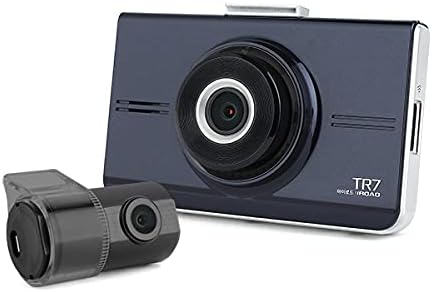
Image 2.1: IROAD TR7 Dash Camera main unit and rear camera, showing the compact design of both components.
3. Kuweka na Kuweka
3.1 Uingizaji wa Kadi ya MicroSD
- Hakikisha kuwa kamera ya dashi imezimwa.
- Tafuta nafasi ya kadi ya MicroSD upande wa kitengo kikuu.
- Insert the provided MicroSD card into the slot until it clicks into place.
- To remove, gently push the card in, and it will spring out.

Image 3.1: The IROAD TR7 main unit with the MicroSD card and Wi-Fi dongle inserted into their respective slots on the side.
3.2 Ufungaji wa Kitengo kuu
- Safisha eneo la kioo cha mbele ambapo kamera ya dashibodi itawekwa.
- Attach the main unit bracket to the dash camera.
- Remove the protective film from the adhesive pad on the bracket.
- Firmly press the dash camera onto the windshield, ensuring a clear view ya barabara.

Image 3.2: The IROAD TR7 main unit shown with its adjustable mounting bracket, ready for windshield attachment.
3.3 Ufungaji wa Kamera ya Nyuma
- Clean the rear window area where the rear camera will be mounted.
- Attach the rear camera to the rear window using its adhesive.
- Unganisha kamera ya nyuma kwenye kitengo kikuu kwa kutumia kebo ya kamera ya nyuma iliyotolewa. Pitisha kebo vizuri kwenye sehemu ya ndani ya gari.

Image 3.3: The compact IROAD TR7 rear camera, designed for discreet installation on the rear window.
Uunganisho wa Nguvu 3.4
Connect the constant power cable to the vehicle's power source according to the installation guide provided with the cable. Ensure proper wiring to enable parking surveillance features.
3.5 Wi-Fi Dongle Connection
Insert the Wi-Fi dongle into the designated USB port on the main unit. This enables connection to your smartphone via the IROAD mobile application for live view, settings adjustment, and video playback.
3.6 Optional GPS Antenna
An external GPS antenna (sold separately) can be connected to enable ADAS functions and record location and speed data, which can be viewed on Google Maps via the PC viewer.
4. Maagizo ya Uendeshaji
4.1 Basic Recording Modes
The IROAD TR7 supports several recording modes:
- Kuendelea Kurekodi: Automatically starts recording when the vehicle's ignition is turned on. Footage is saved in short segments and overwritten when the MicroSD card is full (Loop Recording).
- Event (Impact) Recording: Activated by the built-in 3-axis G-sensor upon detecting a significant impact or sudden braking/acceleration. These files are saved in a separate folder to prevent overwriting.
- Parking (Motion Detection) Recording: When the vehicle is parked and the ignition is off, the camera enters parking mode. It records when motion is detected in its field of view or an impact is sensed. Requires a constant power connection.
4.2 ADAS (Advanced Driver-Assistance System) Functions
The IROAD TR7 includes ADAS features to enhance driving safety. These functions are available only when an external GPS antenna is connected:
- Mfumo wa Onyo la Kuondoka kwa Njia (LDWS): Alerts the driver if the vehicle deviates from its lane without signaling.
- Mfumo wa Onyo la Mgongano wa Mbele (FCWS): Warns the driver of a potential collision with a vehicle ahead.
- Front Vehicle Departure Warning (FVDW): Notifies the driver when the vehicle in front starts moving after a stop.
4.3 Kurekodi Sauti
The dash camera records audio by default. This feature can be toggled on or off via the mobile application or PC viewmipangilio ya.
4.4 Touch Panel Operation
The IROAD TR7 features a touch panel screen for intuitive control. Users can access live view, playback recorded videos, and adjust settings directly on the device. Refer to the on-screen menu for specific options.

Picha ya 4.1: Nyuma view of the IROAD TR7 main unit, showcasing its touch panel display for user interaction.
5. Matengenezo
5.1 Usimamizi wa Kadi ya MicroSD
Regularly format the MicroSD card (at least once a month) to maintain optimal recording performance and prevent data corruption. Use a Class 10 or higher MicroSD card for reliable operation. The camera supports capacities from 16GB to 256GB.
5.2 Kusafisha
Use a soft, dry cloth to clean the camera lenses and the touch screen. Avoid using abrasive cleaners or solvents that could damage the device.
6. Utatuzi wa shida
- Kamera haiwashi: Check the power cable connection and ensure the vehicle's ignition is on (for continuous recording) or the constant power cable is correctly installed (for parking surveillance).
- Matatizo ya kurekodi: Ensure the MicroSD card is inserted correctly and has sufficient free space. Format the MicroSD card if issues persist.
- Matatizo ya muunganisho wa Wi-Fi: Verify the Wi-Fi dongle is securely inserted. Restart the camera and your smartphone's Wi-Fi.
- ADAS functions not working: Confirm that an external GPS antenna is connected and receiving a signal. ADAS features require GPS data.
- Skrini ya kugusa haijibu: Anzisha upya kifaa. Ikiwa tatizo litaendelea, wasiliana na huduma kwa wateja.
7. Vipimo
| Kipengele | Vipimo |
|---|---|
| Front Camera Resolution/Frame Rate/Angle | Full HD 1920×1080, 30fps, 142° |
| Rear Camera Resolution/Frame Rate/Angle | HD 1280×720, 30fps, 135° |
| Kazi za ADAS | LDWS, FCWS, FVDW (GPS connection required) |
| Kihisi | 3-axis G-sensor (for impact recording) |
| Antena ya nje ya GPS | Hiari (kuuzwa kando) |
| Kurekodi Media | MicroSD card 16GB~256GB supported (Class 10 recommended) |
| Njia za Kurekodi | Continuous, Event (Impact), Parking (Motion Detection), Audio Recording |
| Ukandamizaji wa Video / Sauti | H.264/PCM |
| Joto la Uendeshaji | -20 ℃ hadi 60 ℃ |
| PC Viewer Utangamano | Windows 7, 8, 10 (32Bit/64Bit) |
| Aina ya Kuonyesha | Jopo la Kugusa la LCD |
| Njia ya Kuweka | Aina ya Wambiso |
8. Udhamini na Msaada
For warranty information, please refer to the warranty card included with your product or contact your point of purchase. For technical support or inquiries, please visit the official IROAD webtovuti au wasiliana na idara yao ya huduma kwa wateja.


