Utangulizi
The Xfinity XE2-SG 2nd Generation xFi Pod is designed to extend your home WiFi coverage, helping to eliminate dead spots and provide more consistent connectivity throughout your living space. These pods work seamlessly with your xFi Gateway to create a mesh WiFi network, optimizing and adapting to your home's WiFi needs. This manual provides essential information for setting up, operating, and maintaining your xFi Pods.
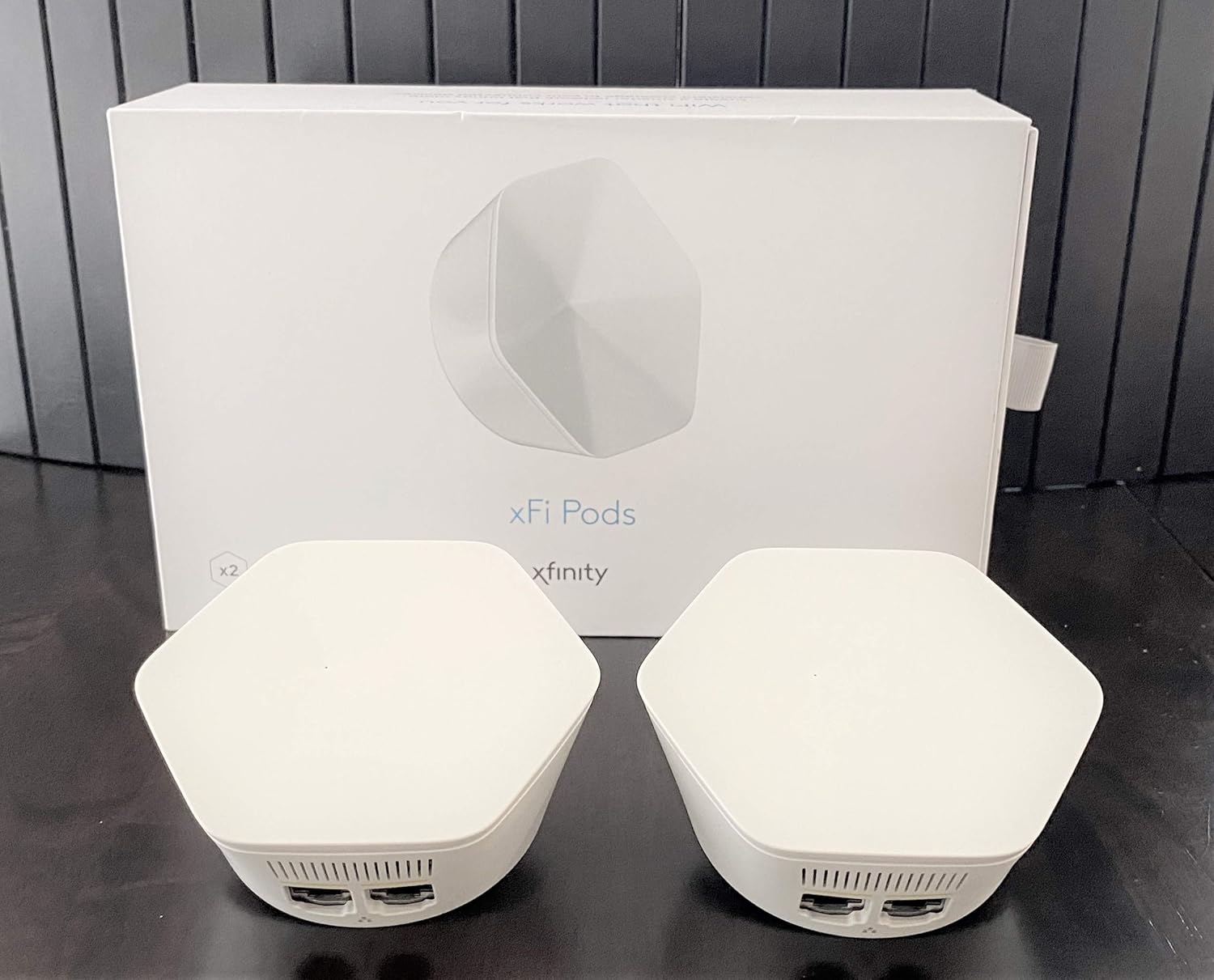
Image: Two Xfinity xFi Pods, white and hexagonal, are shown alongside their white packaging box. The pods are designed to extend WiFi coverage.
Taarifa Muhimu za Usalama
- Only plug xFi Pods into standard indoor electrical outlets.
- Do not expose pods to water or moisture.
- Avoid placing pods near heat sources or in direct sunlight.
- Usijaribu kufungua au kutengeneza kifaa. Rejelea huduma zote kwa wafanyikazi waliohitimu.
- Weka mbali na watoto na kipenzi.
Utangamano
The Xfinity XE2-SG xFi Pods have specific compatibility requirements:
- Compatible only with consumer/home-based Xfinity accounts. Not compatible with Comcast Business accounts.
- Requires a Comcast rented router/modem (xFi Gateway). These pods are not compatible with customer-owned routers or modems.
- Comcast may require an upgrade to your modem to enable the use of these pods.
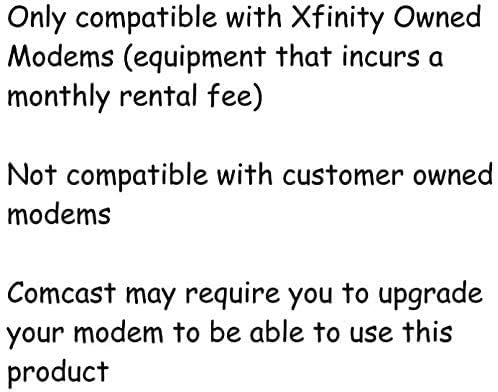
Image: A text graphic reiterates that the pods are only compatible with Xfinity owned modems (equipment with a monthly rental fee) and not with customer-owned modems. It also notes that Comcast may require a modem upgrade.
Sanidi
Setting up your Xfinity xFi Pods is a simple process using the xFi app:
- Pakua Programu ya xFi: Ensure you have the latest version of the Xfinity xFi app installed on your smartphone or tablet.
- Prepare Your Pods: Unpack your xFi Pods. Each pod is designed to be plugged directly into a standard indoor electrical outlet.
- Chagua Mahali: Select an electrical outlet in an area of your home where WiFi coverage is weak. For optimal performance, place pods roughly halfway between your xFi Gateway and the area needing improved coverage. Avoid placing them in enclosed spaces or near large metal objects.
- Plug in the First Pod: Plug one xFi Pod into an available electrical outlet.
- Activate via xFi App:
- Open the xFi app and log in with your Xfinity credentials.
- Follow the on-screen prompts to add a new xFi Pod. The app will guide you through the activation process.
- You may be instructed to hold your phone close to the pod for initial setup.
- Plug in Additional Pods: If you have multiple pods (e.g., a dual pack), repeat steps 3-5 for each additional pod. The xFi app will help you determine optimal placement for subsequent pods.
- Thibitisha Muunganisho: Once activated, the xFi app will confirm that your pods are connected and extending your WiFi network. You can monitor their status and performance within the app.
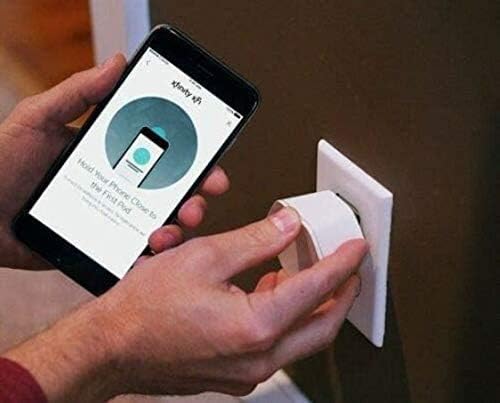
Image: A person is shown plugging a white Xfinity xFi Pod into a wall outlet. Simultaneously, they are holding a smartphone displaying the Xfinity xFi app, which shows instructions to "Hold Your Phone Close to the First Pod," illustrating the app-guided setup process.

Picha: Karibu view of the bottom of an Xfinity xFi Pod, revealing two Ethernet ports and a QR code label. This view highlights the connectivity options and identification details of the device.
Operating Your XFI Pods
Once installed, your xFi Pods operate automatically to extend your WiFi network. The xFi app is your primary tool for managing and monitoring your home network.
- Uboreshaji wa Kiotomatiki: The xFi Pods work with your xFi Gateway to continuously optimize your WiFi network, adapting to your home's layout and usage patterns to provide the best possible coverage.
- Monitoring with xFi App: Use the Xfinity xFi app to:
- View vifaa vilivyounganishwa.
- Check network status and signal strength.
- Manage parental controls and device profiles.
- Troubleshoot common network issues.
- Uunganisho wa waya: Each xFi Pod includes Ethernet ports, allowing you to connect wired devices (e.g., gaming consoles, smart TVs) directly to the pod for a stable connection in areas with extended WiFi coverage.
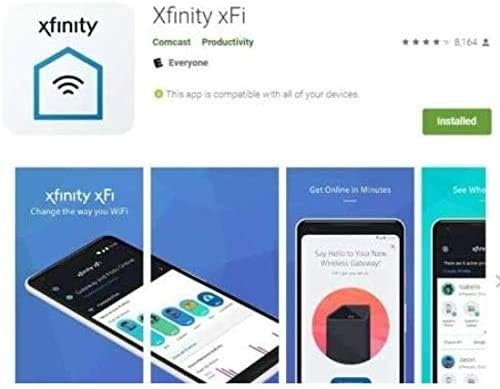
Image: A series of screenshots from the Xfinity xFi app, demonstrating its interface for managing WiFi settings, viewing network status, and controlling connected devices. The app is shown as a tool for users to monitor and optimize their home network.
Matengenezo
Xfinity xFi Pods require minimal maintenance:
- Kusafisha: Gently wipe the exterior of the pods with a soft, dry cloth. Do not use liquid cleaners or abrasive materials.
- Sasisho za Firmware: Firmware updates are typically managed automatically by Xfinity to ensure optimal performance and security. Ensure your xFi Gateway is connected and powered on for these updates to occur.
- Uhamisho: If you need to move a pod, simply unplug it and plug it into a new suitable electrical outlet. The system will automatically reconfigure.
Kutatua matatizo
If you experience issues with your xFi Pods, try the following:
| Tatizo | Sababu inayowezekana | Suluhisho |
|---|---|---|
| Pod not connecting/offline | Not properly plugged in; too far from Gateway or another pod; xFi app issue. | Ensure pod is firmly plugged into a working outlet. Try moving the pod closer to your xFi Gateway or another active pod. Restart the xFi app. Unplug the pod for 10 seconds and plug it back in. |
| Slow speeds despite pods | Suboptimal placement; network congestion; internet service issue. | Check xFi app for optimal placement suggestions. Ensure your xFi Gateway is functioning correctly. Contact Xfinity support if internet service issues persist. |
| Cannot activate pod | Incompatible account type; incorrect modem; app error. | Verify you have a consumer/home Xfinity account and a Comcast rented xFi Gateway. Ensure the xFi app is updated. Contact Xfinity support for activation assistance. |
For further assistance, refer to the Xfinity xFi app or contact Xfinity customer support.
Vipimo
- Mfano: XE2-SG
- Chapa: Xfinity
- Rangi: Nyeupe
- Teknolojia ya Uunganisho: Wi-Fi
- Kiwango cha Mawasiliano Bila Waya: 802.11ac
- Darasa la Bendi ya Mara kwa mara: Bendi-mbili (GHz 5)
- Kipengele Maalum: WPS (Usanidi Unaolindwa na Wi-Fi)
- Uzito wa Kipengee: Approximately 1 ounce per pod
- Vipimo vya Kifurushi: 10.2 x 5.79 x 2.91 inches (for dual pack)
- Matumizi Yanayopendekezwa: Home WiFi extension
Udhamini na Msaada
For information regarding warranty coverage for your Xfinity xFi Pods, please refer to your Xfinity service agreement or contact Xfinity customer support directly. Support for xFi Pods is provided by Xfinity.
Huduma kwa Wateja wa Xfinity:
- Tembelea usaidizi rasmi wa Xfinity webtovuti: xfinity.com/support
- Use the Xfinity xFi app for in-app support and troubleshooting tools.
- Contact Xfinity by phone (number typically found on your bill or Xfinity webtovuti).


