1. Utangulizi
Thank you for choosing the WiZ Smart LED Bulb A60 E27. This smart bulb offers adjustable white light, allowing you to switch between warm white and cool white to suit your mood or activity. With Wi-Fi and Bluetooth connectivity, you can control your lighting remotely, set schedules, and integrate with voice assistants. This manual provides essential information for installation, operation, and maintenance to ensure optimal performance and safety.

Image 1.1: The WiZ Smart LED Bulb A60 E27 shown in its retail packaging, highlighting its features and compatibility.
2. Taarifa za Usalama
- Matumizi ya Ndani Pekee: Balbu hii imeundwa kwa matumizi ya ndani katika maeneo makavu. Usiwaache wapate maji au unyevu.
- Zima Kabla ya Kusakinisha: Always turn off the power to the fixture before installing or removing the bulb.
- Voltage: Hakikisha kiwango cha mchezotage is compatible with the bulb's specifications.
- Not for Enclosed Fixtures: Avoid using in fully enclosed fixtures as this can shorten the bulb's lifespan due to heat buildup.
- Utangamano wa Dimmer: This smart bulb is dimmable via the WiZ app or voice control. Do not use with external dimmer switches, as this may cause damage.
- Utupaji: Dispose of the bulb according to local regulations for electronic waste.
3. Yaliyomo kwenye Kifurushi
Kifurushi kinapaswa kuwa na vitu vifuatavyo:
- 1 x WiZ Smart LED Bulb A60 E27
- Mwongozo 1 wa Kuanza Haraka (Mwongozo huu unatumika kama mwongozo kamili)

Picha 3.1: Maelezo ya kina view of the WiZ Smart LED Bulb A60 E27, showing its standard shape and E27 screw base.
4. Kuweka na Kuweka
4.1 Ufungaji wa Kimwili
- Zima Nguvu: Before installation, ensure the power to the light fixture is turned off at the switch or circuit breaker.
- Parafujo katika Balbu: Carefully screw the WiZ Smart LED Bulb into a standard E27 light socket. Do not overtighten.
- Rejesha Nguvu: Turn the power back on to the light fixture. The bulb should light up.
4.2 Kuweka Programu
The WiZ Smart LED Bulb connects directly to your existing Wi-Fi network (2.4 GHz). No additional hub is required.
- Pakua Programu ya WiZ: Download the WiZ app from the App Store (iOS) or Google Play Store (Android).
- Fungua Akaunti: Open the app and follow the on-screen instructions to create a new WiZ account or log in if you already have one.
- Ongeza Kifaa: In the app, tap the "+" icon to add a new device. Select "Light" and then "WiZ Bulb".
- Pair the Bulb: Follow the app's instructions to put the bulb into pairing mode. This usually involves turning the light switch off and on three times. The bulb will flash to indicate pairing mode.
- Unganisha kwa Wi-Fi: Select your 2.4 GHz Wi-Fi network and enter the password. The app will then connect the bulb to your network.
- Name Your Bulb: Once connected, you can name your bulb and assign it to a room for easier control.

Image 4.1: Visual guide showing the physical installation of the bulb into a lamp and a smartphone displaying the WiZ app interface for setup.
5. Maagizo ya Uendeshaji
5.1 Udhibiti wa Programu
The WiZ app provides comprehensive control over your smart bulb.
- Washa/Zima: Tap the power icon in the app to turn the bulb on or off.
- Marekebisho ya Mwangaza: Use the slider in the app to adjust the brightness level from 1% to 100%.
- Adjustable White: Select from a wide range of white temperatures, from warm white (2700K) to cool daylight (6500K), to create the desired ambiance.
- Scenes and Modes: Choose from predefined modes like "Focus" or "Relax," or create custom scenes to match your activities.
- Kuratibu: Set daily or weekly schedules for your lights to turn on/off or change settings automatically.

Image 5.1: The WiZ app displaying options to adjust the white light from warm to cool, with corresponding visual examples of the light output.
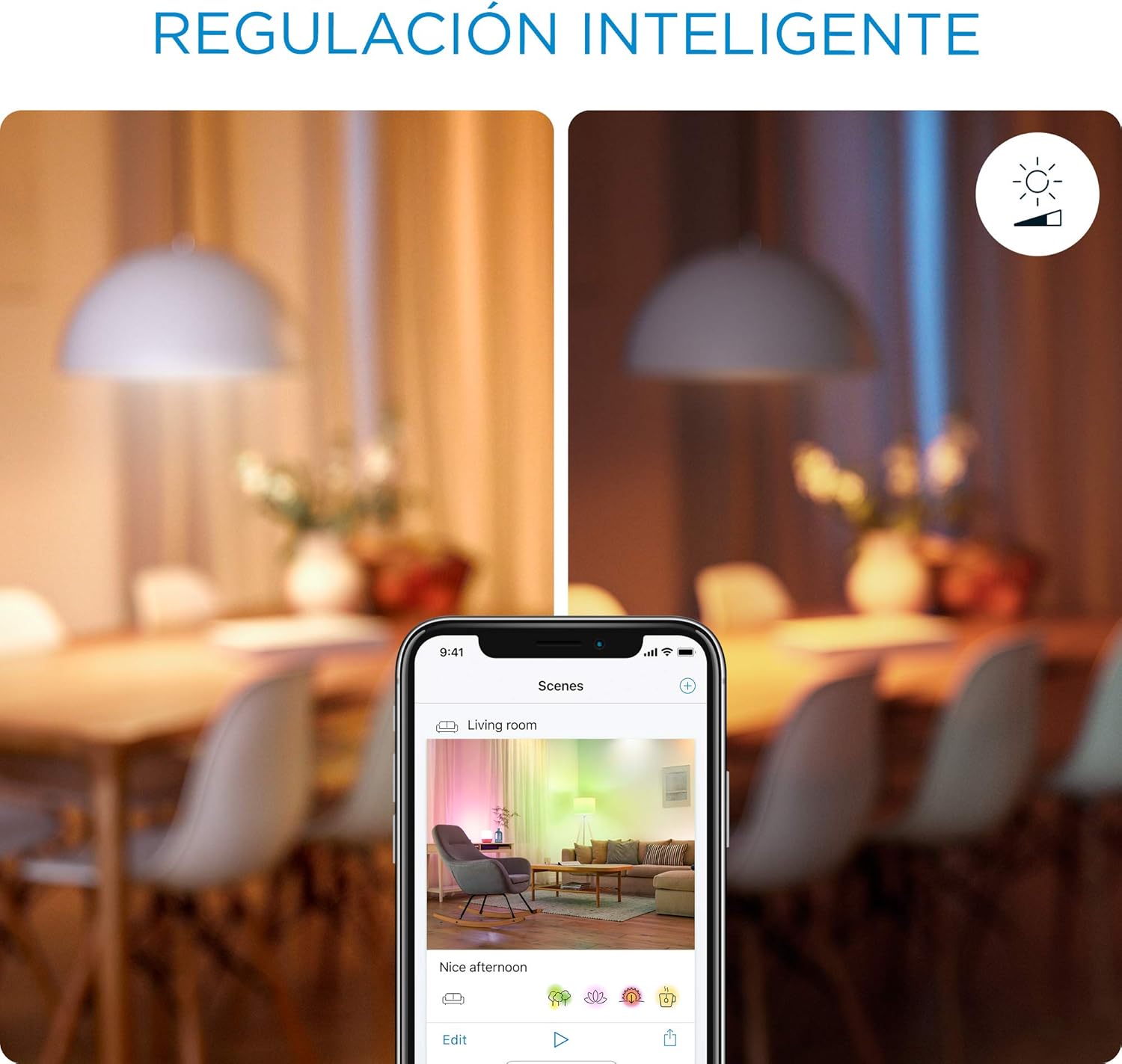
Image 5.2: The WiZ app demonstrating smart regulation features and various scene options for different lighting moods.
5.2 Udhibiti wa Sauti
The WiZ Smart LED Bulb is compatible with popular voice assistants such as Google Assistant, Amazon Alexa, and Siri Shortcuts.
- Connecting Voice Assistants: Follow the instructions within the WiZ app to link your WiZ account with your preferred voice assistant (e.g., Google Home app, Amazon Alexa app).
- Amri za Sauti: Once linked, you can use commands such as:
- "Habari Google, washa taa ya sebule."
- "Alexa, set the bedroom light to warm white."
- "Hey Siri, dim the kitchen light to 50%."

Image 5.3: An illustration of a user interacting with a voice assistant to control their smart lighting, demonstrating hands-free operation.
6. Sifa Muhimu
- Nuru Nyeupe Inayoweza Kurekebishwa: Seamlessly transition between warm white (2700K) for relaxation and cool daylight (6500K) for concentration.
- Wi-Fi & Bluetooth Connectivity: Connects directly to your home Wi-Fi network for remote control and uses Bluetooth for easy pairing.
- Ufikiaji wa Mbali: Control your lights from anywhere using the WiZ app, even when you're away from home.
- Ufuatiliaji wa Nishati: The WiZ app tracks your bulb's energy consumption, providing weekly or daily reports to help optimize usage.
- Hakuna Kitovu Kinachohitajika: Operates without the need for a separate bridge or hub.

Image 6.1: The WiZ bulb accompanied by graphical icons representing its core features: adjustable white light, smart control, remote access, voice control, and scheduling capabilities.

Picha 6.2: Example of warm white lighting, illustrating the ambiance that can be created with the WiZ bulb's adjustable white feature.
7. Utatuzi wa shida
7.1 Balbu Haiunganishi kwenye Wi-Fi
- Check Wi-Fi Band: Ensure your router is broadcasting a 2.4 GHz Wi-Fi network. WiZ bulbs do not support 5 GHz networks.
- Ukaribu wa Njia: Make sure the bulb is within range of your Wi-Fi router.
- Weka Upya Balbu: To reset the bulb, turn it off and on three times quickly. It should flash to indicate it's in pairing mode.
- Anzisha tena Kisambaza data: Jaribu kuwasha upya kipanga njia chako cha Wi-Fi.
- Ruhusa za Programu: Ensure the WiZ app has necessary permissions (e.g., location services) on your smartphone.
7.2 Bulb Not Responding
- Angalia Nguvu: Ensure the light fixture has power and the wall switch is on.
- Hali ya Programu: Check the WiZ app to see if the bulb is online.
- Muunganisho wa Mtandao: Verify your smartphone has an active internet connection if controlling remotely.
- Rekebisha: If issues persist, try re-pairing the bulb with the WiZ app.
7.3 Masuala ya Udhibiti wa Sauti
- Unganisha Akaunti: Confirm your WiZ account is correctly linked to your voice assistant app (Google Home, Alexa).
- Jina la Kifaa: Ensure the bulb's name in the WiZ app is recognized by your voice assistant. Try simple names.
- Muunganisho wa Mtandao: Voice assistants require an active internet connection to function.
8. Vipimo
| Chapa | WiZ |
| Mfano | A60 E27 |
| Aina | Balbu ya Smart LED |
| Aina ya kofia | E27 |
| Matumizi ya Nguvu | 8 Watts |
| Incandescent Sawa | 60 Watts |
| Mwangaza wa Flux | mita 806 |
| Joto la Rangi | Adjustable White (2700K - 6500K) |
| Kielezo cha Utoaji wa Rangi (CRI) | 90.00 |
| Muunganisho | Wi-Fi (2.4 GHz), Bluetooth |
| Wastani wa Maisha | Saa 25,000 |
| Vipimo (L x W x H) | 12.2 x 6.0 x 6.0 cm (takriban.) |
| Vipengele Maalum | Dimmable, Remote Control, Voice Control, Scheduling, Energy Monitoring |

Image 8.1: The WiZ Smart LED Bulb A60 E27 with its key dimensions (length 12.2 cm, diameter 6.0 cm) indicated.
9. Matengenezo
- Kusafisha: Hakikisha balbu imezimwa na kupoa kabla ya kusafisha. Futa kwa kitambaa laini na kikavu. Usitumie visafishaji vya kioevu.
- Masasisho ya Programu: Keep your WiZ app updated to the latest version to ensure optimal performance and access to new features. Firmware updates for the bulb are typically managed through the app.
- Hifadhi: Ikiwa utahifadhi balbu, ihifadhi mahali pakavu na penye baridi mbali na jua moja kwa moja na halijoto kali.
10. Udhamini na Msaada
For warranty information, please refer to the documentation provided with your purchase or visit the official WiZ webtovuti.
For technical support, troubleshooting assistance, or further inquiries, please visit the WiZ support page or contact their customer service directly.
- Msaada mkondoni: www.wizconnected.com/en-us/support
- Usajili wa Bidhaa: Register your product on the WiZ webtovuti ili kupokea masasisho na usaidizi.


