1. Utangulizi
This manual provides detailed instructions for the installation, configuration, and operation of your Newgoal 2-Channel WiFi Smart Switch Relay Module, model DC2-Tuya. This device allows for remote control of electrical appliances via the TUYA/Smart Life App, and integrates with voice assistants like Alexa and Google Assistant. It supports various working modes including momentary and self-locking, offering flexibility for diverse smart home applications.

Image 1.1: The Newgoal 2-Channel WiFi Smart Switch Relay Module alongside a smartphone displaying the control application.
2. Bidhaa Imeishaview
The Newgoal DC2-Tuya module is a versatile smart relay designed for integration into existing electrical systems. It features two independent channels, enabling control of two separate devices. Key components and their functions are outlined below:

Image 2.1: Detailed diagram illustrating the components of the Newgoal DC2-Tuya module, including the 2.4GHz WiFi chip, WiFi antenna, manual switches, LEDs, and input/output terminals.
- 2.4GHz WiFi Chip: Enables wireless connectivity to your home network.
- Antenna ya WiFi: For stable wireless communication.
- Manual Switches (Key1, Key2): Physical buttons for local control and pairing.
- Viashiria vya LED: Provide status feedback for WiFi connection and relay operation (CH1 ON-OFF LED, CH2 ON-OFF LED, Work Mode LED, WiFi LED).
- Vituo vya kuingiza data: Micro USB 5V/500mA or AC/DC 7-32V/500mA for power supply.
- Relay Load Terminals: NC (Normally Closed), COM (Common), NO (Normally Open) for connecting electrical devices.
- Work Modes Toggle Button: Used to switch between momentary, self-locking, and interlock modes.
3. Vipimo
| Kipengele | Maelezo |
|---|---|
| Mfano | DC2-Tuya |
| Chapa | Goli jipya |
| Uingizaji Voltage | Micro USB 5V or AC/DC 7-32V |
| Mzigo wa Relay | AC 250V 10A, DC 30V 10A |
| Muunganisho | 2.4GHz WiFi (IEEE 802.11 b/g/n) |
| Utangamano wa Programu | TUYA / Smart Life App |
| Msaidizi wa Sauti | Alexa, Msaidizi wa Google |
| Njia za Kufanya kazi | Momentary (Inching), Self-locking, Interlock |
| Vipimo | 67mm (L) x 41mm (W) x 20mm (H) |
| Nyenzo | Copper (Contact Material: Silver Copper) |
4. Kuweka na Kuweka
4.1 Tahadhari za Usalama
- Hakikisha umeme umekatika kabla ya nyaya zozote za umeme.
- Installation should be performed by qualified personnel if you are unfamiliar with electrical wiring.
- Do not exceed the specified maximum load for the relays.
- Only connect to a 2.4GHz WiFi network. 5GHz networks and Mesh WiFi systems are not supported.
4.2 App Installation and Account Registration
- Pakua TUYA Smart or Maisha ya Smart application from your smartphone's app store (available for Android and iOS).
- Open the app and register for a new account if you do not already have one.
- Ingia kwenye akaunti yako.
4.3 Michoro ya Wiring
The module supports various wiring configurations depending on the application and desired working mode. Always ensure correct polarity and voltage.
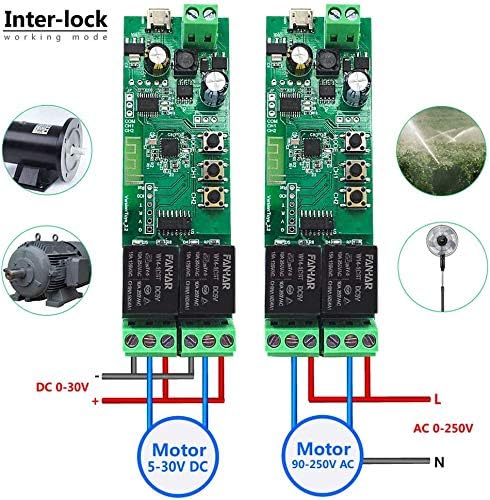
Image 4.1: Wiring for Interlock mode, demonstrating connections for both DC (5-30V) and AC (90-250V) motors or appliances. This mode ensures only one relay is active at a time.

Image 4.2: Wiring for Momentary mode, suitable for applications like garage door openers or momentary button presses. Input power is typically 5V via Micro USB.

Image 4.3: Wiring for Self-locking mode, ideal for controlling lights or other devices that require a sustained ON/OFF state. Input power can be AC/DC 7-32V.
Refer to the specific application's voltage requirements and connect the load to the appropriate COM and NO (Normally Open) or NC (Normally Closed) terminals on the relay. The module can be powered via a Micro USB 5V input or directly through the AC/DC 7-32V terminals.
4.4 Kuoanisha Kifaa na Programu
- Power on the Newgoal DC2-Tuya module using either the Micro USB 5V or AC/DC 7-32V input.
- Open the TUYA Smart or Smart Life App.
- Press and hold the "Work Modes Toggle Button" (often labeled Key1 or Key2, or a dedicated pairing button) on the module for approximately 6 seconds until the WiFi LED indicator starts blinking rapidly. This indicates the module is in pairing mode.
- In the app, tap the "Add Device" (+) icon, usually located in the top right corner.
- Select the device type (e.g., "Switch" or "Electrical Switch"). The app may automatically discover the device.
- Follow the on-screen instructions to connect the module to your 2.4GHz WiFi network. You will need to enter your WiFi network password.
- Once successfully paired, the WiFi LED on the module will stop blinking and remain solid. You can then rename the device and individual channels within the app for easier identification.
5. Maagizo ya Uendeshaji
5.1 Njia za Kazi
The module supports three primary working modes, configurable via the app or the physical "Work Modes Toggle Button" (long press for 6 seconds to enter setting mode, then short press to cycle through modes: 1 time for Momentary, 2 times for Self-locking, 3 times for Interlock). The Work Mode LED will indicate the selected mode.
- Momentary Mode (Inching Mode): When activated, the relay turns on for a set duration (adjustable from 0.5 to 60 seconds) and then automatically turns off. This is suitable for applications requiring a brief pulse, such as garage door openers or electric strikes.
- Self-locking Mode: Each relay acts as a standard ON/OFF switch. Pressing the button (in app or physical) toggles the relay state (ON or OFF). This is ideal for controlling lights or other devices that need to remain in a continuous state.
- Hali ya Kufunga: In this mode, only one relay can be active at a time. If one relay is turned ON, any other active relay will automatically turn OFF. This is useful for controlling devices where simultaneous operation is undesirable, such as motor direction control.

Image 5.1: App interface showing the adjustable momentary time setting, allowing users to configure the duration from 0.5 to 60 seconds.
5.2 Udhibiti wa Mbali kupitia Programu
Once paired, you can control the module from anywhere using the TUYA Smart or Smart Life App.
- Open the app and select your Newgoal DC2-Tuya device.
- You will see individual controls for each channel (Switch 1, Switch 2). Tap to toggle the state of each relay.
- The app also provides features such as:
- Hali ya Wakati Halisi: View the current ON/OFF state of each relay.
- Mpangilio wa Kipima Muda: Schedule relays to turn ON/OFF at specific times.
- Kuhesabu: Set a countdown timer for a relay to change state.
- Shared Control: Share device control with other family members.
- Automation/Scenes: Create custom automation rules based on conditions (e.g., time of day, other smart devices).

Image 5.2: The Smart Life app interface, demonstrating individual control for each channel and access to advanced features.
5.3 Voice Control (Alexa/Google Assistant)
The Newgoal DC2-Tuya module is compatible with Amazon Alexa and Google Assistant for convenient voice control.
- Ensure your module is successfully paired with the TUYA Smart or Smart Life App.
- Fungua programu ya Alexa au Google Home kwenye simu yako mahiri.
- Navigate to the "Skills & Games" (Alexa) or "Works with Google" (Google Home) section.
- Tafuta and enable the "TUYA Smart" or "Smart Life" skill/service.
- Link your TUYA/Smart Life account with your Alexa/Google account.
- Discover devices. Your Newgoal DC2-Tuya module and its channels should appear.
- Sasa unaweza kutumia amri za sauti kama vile:
- "Alexa, turn on [Device Name] Switch 1."
- "Hey Google, turn off [Device Name] Switch 2."
- "Alexa, set [Device Name] Switch 1 to momentary mode." (Functionality may vary by voice assistant and app version).
6. Matengenezo
- Kusafisha: Disconnect power before cleaning. Use a dry, soft cloth to wipe the module. Do not use liquid cleaners or solvents.
- Sasisho za Firmware: Periodically check the TUYA Smart or Smart Life App for available firmware updates for your device. Updates can improve performance and add new features.
- Ukaguzi wa Muunganisho: Ensure all wiring connections remain secure and free from corrosion.
- Mazingira: Operate the module within its specified temperature and humidity ranges to ensure longevity. Avoid exposure to extreme conditions.
7. Utatuzi wa shida
| Tatizo | Sababu inayowezekana | Suluhisho |
|---|---|---|
| Device cannot connect to WiFi. | Incorrect WiFi password; 5GHz WiFi network; weak signal; module not in pairing mode. | Verify WiFi password. Ensure you are connecting to a 2.4GHz network. Move the module closer to the router or use a WiFi extender. Re-enter pairing mode (rapidly blinking WiFi LED). |
| Relay does not respond to app commands. | No internet connection; module offline; incorrect wiring; power issue. | Check your home internet connection. Verify the module's WiFi LED is solid. Inspect wiring for loose connections. Ensure the module is receiving power. Restart the app. |
| Udhibiti wa sauti haufanyi kazi. | Skill/service not enabled; account not linked; incorrect device name. | Ensure the TUYA Smart/Smart Life skill is enabled and linked in your Alexa/Google Home app. Verify the device name used in voice commands matches the name in the app. Try rediscovering devices. |
| Momentary mode duration is incorrect. | Incorrect setting in the app. | Access the device settings in the TUYA Smart/Smart Life App and adjust the "Momentary time" parameter. |
8. Udhamini na Msaada
8.1 Taarifa ya Udhamini
Newgoal products are designed for reliability and performance. For specific warranty details, please refer to the product packaging or contact Newgoal customer service. Keep your purchase receipt as proof of purchase for warranty claims.
8.2 Usaidizi kwa Wateja
If you encounter any issues or have questions regarding your Newgoal 2-Channel WiFi Smart Switch Relay Module, please contact our customer support team. For the most up-to-date contact information, visit the official Newgoal website or refer to your product documentation.
Rasilimali za Mtandaoni: For additional guides, FAQs, and community support, visit the Tuya Smart official webtovuti au Smart Life support pages.


