Utangulizi
The Weiser Halo Wi-Fi Smart Lock provides advanced home security and convenient access control. This smart lock connects directly to your existing home Wi-Fi network, allowing for remote operation, management, and monitoring via the Weiser app on your smartphone. It eliminates the need for a third-party hub or subscription service. This manual provides comprehensive instructions for the installation, operation, maintenance, and troubleshooting of your Weiser Halo Smart Lock.

Picha: mbele na nyuma view of the Weiser Halo WiFi Smart Lock, showcasing the touchscreen keypad and interior assembly.
Kuweka na Kuweka
The Weiser Halo Smart Lock is designed for straightforward installation. An interactive in-app guide is available to assist with the process. Basic tools, primarily a screwdriver, are required.
Utangamano wa Mlango
This lock is compatible with most standard doors ranging from 1-3/8 inches to 1-3/4 inches thick. It features an adjustable backset (2-3/8 inches or 2-3/4 inches) and is designed for installation on single-cylinder deadbolt doors.
Ufungaji Hatua Zaidiview
- Prepare the door: Ensure the door is properly prepped for a deadbolt installation.
- Install the latch: Orient the latch with "UP" facing upwards and secure it with the provided screws.
- Install the exterior assembly: Position the exterior keypad assembly onto the door.
- Install the interior assembly: Attach the interior assembly, ensuring proper cable connection.
- Insert batteries: Install the four AA batteries into the battery tray.
- Perform door handing: Follow the instructions in the Weiser app to calibrate the lock to your door's orientation.

Image: Illustration of the easy installation process, highlighting the use of a screwdriver and the interactive in-app guide.
Weiser App and Wi-Fi Connection
Download the Weiser app from your device's app store. Follow the in-app instructions to pair your lock and connect it to your home Wi-Fi network. This direct connection enables remote access and smart home features without additional hardware.

Image: A smartphone displaying the Weiser app interface, showing the lock status as "Unlocked" and connectivity indicators.
Kuendesha Smart Lock
Keyless Entry with Touchscreen Keypad
The touchscreen keypad allows for keyless entry using personalized access codes. The lock can store up to 250 unique passcodes, which can be permanent, temporary, or scheduled for specific entry windows.
- Creating Passcodes: Use the Weiser app to create and manage access codes.
- Using Passcodes: Enter your assigned code on the touchscreen keypad to unlock the door.
- Arifa: Receive notifications on your smartphone via the Weiser app whenever an access code is used.
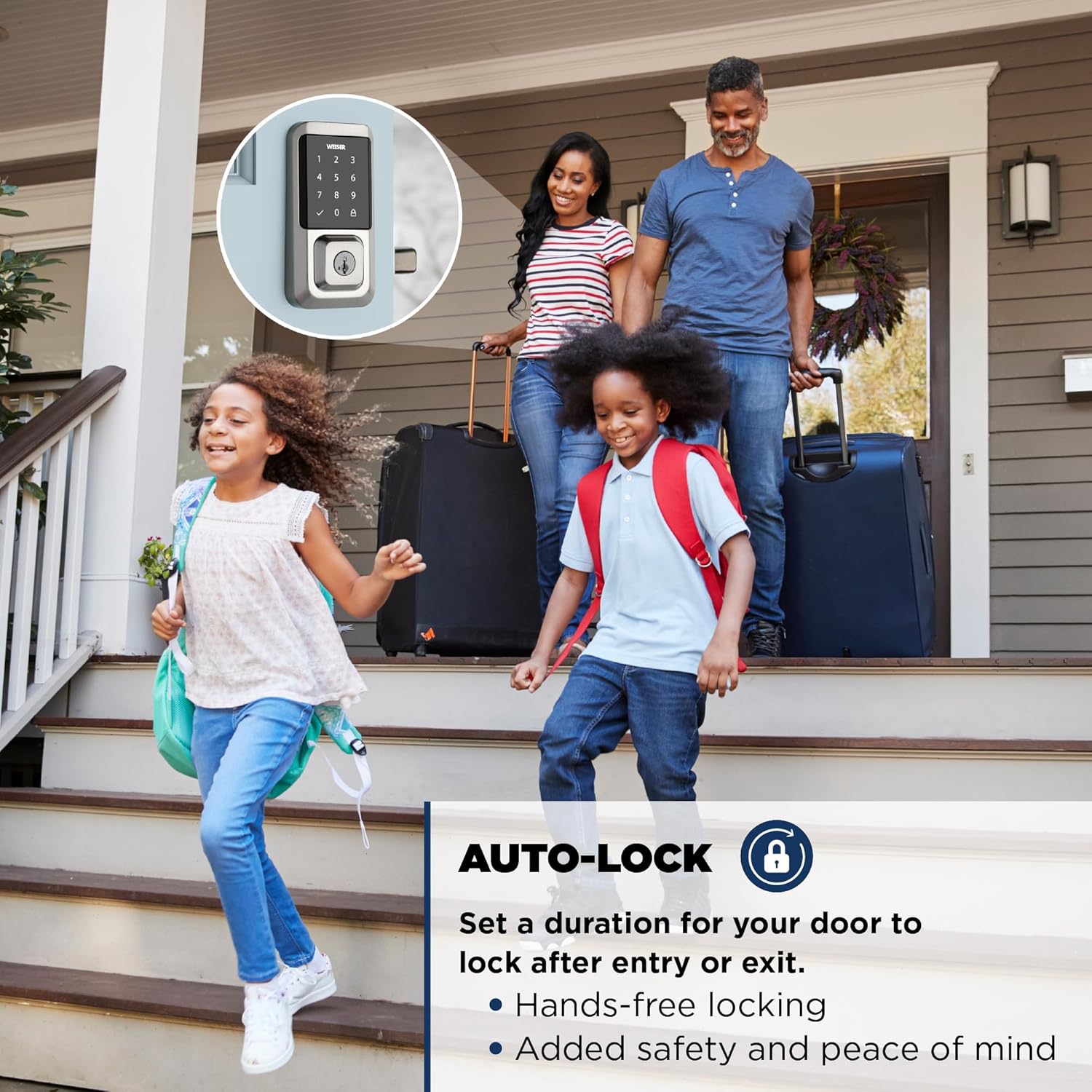
Image: An illustration detailing various access code sharing options, including one-time, anytime, and weekly scheduled access.
Remote Access via Weiser App
With the Weiser app and an internet connection, you can remotely lock and unlock your door from anywhere. This feature provides convenience and peace of mind, allowing you to manage access even when you are away from home.

Image: A person relaxing on a beach, remotely locking their door using the Weiser app on their smartphone, demonstrating the Wi-Fi built-in feature.
Kipengele cha Kufunga Kiotomatiki
The auto-lock feature automatically locks your door after a set duration following entry or exit. This provides hands-free locking and enhances security.
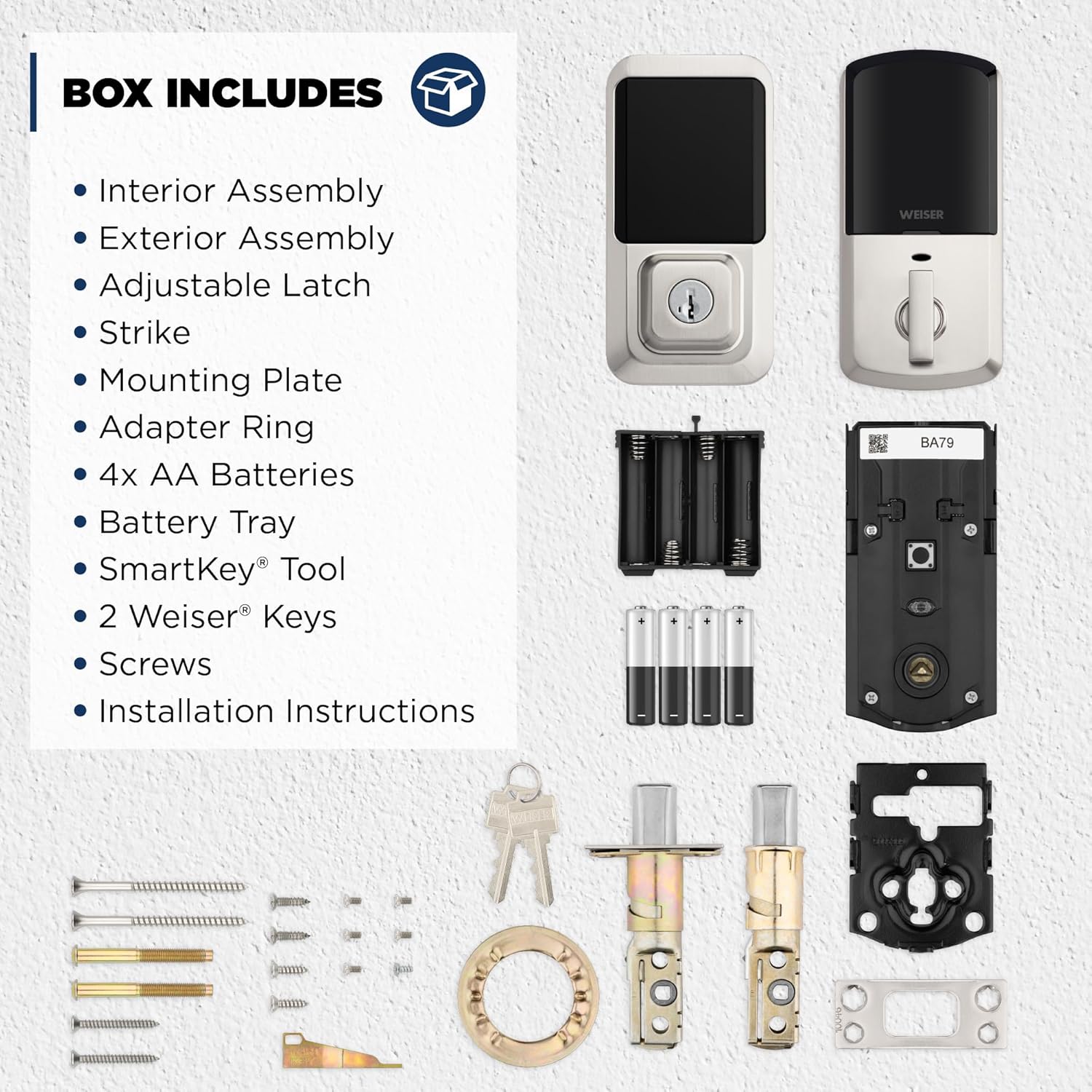
Image: A family leaving their home, illustrating the convenience and security provided by the auto-lock feature of the Weiser Halo Smart Lock.
Ushirikiano wa Smart Home
The Weiser Halo Smart Lock is compatible with Amazon Alexa and Google Assistant for voice control and smart home automations. Note that Alexa and Google Assistant functionality is primarily supported through Android devices.
- Amri za Sauti: Use voice commands to lock or unlock your door (e.g., "Alexa, lock the front door").
- Mitambo otomatiki: Set up routines, such as locking the door at a specific time or triggering lights when the door is unlocked.

Image: A visual representation of the Weiser Halo Smart Lock's integration with smart home systems like Amazon Alexa and Google Assistant, showing voice command exampchini.
Monitoring Your Home
The Weiser app allows you to monitor lock activity in real-time and receive phone alerts for events such as lock tampering detection. This provides an additional layer of security and awareness.

Picha: Mtu viewing lock activity and real-time alerts on their smartphone, demonstrating the home monitoring capabilities of the Weiser Halo Smart Lock.
Matengenezo
Ubadilishaji wa Betri
The Weiser Halo Smart Lock operates on four AA alkaline batteries. When battery levels are low, the lock will provide alerts through the Weiser app. To replace batteries:
- Remove the interior cover of the lock.
- Carefully remove the battery tray.
- Replace all four AA batteries with new alkaline batteries.
- Reinsert the battery tray and secure the interior cover.
Ufunguo upya wa Usalama wa SmartKey
The SmartKey Security feature allows you to re-key your lock yourself in seconds, making it convenient to match all your Weiser locks to a single key or to re-key after losing keys. Use the provided SmartKey tool for this process.

Image: Diagram illustrating the SmartKey Security feature, showing where to insert the reset tool for re-keying the lock.
Kutatua matatizo
If you encounter issues with your Weiser Halo Smart Lock, refer to the following common troubleshooting steps:
- Kufuli Haijibu:
- Check battery levels in the Weiser app. Replace batteries if low.
- Ensure the interior assembly is securely attached and cables are connected.
- If completely unresponsive, try removing and reinserting batteries.
- Masuala ya Muunganisho (Wi-Fi/Bluetooth):
- Verify your home Wi-Fi network is active and the signal strength is adequate at the door.
- Ensure your smartphone's Bluetooth is enabled and you are within range for initial setup or direct connection.
- Restart your home router and the lock (by removing and reinserting batteries).
- Re-pair the lock with the Weiser app if connection persists.
- Passcode Entry Problems:
- Ensure you are entering the correct passcode.
- Clean the touchscreen surface if it appears dirty or smudged.
- Verify the lock is not in a "privacy mode" or "vacation mode" that disables keypad entry.
- Masuala ya Utendaji wa Programu:
- Ensure the Weiser app is updated to the latest version.
- Angalia muunganisho wa intaneti wa simu yako mahiri.
- Funga na ufungue programu upya, au uwashe upya simu mahiri yako.
For further assistance, consult the Weiser app's help section or contact Weiser customer support.
Vipimo
| Nambari ya Mfano | 9GED25000-003 |
| Chapa | Weiser |
| Vipimo vya Bidhaa | 7.32 x 3.02 x 14.3 cm |
| Uzito wa Kipengee | 1.83 kg |
| Rangi | Nickel ya Satini |
| Mtindo | Kisasa |
| Nyenzo | Chuma |
| Chanzo cha Nguvu | Betri 4 za Alkali (Pamoja) |
| Utangamano wa Unene wa Mlango | 1-3/8" to 1-3/4" |
| Nyuma | Adjustable (2-3/8" or 2-3/4") |
| Nambari za Mtumiaji | Hadi 250 |
| Muunganisho | Wi-Fi, Bluetooth |
| Vyeti | BHMA Grade 2 Certified, UL Certified (20 Minute fire rating) |
| Vipengele Maalum | SmartKey Technology, Remote Access, Smart Home Integration (Alexa, Google Assistant), Auto-Lock, Intrusion Detection |
Taarifa ya Udhamini
The Weiser Halo Smart Lock comes with a Udhamini wa Maisha ya Mitambo na Maliza na a Dhamana ya Kielektroniki ya Mwaka 1. Please retain your proof of purchase for warranty claims. For detailed terms and conditions, refer to the official Weiser webtovuti au wasiliana na usaidizi kwa wateja.
Msaada
For additional support, frequently asked questions, or to contact customer service, please visit the official Weiser website or utilize the help resources available within the Weiser mobile application.
Unaweza pia kutembelea Duka la Weiser kwenye Amazon kwa maelezo zaidi ya bidhaa na vifaa.


