Utangulizi
The Razer Tartarus Pro is a gaming keypad designed for enhanced control and customization. It features Analog-Optical Key Switches, Rapid Trigger functionality, Adjustable Actuation, 32 programmable keys, customizable macros, and Chroma RGB Lighting. This manual provides essential information for setting up, operating, and maintaining your device.
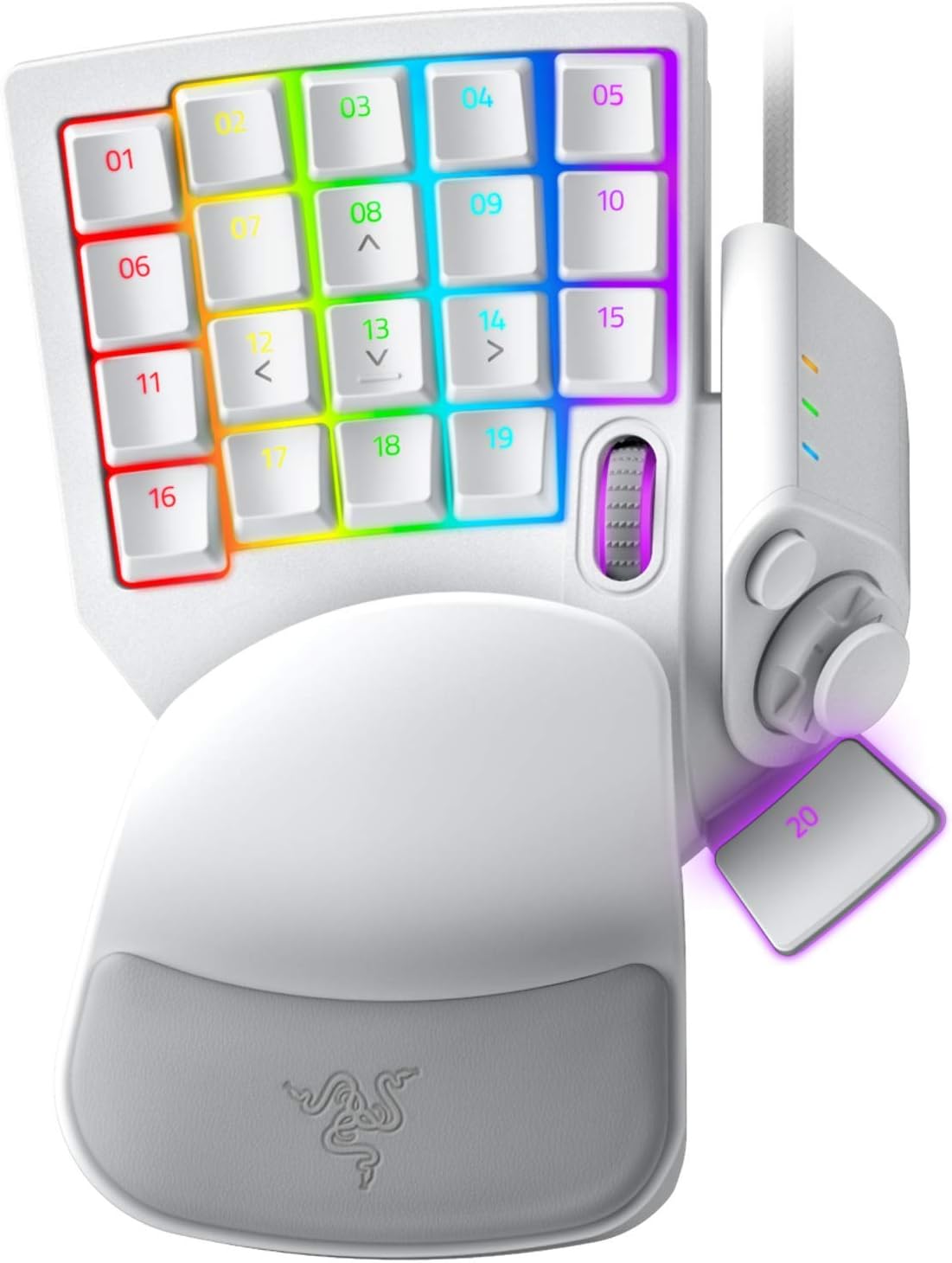
Figure 1: Razer Tartarus Pro Gaming Keypad (Mercury White)
Sifa Muhimu
- Analog-Optical Key Switches: Utilizes light to register keystrokes for precise and rapid input.
- Kichocheo cha Haraka: Keys reset instantly with an upward motion as low as 0.1 mm, enabling faster repeated keystrokes.
- Utendaji Unaoweza Kurekebishwa: Customize actuation points from 1.5 to 3.6 mm for personalized keypress sensitivity.
- Funguo 32 Zinazoweza Kupangwa: Offers an extensive range of commands for gaming or creative workflows.
- Thumbpad for Improved Movement Controls: An 8-way directional thumbpad provides natural controls and ergonomic experience.
- Macros Zinazoweza Kupangwa Kikamilifu: Razer Hypershift allows remapping of all keys and keypress combinations for complex commands.
- Taa ya Chroma RGB: Ultimate personalization with 16.8 million colors on individually backlit keys, syncing with popular games and hardware.
Mwongozo wa Kuweka
- Connect the Keypad: Plug the USB cable from the Razer Tartarus Pro into an available USB port on your PC.
- Sakinisha Razer Synapse: Download and install the latest version of Razer Synapse software from the official Razer website. This software is required to customize key bindings, macros, actuation points, and RGB lighting.
- Ufungaji wa Dereva: Allow your operating system to automatically install any necessary drivers. This usually happens upon initial connection.
- Usanidi wa Programu: Launch Razer Synapse. The software should automatically detect your Tartarus Pro. You can then begin customizing your keypad settings.
Maagizo ya Uendeshaji
Ubinafsishaji Muhimu na Macro
The Razer Tartarus Pro features 32 fully programmable keys. Use Razer Synapse to assign functions, macros, or even launch applications with a single keypress. The 8-way directional thumbpad can also be customized for movement or additional commands.

Kielelezo 2: Zaidiview of 32 programmable keys.
Adjustable Actuation and Rapid Trigger
Leverage the Analog-Optical Key Switches to fine-tune the actuation point of each key. This allows you to set how far a key needs to be pressed to register an input. The Rapid Trigger feature further enhances responsiveness by resetting keys almost instantly upon release, enabling faster consecutive presses.

Figure 3: Adjustable Actuation settings in Razer Synapse.
Taa ya Chroma RGB
Personalize your keypad with Razer Chroma RGB lighting. Through Razer Synapse, you can choose from 16.8 million colors and various lighting effects. Create custom lighting profiles kwa michezo au programu tofauti.
Profile Usimamizi
The Tartarus Pro supports multiple profiles, allowing you to switch between different key layouts and lighting effects on the fly. This is useful for optimizing your setup for various games or tasks.

Figure 4: Quick-toggle profiles for instant switching.
Vipimo
| Kipengele | Maelezo |
|---|---|
| Chapa | Razer |
| Nambari ya Mfano | RZ07-03110200-R3M1 |
| Swichi muhimu | Razer Analog-Optical |
| Vifunguo vinavyoweza kupangwa | 32 |
| Actuation Range | 1.5 hadi 3.6 mm |
| Kidole gumba | 8-way directional |
| Macros | Unlimited length, fully programmable |
| Taa | Razer Chroma RGB (rangi milioni 16.8) |
| Muunganisho | USB Wired |
| Jukwaa la Vifaa | PC |
| Mfumo wa Uendeshaji | Windows |
| Uzito wa Kipengee | 13 wakia |
| Vipimo vya Bidhaa | Inchi 5.95 x 7.96 x 2.5 |
Matengenezo
- Kusafisha: Tumia laini, damp cloth to clean the surface of the keypad. Avoid harsh chemicals or abrasive materials.
- Uondoaji wa kofia kuu: If necessary, keycaps can be carefully removed for deeper cleaning using a keycap puller.
- Huduma ya Cable: Epuka kupinda kwa kasi au kuvuta kebo ya USB kupita kiasi ili kuzuia uharibifu.
Kutatua matatizo
- Keypad Not Detected: Try plugging the keypad into a different USB port. Ensure Razer Synapse is installed and up to date. Restart your computer.
- Masuala ya taa: Check Razer Synapse for lighting settings. Ensure the keypad is properly connected and recognized by the software.
- Vifunguo visivyojibu: Verify key bindings in Razer Synapse. Test the keypad on another computer if possible to rule out a hardware issue.
Video za Bidhaa
Razer Tartarus Pro Gaming Keypad Review
Video 1: A gamer's perspective on the Razer Tartarus Pro, highlighting its features and performance.
Review of the Razer Tartarus Pro Gaming Keypad
Video ya 2: Maelezo ya kinaview of the Razer Tartarus Pro, covering various aspects of its design and functionality.
Razer One-Handed Keyboards Side-by-Side Comparison
Video 3: A comparison between Razer's one-handed keyboards, including the Tartarus Pro, showcasing differences and similarities.
Razer Tartarus Pro Product Showcase
Video 4: A brief showcase of the Razer Tartarus Pro, highlighting its design and lighting.
Udhamini na Msaada
Kwa taarifa za udhamini na usaidizi wa kiufundi, tafadhali tembelea usaidizi rasmi wa Razer website. You can find detailed information regarding product registration, troubleshooting guides, and contact options for customer service.
Optional protection plans are available for purchase, offering extended coverage beyond the standard manufacturer's warranty. These plans include:
- Mpango wa Ulinzi wa Miaka 3
- Mpango wa Ulinzi wa Miaka 4
- Complete Protect (mpango wa kila mwezi unaojumuisha ununuzi unaostahiki wa zamani na ujao)


