1. Utangulizi
This manual provides comprehensive instructions for the setup, operation, and maintenance of your KOAMTAC KDC280D-BLE 1D CCD Bluetooth Barcode Scanner & Data Collector. Please read this manual thoroughly before using the device to ensure proper functionality and to maximize its lifespan.
The KDC280D-BLE is a compact and durable barcode scanner designed for efficient data collection. It features 1D CCD scanning capabilities, Bluetooth Low Energy connectivity, and robust construction suitable for various environments.
2. Bidhaa Imeishaview
The KOAMTAC KDC280D-BLE is equipped with an intuitive interface and essential components for barcode scanning and data management.

Kielelezo 2.1: Mbele view of the KDC280D-BLE scanner, displaying the screen with time and website, and three control buttons.
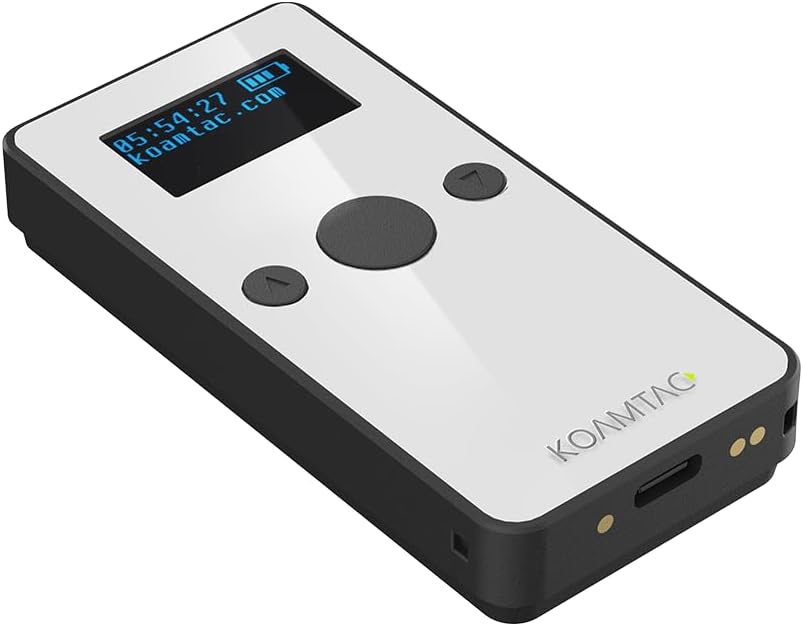
Kielelezo 2.2: Pembe view of the KDC280D-BLE, showing the screen, central scan button, and navigation buttons.

Kielelezo 2.3: Upande view of the KDC280D-BLE, illustrating the barcode scanning window.
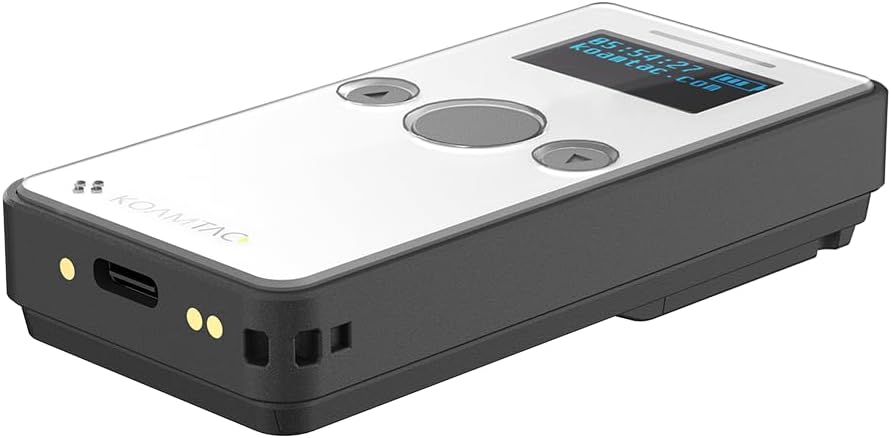
Kielelezo 2.4: Chini view of the KDC280D-BLE, showing the USB-C port for charging and data transfer, and pogo pins for cradle charging.
Vipengele Muhimu:
- Dirisha la Kuchanganua: Located at the top, used to read 1D barcodes.
- Skrini ya Kuonyesha: Shows time, battery status, and connection information.
- Vifungo vya Kudhibiti: Central scan button and two navigation buttons for menu interaction.
- Bandari ya USB-C: For charging and wired data transfer.
- Pini za Pogo: For charging with an optional charging cradle.
3. Kuweka
3.1 Kuchaji Kifaa
Before initial use, fully charge the KDC280D-BLE. The device includes one Lithium Ion battery.
- Connect the provided USB-C cable to the USB-C port on the bottom of the KDC280D-BLE.
- Connect the other end of the USB-C cable to a compatible USB power adapter or a computer's USB port.
- The device's screen will indicate charging status. A full charge typically takes a few hours.
- Alternatively, place the KDC280D-BLE into an optional charging cradle, ensuring the pogo pins align.
3.2 Kuwasha / Kuzima
- Kuwasha: Press and hold the central scan button for approximately 3 seconds until the screen illuminates.
- Kuzima: Press and hold the central scan button for approximately 3 seconds. A power-off confirmation message may appear on the screen. Select "Yes" using the navigation buttons and confirm with the central scan button.
3.3 Kuoanisha Bluetooth
The KDC280D-BLE supports Bluetooth Low Energy (BLE), HID (Human Interface Device), and SPP (Serial Port Profile) connection methods for seamless connectivity with various devices (Android, iOS, Inventory systems).
- Ensure the KDC280D-BLE is powered on.
- Navigate to the Bluetooth settings on your host device (e.g., smartphone, tablet, computer).
- On the KDC280D-BLE, access the Bluetooth menu (refer to the on-screen menu for navigation using the side buttons).
- Select the desired Bluetooth profile (HID, SPP, or BLE) on the KDC280D-BLE. For most applications, HID mode is suitable for direct keyboard input.
- On your host device, search for available Bluetooth devices. The KDC280D-BLE should appear in the list (e.g., "KDC280D-BLE_XXXX").
- Select the KDC280D-BLE from the list on your host device to initiate pairing. Follow any on-screen prompts, which may include entering a PIN (usually 0000 if prompted).
- Once paired, the KDC280D-BLE screen will indicate a successful connection, and your host device will show it as connected.
4. Kuendesha Kichanganuzi
4.1 Kuchanganua Misimbo pau
The KDC280D-BLE is designed to read all major 1D barcode symbologies.
- Point the scanning window of the KDC280D-BLE at the barcode you wish to scan.
- Press the central scan button. A red scanning line will emit from the device.
- Ensure the red line crosses the entire barcode. A successful scan will be indicated by an audible beep and/or a visual confirmation on the screen.
- The scanned data will be transmitted to your connected host device or stored in the KDC280D-BLE's internal memory, depending on the operating mode.
4.2 Data Collection and Storage
The KDC280D-BLE features 8MB of on-board memory, capable of storing over 400,000 UPC product barcodes. This allows for data collection even when not actively connected to a host device.
- Store-and-Forward Mode: In this mode, scanned barcodes are saved directly to the scanner's internal memory. This is useful for batch processing or when working out of range of a host device.
- Real-time Transmission Mode: When connected via Bluetooth, scanned barcodes are immediately transmitted to the host device, appearing as keyboard input or through a dedicated application.
- To retrieve stored data, connect the KDC280D-BLE to a computer via USB or Bluetooth and use the appropriate KOAMTAC software or application.
5. Matengenezo
5.1 Kusafisha
Ili kudumisha utendaji bora na kuonekana:
- Futa sehemu ya nje ya kifaa kwa laini, damp kitambaa.
- For the scanning window, use a lint-free cloth and a mild, non-abrasive cleaner if necessary. Avoid harsh chemicals.
- Hakikisha hakuna kioevu kinachoingia kwenye milango au nafasi.
5.2 Utunzaji wa Betri
The KDC280D-BLE features advanced power management, including a "hibernation mode" to extend battery life during periods of inactivity.
- Chaji kifaa mara kwa mara, lakini epuka kukiacha bila chaji kwa muda mrefu.
- Hifadhi kifaa mahali pa baridi, kavu wakati haitumiki.
- If the device will not be used for a long time, charge it to about 50% before storage.
5.3 Kudumu
The KDC280D-BLE is built for tough environments:
- IP65-rated: This rating indicates protection against dust ingress and low-pressure water jets from any direction.
- 5' Drop Specification: The device is designed to withstand drops from up to 5 feet (1.5 meters) onto concrete.
6. Utatuzi wa shida
| Tatizo | Sababu inayowezekana | Suluhisho |
|---|---|---|
| Kifaa hakiwashi. | Betri ya chini au iliyoisha. | Charge the device using the USB-C cable or charging cradle. |
| Haiwezi kuoanisha kupitia Bluetooth. | Incorrect Bluetooth mode selected; device not discoverable; host device Bluetooth off. | Ensure KDC280D-BLE is in pairing mode and the correct Bluetooth profile is selected. Verify host device Bluetooth is enabled and searching. |
| Barcodes are not scanning. | Barcode damaged or unreadable; scanning window obstructed; incorrect symbology enabled. | Check barcode integrity. Clean the scanning window. Ensure the barcode type is supported and enabled in the scanner's settings. |
| Scanned data not appearing on host device. | Not properly paired; in store-and-forward mode; host application not ready. | Confirm Bluetooth connection. Switch to real-time transmission mode if necessary. Ensure the cursor is in an input field on the host device. |
If issues persist, please refer to the KOAMTAC support webtovuti au wasiliana na huduma kwa wateja.
7. Vipimo
| Kipengele | Maelezo |
|---|---|
| Nambari ya Mfano | 249400 |
| Teknolojia ya skanning | 1D CCD |
| Muunganisho | Bluetooth Low Energy (BLE), HID, SPP |
| Vifaa Sambamba | Android, iOS, Inventory Systems |
| Kumbukumbu ya ndani | 8MB (stores over 400,000 UPC barcodes) |
| Chanzo cha Nguvu | Betri 1 ya Lithium Ion (imejumuishwa) |
| Vipimo vya Bidhaa | Inchi 1.57 x 3.23 x 0.71 |
| Uzito wa Kipengee | 2.08 wakia |
| Ukadiriaji wa Kudumu | IP65-iliyokadiriwa |
| Uainishaji wa kushuka | futi 5 (mita 1.5) |
| Mtengenezaji | KOAMTAC |
8. Udhamini na Msaada
For warranty information, technical support, or to purchase accessories, please visit the official KOAMTAC website or contact their customer service department. Details regarding product protection plans may also be available from your retailer.
Kwa rasilimali zaidi, tembelea KOAMTAC Store on Amazon.


