Utangulizi
This manual provides essential instructions for setting up, operating, maintaining, and troubleshooting your Microsoft Surface Pro 2017. The Surface Pro 2017 is a versatile 2-in-1 device designed to function as both a powerful laptop and a portable tablet, offering a seamless computing experience.
Tafadhali soma mwongozo huu kwa makini ili kuhakikisha matumizi sahihi na kuongeza muda wa matumizi wa kifaa chako. Weka mwongozo huu kwa marejeleo ya baadaye.
Ni nini kwenye Sanduku
Upon unboxing your Microsoft Surface Pro 2017, verify that all components are present:
- Microsoft Surface Pro 2017 device
- Adapta ya Nguvu ya AC
Note: Additional accessories such as the Surface Pen, Type Cover, or Surface Dial are sold separately and may not be included with your device.
Sanidi
1. Initial Power-On and Charging
- Unganisha Adapta ya Nguvu: Plug the AC power adapter into a wall outlet and then connect the magnetic charging connector to the charging port on your Surface Pro. The LED indicator on the connector will illuminate when charging.
- Washa: Press and hold the power button located on the top edge of the device for a few seconds until the Microsoft logo appears on the screen.
2. Kuweka Windows
Follow the on-screen prompts to complete the initial Windows setup. This process typically includes:
- Kuchagua mkoa wako na lugha.
- Inaunganisha kwenye mtandao wa Wi-Fi.
- Accepting the license agreement.
- Creating or signing in with a Microsoft account.
- Setting up security features like Windows Hello (facial recognition) or a PIN.
3. Kuunganisha kwenye Wi-Fi
- During Windows setup, you will be prompted to connect to a network. Select your desired Wi-Fi network from the list and enter the password if required.
- If you need to connect later, go to Anza > Mipangilio > Mtandao na Mtandao > Wi-Fi. Turn Wi-Fi on, select your network, and click Unganisha.
Maagizo ya Uendeshaji
Basic Device Orientation and Controls
The Surface Pro 2017 features a 12.3-inch PixelSense display with multi-touch support. Key physical controls include:
- Kitufe cha Nguvu: Located on the top edge, used to turn the device on/off, sleep, or wake.
- Vifungo vya Sauti: Iko pembeni, inayotumika kurekebisha sauti ya sauti.
- Kusimamisha gari: Integrated on the back, allows for multiple viewpembe za pembe.
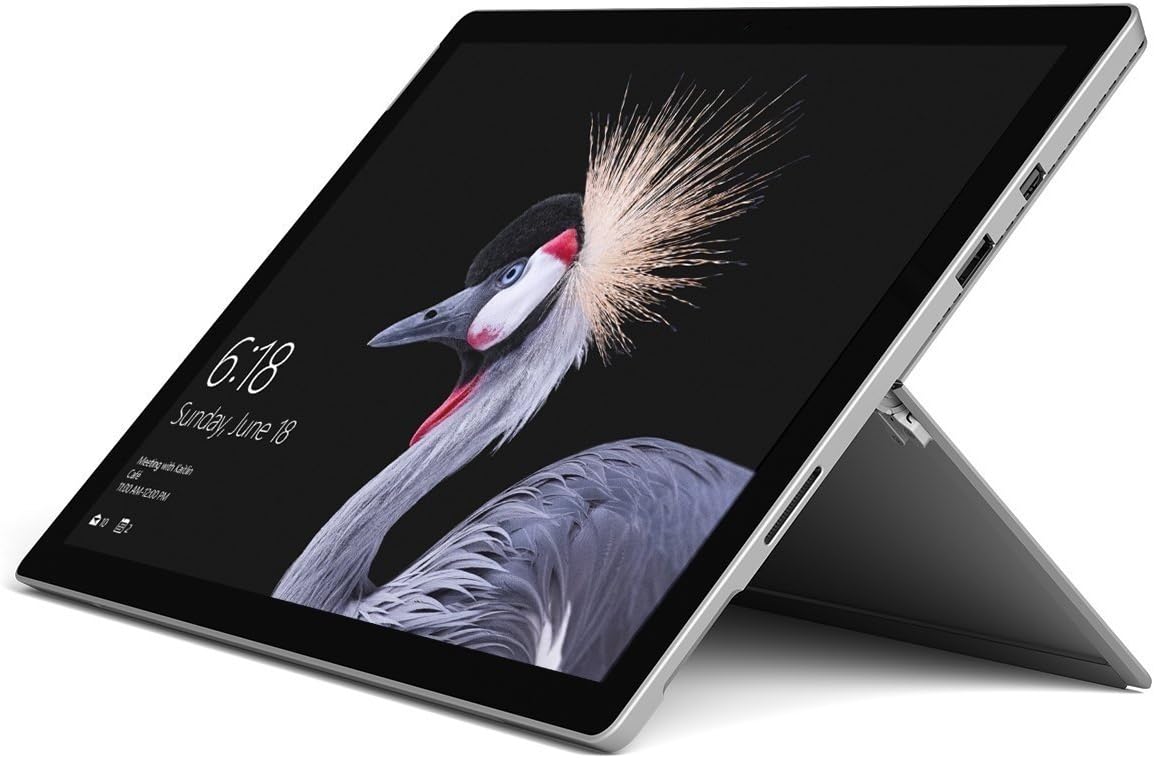
Image: Microsoft Surface Pro 2017 in laptop mode with its kickstand extended, showcasing the device's display.
Kwa kutumia Kickstand
The integrated kickstand allows you to position your Surface Pro at various angles for comfortable viewing, typing, or drawing. Gently pull the kickstand out from the back of the device until it reaches your desired angle.
Usimamizi wa Nguvu
- Njia ya Kulala: Briefly press the power button to put the Surface Pro into sleep mode. Press it again to wake the device.
- Zima: Nenda kwa Anza > Nguvu > Zima.
- Anzisha upya: Nenda kwa Anza > Nguvu > Anzisha upya.
Kuunganisha Pembeni
The Surface Pro 2017 includes various ports for connecting external devices:
- Bandari ya USB 3.0: For connecting USB drives, keyboards, mice, and other compatible accessories.
- Mini DisplayPort: For connecting to external monitors or projectors.
- Kisomaji cha Kadi ya MicroSD: Kwa ajili ya kupanua hifadhi au kuhamisha files kutoka kwa kadi za kumbukumbu.
- Mlango wa Kuunganisha Uso: For power and connecting to Surface Dock accessories.
- Jack ya Kipokea sauti cha 3.5mm: Kwa pato la sauti.
Bluetooth: To connect Bluetooth devices (e.g., headphones, mice), go to Anza > Mipangilio > Vifaa > Bluetooth na vifaa vingine. Ensure Bluetooth is turned on, then select "Add Bluetooth or other device" and follow the pairing instructions.

Picha: Side profile of the Microsoft Surface Pro 2017, highlighting the various ports available for connectivity.
Matengenezo
Cleaning Your Surface Pro
- Skrini: Tumia kitambaa laini kisicho na pamba kidogo dampened with water or an approved screen cleaner. Avoid harsh chemicals or abrasive materials.
- Mwili: Wipe the exterior with a soft, dry cloth. Do not allow liquids to enter openings.
- Bandari: Keep ports free of dust and debris. Use compressed air carefully if needed, holding the can upright.
Utunzaji wa Betri
- Epuka halijoto kali, kwani zinaweza kuharibu maisha ya betri.
- Kwa afya bora ya betri, epuka kutoa betri nzima kila wakati au kuiweka kwenye chaji ya 100% kwa muda mrefu.
- Use only the official Microsoft AC power adapter or a compatible charger.
Sasisho za Programu
Regularly update your Windows operating system and device drivers to ensure optimal performance, security, and compatibility. Go to Anza > Mipangilio > Usasishaji na Usalama > Sasisho la Windows ili kuangalia na kusakinisha masasisho.
Kutatua matatizo
Sehemu hii inashughulikia matatizo ya kawaida ambayo unaweza kukutana nayo na Surface Pro 2017 yako.
Device Will Not Turn On
- Hakikisha kifaa kimechajiwa. Unganisha adapta ya umeme na usubiri dakika chache kabla ya kujaribu kuwasha.
- Perform a two-button shutdown: Press and hold the volume-up button and the power button simultaneously for at least 15 seconds, then release both. Wait 10 seconds, then press the power button again to turn on the Surface.
Screen Not Responding to Touch
- Anzisha tena kifaa.
- Hakikisha kuwa skrini ni safi na haina uchafu.
- Check for available Windows updates, as driver updates can resolve touch issues.
Masuala ya Muunganisho wa Wi-Fi
- Ensure Wi-Fi is enabled in Mipangilio > Mtandao na Mtandao > Wi-Fi.
- Restart your Surface Pro and your Wi-Fi router.
- Sahau mtandao na uunganishe tena: Nenda kwa Mipangilio > Mtandao na Mtandao > Wi-Fi, click on your network, then Sahau. Reconnect and enter the password.
Vipimo
| Kipengele | Vipimo |
|---|---|
| Jina la Mfano | Surface Pro 2017 |
| Nambari ya Mfano wa Kipengee | 7Y30 |
| Ukubwa wa skrini | Inchi 12.3 |
| Azimio la skrini | pikseli 2736 x 1824 |
| Kichakataji | Intel Core m3-7Y30 (1 GHz Intel_Mobile_CPU) |
| RAM | 4 GB DDR4 SDRAM |
| Hifadhi | SSD ya GB 128 |
| Kadi ya Picha | Integrated (Intel) |
| Mfumo wa Uendeshaji | Windows |
| Aina ya Wireless | 802.11abg |
| Uzito wa Kipengee | Pauni 1.89 |
| Vipimo vya Bidhaa | Inchi 11.5 x 7.9 x 0.3 |
| Rangi | Fedha |
Udhamini na Msaada
For detailed warranty information, please refer to the warranty card included with your purchase or visit the official Microsoft support webtovuti. Sheria na masharti ya udhamini yanaweza kutofautiana kulingana na eneo na muuzaji rejareja.
For technical support, driver downloads, and additional resources, please visit the official Microsoft Support webtovuti: support.microsoft.com/surface


