Utangulizi
This manual provides detailed instructions for the installation, operation, and maintenance of your CP PLUS CP-UNC-C13L1-VMW 1.3 MP HD WiFi IR Cube Camera. Please read this manual thoroughly before using the product to ensure correct usage and optimal performance.
The CP-UNC-C13L1-VMW is a versatile 1.3 Megapixel HD camera designed for both indoor and outdoor surveillance, featuring Wi-Fi connectivity and infrared (IR) night vision for comprehensive monitoring.
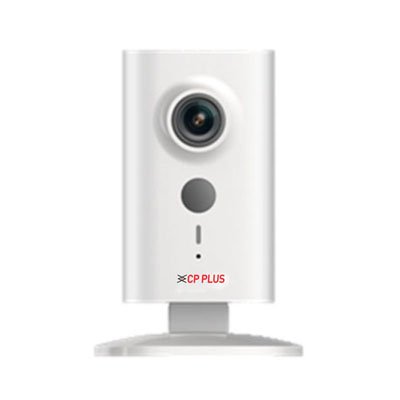
Picha: Mbele view of the CP PLUS CP-UNC-C13L1-VMW 1.3 MP HD WiFi IR Cube Camera. The camera is white, rectangular, with a lens at the top, a grey button below it, and an indicator light and 'CP PLUS' logo at the bottom. It stands on a clear, flat base.
Yaliyomo kwenye Kifurushi
- CP PLUS CP-UNC-C13L1-VMW Camera
- Adapta ya Nguvu
- Kifaa cha Kupachika (skrubu, plagi za ukutani)
- Mwongozo wa Kuanza Haraka
Sanidi
1. Ufungaji wa Kimwili
- Chagua Mahali: Select a suitable indoor or outdoor location for the camera. Ensure it is within range of your Wi-Fi network and a power outlet. The camera supports surface mounting.
- Weka Kamera: Use the provided mounting kit to securely attach the camera to a wall or ceiling. Ensure the camera is positioned to cover the desired surveillance area.
- Unganisha Nguvu: Plug the power adapter into the camera's power input port and then into a standard electrical outlet. The camera's indicator light should illuminate.
2. Muunganisho wa Mtandao (Wi-Fi)
- Pakua Programu: Tafuta the official CP PLUS mobile application on your Android device's app store. Install the application.
- Fungua Akaunti: Fungua programu na ufuate maagizo kwenye skrini ili kuunda akaunti mpya ya mtumiaji au ingia ikiwa tayari unayo.
- Ongeza Kifaa: In the app, select the option to 'Add Device' or 'Add Camera'.
- Scan QR Code/Manual Input: Follow the app's instructions to either scan a QR code on the camera (if available) or manually input the device ID.
- Unganisha kwa Wi-Fi: The app will guide you through connecting the camera to your home Wi-Fi network. Ensure your mobile device is connected to the same 2.4GHz Wi-Fi network you intend to use for the camera.
- Kamilisha Kuweka: Once connected, you can name your camera and complete the initial setup process.
Kuendesha Kamera
1. Kuishi View
- Open the CP PLUS app on your mobile device.
- Chagua kamera yako kutoka kwenye orodha ya vifaa ili view malisho ya moja kwa moja.
- You can switch between standard definition (SD) and high definition (HD) video quality within the live view kiolesura.
2. Kurekodi na kucheza tena
- The camera supports continuous recording or event-triggered recording (e.g., motion detection).
- Ili kufikia foo iliyorekodiwatage, navigate to the 'Playback' section within the app.
- Chagua tarehe na saa ya kurudiaview matukio yaliyorekodiwa.
3. Kugundua Mwendo
- Washa utambuzi wa mwendo katika mipangilio ya kamera ndani ya programu.
- Rekebisha viwango vya unyeti ili kupunguza kengele za uwongo.
- Configure notification settings to receive alerts on your mobile device when motion is detected.
4. Maono ya Usiku
- The camera automatically switches to infrared (IR) night vision mode in low-light conditions.
- This provides clear black and white video footage up to 10 meters in complete darkness.
Matengenezo
1. Kusafisha
- Hakikisha kuwa kamera imezimwa kabla ya kusafisha.
- Tumia kitambaa laini na kikavu kufuta mwili wa kamera.
- Kwa lenzi, tumia kitambaa maalum cha kusafisha lenzi na suluhisho ili kuepuka mikwaruzo.
- Usitumie kemikali kali au kusafisha abrasive.
2. Sasisho za Firmware
- Regularly check for firmware updates through the CP PLUS mobile application.
- Masasisho ya programu dhibiti yanaweza kuboresha utendaji, kuongeza vipengele vipya, na kuongeza usalama.
- Follow the in-app instructions carefully during the update process. Do not power off the camera during an update.
3. Usimamizi wa Uhifadhi
- If using a local storage card (not included), ensure it is formatted periodically to maintain optimal recording performance.
- Manage cloud storage settings (if subscribed) through the mobile application.
Kutatua matatizo
| Tatizo | Sababu inayowezekana | Suluhisho |
|---|---|---|
| Kamera haiwashi | Hakuna umeme; adapta yenye hitilafu | Angalia muunganisho wa umeme; jaribu soketi tofauti; hakikisha adapta inafanya kazi. |
| Imeshindwa kuunganisha kwenye Wi-Fi | Incorrect Wi-Fi password; camera too far from router; 5GHz network used | Verify password; move camera closer to router; ensure router is broadcasting 2.4GHz Wi-Fi. |
| Ubora duni wa video | Weak Wi-Fi signal; dirty lens | Improve Wi-Fi signal strength; clean the camera lens. |
| Utambuzi wa mwendo haufanyi kazi | Feature disabled; incorrect sensitivity settings | Enable motion detection in app; adjust sensitivity. |
Vipimo
| Kipengele | Maelezo |
|---|---|
| Mfano | CP-UNC-C13L1-VMW |
| Chapa | CP pamoja |
| Azimio | 1.3 MP HD (Video Capture Resolution: 720p) |
| Teknolojia ya Uunganisho | Isiyo na waya (Wi-Fi) |
| Matumizi ya Ndani/Nje | Ndani, Nje |
| Chanzo cha Nguvu | Umeme wa Cord |
| Aina ya Kidhibiti | Android (via mobile application) |
| Aina ya Kuweka | Mlima wa Uso |
| Uzito wa Kipengee | 240 g |
| Vipimo vya Kifurushi | 18.8 x 10.2 x 9.2 cm |
Udhamini na Msaada
Kwa maelezo ya udhamini, tafadhali rejelea kadi ya udhamini iliyojumuishwa na bidhaa yako au tembelea CP PLUS rasmi webtovuti. Weka risiti yako ya ununuzi kama uthibitisho wa ununuzi.
If you encounter any issues not covered in this manual or require technical assistance, please contact CP PLUS customer support. Contact details can typically be found on the product packaging, the official webtovuti, au ndani ya programu ya simu.


