1. Utangulizi
This manual provides detailed instructions for the installation, configuration, and operation of the Ubiquiti UAP-IW-HD UniFi in-Wall 802.11ac Wave2 Wi-Fi Access Point. The UAP-IW-HD is designed to deliver high-performance Wi-Fi coverage within indoor environments, integrating discreetly into standard in-wall electrical junction boxes. It supports the latest 802.11ac Wave2 Wi-Fi standard, offering fast wireless speeds and improved efficiency.
2. Taarifa za Usalama
Tafadhali soma, fuata, na ufuate maagizo haya. Zingatia maonyo yote. Tumia viambatisho/vifaa vilivyoainishwa na mtengenezaji pekee.
- Uingizaji hewa: Usizuie fursa yoyote ya uingizaji hewa. Sakinisha kwa mujibu wa maelekezo ya mtengenezaji.
- Chanzo cha Nguvu: Only use power supplies specified by the manufacturer. This device is designed to be powered by Power over Ethernet (PoE).
- Usakinishaji: Installation should be performed by qualified personnel. Ensure proper grounding.
- Mazingira: Usisakinishe karibu na vyanzo vyovyote vya joto kama vile radiators, rejista za joto, jiko, au vifaa vingine (pamoja na amplifiers) that produce heat. Do not expose to dripping or splashing.
3. Yaliyomo kwenye Kifurushi
Thibitisha kuwa bidhaa zifuatazo zimejumuishwa kwenye kifurushi chako:
- Ubiquiti UAP-IW-HD UniFi in-Wall 802.11ac Wave2 Wi-Fi Access Point
- Bamba la Kuweka
- Screws na Nanga za Ukuta
- Mwongozo wa Kuanza Haraka (haujajumuishwa katika mwongozo huu wa dijiti)
4. Bidhaa Imeishaview
The UAP-IW-HD is designed for discreet in-wall installation, providing robust Wi-Fi and wired connectivity.

Kielelezo 1: Mbele View. This image displays the front of the UAP-IW-HD, featuring its clean white design, a subtle blue LED indicator at the top, and the UniFi logo.

Kielelezo 2: Pembe View. An angled perspective of the device, highlighting its slim profile and the location of the reset button on the side.
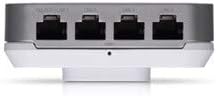
Mchoro 3: Milango ya Chini. This image shows the bottom edge of the UAP-IW-HD, revealing four Gigabit Ethernet ports. One port supports PoE Passthrough (PoE OUT/LAN1), while the others are standard LAN ports.

Kielelezo cha 4: Nyuma View. The back of the device, illustrating the mounting points and the primary 'PoE IN + DATA' Ethernet port used for power and uplink connection.
Hali ya Kiashiria cha LED
- Bluu: Device is powered on and operating correctly.
- Bluu Inayong'aa: Device is booting up or being located in the UniFi Controller.
- Imezimwa: Device is powered off or LED is disabled in UniFi Controller.
5. Kuweka na Kuweka
The UAP-IW-HD is designed for in-wall installation, replacing a standard wall plate.
5.1. Masharti
- A standard single-gang or double-gang electrical junction box in the wall.
- An Ethernet cable run to the junction box, connected to a PoE+ (802.3at) compliant switch or PoE injector.
- A computer with the UniFi Network Controller software installed (available from ui.com/download/unifi).
5.2. Ufungaji wa vifaa
- Prepare the Junction Box: Ensure power to the junction box is off. Remove the existing wall plate.
- Unganisha Ethaneti: Connect the Ethernet cable from your PoE+ source to the 'PoE IN + DATA' port on the back of the UAP-IW-HD (refer to Figure 4).
- Weka Kifaa: Align the UAP-IW-HD with the junction box. Secure it using the provided screws. Ensure the device is flush with the wall.
- Washa: Restore power to the junction box. The LED indicator on the UAP-IW-HD should illuminate blue (possibly flashing initially).
5.3. Software Configuration (UniFi Network Controller)
- Kidhibiti cha Uzinduzi: Open the UniFi Network Controller software on your computer.
- Gundua Kifaa: The UAP-IW-HD should appear in the 'Devices' section as 'Pending Adoption'.
- Kifaa cha Kupitisha: Click 'Adopt' next to the UAP-IW-HD. The controller will provision the device. This may take a few minutes.
- Sanidi Wi-Fi: Once adopted, navigate to 'Settings' > 'Wi-Fi' to create or modify your wireless networks (SSIDs).
- Configure LAN Ports: The LAN ports on the bottom of the UAP-IW-HD can be configured for network access. The 'PoE OUT/LAN1' port can provide PoE passthrough to power another device (e.g., a VoIP phone).
6. Uendeshaji wa Ufikiaji
Once configured, the UAP-IW-HD operates as a high-performance Wi-Fi access point and a wired network switch.
- Uendeshaji wa Bendi-mbili: The device simultaneously broadcasts Wi-Fi networks on both 2.4 GHz and 5 GHz frequencies, allowing client devices to connect to the optimal band for performance.
- Uunganisho wa waya: The four Gigabit Ethernet ports provide wired network access for devices such as computers, smart TVs, or other network-enabled equipment.
- PoE Passthrough: The 'PoE OUT/LAN1' port can deliver Power over Ethernet to compatible devices, simplifying cabling for certain installations.
- Usimamizi: All operational aspects, including Wi-Fi settings, client monitoring, and firmware updates, are managed through the UniFi Network Controller.
7. Matengenezo
Regular maintenance ensures optimal performance and longevity of your UAP-IW-HD.
- Sasisho za Firmware: Regularly check for and apply firmware updates via the UniFi Network Controller to ensure security and access to new features.
- Kusafisha: Gently wipe the exterior of the device with a soft, dry cloth. Do not use liquid cleaners or aerosol sprays.
- Ukaguzi wa Mazingira: Ensure the area around the device remains free from obstructions to maintain proper ventilation.
8. Utatuzi wa shida
If you encounter issues with your UAP-IW-HD, refer to the following common solutions:
- Kifaa Kisichowashwa:
- Verify the Ethernet cable is securely connected to the 'PoE IN + DATA' port.
- Ensure the PoE source (switch or injector) is providing 802.3at compliant power.
- Check the power supply to the PoE source.
- Device Not Adopted in Controller:
- Ensure the UAP-IW-HD and the UniFi Controller are on the same network segment or that routing is correctly configured.
- Try restarting the UniFi Network Controller software.
- Perform a factory reset on the UAP-IW-HD by pressing and holding the reset button (refer to Figure 2) for approximately 10 seconds.
- Poor Wi-Fi Performance:
- Angalia uingiliaji unaowezekana kutoka kwa vifaa au mitandao mingine isiyotumia waya.
- Hakikisha programu dhibiti ya kifaa imesasishwa.
- Adjust Wi-Fi channel and power settings in the UniFi Controller.
9. Vipimo
| Jina la Mfano | UAP-IW-HD-US |
| Chapa | Ubiquiti |
| Teknolojia ya Uunganisho | 802.11ac, Ethernet, Wi-Fi |
| Kiwango cha Mawasiliano isiyo na waya | 2.4 GHz Radio Frequency, 5 GHz Radio Frequency, 802.11ac Wave2 |
| Darasa la Bendi ya Mara kwa mara | Bendi-mbili |
| Aina ya Antena | Ndani |
| Bandari za Ethernet | 4 x Gigabit Ethernet (1 x PoE IN + Data, 3 x LAN, 1 x PoE OUT/LAN1) |
| Vipengele Maalum | Hali ya Sehemu ya Ufikiaji, WPS (Usanidi Uliolindwa wa Wi-Fi) |
| Chanjo | Indoor single-room coverage |
| Mbinu ya Nguvu | 802.3 kwa PoE+ |
| Mfumo wa Uendeshaji | Uendeshaji wa UniFi |
| Vipimo (H x W x D) | Approximately 4 in x 3.5 in x 1.5 in (102.9 x 89.5 x 32.2 mm) |
| Uzito | Takriban pauni 0.5 (aunsi 8) |
10. Udhamini na Msaada
Ubiquiti products are covered by a limited warranty. For detailed warranty information, please refer to the official Ubiquiti website. For technical support, documentation, and community forums, visit jamii.ui.com or msaada.ui.com.


