Utangulizi
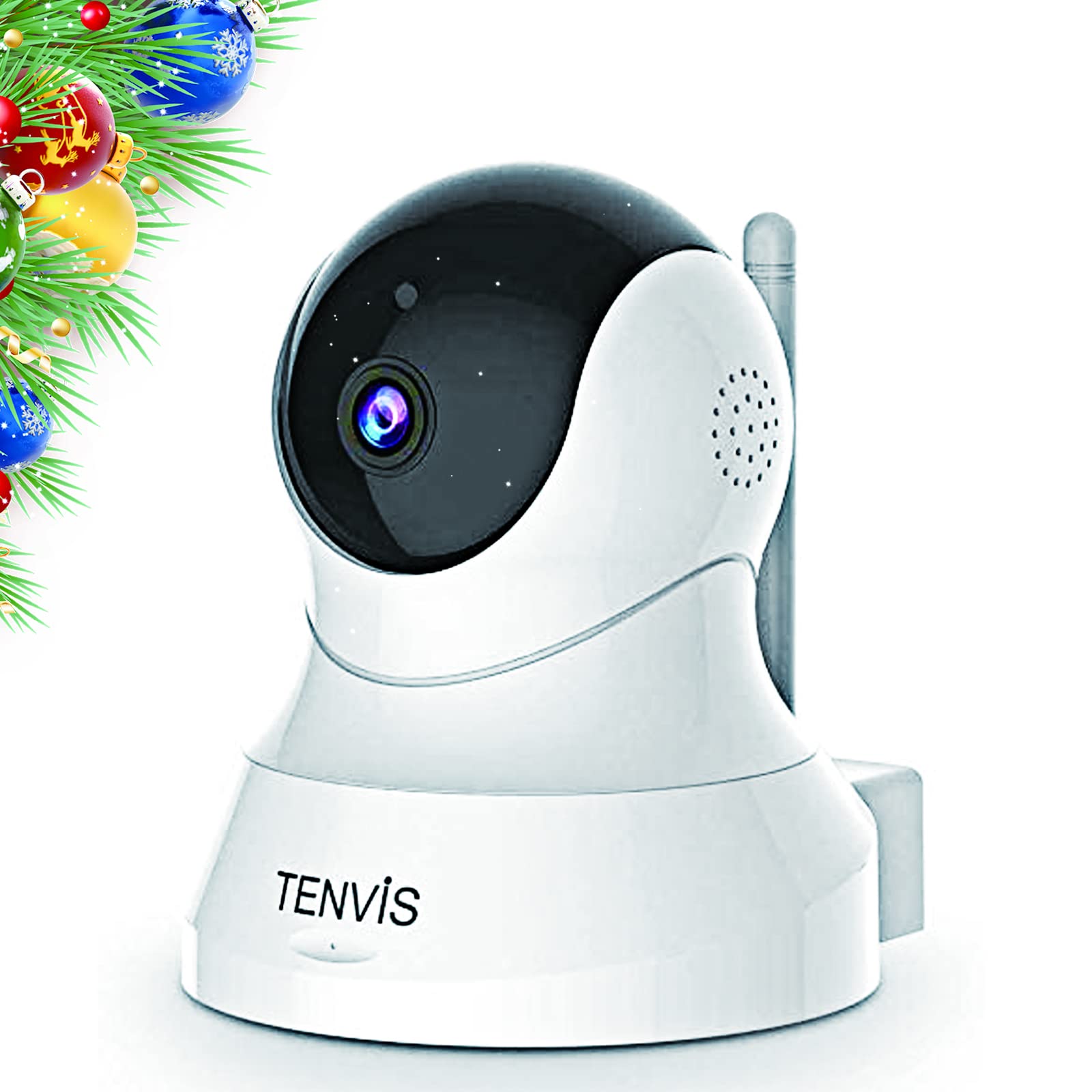
Welcome to your TENVIS 1080P Pet Camera. This manual provides detailed instructions for setting up, operating, and maintaining your device to ensure optimal performance and security. This camera is designed for indoor use, offering features like 1080P Full HD resolution, 2-way audio, motion detection, and night vision to help you monitor your pets or home environment.
Bidhaa Imeishaview
Sifa Muhimu
- Full Coverage 1080P FHD Resolution: This home security camera covers a full range of horizontal 355° & vertical 120°. 1920x1080 Mega Pixels delivers clear and sharp images. No dead angle coverage guarantees perfect capture of every image in the surveillance range.
- 32ft Broad Range Night Vision & Automatic Switch Mode: With the core technology ‘Smart Eyes’, TENVIS dog camera provides a clear vision through infrared light at night. This dog camera supports a night vision range up to 32FT, which could act as a deterrent against theft and burglaries.
- Two-Way Audio & One-Click Installation: Based on two-way audio, you are able to talk with your pet through this pet dog camera! This pet dog camera allows one-click Wi-Fi (2.4 GHz) configuration! You don't need to waste your time for installing due to its "Sound Wave Smart Connection"!
- 3-Second Motion Detection & Instant Phone Alarm: Smart Motion detection technology allows you to avoid taping hours of inactivity. With the help of this pet dog monitor camera, every potential risk will be identified and notifications will be sent to your phone immediately.
- Protects Your Privacy with Local Storage: This wireless pet dog monitor camera does not support cloud storage. You may save the footage into your SD card or cell phone and never worry about privacy leaks. Ideal choice for gift giving! (SD card is not included in the package.)
Yaliyomo kwenye Kifurushi
- TENVIS 1080P Pet Camera Unit
- Adapta ya Nguvu
- Cable ya Nguvu ya USB
- Vifaa vya Kuweka (screws na nanga)
- Mwongozo wa Mtumiaji

Sanidi
Usanidi wa Awali wa Kifaa
- Washa: Plug the USB power cable into the camera's power port and connect the power adapter to a wall outlet. The camera will power on and initiate its self-check.
- Upakuaji wa Programu: Download the VicoHome app from your mobile device's app store (Android or iOS).
- Usajili wa Akaunti: Open the VicoHome app and register for a new account or log in if you already have one.
- Ongeza Kifaa: Tap the '+' icon in the app to add a new device. Select the appropriate camera type (Plug-in device).
- Muunganisho wa Wi-Fi: Follow the in-app instructions to connect your camera to your 2.4 GHz Wi-Fi network. Ensure your phone is also connected to the same 2.4 GHz network during setup. The camera will emit a sound to indicate it's ready for connection.
- Device Naming & Location: Once connected, name your camera and assign it a location within your home (e.g., Living Room, Pet Camera).
- Sasisho la Firmware: The app may prompt you to update the camera's firmware. It is recommended to perform this update for optimal performance and features.
Uendeshaji
Ishi View na Vidhibiti
Access the live feed of your camera through the VicoHome app. From the live view interface, you can control various functions:
- Panua na Tilt: Use the directional controls (arrows) in the app to remotely rotate the camera horizontally (355°) and vertically (120°) to get a full view ya chumba.
- Sauti ya Njia Mbili: Tap the microphone icon to speak through the camera's speaker, allowing you to communicate with pets or family members. Tap the speaker icon to listen to audio from the camera's environment.
- Utambuzi wa Mwendo na Arifa: Enable motion detection in the app settings. You will receive instant notifications on your phone when motion is detected. You can adjust sensitivity settings to minimize false alarms.
- Maono ya Usiku: The camera automatically switches to night vision mode in low-light conditions, providing clear black-and-white video up to 32 feet.
- Hifadhi ya Ndani: Insert a Micro SD card (not included) into the camera's slot to record footage locally. You can access and manage recorded videos directly from the app.


Matengenezo
Utunzaji wa Kifaa
- Kusafisha: Futa lenzi ya kamera na mwili kwa upole kwa kitambaa laini na kikavu. Epuka kutumia kemikali kali au vifaa vya kukwaruza.
- Uwekaji: Ensure the camera is placed in a stable location with good ventilation. Avoid direct sunlight or extreme temperatures.
- Sasisho za Firmware: Regularly check for and install firmware updates through the VicoHome app to ensure your camera has the latest features and security enhancements.
Kutatua matatizo
Masuala ya Kawaida na Suluhisho
- Kamera haiunganishi kwa Wi-Fi: Ensure your Wi-Fi network is 2.4 GHz. Check your Wi-Fi password and signal strength. Try restarting your router and the camera.
- Ubora duni wa picha: Ensure the lens is clean. Check your internet connection speed. Adjust video quality settings in the app if necessary.
- Motion detection false alarms: Adjust the motion detection sensitivity in the app settings. Ensure the camera is not facing areas with constant movement (e.g., tree branches swaying outside a window).
- Masuala ya sauti: Check the volume settings in the app. Ensure there are no obstructions blocking the camera's microphone or speaker.
- Kamera nje ya mtandao: Check the power connection and Wi-Fi status. Restart the camera and router.
Vipimo
Maelezo ya Kiufundi
- Nambari ya Mfano: TH661D
- Ubora wa Kurekodi Video: 1080p
- Teknolojia ya Uunganisho: Waya (Wi-Fi 2.4 GHz)
- Vipengele Maalum: Kihisi Mwendo, Maono ya Usiku, Sauti ya Njia Mbili
- Matumizi ya Ndani/Nje: Ndani
- Masafa ya Maono ya Usiku: Futi 32
- Vipimo vya Kipengee (L x W x H): Inchi 4.72 x 5.12 x 3.94
- Uzito wa Kipengee: 8.8 wakia
- Mbinu ya Kudhibiti: Udhibiti wa Programu, Udhibiti wa Mbali
- Vifaa Vinavyolingana: Smartphone (Android & iOS)
Udhamini na Msaada
Taarifa ya Udhamini
No specific warranty information is provided in the product data. Please refer to the manufacturer's webtovuti au wasiliana na usaidizi kwa wateja kwa maelezo ya udhamini.
Usaidizi wa Wateja
For further assistance, troubleshooting, or product inquiries, please visit the TENVIS website or contact their customer support channels. You can often find FAQs and additional resources on their official webtovuti.


