Utangulizi
This manual provides comprehensive instructions for the Xfinity Comcast XR15 Voice Control Remote. Designed for seamless interaction with Xfinity X1, Xi6, Xi5, and XG2 equipment, this remote enhances your entertainment experience with intuitive voice commands and convenient features.
Bidhaa Imeishaview
The Xfinity XR15 Voice Control Remote is engineered for ease of use and efficient control of your Xfinity entertainment system. Key features include voice control, a backlit keypad, Aim Anywhere functionality, and easy access to accessibility features like Closed Captioning, video description, and voice guidance.
Remote Layout and Button Functions
Familiarize yourself with the remote's buttons and their corresponding functions:

Figure 1: Xfinity XR15 Remote Button Functions
- Ingizo la Runinga: Switches to the next available input on your TV.
- Nguvu: Turns the TV on or off. When programmed, it can also control the TV Box and certain audio devices. The X1 TV Box is designed to remain on.
- JUZUU +/-: Increases or decreases the volume when programmed with a valid TV or AV receiver code.
- Nyamazisha: Turns sound off or on.
- CH +/-: Selects the next channel up or down.
- Cheza/Sitisha: Plays or pauses live TV, XFINITY On Demand, or DVR content.
- FF (Safari ya Haraka): Fast forwards XFINITY On Demand or DVR content.
- Rew (Rewind): Rewinds XFINITY On Demand or DVR content.
- Utgång: Exits on-screen guides; stops and exits XFINITY On Demand and DVR content. Returns to the "Live" point when replaying live TV.
- Record (red dot): Records the current program or saves future programs to your DVR.
- Xfinity: Displays the main menu of the guide, providing access to all guide features, including DVR and XFINITY On Demand.
- Mwongozo: Displays TV listings.
- Nyuma: Navigates back in menus or previous screens.
- Habari (i): Displays information about programs and notifications.
- Voice Control (Microphone button): Use voice commands to search for networks, shows, set DVR recordings, and get recommendations.
- Vifunguo vya Nambari (0-9): Use predictive text (T9) to quickly search for content or directly enter channel numbers.

Kielelezo 2: Mbele view of two Xfinity XR15 Remotes
Sanidi
The Xfinity XR15 remote is designed for easy pairing with your Xfinity equipment. It is compatible with Xi6, Xi5, XG2, and X1 equipment.
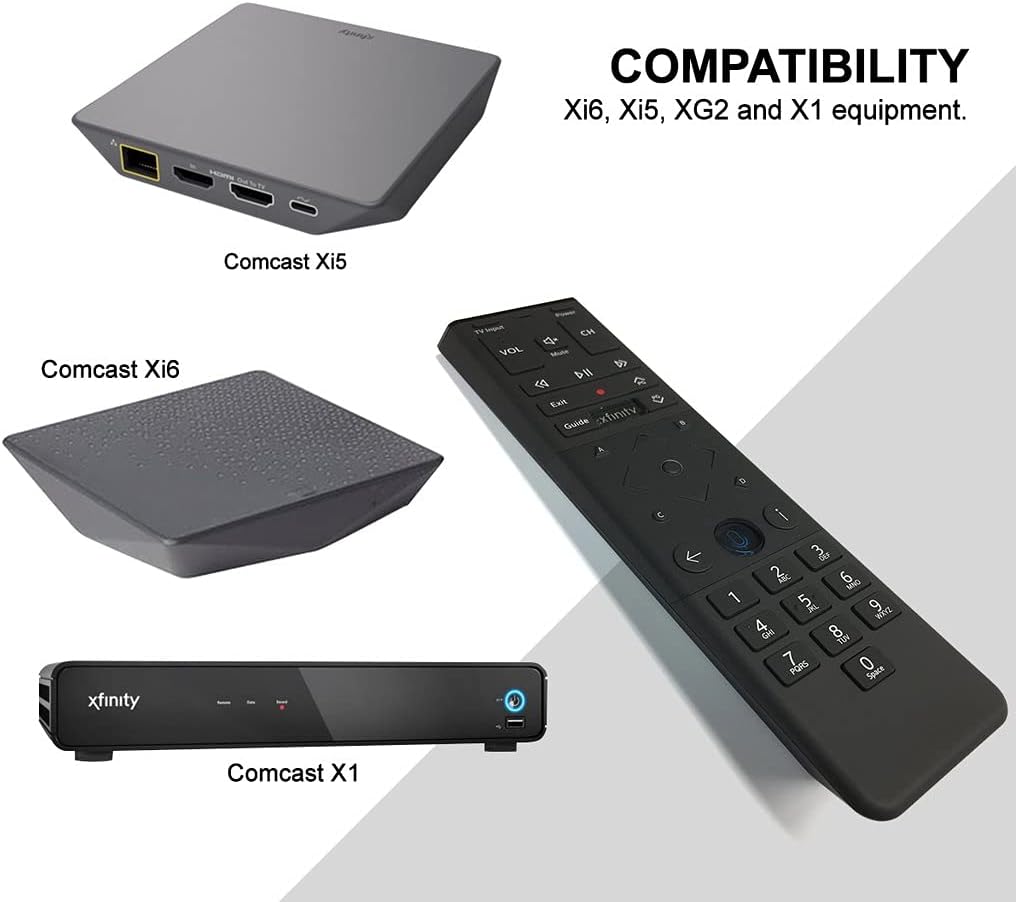
Figure 3: Xfinity XR15 Remote Compatibility
Kuoanisha Kiotomatiki
For most X1 TV Boxes, the remote will automatically pair when you first use it. Simply point the remote at your TV Box and press any button. Follow any on-screen prompts to complete the pairing process.
Manual Pairing (if automatic pairing fails)
- Ensure your TV Box is powered on.
- Bonyeza na ushikilie Xfinity na Habari (i) buttons simultaneously for five seconds until the status LED on the remote changes from red to green.
- Fuata maagizo kwenye skrini ili kukamilisha kuoanisha.
Pairing with your TV for Volume and Power Control
To control your TV's volume and power, you will need to program the remote:
- Turn on your TV and Xfinity TV Box.
- Bonyeza na ushikilie Sanidi button (usually a small, recessed button on the remote, or sometimes the Xfinity na Nyamazisha buttons simultaneously) until the status LED on the remote changes from red to green.
- Enter the 5-digit code for your TV brand. A list of common codes can be found on the Xfinity support webtovuti.
- Elekeza kidhibiti cha mbali kwenye TV yako na ubonyeze Nguvu button. If the TV turns off, the remote is programmed. If not, try the next code for your TV brand.
Maagizo ya Uendeshaji
Kutumia Udhibiti wa Sauti
The voice control feature allows you to quickly find content, change channels, and control your DVR. To use voice control:

Figure 4: Voice Control Microphone Button
- Bonyeza na ushikilie Maikrofoni button (located below the directional pad).
- Speak clearly into the microphone at the top of the remote.
- Achilia Maikrofoni button when you are finished speaking.
Exampmaagizo ya sauti:
- "Find [Movie Title]"
- "Go to [Channel Name/Number]"
- "Record [Show Name]"
- "What's on tonight?"
- "Show me comedies"
The remote's voice recognition is highly responsive, allowing for quick navigation and content discovery.
Matengenezo
Ubadilishaji wa Betri
The Xfinity XR15 remote requires two AA batteries (included). To replace the batteries:

Kielelezo cha 5: Sehemu ya Betri
- Locate the battery cover on the back of the remote.
- Telezesha kifuniko chini na ukiinue.
- Remove the old batteries and insert two new AA batteries, ensuring correct polarity (+/-).
- Replace the battery cover by sliding it back into place until it clicks.
Kwa utendaji bora, tumia betri za alkali zenye ubora wa juu.
Kutatua matatizo
If you encounter issues with your Xfinity XR15 remote, try the following solutions:
| Tatizo | Suluhisho |
|---|---|
| Remote not responding to commands. |
|
| Udhibiti wa sauti haufanyi kazi. |
|
| Volume or Power buttons not controlling TV. |
|
For further assistance, please visit the official Xfinity support webtovuti au wasiliana na huduma kwa wateja wao.
Vipimo
| Kipengele | Maelezo |
|---|---|
| Nambari ya Mfano | XR15 |
| Vipimo | Inchi 7 x 5.3 x 1.6 |
| Uzito wa Kipengee | 10.2 wakia |
| Betri | Betri 2 za AA (zimejumuishwa) |
| Vifaa Sambamba | X1, Xi6, Xi5, XG2 TV Boxes |
| Kipengele Maalum | Voice controlled, Backlit keypad, Aim Anywhere |
| Rangi | Nyeusi |
Udhamini na Msaada
For information regarding product warranty, please refer to the documentation provided with your purchase or visit the official Xfinity support website. Xfinity provides various support resources, including online guides, FAQs, and customer service contact options.
Msaada mkondoni: www.xfinity.com/support


