1. Utangulizi
Thank you for choosing the Philips DashCam 4K Front and Rear. This device is designed to provide reliable video recording of your journeys, enhancing driving safety and providing crucial evidence in case of incidents. Featuring 4K front recording, 1080P rear recording, super night vision, 24-hour parking monitoring, loop recording, and smart app control via Wi-Fi, this dashcam offers comprehensive coverage and ease of use. Please read this manual thoroughly before installation and operation to ensure optimal performance and safety.
2. Yaliyomo kwenye Kifurushi
Tafadhali angalia kifurushi kwa vitu vifuatavyo:
- Philips DashCam (Main Unit)
- Kamera ya Nyuma
- Kebo ya Nguvu (Chaja ya Gari)
- Mounting Bracket with Adhesive
- 32GB MicroSD Kadi
- Mwongozo wa Mtumiaji
- Hardwire Kit (Optional, for 24-hour parking monitoring)
3. Bidhaa Imeishaview
Familiarize yourself with the components of your Philips DashCam.

Picha ya 3.1: Main DashCam unit with labeled parts including Type-C interface, TF card slot, display, reset button, lens, mute button, power switch, arrow keys, and speaker.

Picha ya 3.2: Mbele view of the Philips DashCam showing its compact size (approx. 10cm height, 5cm width) and key features like 4K+1080P recording, wide-angle lens, Wi-Fi, loop recording, WDR, 24-hour parking monitor, free 32GB card, voice transmission, and supercapacitor.
4. Kuweka
4.1. Ufungaji
Follow these steps to install your dashcam in your vehicle:
- Clean the area on your windshield where you intend to mount the dashcam. Ensure it does not obstruct your view.
- Ambatisha bracket ya kupachika kwenye dashibodi.
- Peel off the protective film from the adhesive pad on the mounting bracket and firmly press it onto the chosen spot on your windshield. Hold for a few seconds to ensure a secure bond.
- Connect the power cable to the dashcam and route it neatly along the windshield edge and dashboard to your car's 12V power outlet (cigarette lighter socket).
- Plug the car charger into the 12V power outlet.
- Install the rear camera (if applicable) on the rear windshield and connect its cable to the main dashcam unit.
Video ya 4.1: This video demonstrates the physical installation of the Philips DashCam, including mounting the front unit on the windshield, connecting the power cable, and showing the initial power-on sequence. It also shows the Wi-Fi connection process and hardwire kit installation.
4.2. Umeme wa Awali
Once connected to power, the dashcam will automatically power on and begin recording. The screen will display the live view from the front camera. Ensure the date and time are correct in the settings.
4.3. Wi-Fi Connection and App Control
The dashcam features built-in Wi-Fi for easy control and video management via a smartphone app.
- Download the dedicated app (e.g., REDTIGER app) from your smartphone's app store (iOS or Android).
- On the dashcam, navigate to the settings menu and enable the mobile internet/Wi-Fi option. A QR code and Wi-Fi name/password will be displayed.
- On your smartphone, go to Wi-Fi settings and connect to the dashcam's Wi-Fi network (e.g., "PHILIPS-TAC1279_0A5B3A"). Enter the password displayed on the dashcam screen.
- Open the app. It should automatically detect and connect to your dashcam.
- Kupitia programu, unaweza view ishi footage, uchezaji wa video zilizorekodiwa, upakuaji files kwenye simu yako, na urekebishe mipangilio ya dashibodi.
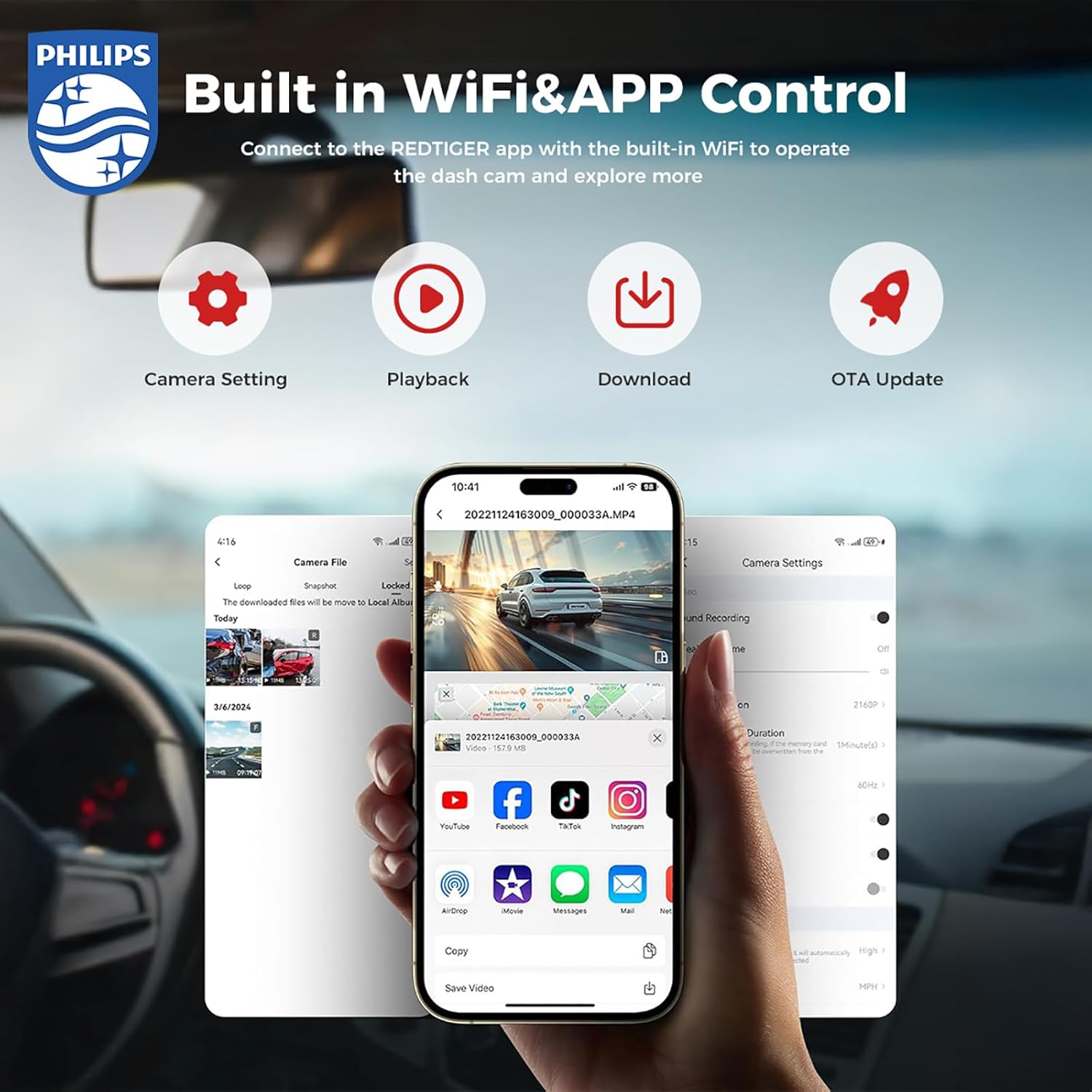
Picha ya 4.1: The dashcam connects to a smartphone app via Wi-Fi, allowing for camera settings adjustment, video playback, downloading, and OTA updates.
4.4. Hardwire Kit Installation (for 24-hour Parking Monitoring)
To enable continuous 24-hour parking monitoring, connect the optional hardwire kit to your vehicle's fuse box. This ensures the dashcam receives power even when the engine is off, protecting your car while parked.
Kumbuka: Professional installation is recommended for hardwiring to avoid damage to your vehicle's electrical system.
Video ya 4.2: This segment of the video demonstrates how to connect the hardwire kit to the vehicle's fuse box for continuous power supply, enabling 24-hour parking monitoring.
5. Maagizo ya Uendeshaji
5.1. Njia za Kurekodi
The dashcam supports various recording modes to capture your driving experience.
5.1.1. Dual Dash Cam - 4K Front + 1080P Rear
The front camera records in crystal-clear UHD 4K resolution, while the wide-angle rear camera captures FHD 1080P video. This dual-camera setup provides comprehensive coverage, reducing blind spots and ensuring a safer driving experience. Both cameras feature an F1.5 aperture for depth capture.

Picha ya 5.1: Illustration of the 4K front camera with a 140-degree view and the 1080P rear camera with a 130-degree view, ensuring wide coverage.
Video ya 5.1: This segment shows an example of 4K resolution recording during nighttime driving conditions, demonstrating the clarity of the footage.
5.1.2. Kurekodi Kitanzi
The dashcam supports loop recording, automatically overwriting the oldest non-essential videos when the memory card is full. This ensures continuous recording without manual intervention. The device comes with a 32GB card and supports up to 256GB.
Picha ya 5.2: The dashcam unit with a visual representation of loop recording, where older footage is continuously replaced by new recordings.
5.1.3. 24-Hour Parking Monitoring (G-Sensor)
Equipped with a built-in collision sensor (G-sensor), the dashcam can detect impacts while parked. The G-sensor has four sensitivity modes (Off, Low, Medium, High). When an impact is detected, the dashcam will automatically record and lock the footage, protecting it from being overwritten. Time-lapse recording provides continuous 24-hour surveillance.

Picha ya 5.3: The dashcam automatically records and locks footage upon detecting an impact, ensuring critical event videos are saved.
5.2. Excellent Night Vision
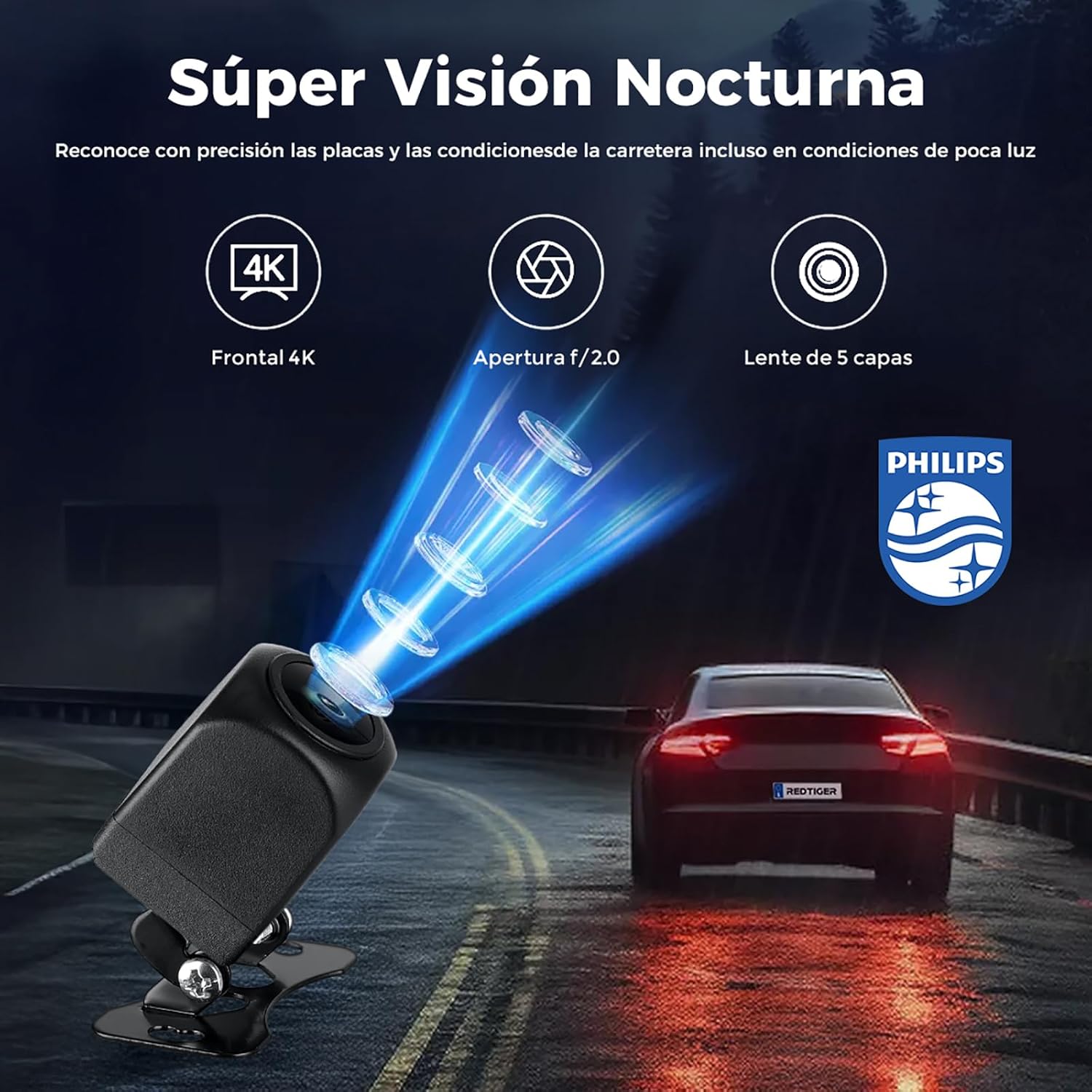
The 4K dashcam features 6-layer glass, an F1.5 aperture, and WDR (Wide Dynamic Range) technology, providing excellent night vision capabilities. This allows for high-resolution recording during both day and night, significantly improving driving safety in low-light conditions. It precisely recognizes license plates and road conditions even in dim light.

Picha ya 5.4: The dashcam's advanced night vision technology, featuring Light-Balanced Tech and F1.5 Large Aperture, captures clear images in low-light environments.
6. Matengenezo
6.1. Usimamizi wa Kadi za MicroSD
- Uumbizaji: It is recommended to format the MicroSD card regularly (e.g., once a month) to ensure optimal performance and prevent data corruption. This can usually be done through the dashcam's settings menu or the mobile app.
- Muda wa Kadi: MicroSD cards have a limited number of write cycles. If you experience recording issues, consider replacing the card. Use high-endurance MicroSD cards specifically designed for dashcams.
6.2. Kusafisha
- Gently wipe the camera lens with a soft, lint-free cloth to ensure clear video quality.
- Clean the dashcam body with a dry or slightly damp kitambaa. Usitumie kemikali kali au visafishaji vya abrasive.
7. Utatuzi wa shida
If you encounter issues with your dashcam, refer to the following common problems and solutions:
| Tatizo | Suluhisho linalowezekana |
|---|---|
| Dashcam haiwashi. | Check if the power cable is securely connected to both the dashcam and the car's power outlet. Ensure the car's power outlet is functioning. |
| Kurekodi kusitisha au footage imeharibika. | Format the MicroSD card. If the issue persists, try a new high-endurance MicroSD card. Ensure the card is correctly inserted. |
| Muunganisho wa Wi-Fi umeshindwa. | Ensure Wi-Fi is enabled on the dashcam and your smartphone. Re-enter the Wi-Fi password. Try restarting both the dashcam and your phone. |
| Ubora duni wa video. | Clean the camera lens. Ensure the protective film has been removed from the lens. Check video resolution settings in the app. |
| Parking monitoring not working. | Ensure the hardwire kit is correctly installed and connected. Check G-sensor sensitivity settings. |
8. Vipimo
Key technical specifications for the Philips DashCam CVR308/93 (TAC-1279):
- Chapa: Philips
- Jina la Mfano: TAC-1279 (CVR308/93)
- Teknolojia ya Uunganisho: Wi-Fi
- Kipengele Maalum: Ufuatiliaji wa Maegesho
- Aina ya Huduma ya Gari: Gari
- Azimio la Kurekodi Video: 4K (Front), 1080P (Rear)
- Ukubwa wa Skrini: Inchi 3
- Vehicle Part Position: Front Left Upper (for main unit)
- Betri Imejumuishwa: Ndiyo
- Aina ya Betri: Ion ya lithiamu
- Vifaa Vinavyolingana: Gari
- Automatic Part Orientation: Mbele na Nyuma
- Rangi: Nyeusi
- Item Dimensions (Depth x Width x Height): 12 x 10 x 16 sentimita
- Mtengenezaji: FILIPI
- Nchi ya Asili: China
9. Udhamini na Msaada
This Philips DashCam comes with a standard manufacturer's warranty. Please refer to the warranty card included in your package for specific terms and conditions. For technical support, troubleshooting assistance, or warranty claims, please contact Philips customer service or visit the official Philips support webtovuti. Weka risiti yako ya ununuzi kama uthibitisho wa ununuzi.


