Utangulizi
The Argox AS-8000URG is a lightweight and easy-to-handle barcode scanner designed for retail applications. It offers intuitive operation, allowing users to simply point and scan without warm-up time. This scanner is capable of reading all commonly used barcode symbologies from contact up to a distance of 125mm. Its plug-and-play installation ensures quick setup for various retail and similar environments.

Figure 1: Argox AS-8000URG Barcode Scanner, showing its ergonomic design and cable connection.
Yaliyomo kwenye Kifurushi
Tafadhali thibitisha kuwa vitu vyote vipo na viko katika hali nzuri wakati wa kufungua kifurushi:
- Argox AS-8000URG Barcode Scanner
- Cable ya Uunganisho wa USB
- Mwongozo wa Mtumiaji (hati hii)
Taarifa za Usalama
To ensure safe operation and prolong the life of your scanner, please observe the following:
- Do not expose the scanner to extreme temperatures, humidity, or direct sunlight.
- Epuka kuangusha kichanganuzi au kukiathiri kwa nguvu.
- Do not attempt to disassemble or modify the scanner. This will void the warranty.
- Keep the scanner away from strong magnetic fields.
- Use only the provided USB cable for connection.
Sanidi
The Argox AS-8000URG is designed for easy plug-and-play installation. Follow these steps to set up your scanner:
- Unganisha kebo ya USB: Locate the USB port on the scanner and firmly insert one end of the provided USB cable.
- Unganisha kwa Kompyuta: Insert the other end of the USB cable into an available USB port on your computer (Laptop or Desktop).
- Ufungaji wa Dereva: For most operating systems (Windows, macOS, Linux), the scanner will be automatically detected and the necessary drivers installed. No manual driver installation is typically required.
- Tayari kwa Matumizi: Once the operating system confirms the device is ready, the scanner is prepared for operation.
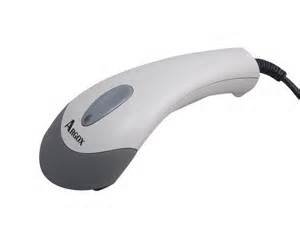
Kielelezo 2: Juu view of the Argox AS-8000URG Barcode Scanner, highlighting the scanning window and brand logo.
Maagizo ya Uendeshaji
Using the Argox AS-8000URG Barcode Scanner is straightforward:
- Washa: The scanner receives power directly from the USB connection. There is no separate power button.
- Nafasi: Hold the scanner with the scanning window facing the barcode.
- Inachanganua: Press the trigger button located on the top of the scanner. A red scanning line will project from the window. Aim this line across the entire barcode.
- Uthibitisho: Upon successful scan, the scanner will typically emit an audible beep and/or a visual indicator (e.g., LED light change). The scanned data will be transmitted to your connected computer as if typed from a keyboard.
The scanning width of the AS-8000URG is approximately 95mm wide at a distance of 55mm, and 50mm wide at a distance of 10mm. This allows for efficient scanning of various barcode sizes.
Matengenezo
Proper maintenance ensures the longevity and optimal performance of your barcode scanner:
- Cleaning the Scanning Window: Tumia kitambaa laini kisicho na pamba chepesi dampened with water or a mild, non-abrasive cleaner. Do not use harsh chemicals or abrasive materials, as they can scratch the window and impair scanning performance.
- Usafishaji wa jumla: Wipe the exterior of the scanner with a soft, dry cloth to remove dust and dirt.
- Hifadhi: Ikiwa haitumiki, hifadhi skana katika mazingira safi na makavu, mbali na jua moja kwa moja na halijoto kali.
- Huduma ya Cable: Epuka kupinda au kupotosha kebo ya USB kupita kiasi, kwani hii inaweza kuharibu nyaya za ndani.
Kutatua matatizo
If you encounter issues with your Argox AS-8000URG scanner, refer to the following common problems and solutions:
| Tatizo | Sababu inayowezekana | Suluhisho |
|---|---|---|
| Scanner does not power on / No light | Kebo ya USB haijaunganishwa vizuri au mlango wa USB wenye hitilafu. | Ensure the USB cable is securely connected to both the scanner and the computer. Try a different USB port on your computer. |
| Scanner does not read barcodes | Barcode damaged, scanning window dirty, incorrect aiming, or unsupported barcode symbology. | Ensure the barcode is clear and undamaged. Clean the scanning window. Aim the red line directly across the entire barcode. Verify the barcode type is supported. |
| Scanned data is incorrect or incomplete | Partial scan, software configuration issue. | Ensure the entire barcode is covered by the scanning line. Check your application or software settings for correct input. |
| Scanner beeps continuously | Indicates an error or configuration mode. | Disconnect and reconnect the USB cable. Refer to advanced programming guides (if available) for specific beep codes. |
Vipimo
Key technical specifications for the Argox AS-8000URG Barcode Scanner:
| Kipengele | Maelezo |
|---|---|
| Chapa | Argox |
| Nambari ya Mfano | AS8000 |
| Teknolojia ya Uunganisho | Kebo ya USB |
| Chanzo cha Nguvu | Umeme wa Cord |
| Vifaa Sambamba | Laptop, Desktop |
| Uzito wa Kipengee | 310 g |
| Vipimo vya Bidhaa (LxWxH) | 15 x 5 x 4 cm |
| Upana wa Kuchanganua | 95mm wide @ 55mm distance, 50mm wide @ 10mm |
| Rangi | SHITE GREY |
Udhamini na Msaada
For warranty information or technical support, please contact your local Argox distributor or visit the official Argox webtovuti. Weka risiti yako ya ununuzi kama dhibitisho la ununuzi kwa madai yoyote ya udhamini.
Kwa usaidizi zaidi, unaweza pia kurejelea product page on Amazon.in.


