1. Utangulizi
The Aquacomputer Aquaero 6 PRO is a microprocessor-controlled device designed for advanced fan and water cooling system management. It features a USB 2.0 interface for PC connectivity and a graphic LC display for direct interaction. This manual provides instructions for the installation, operation, and maintenance of your Aquaero 6 PRO controller.

Picha ya 1.1: Mbele view of the Aquacomputer Aquaero 6 PRO, showing the graphic LCD and control buttons. The display indicates water temperature readings over time.
2. Yaliyomo kwenye Kifurushi
Thibitisha kuwa bidhaa zote zilizoorodheshwa hapa chini zipo kwenye kifurushi chako:
- Aquacomputer Aquaero 6 PRO controller
- Four temperature sensors (approx. 70 cm length each)
- One internal USB cable (approx. 100 cm length)
- One connection cable for speed signal or aquabus
- Mwongozo wa maagizo (hati hii)
- Mounting material for installation into a free extension bay
3. Sifa Muhimu
The Aquaero 6 PRO offers a comprehensive set of features for precise system control:
- Programmable Four-Channel Fan Controller: Independently control up to four fans.
- Graphic LC Display with Backlight: Visualize sensor values and system parameters directly on the device.
- USB 2.0 and Aquabus Interface: Connect to a PC for software control and integrate with other Aquacomputer devices.
- High Power Fan Outputs: Each of the four fan outputs supports up to 30 Watts of power.
- Udhibiti wa PWM: All fan outputs feature 4-Pin plugs and are switchable to Pulse Width Modulation (PWM) control for fine-tuned speed adjustments.
- Versatile Control Options: Extensive customization for fan curves and system responses.
- Eight Temperature Sensor Inputs: Monitor temperatures at multiple points within your system.
- Flow Sensor Input: Integrate a flow sensor to monitor liquid cooling circulation.
- Universal IR Receiver: Allows for remote control functionality.
- Output for IR Transmitter: Enables control of other IR-compatible devices.
- Three LED Outputs: Control system lighting or status indicators.
- Potential-Free Switch: Provides a customizable switching function.
- Two Additional Power Outputs: For auxiliary power requirements.
- Extensive Alarm Options: Configure alerts for critical system conditions.
- Acoustical Alarm: Audible alerts for immediate notification.
- Speed Signal Output: Provides a signal for external status evaluation.
- Expandable Functionality: Can be expanded to control up to 12 fan channels with additional modules.
4. Kuweka na Kuweka
Follow these general steps for installing your Aquaero 6 PRO controller. Refer to the detailed diagrams in the full manual for specific connection points.
- Kupachika: Install the Aquaero 6 PRO into a free 5.25-inch drive bay using the provided mounting material.
- Muunganisho wa Nishati: Connect the device to your power supply unit using the appropriate power cable.
- Miunganisho ya Mashabiki: Connect your system fans to the four fan outputs. Ensure correct polarity for 3-pin fans or proper PWM connection for 4-pin fans.
- Sensorer za halijoto: Connect the four included temperature sensors to the designated inputs on the Aquaero 6 PRO. Place sensors at critical monitoring points (e.g., radiator inlet/outlet, CPU/GPU block).
- Muunganisho wa USB: Connect the internal USB cable from the Aquaero 6 PRO to an available USB header on your motherboard. This enables PC software control.
- Aquabus Connection (Optional): If integrating with other Aquacomputer devices, use the aquabus cable to connect them.
- Flow Sensor (Optional): Connect a compatible flow sensor to the dedicated input if monitoring liquid flow.
- LEDs and Other Outputs (Optional): Connect any desired LEDs, IR transmitter, or other auxiliary devices to their respective outputs.
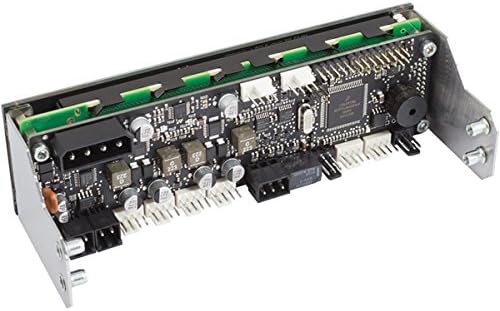
Picha ya 4.1: Nyuma view of the Aquacomputer Aquaero 6 PRO, illustrating the printed circuit board (PCB) and various connection ports for fans, sensors, and USB.
5. Maagizo ya Uendeshaji
The Aquaero 6 PRO can be operated directly via its graphic LC display and buttons, or through the dedicated PC software.
5.1. Uendeshaji Kwenye Kifaa
Navigate through the Aquaero's menu system using the buttons adjacent to the display. The graphic display provides real-time data and allows for direct adjustment of fan speeds, alarm thresholds, and other parameters. Consult the on-screen menus for specific settings.
5.2. PC Software Control
For comprehensive control and visualization, install the Aquacomputer PC software. This software allows for:
- Detailed configuration of fan curves based on multiple sensor inputs.
- Monitoring of all connected sensors and devices.
- Customization of the graphic LC display content.
- Advanced logging and analysis of system data.
- Integration with LCDHype software for displaying custom information.
Ensure the internal USB cable is connected for PC software functionality. Download the latest software version from the official Aquacomputer webtovuti.
6. Uwezo wa Kupanuka
The Aquaero 6 PRO is designed to integrate seamlessly with other Aquacomputer products, expanding its functionality. These expansions are dynamically mapped into the Aquaero's menus and display pages, creating a unified control system. Compatible devices include:
- Up to two aquastream XT pumps
- Up to eight poweradjust 2/3 devices (or four if an aquaero 5 LT is connected)
- One aquaero 5 LT controller (limits poweradjust 2/3 to four units)
- Up to four MPS-based devices (e.g., flow sensors, pressure/fill level sensors, D5 pumps with aquabus)
- Up to two farbwerk controllers
- One Real Time Clock expansion module
7. Matengenezo
To ensure optimal performance and longevity of your Aquaero 6 PRO, follow these maintenance guidelines:
- Kusafisha: Periodically clean the exterior of the device and the LCD screen with a soft, dry, anti-static cloth. Avoid using harsh chemicals or abrasive materials.
- Sasisho za Firmware: Regularly check the Aquacomputer website for firmware updates. Keeping the firmware current can improve performance, add features, and resolve issues.
- Masharti ya Mazingira: Ensure the device is operated within recommended temperature and humidity ranges. Avoid exposure to excessive dust or moisture.
- Viunganisho vya Kebo: Mara kwa mara angalia miunganisho yote ya kebo ili kuhakikisha kuwa iko salama na haina uharibifu.
8. Utatuzi wa shida
If you encounter issues with your Aquaero 6 PRO, consider the following common troubleshooting steps:
- Kifaa Kisichowashwa:
- Verify the power cable is securely connected to both the Aquaero and the power supply.
- Ensure the power supply is functioning correctly.
- Fans Not Responding:
- Check fan connections to the Aquaero outputs.
- Confirm fan settings in the Aquaero menu or PC software are configured correctly (e.g., fan curves, minimum speeds).
- Ensure fans are compatible with PWM control if selected.
- No PC Software Connection:
- Verify the internal USB cable is connected to both the Aquaero and a motherboard USB header.
- Ensure USB drivers are correctly installed on your PC.
- Try a different USB header on the motherboard.
- Usomaji Si Sahihi wa Kihisi:
- Check that temperature and flow sensors are securely connected to their respective inputs.
- Ensure sensors are correctly calibrated in the software, if applicable.
- Masuala ya Kuonyesha:
- If the display is blank, check power connections.
- Adjust display contrast or backlight settings if visibility is poor.
For persistent issues, consult the Aquacomputer support resources or their online forums.
9. Vipimo
| Kipengele | Maelezo |
|---|---|
| Nambari ya Mfano | 53145 |
| Vipimo vya Bidhaa | Inchi 3.94 x 1.97 x 1.97 (sentimita 10 x 5 x 5) |
| Uzito wa Kipengee | Wakia 14.4 (takriban gramu 408) |
| Mtengenezaji | Aquacomputer |
| Kiolesura | USB 2.0, Aquabus |
| Fan Channels | 4 (up to 30W per channel, PWM compatible) |
| Ingizo la Kihisi halijoto | 8 |
| Other Inputs/Outputs | Flow sensor input, Universal IR receiver, IR transmitter output, 3 LED outputs, Potential-free switch, 2 additional power outputs, Speed signal output |
| Onyesho | Graphic LC display with backlight |
| Tarehe ya Kwanza Inapatikana | Novemba 17, 2013 |
10. Udhamini na Msaada
Aquacomputer products are manufactured to high-quality standards. For information regarding warranty coverage, terms, and conditions, please refer to the official Aquacomputer webtovuti au wasiliana na usaidizi kwa wateja wao moja kwa moja. Weka uthibitisho wako wa ununuzi kwa madai ya udhamini.
For technical assistance, software downloads, and frequently asked questions, visit the Aquacomputer support portal. Online forums and community resources may also provide helpful information and user experiences.
