Utangulizi
This manual provides detailed instructions for the setup, operation, maintenance, and troubleshooting of your Sony DPF-V900 9-Inch Digital Photo Frame. Please read this manual thoroughly to ensure proper use and to maximize your enjoyment of the product.
The DPF-V900 is designed to display your digital photos in brilliant, high-contrast color on its 9-inch LCD screen. It supports direct input from various memory cards and offers features such as slideshow viewing, clock/calendar modes, and HDMI output for connecting to compatible HDTVs.
Sanidi
1. Kufungua na Kuweka
Carefully remove all components from the packaging. Place the digital photo frame on a stable, flat surface. The frame includes a stand for horizontal or vertical orientation. The auto orientation sensor will detect the frame's position and automatically rotate images.

Picha: Mbele view of the Sony DPF-V900 Digital Photo Frame, showcasing its display with a vibrant image.
2. Uunganisho wa Nguvu
Connect the supplied AC adapter to the DC IN port on the back of the frame, then plug the adapter into a standard electrical outlet. The frame will power on automatically or can be powered on using the power button.
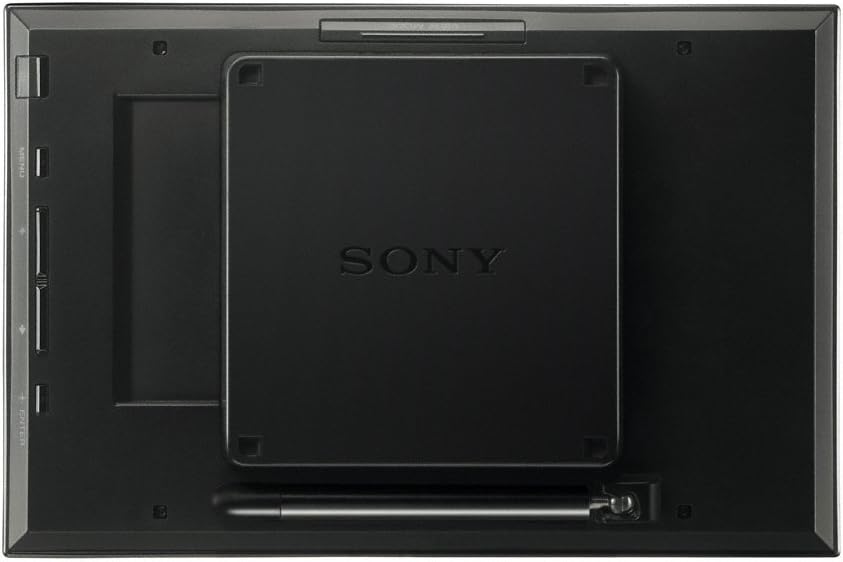
Picha: Nyuma view of the Sony DPF-V900, highlighting the power input and adjustable stand.
3. Kuingiza Kadi za Kumbukumbu
The DPF-V900 supports various memory card formats. Locate the memory card slots on the side of the frame. Insert your memory card firmly until it clicks into place. The frame will automatically detect the card and begin reading its contents.
- Supported card types include Memory Stick PRO, SD Card, and CompactFlash.

Picha: Side profile of the Sony DPF-V900, detailing the memory card slots and integrated control buttons.
4. Picha File Utangamano
The frame decodes and displays images up to 48-Megapixel and 100MB, including JPEG, TIFF, BMP, and RAW file types. For optimal performance and compatibility, ensure image files are in DCF (Design rule for Camera File system) format. Renaming files from their original camera-generated names may affect compatibility.
- JPEG: DCF 2.0 compatible, EXIF 2.21 compatible, JFIF
- TIFF: EXIF 2.21 compatible
- BMP: 1, 4, 8, 16, 24, 32 bit Window format
- MBICHI files: Work as thumbnail previews only in SRF, SR2, ARW at 2.0 or lower
When editing photos, use the "Save As" function in image editing software to preserve EXIF data and ensure compatibility. Avoid "Save for Web & Devices" as it may strip necessary metadata. For best display, consider resizing images to 800x480 pixels or maintaining common aspect ratios like 3:2, 16:9, or 4:3.
Maagizo ya Uendeshaji
1. Kutumia Kidhibiti cha Mbali
The supplied remote control (RMT-DPF1) provides full functionality for navigating menus and controlling playback. Ensure the remote has working batteries and is pointed towards the frame's sensor.

Image: The Sony RMT-DPF1 remote control, detailing its button layout for easy operation.
- Kitufe cha Nguvu: Turns the frame on or off.
- Mishale ya Urambazaji (Juu, Chini, Kushoto, Kulia): Inatumika kuelekeza menyu na kuchagua chaguo.
- Kitufe cha Ingiza: Inathibitisha chaguo.
- Kitufe cha Menyu: Inafikia menyu kuu.
- Back/Cancel Button: Returns to the previous screen or cancels an operation.
- View Chagua Kitufe: Changes the display mode (e.g., slideshow, single image, clock/calendar).
- My Favorite Button: Accesses favorite photos.
- Vuta/Kutoa nje: Adjusts image magnification.

Image: A user's hand operating the remote control in front of the digital photo frame.
2. Slideshow and Display Modes
The DPF-V900 offers nine slideshow styles. You can select your preferred style and transition effects through the menu. Additionally, the frame supports clock and calendar modes, which can be accessed via the View Kitufe cha kuchagua.
- Auto Image Correction: The frame can automatically improve photos with features like red-eye correction.
- Image Display Setting: Options include "Fit to screen" or "Full Image."
3. Pato la HDMI
Connect the DPF-V900 to a compatible HDTV using an HDMI cable (not supplied) to view your photos on a larger screen. This feature is ideal for sharing photo slideshows with a group.
4. Bluetooth Connectivity (Optional Accessory)
With an optional Bluetooth USB adapter (e.g., Sony DPPA-BT1), you can wirelessly transfer photos from Bluetooth-enabled devices such as cameras and mobile phones directly to the frame.
Matengenezo
1. Kusafisha Skrini na Fremu
To clean the LCD screen, gently wipe it with a soft, lint-free cloth. For stubborn smudges, slightly dampen the cloth with water or a screen-cleaning solution designed for electronics. Avoid using harsh chemicals or abrasive materials. Clean the frame's exterior with a dry, soft cloth.
2. Sasisho za Programu
Angalia mara kwa mara usaidizi wa Sony website for any available firmware updates for your DPF-V900 model. Updates can improve performance, add features, or resolve known issues. Follow the instructions provided with the update package carefully.
Kutatua matatizo
If you encounter issues with your digital photo frame, refer to the following common problems and solutions:
- Fremu haiwashi:
- Ensure the AC adapter is securely connected to both the frame and a working power outlet.
- Thibitisha kuwa umeme unafanya kazi.
- Images are not displayed or show a question mark:
- Check if the memory card is inserted correctly and fully.
- Confirm that the image files are in a supported format (JPEG, TIFF, BMP, RAW).
- Ensure image file names comply with DCF standards (e.g., original names from camera).
- If images were edited, verify they were saved using "Save As" to retain necessary metadata. Avoid "Save for Web & Devices."
- Picha file size should not exceed 100MB. Very large files may take longer to load.
- Udhibiti wa mbali haufanyi kazi:
- Angalia na ubadilishe betri kwenye kidhibiti cha mbali.
- Ensure there are no obstructions between the remote and the frame's sensor.
- Point the remote directly at the frame.
- Images appear cropped or with black bars:
- This can occur due to differences in aspect ratio between your photos and the frame's 15:9 display.
- Adjust the "Image display setting" in the menu (Fit to screen/Full Image).
- For perfect fit, consider cropping or resizing images to 800x480 pixels before loading.
For further assistance, consult the official Sony support resources.
Vipimo
| Kipengele | Maelezo |
|---|---|
| Nambari ya Mfano | DPF-V900 |
| Ukubwa wa skrini | Inchi 9 |
| Azimio | pikseli 800 x 480 |
| Uwiano wa kipengele | 15:9 |
| Kumbukumbu ya ndani | 512MB (with optional image resizing) |
| Imeungwa mkono File Aina | JPEG (DCF 2.0, EXIF 2.21, JFIF), TIFF (EXIF 2.21), BMP (1, 4, 8, 16, 24, 32 bit), RAW (thumbnail previews for SRF, SR2, ARW 2.0 or lower) |
| Max Image Resolution | Up to 48-Megapixel (8000x6000 pixels) |
| Picha ya Juu File Ukubwa | 100MB |
| Muunganisho | Memory Card Slots (Memory Stick PRO, SD Card, CompactFlash), HDMI Output, USB (for optional Bluetooth adapter) |
| Vipimo (W x H x D) | 9.65 x 6.38 x 1.52 inches (245x162x38.5mm) / 9.65 x 6.38 x 5.71 inches (245x162x145mm) including stand |
| Uzito | 1.76 pounds (800 grams without AC adapter) |
| Utangamano wa Mfumo wa Uendeshaji | Microsoft Windows Vista 10, Windows XP Professional, Windows XP Home Edition, Windows 2000 Professional (SP3+), Macintosh Mac OS X (10.4+) |
Udhamini na Msaada
Taarifa ya Udhamini
Your Sony DPF-V900 Digital Photo Frame is covered by a limited warranty. Please refer to the warranty card included with your product for specific terms, conditions, and duration. Retain your proof of purchase for warranty claims.
Usaidizi wa Wateja
For technical assistance, product registration, or to download the latest drivers and firmware, please visit the official Sony support website. You can find contact information for customer service in your region on the webtovuti.
Msaada wa Sony Webtovuti: www.sony.com/electronics/support


