1. Utangulizi
The VIISAN P4U is a versatile 13-megapixel 4K document camera and webcam designed for distance learning, teaching, and video conferencing. It features an autofocus lens, built-in microphone, and LED lighting, offering crystal-clear image quality and high frame rate video output. Its unique multi-joint foldable design makes it lightweight and portable, suitable for various environments.

VIISAN P4U 13MP 4K Document Camera
2. Mwongozo wa Kuweka
2.1 Unpacking and Physical Setup
Carefully remove the VIISAN P4U from its packaging. The device features a unique multi-joint design allowing it to be folded for portability and unfolded for use as a document camera or webcam.
Video: Demonstrating the multi-joint design and unfolding of the VIISAN P4U.
- Unfold the Camera: Gently unfold the multi-joint arm until the camera head is positioned above your desired capture area.
- Adjust Camera Arm: The highly adjustable camera arm allows you to position the camera head to capture objects and documents up to A3 size, ensuring every detail is visible.

Foldable design for A3 height and compact storage.
2.2 Muunganisho
The VIISAN P4U uses a standard USB (UVC) connection, offering plug-and-play functionality without the need for additional drivers.
- Unganisha kwa Kompyuta: Plug the USB cable from the document camera into an available USB port on your computer (laptop or desktop).

VIISAN P4U connected to a laptop for distance learning.
2.3 Ufungaji wa Programu
For full functionality and enhanced features, it is recommended to use the VIISAN VisualCam software. The device is also compatible with standard UVC/UAC compliant applications.
- Windows: The VIISAN P4U works with an interactive VisualCam software, compatible with Windows 11. Download the latest version from the official VIISAN webtovuti.
- macOS: You can use the macOS built-in QuickTime Player App to record video with this device.
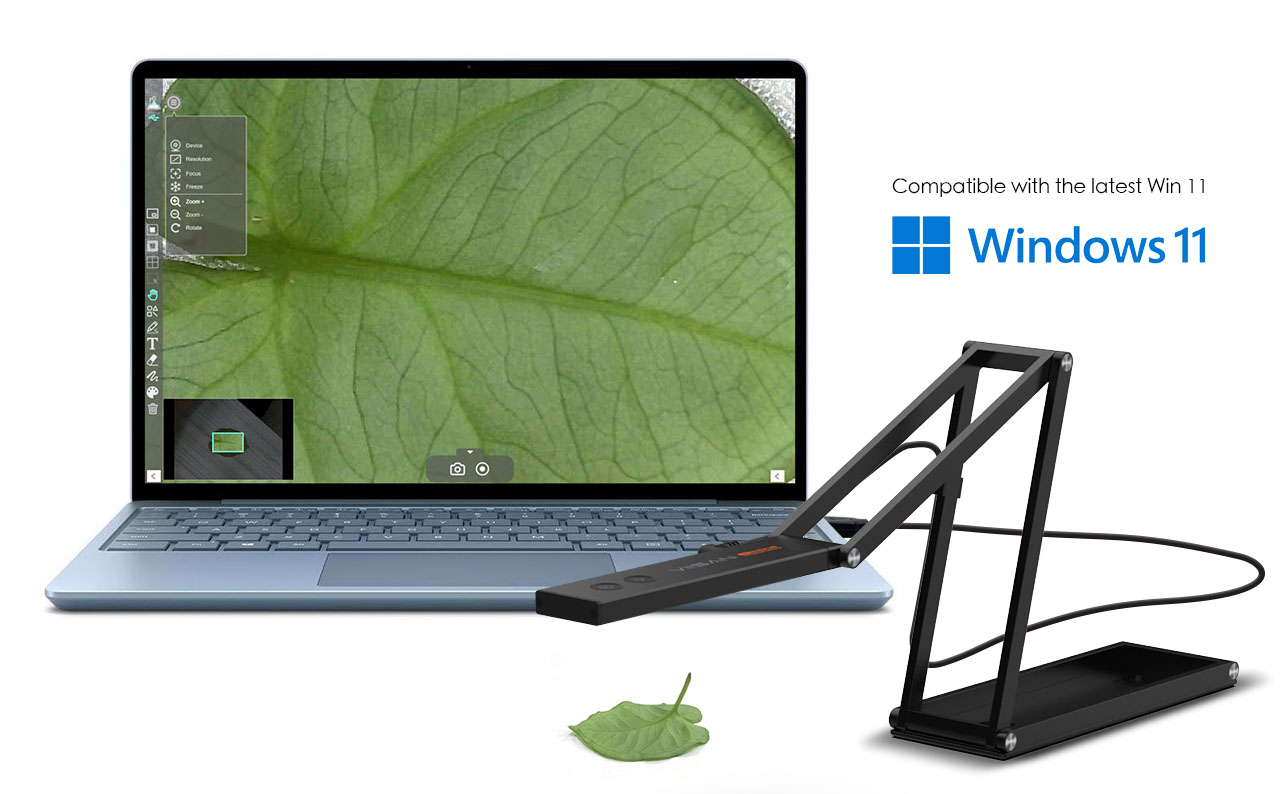
VIISAN P4U connected to a Windows 11 laptop, demonstrating software interface.
3. Maagizo ya Uendeshaji
3.1 Operesheni ya Msingi
- Washa: The device powers on automatically when connected via USB.
- Autofocus/Flip Button: Use the dedicated button on the camera head to quickly autofocus or flip the live image. This allows you to easily switch between focusing on your face (webcam mode) and documents/objects (document camera mode).
- Mwangaza wa LED: The built-in LED light can be activated via a button on the camera head to illuminate your subject for clearer images in various lighting conditions.

Demonstration of the One-Press Autofocus / Flip Button.
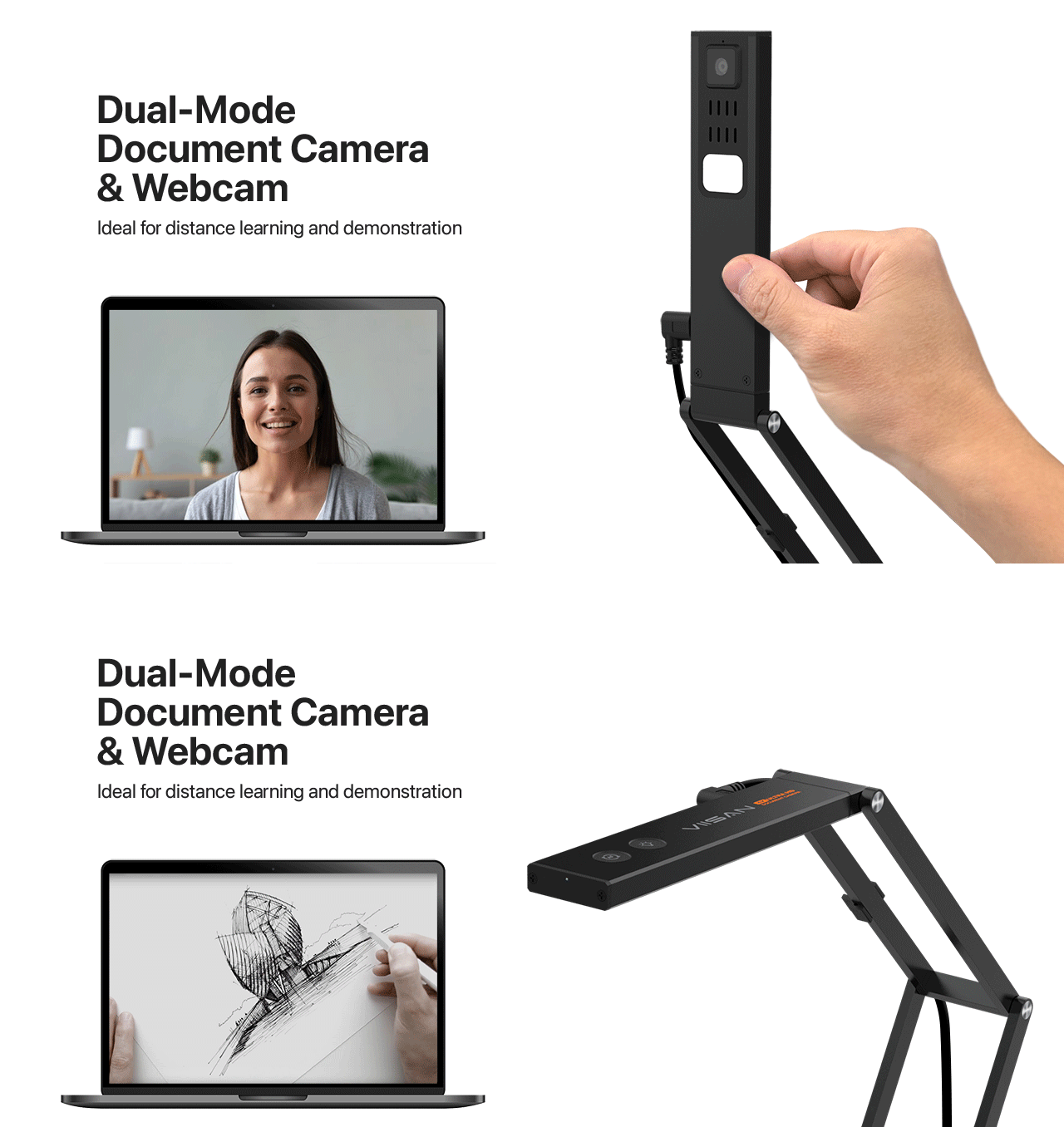
Camera head flipping between document and face view.
3.2 Image and Video Output
- Azimio: The P4U delivers impressive 4K image quality with its 13MP camera sensor. It also features 10X digital zoom for detailed magnification.
- Kiwango cha Fremu: Streams up to 60fps at 1080P, 30fps at 4K, and 3840x2880 pixels at 15fps, ensuring smooth video output.
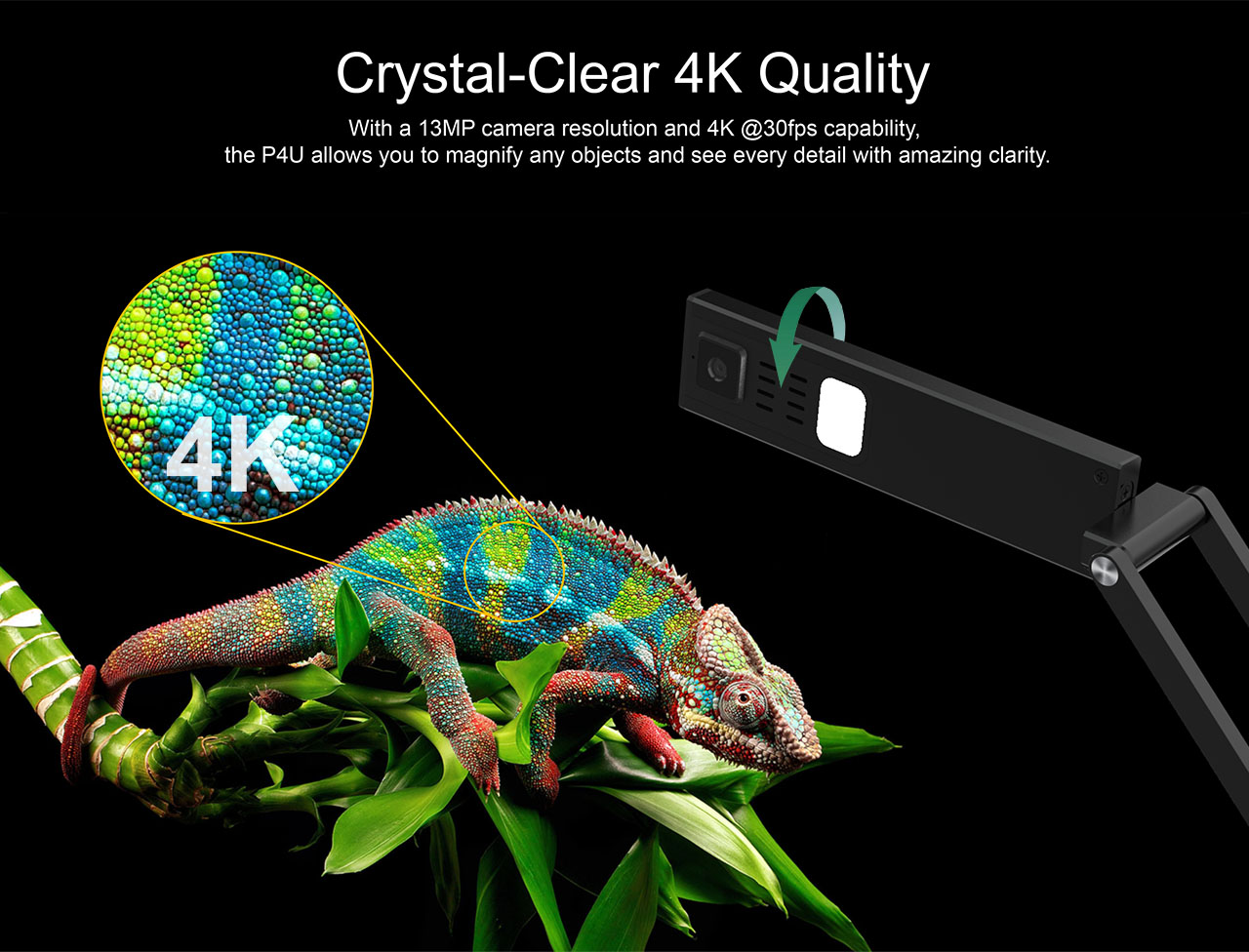
Crystal-Clear 4K Quality with 13MP camera resolution.
3.3 Distance Learning and Conferencing
The P4U is UVC/UAC compliant and works seamlessly with all major video conferencing software, including Zoom, Microsoft Teams, and Google Meet, making it ideal for remote teaching and learning.

VIISAN P4U ready for distance learning with popular video conferencing platforms.
3.4 VisualCam Software Features
The powerful VisualCam software enhances your experience with features such as:
- Annotation Tools: Draw, highlight, and add notes directly onto the live image.
- Split-Screen Comparison: Connect two document cameras or compare multiple images side-by-side (up to 4 panes) for interactive presentations.
- Picture-in-Picture Recording: Record both your face and the document simultaneously.
- Whiteboard inayoingiliana: Utilize a digital whiteboard for dynamic teaching and presentations.
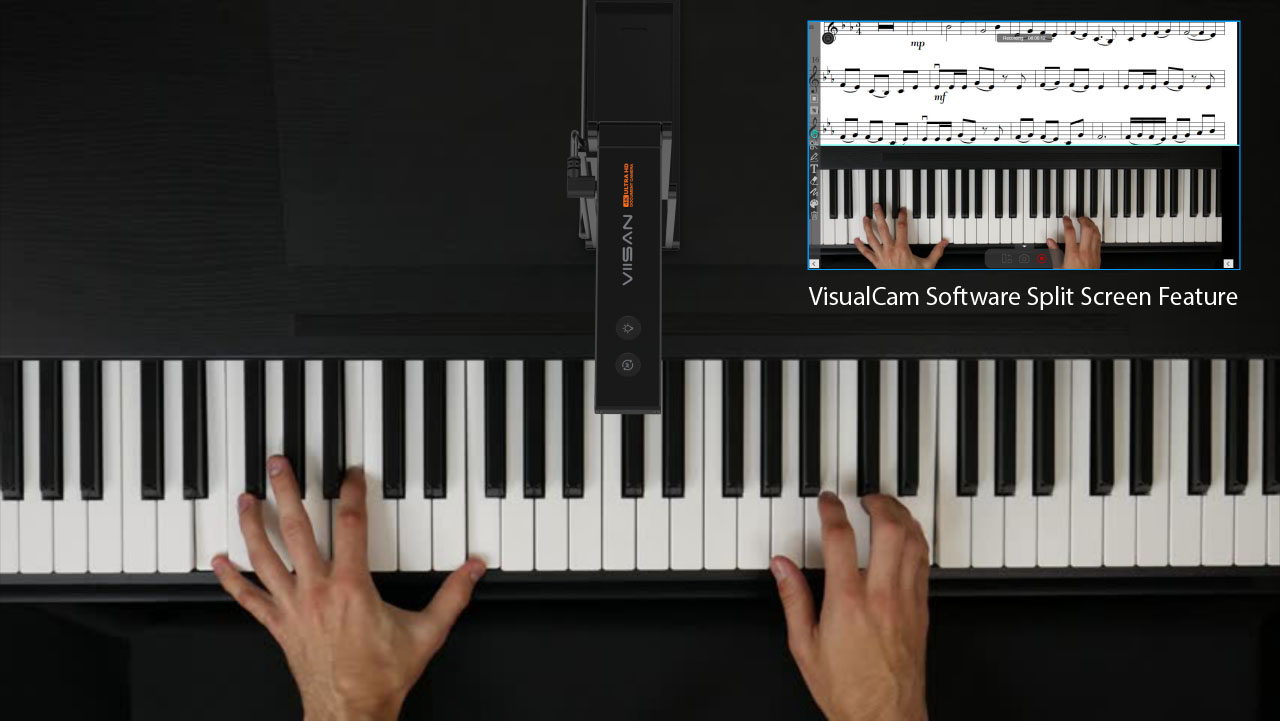
Split-screen feature demonstrating simultaneous view of piano and sheet music.
4. Matengenezo
To ensure the longevity and optimal performance of your VIISAN P4U document camera, follow these simple maintenance guidelines:
- Kusafisha: Use a soft, dry cloth to wipe the exterior of the device. For the camera lens, use a lens cleaning cloth and solution specifically designed for optical surfaces. Avoid abrasive cleaners or solvents.
- Hifadhi: When not in use, fold the document camera into its compact form and store it in a clean, dry place, preferably in its protective pouch, to prevent dust accumulation and damage.
- Huduma ya Cable: Avoid bending or crimping the USB cable excessively. Always grasp the plug, not the cable, when disconnecting.

The P4U is lightweight and portable, making it easy to carry and store.
5. Utatuzi wa shida
5.1 Masuala ya Kawaida na Suluhu
- No Image/Video Output:
- Ensure the USB cable is securely connected to both the document camera and your computer.
- Jaribu kuunganisha kwenye mlango tofauti wa USB.
- Anzisha tena kompyuta yako.
- Verify that the correct camera device is selected in your software (e.g., VisualCam, Zoom, QuickTime Player).
- Picha haina mwanga:
- Press the autofocus button on the camera head.
- Ensure the object is within the camera's focal range.
- Check for any obstructions or smudges on the camera lens and clean if necessary.
- Image is Upside Down:
- Press the flip button on the camera head.
- Check your software settings for image rotation options.
- Hakuna Sauti:
- Ensure the built-in microphone is enabled in your computer's sound settings and in the conferencing software you are using.
- Check that the correct audio input device (VIISAN P4U) is selected.
5.2 Maswali Yanayoulizwa Mara Kwa Mara (FAQ)
- Q: Can I use this document camera to record video in macOS?
- A: Yes, you can use the macOS built-in QuickTime Player App to record video with this device.
- Q: Does it work with Linux?
- A: The VIISAN P4U is UVC (USB Video Class) compliant, which generally means it should work with most Linux distributions that support UVC devices without specific drivers. However, full feature support with dedicated software might vary.
- Swali: Je, kifaa kina betri?
- A: No, the VIISAN P4U is powered directly via its USB 2.0 connection (5V/500mA) and does not contain an internal battery.
6. Vipimo
| Kipengele | Vipimo |
|---|---|
| Aina ya Bidhaa | Kichanganuzi cha Hati |
| Nambari ya Mfano | Document Scanner (P4U) |
| Jina la Biashara | Spedal (VIISAN) |
| Azimio la macho | 4K |
| Aina ya Lenzi | 13MP CMOS |
| Scan Element Type | CMOS |
| Scan Breadth | A3 |
| Kasi ya Kuchanganua | 200 scans/sekunde |
| Kina cha Rangi | Biti 24 |
| Aina ya Kiolesura | USB |
| Scanning Light Source | LED |
| Kuzingatia | Otomatiki |
| Kuza | Sensor Zoom 3X |
| Kusaidia Mzunguko wa Mstari wa Nguvu | 50/60 Hz |
| Mzunguko wa Picha | 0° / 180° |
| Ukandamizaji wa Video | MJPG \YUY2 |
| Itifaki | UVC; UAC; Chomeka-na-Cheza |
| Inaendeshwa na | USB 2.0 5V/500mA |
| Uthibitisho | CE, FCC, WEEE |
7. Vidokezo vya Mtumiaji
- For optimal video conferencing, ensure your room is well-lit to take full advantage of the 4K resolution and built-in LED.
- When using the document camera for detailed work, utilize the autofocus feature to quickly sharpen the image of your documents or objects.
- Experiment with the VisualCam software's split-screen mode to enhance interactive lessons or presentations, allowing for simultaneous display of multiple sources.
- The compact and lightweight design makes it easy to transport. Always use the provided pouch or a suitable bag to protect it during travel.
8. Udhamini na Msaada
For warranty information, technical support, or service inquiries, please refer to the official VIISAN webtovuti au wasiliana na msambazaji wako wa karibu. Weka uthibitisho wako wa ununuzi kwa madai ya udhamini.


