
1. Utangulizi
This manual provides detailed instructions for the setup, operation, and maintenance of your Eyoyo EYH2 Handheld USB 2D Barcode Scanner and Eyoyo EY-045 2-in-1 Wireless Mouse Barcode Scanner. Please read this manual thoroughly before using the devices to ensure proper functionality and to prevent damage.
2. Bidhaa Imeishaview
2.1 Eyoyo EY-H2 Handheld USB 2D Barcode Scanner
The Eyoyo EY-H2 is a wired USB 2D barcode scanner designed for efficient data capture. It offers plug-and-play functionality, requiring no software or driver installation. This scanner is suitable for various environments including retail, warehouses, libraries, and inventory management.

Picha ya 2.1.1: The Eyoyo EY-H2 2D Barcode Scanner demonstrates superior decoding capabilities compared to traditional laser scanners, accurately reading various 1D and 2D barcodes, including those with damage or complex formats.

Picha ya 2.1.2: The EY-H2 scanner offers plug-and-play connectivity via USB, compatible with Windows, macOS, Linux, and POS systems, requiring no additional drivers or software.

Picha ya 2.1.3: The EY-H2 scanner features adjustable sound settings, allowing users to turn the beep sound on or off as needed for different working environments.

Picha ya 2.1.4: The EY-H2 scanner is designed with drop resistance, capable of sustaining drops from up to 1.5 meters (5 feet) without damage.
2.2 Eyoyo EY-045 2-in-1 Wireless Mouse Barcode Scanner
The Eyoyo EY-045 combines the functionality of a high-precision optical mouse with a powerful 2D barcode scanner. This device aims to streamline workflows by integrating two essential tools into one, reducing desk clutter and improving efficiency. It supports multiple connection methods and features a long-lasting battery with a visual indicator.

Picha ya 2.2.1: The EY-045 offers a 2-in-1 design, functioning as both a wireless mouse for office tasks and a barcode scanner for data entry, activated by a dedicated button.

Picha ya 2.2.2: The mouse-style barcode scanner facilitates faster data entry, particularly in retail Point-of-Sale (POS) environments, by allowing seamless transition between mouse and scanning functions.

Picha ya 2.2.3: The EY-045 supports two wireless connection methods: Bluetooth Mode for laptops, tablets, and phones, and 2.4G Mode via a USB dongle for PCs.
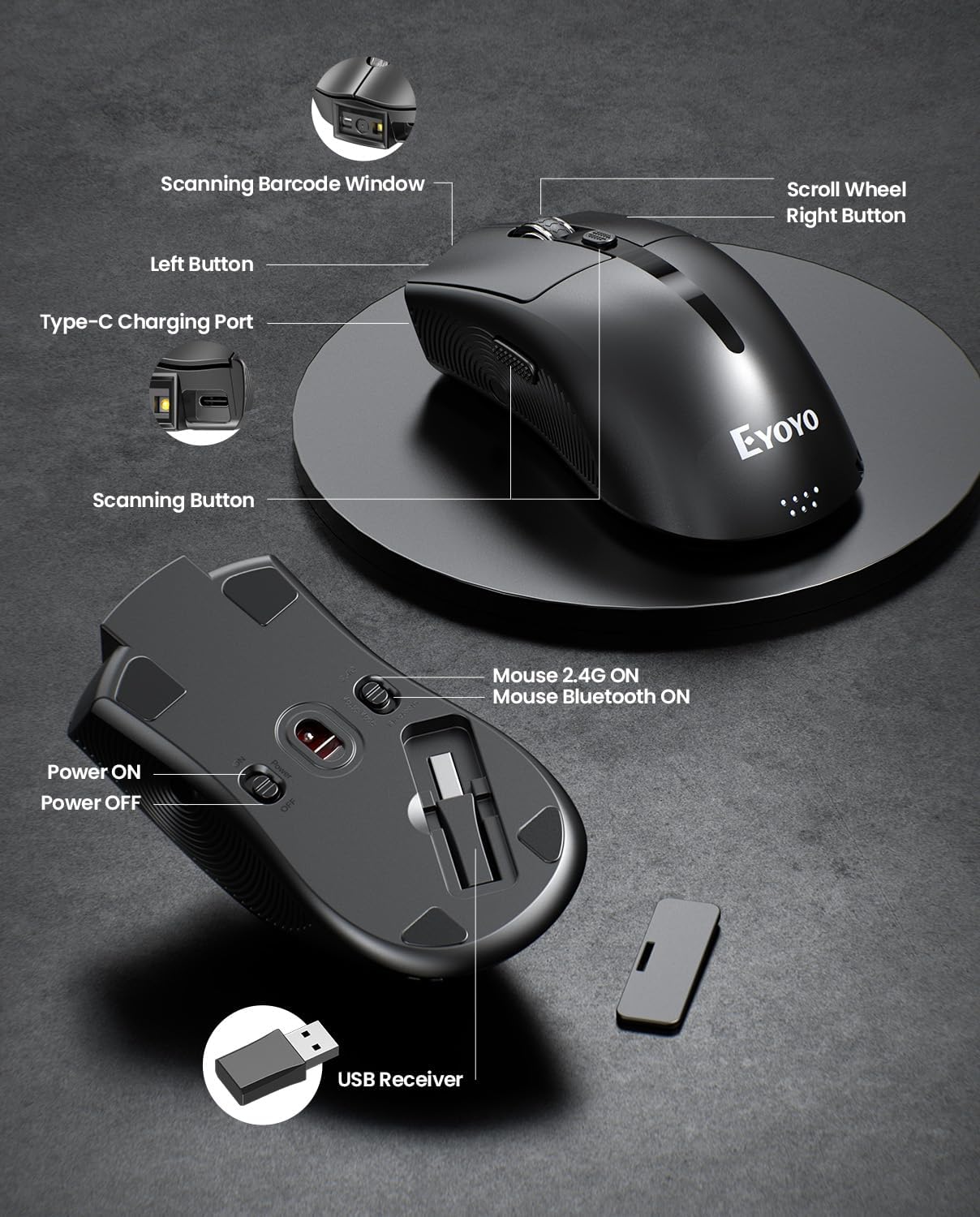
Picha ya 2.2.4: This diagram highlights the key components of the EY-045, including the Scanning Barcode Window, Scroll Wheel, Left/Right Buttons, Type-C Charging Port, Scanning Button, Power ON/OFF switch, Mouse 2.4G/Bluetooth ON switches, and the USB Receiver storage slot.
3. Kuweka
3.1 Eyoyo EY-H2 Handheld Scanner Setup
- Unganisha kebo ya USB: Plug the USB cable from the EY-H2 scanner into an available USB port on your computer or POS system.
- Utambuzi wa Mfumo: The operating system (Windows, macOS, Linux, or POS) will automatically detect and install the necessary drivers. No manual driver installation is required.
- Tayari kwa Matumizi: Once recognized, the scanner is ready to use. Open any application where you want to input scanned data (e.g., Notepad, Word, Excel, POS software).
3.2 Eyoyo EY-045 Mouse Scanner Setup
The EY-045 offers three connection methods:
3.2.1 2.4G Wireless Connection (for PC)
- Rejesha Kipokea USB: Locate the 2.4G USB receiver stored in the bottom slot of the EY-045 mouse.
- Ingiza Kipokeaji: Plug the USB receiver into an available USB port on your PC.
- Washa: Slide the power switch on the bottom of the EY-045 to the 'ON' position.
- Select 2.4G Mode: Ensure the mode switch on the bottom is set to 'Mouse 2.4G ON'. The device will automatically connect.
3.2.2 Bluetooth 5.0 Connection (for Laptops/Tablets/Phones)
- Washa: Slide the power switch on the bottom of the EY-045 to the 'ON' position.
- Chagua Modi ya Bluetooth: Ensure the mode switch on the bottom is set to 'Mouse Bluetooth ON'. The device will enter pairing mode (indicator light may flash).
- Enable Bluetooth on Host Device: On your laptop, tablet, or phone, go to Bluetooth settings and turn Bluetooth on.
- Oanisha Kifaa: Tafuta available devices and select 'Eyoyo EY-045' (or similar name) to pair.
3.2.3 USB-C Wired Connection (for Charging and Working)
- Unganisha Kebo ya USB-C: Plug the provided USB-C charging cable into the Type-C charging port on the front of the EY-045.
- Unganisha kwa Mwenyeji: Plug the other end of the USB-C cable into a USB port on your computer.
- Utendaji: The device will charge and function as a wired mouse and scanner simultaneously.
4. Maagizo ya Uendeshaji
4.1 Using the Eyoyo EY-H2 Handheld Scanner
- Lenga na Changanua: Elekeza dirisha la kichanganuzi kwenye msimbopau unaotaka kusoma.
- Press Trigger: Press the trigger button on the handle. A red scanning line or light will appear.
- Uthibitisho: A successful scan will typically be indicated by a beep sound (if enabled) and the data appearing in your active application.
- Rekebisha Sauti: To adjust the sound, scan the appropriate configuration barcodes provided in the full user manual (e.g., 'Turn On Sound' or 'Turn Off Sound' barcodes).
4.2 Using the Eyoyo EY-045 Mouse Scanner
- Kipengele cha Panya: When connected, the EY-045 functions as a standard optical mouse for navigation and clicking.
- Switch to Scanner Mode: To scan a barcode, press the dedicated scanning button located on the side of the mouse. The scanning light will activate.
- Changanua Msimbo Pau: Aim the scanning window at the barcode and press the scanning button. The scanned data will be transmitted to your connected device.
- Kiashiria cha Betri: Monitor the 4-level LED power indicator (25%-50%-75%-100%) on the tail of the mouse to check the battery status. Recharge when the indicator shows low power.
- Hifadhi ya Nje ya Mtandao: The EY-045 can store up to 100,000 barcodes when operating away from a computer. To upload stored data, connect the scanner to your computer and follow the instructions in the full user manual for data transfer.
5. Matengenezo
- Kusafisha: Use a soft, dry cloth to clean the exterior of the scanner. For the scanning window, use a lint-free cloth lightly dampImetengenezwa kwa kisafishaji laini kisicho na ukali. Epuka kemikali kali au vifaa vya kukwaruza.
- Hifadhi: Store the scanners in a cool, dry place away from direct sunlight and extreme temperatures.
- Huduma ya Cable: Avoid bending or twisting the USB cables excessively to prevent internal damage.
- Battery Care (EY-045): For optimal battery life, avoid fully discharging the battery frequently. Recharge the device regularly. If storing for an extended period, charge the battery to about 50% before storage.
6. Utatuzi wa shida
- Kichanganuzi Kisichosoma Misimbopau:
- Ensure the barcode is clean and not excessively damaged.
- Angalia umbali na pembe ya kichanganuzi kwenye msimbopau.
- Verify that the scanner is properly connected (EY-H2: USB cable; EY-045: 2.4G dongle, Bluetooth, or USB-C cable).
- For EY-045, ensure it is in scanner mode by pressing the dedicated scan button.
- Hakuna Matokeo ya Data:
- Thibitisha kuwa kichanganuzi kimeunganishwa kwa mafanikio kwenye kifaa chako.
- Ensure an application (e.g., Notepad, Word, POS software) is open and active to receive input.
- Restart the computer and reconnect the scanner.
- EY-045 Not Connecting Wirelessly:
- Check if the EY-045 is powered on and the correct wireless mode (2.4G or Bluetooth) is selected.
- For 2.4G, ensure the USB receiver is securely plugged into the computer.
- For Bluetooth, ensure Bluetooth is enabled on your host device and the EY-045 is paired. Try unpairing and re-pairing if issues persist.
- Hakikisha kuwa betri imechajiwa.
- EY-045 Battery Drains Quickly:
- Hakikisha kifaa kimezimwa wakati hakitumiki.
- Check the battery indicator for its current level.
- Chaji kifaa kikamilifu kwa kutumia kebo ya USB-C iliyotolewa.
7. Vipimo
7.1 Eyoyo EY-H2 Handheld USB 2D Barcode Scanner
- Muunganisho: USB yenye waya
- Uwezo wa kusimbua: 1D and 2D barcodes (including QR codes)
- Usakinishaji: Chomeka na Cheza, hakuna viendeshaji vinavyohitajika
- Utangamano: Windows, macOS, Linux, POS systems
- Uimara: Drop resistance up to 1.5m (5ft)
- Urefu wa Kebo: 1.8M / 5.9ft
- Vipengele: Adjustable sound (on/off)
7.2 Eyoyo EY-045 2-in-1 Wireless Mouse Barcode Scanner
- Muundo: 2-in-1 (Optical Mouse + 2D Barcode Scanner)
- Muunganisho: Bluetooth 5.0, 2.4G Wireless (via USB dongle), USB-C Wired
- Uwezo wa kusimbua: 1D, 2D, and QR codes (including from digital screens)
- Betri: Betri ya 1200mAh inayoweza kuchajiwa tena
- Maisha ya Betri: 10+ hours continuous scanning, 20 days daily mouse use
- Kiashiria cha Betri: 4-level LED (25%-50%-75%-100%)
- Hifadhi ya Nje ya Mtandao: Hadi misimbopau 100,000
- Utangamano: Windows (XP/7/8/10/11), macOS, Android, iOS
- Vipengele: Adjustable beep sounds, dedicated scan button
8. Udhamini na Msaada
Eyoyo products are designed for reliability and performance. For specific warranty information, please refer to the warranty card included with your product or visit the official Eyoyo website. For technical support, troubleshooting assistance, or further inquiries, please contact Eyoyo customer service through the contact information provided on the product packaging or the official webtovuti.