
Taarifa Muhimu za Usalama
Please read all instructions carefully before using this monitor. Keep this manual for future reference.
- Do not place the monitor near water or in humid environments.
- Hakikisha uingizaji hewa wa kutosha karibu na kufuatilia ili kuzuia overheating.
- Use only the power adapter provided with the monitor.
- Epuka kuweka kifuatiliaji kwenye jua moja kwa moja au halijoto kali.
- Usijaribu kutengeneza kifuatiliaji mwenyewe. Waelekeze wafanyakazi wote waliohitimu huduma.
- Safisha skrini kwa kitambaa laini, kisicho na ute. Epuka kutumia kemikali kali.
Yaliyomo kwenye Kifurushi
Tafadhali thibitisha kuwa vitu vyote vifuatavyo vimejumuishwa kwenye kifurushi chako:
- 31.5-inch 2K 120Hz Monitor (x1)
- Kitengo cha Kichunguzi (x1)
- Mwongozo wa Kuanza Haraka (QSG) (x1)
- Kebo ya HDMI (x1)
- Adapta ya Umeme (x1)
- Kamba ya Nguvu (x1)

An image showing the monitor's dimensions and a list of included accessories: monitor, QSG, HDMI cable, adapter, power cord, and monitor stand.
Sanidi
Kufuatilia Bunge
Fuata hatua hizi ili kuunganisha stendi ya kifuatiliaji na kuiunganisha kwenye paneli ya onyesho:
- Ondoa kwa uangalifu vipengele vya kufuatilia na kusimama kutoka kwenye ufungaji.
- Attach the base to the stand column, securing it with the provided screw.
- Align the assembled stand with the mounting points on the back of the monitor panel.
- Sukuma kwa upole stendi mahali pake hadi ibonyeze vizuri.
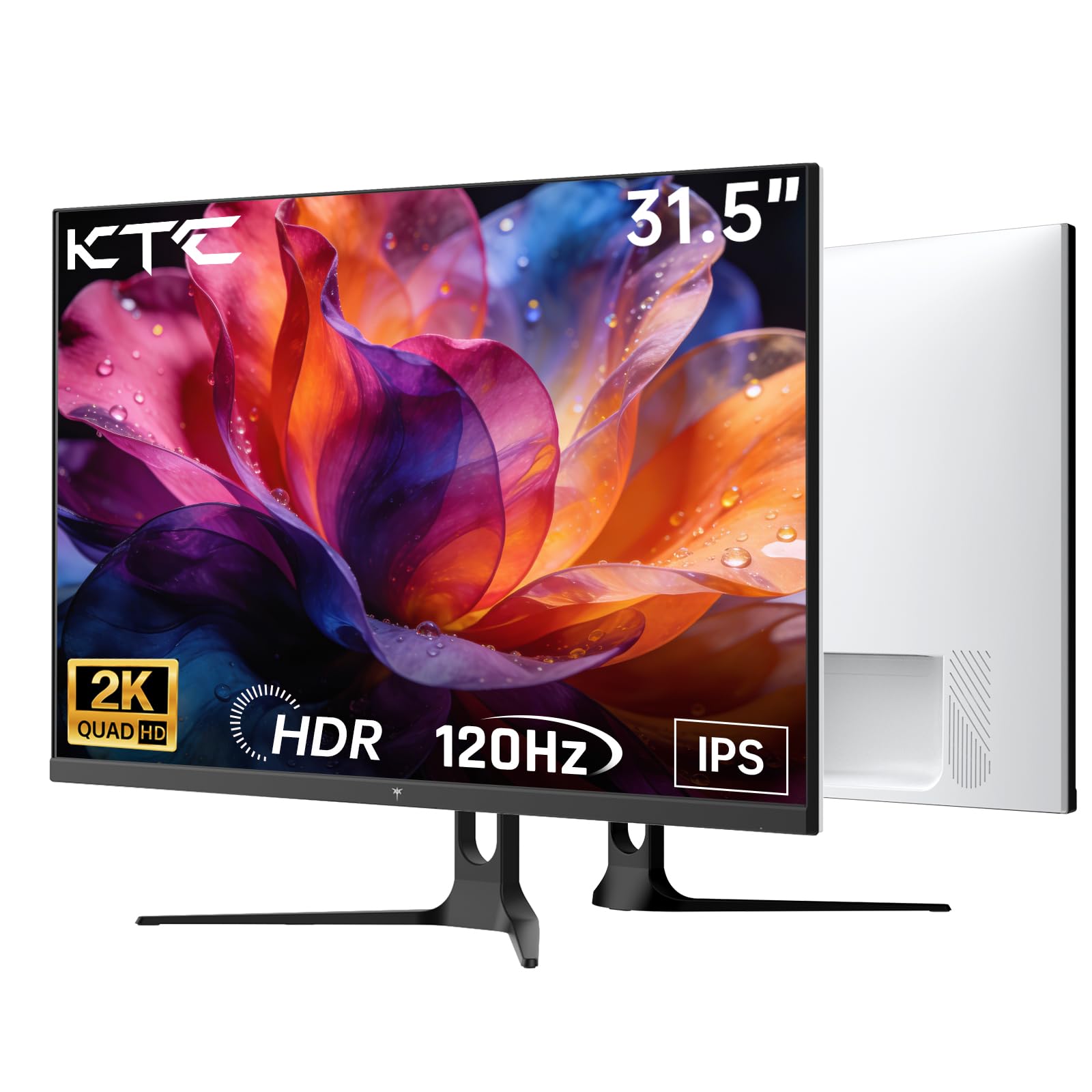
Mbele view of the KTC H32D6 31.5-inch monitor on its stand.
Muunganisho
Connect your monitor to a power source and your computer using the appropriate cables:
- Connect the power adapter to the monitor's DC input port, then plug the power cord into an electrical outlet.
- For video input, connect one end of the HDMI or DisplayPort cable to your computer's graphics card and the other end to the corresponding port on the monitor.
- If desired, connect headphones or external speakers to the earphone jack.

Close-up of the monitor's rear panel, highlighting the HDMI 2.0 ports (x2), DisplayPort 1.4 (x1), and earphone jack.
Video hii inatoa zaidiview of the KTC 32 Inch 2K 120Hz Computer Monitor, showcasing its features and benefits in a dynamic presentation.
Maagizo ya Uendeshaji
Washa/Zima
Press the power button (usually located on the back or bottom right of the monitor) to turn the monitor on or off. The power indicator light will illuminate when the monitor is on.
Urambazaji wa Menyu ya Onyesho la Skrini (OSD).
The monitor features an intuitive OSD menu for adjusting various settings. Use the joystick or buttons (depending on your model) on the back of the monitor to navigate the menu:
- Bonyeza kitufe cha joystick/kitufe ili kufungua menyu ya OSD.
- Move the joystick up/down or left/right to select menu options.
- Bonyeza kitufe cha joystick/kitufe tena ili kuthibitisha uteuzi au ingiza menyu ndogo.
- To exit the OSD menu, navigate to the 'Exit' option or hold the joystick/button for a few seconds.
Kurekebisha Mipangilio ya Maonyesho
Ndani ya menyu ya OSD, unaweza kurekebisha mipangilio kama vile:
- Azimio: Set to QHD (2560x1440) for optimal clarity.
- Kiwango cha Kuonyesha upya: Adjust to 120Hz for ultra-smooth visuals.
- Mwangaza na Ulinganuzi: Fine-tune for your preferred viewuzoefu.
- Mipangilio ya Rangi: Adjust color temperature, gamma, and other color parameters.

An image demonstrating the superior clarity of QHD (2560x1440) resolution compared to FHD (1920x1080) on the monitor screen.

A visual representation of smooth motion on the monitor, illustrating the benefit of a 120Hz refresh rate for seamless visuals.
Usawazishaji Unaojirekebisha
This monitor supports Adaptive Sync technology (FreeSync, G-Sync Compatible) to eliminate screen tearing and stuttering during gaming or fast-paced video. Ensure Adaptive Sync is enabled in both your monitor's OSD settings and your graphics card control panel for optimal performance.

A side-by-side comparison showing the visual difference with Adaptive Sync ON (smooth image) and OFF (screen tearing) during fast-paced action.
Msaada wa HDR10
The monitor supports HDR10, providing a wider range of colors and contrast for a more immersive viewing experience. To utilize HDR10, ensure your content and graphics card support HDR, and enable it in your operating system display settings.

An image highlighting the enhanced color and contrast provided by HDR10 technology.
Vipengele vya Utunzaji wa Macho
The KTC H32D6 monitor includes Low Blue Light and Flicker-Free technologies to reduce eye fatigue during prolonged use. These features are designed to provide a more comfortable viewuzoefu.

An image illustrating the eye care features, including low blue light and flicker-free technology, designed to reduce eye strain.
Marekebisho ya Tilt
The monitor stand allows for tilt adjustment from -5° to 20°. Gently adjust the monitor panel to your desired viewpembe ya ing kwa faraja ya ergonomic.

An image demonstrating the wide 178-degree viewing angle provided by the IPS panel, ensuring consistent image quality from various positions.
Matengenezo
Utunzaji sahihi huhakikisha uimara na utendaji bora wa skrini yako.
- Kusafisha skrini: Futa skrini kwa upole kwa kitambaa laini, kikavu, kisicho na pamba. Kwa alama za ukaidi, nyepesi dampen the cloth with water or a screen-cleaning solution specifically designed for monitors. Never spray liquid directly onto the screen.
- Kusafisha Casing: Tumia kitambaa laini na kikavu kusafisha kifaa casing. Epuka visafishaji abrasive au vimumunyisho.
- Zima Wakati Haitumiki: Turn off the monitor when not in use to save energy and extend its lifespan.
- Epuka Vikwazo: Ensure that the ventilation openings on the monitor are not blocked to prevent overheating.
Kutatua matatizo
Ukikumbana na matatizo na kifuatiliaji chako, rejelea matatizo na suluhu zifuatazo za kawaida:
| Tatizo | Suluhisho linalowezekana |
|---|---|
| Hakuna picha kwenye skrini | Ensure the power cable is securely connected and the monitor is turned on. Check that the video cable (HDMI/DP) is firmly connected to both the monitor and your computer. Select the correct input source via the OSD menu. |
| Image is flickering or unstable | Check the video cable connection. Ensure your graphics card drivers are up to date. Verify that the refresh rate is set correctly in your computer's display settings. Enable Adaptive Sync if supported by your graphics card. |
| Rangi zinaonekana sio sahihi | Adjust color settings (brightness, contrast, color temperature) in the OSD menu. Ensure HDR is correctly configured in your operating system if you are using HDR content. |
| Monitor not recognized by computer | Restart your computer. Try a different video port or cable. Update your graphics card drivers. |
Vipimo
Key technical specifications for the KTC H32D6 monitor:
| Kipengele | Vipimo |
|---|---|
| Chapa | CTC |
| Nambari ya Mfano | H32D6 |
| Ukubwa wa skrini | Inchi 31.5 |
| Azimio | Upana wa QHD 1440p (Pikseli 2560 x 1440) |
| Kiwango cha Kuonyesha upya | 100 Hz (up to 120Hz overclocked) |
| Aina ya Kuonyesha | IPS |
| Muda wa Majibu | Milisekunde 7 |
| Uwiano wa kipengele | 16:9 |
| Mwangaza | Candela 350 (cd/m²) |
| Uwiano wa Tofauti | 1000:1 |
| ViewAngle | 178 Digrii |
| Rangi ya Gamut | 109% sRGB |
| Picture Quality Enhancement | HDR10 |
| Muunganisho | 2 x HDMI 2.0, 1 x DisplayPort 1.4, Earphone Jack |
| Usawazishaji Unaojirekebisha | FreeSync, G-Sync Compatible |
| Vipengele vya Ziada | Eye Care, Flicker-Free, Tilt Adjustment, VESA 100x100mm Compatible |
| Matumizi ya Nguvu | 48 Watts |
| Vipimo vya Kipengee (D x W x H) | 7.09"D x 28.23"W x 20.08"H |
Udhamini na Msaada
Taarifa ya Udhamini
This KTC H32D6 monitor comes with a Udhamini wa Miaka 3 wa Mtengenezaji. Udhamini huu unashughulikia kasoro katika nyenzo na utengenezaji chini ya matumizi ya kawaida. Tafadhali hifadhi uthibitisho wako wa ununuzi kwa madai ya udhamini.
Dhamana haitoi uharibifu unaosababishwa na matumizi mabaya, ajali, marekebisho yasiyoidhinishwa, au mambo ya nje kama vile kuongezeka kwa umeme.
Usaidizi wa Wateja
For technical assistance, warranty claims, or any other inquiries, please contact KTC customer support through the official website or the contact information provided with your purchase. You may also refer to the Quick Start Guide for additional support resources.