
1. Utangulizi
Thank you for choosing the WOLFANG WT08-WB 4G Solar-Powered Outdoor Security Camera. This manual provides detailed instructions for the proper installation, operation, and maintenance of your camera. Please read this manual thoroughly before use to ensure optimal performance and longevity of your device. This camera is designed for outdoor surveillance in areas without Wi-Fi access, utilizing 4G LTE connectivity and solar power for continuous operation.
2. Bidhaa Imeishaview
The WOLFANG WT08-WB is a robust outdoor security camera featuring 2.5K HD video, 4G LTE connectivity, solar power, and advanced night vision capabilities. It is ideal for monitoring remote locations such as farms, cabins, or wildlife areas where traditional power and Wi-Fi are unavailable.
Sifa Muhimu:
- Muunganisho wa 4G LTE: Operates independently without Wi-Fi, connecting to the strongest available 4G signal.
- Nishati ya jua: Equipped with a 3W solar panel and a high-capacity 7800mAh built-in battery for continuous power.
- Video ya HD ya 2.5K: Delivers clear images and video recordings.
- Pan/Inamisha/Kuza (PTZ): Offers 355° horizontal rotation, 90° vertical tilt, and 4x digital zoom for comprehensive coverage.
- Two Night Vision Modes: Supports black-and-white IR night vision and color night vision with integrated spotlights.
- Kugundua Mwendo wa PIR: Intelligent motion detection reduces false alarms and sends real-time notifications.
- Sauti ya Njia Mbili: Allows for remote communication.
- Hifadhi ya Ndani na Wingu: Includes a 32GB SD card for local recording and supports cloud storage services.
- Inakabiliwa na hali ya hewa: IP66 rated for outdoor use, withstanding temperatures from -15°C to 50°C.
Yaliyomo kwenye Kifurushi:
- WOLFANG WT08-WB 4G Camera
- Paneli ya Jua (3W)
- Mabano ya Kuweka na Screws
- 32GB Kadi ya SD
- SIM Card (with 300MB trial data)
- Mwongozo wa Mtumiaji
3. Kuweka
3.1 Kuingiza SIM na Kadi za SD
Before mounting, ensure the SIM card and SD card are correctly inserted into their respective slots on the camera. The camera comes with a pre-installed SIM card and a 32GB SD card.
- Locate the SIM and SD card slots, usually protected by a rubber cover on the camera body.
- Fungua kifuniko kwa uangalifu.
- Insert the provided 4G SIM card into the SIM slot with the gold contacts facing down and the notched corner aligned correctly.
- Insert the 32GB SD card into the SD card slot until it clicks into place.
- Close the rubber cover firmly to ensure waterproofing.
3.2 Kuweka Kamera na Paneli ya Jua
Choose a location with good 4G signal reception and direct sunlight exposure for the solar panel. The camera can be mounted on a wall or tree.
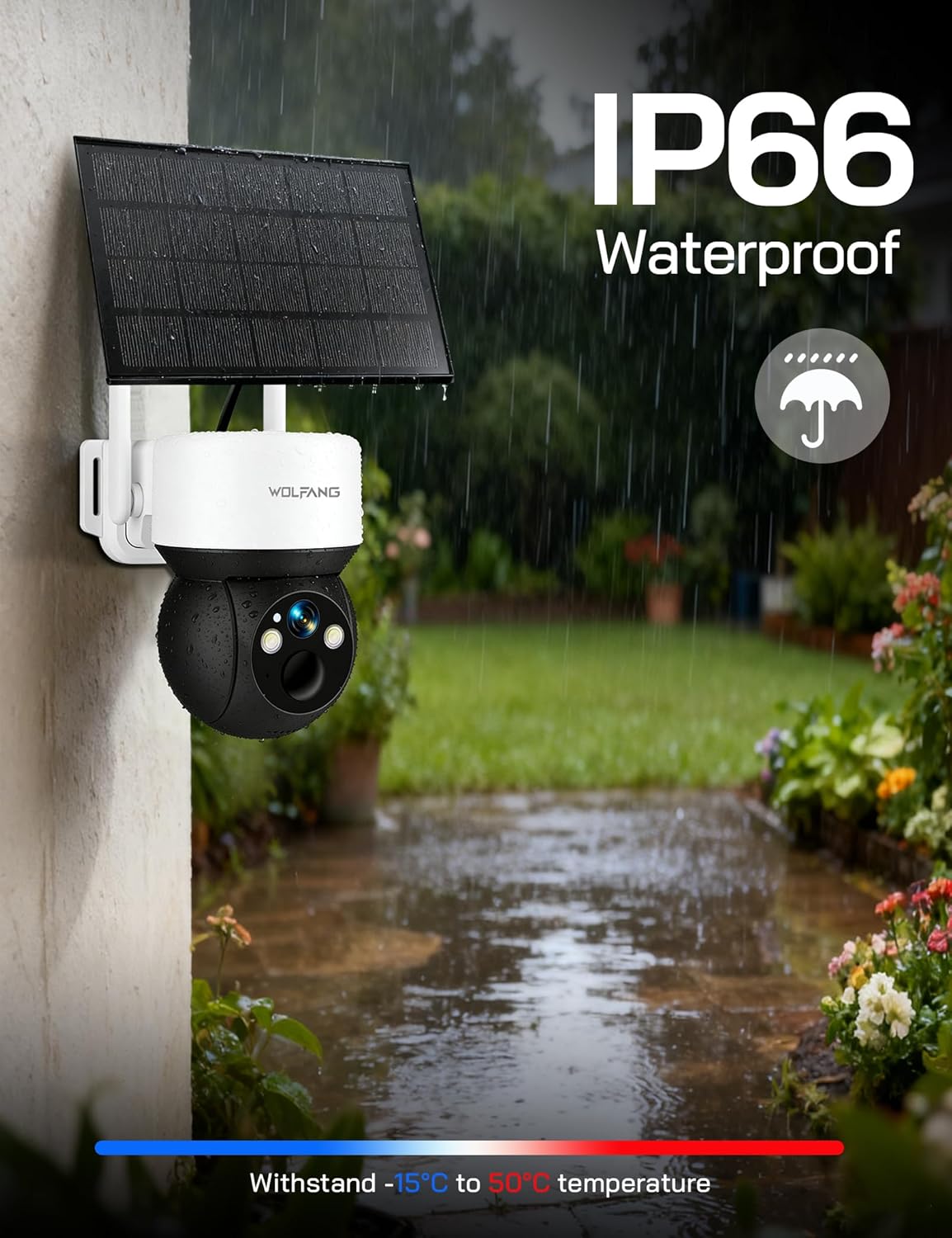
Image: The WOLFANG WT08-WB camera and solar panel mounted on an outdoor wall, illustrating a typical installation scenario for continuous power.
- Chagua Mahali: Identify a mounting spot that provides the desired viewing angle and ensures the solar panel receives maximum sunlight throughout the day.
- Sakinisha Mabano: Use the provided screws and mounting bracket to securely attach the camera to a wall or tree.
- Ambatisha Paneli ya Jua: Connect the solar panel to the camera using the provided cable. Ensure the connection is secure and weatherproof.
- Rekebisha Pembe: Adjust the camera and solar panel angles to optimize surveillance coverage and solar charging efficiency.
3.3 App Download and Initial Connection
The camera is controlled via the UBox app.
- Pakua App: Tafuta "UBox" in your smartphone's app store (iOS or Android) and download it.
- Sajili Akaunti: Open the UBox app and follow the on-screen instructions to register a new account.
- Ongeza Kifaa: Power on the camera. In the UBox app, tap "Add Device" or the '+' icon. Follow the prompts to scan the QR code on the camera or manually add the device.
- Connect to 4G: The camera will automatically attempt to connect to the 4G network. Once connected, you should see the camera's live feed in the app.
4. Maagizo ya Uendeshaji
4.1 Ishi View na Kurekodi
Access the camera's live feed and initiate manual recordings through the UBox app.
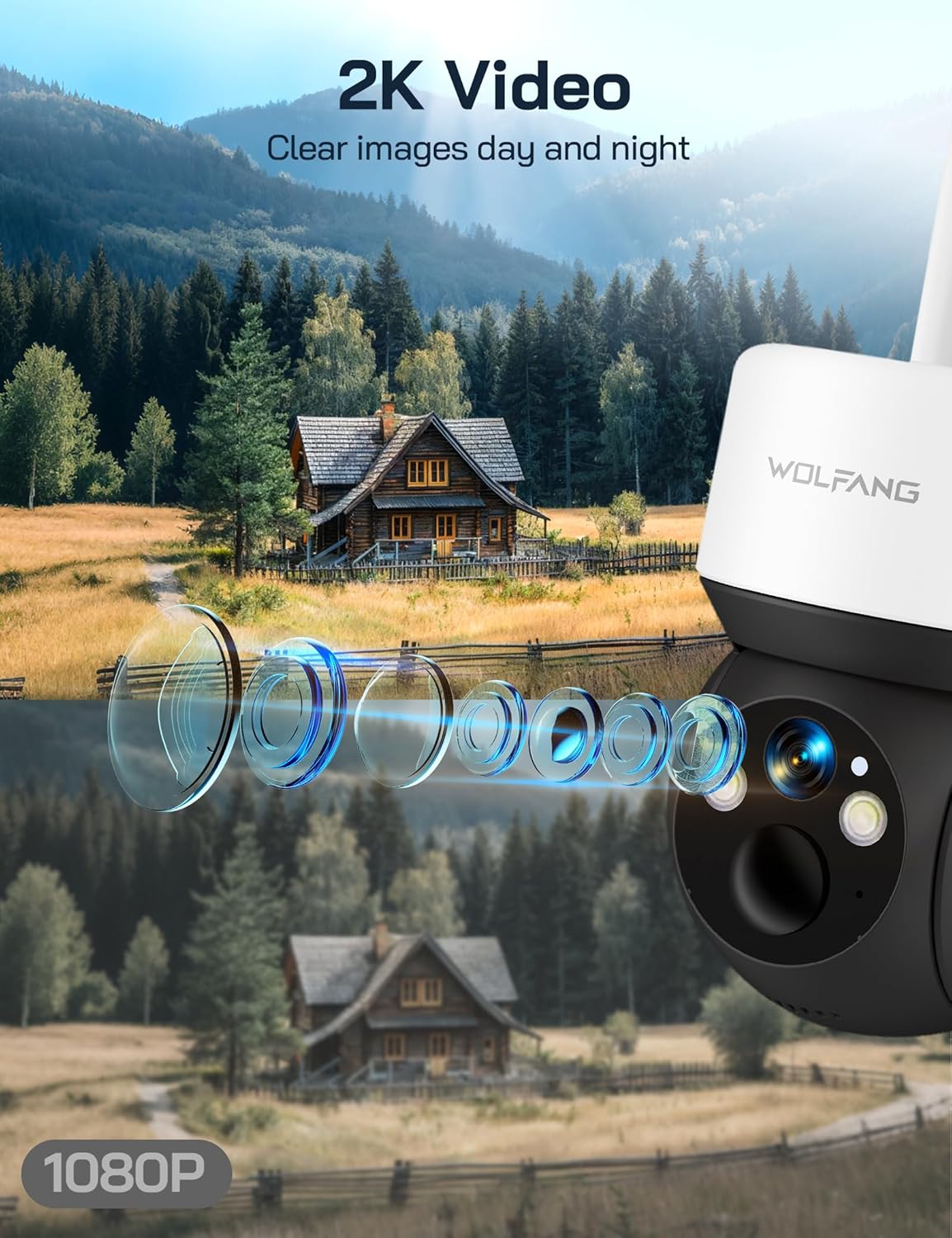
Image: A visual comparison demonstrating the superior clarity of 2.5K video resolution compared to 1080P, showcasing the camera's detailed image capture.
- Open the UBox app and select your camera from the device list.
- The live feed will display. You can tap the record button to start or stop manual recording.
- Recorded videos are saved to the SD card or cloud storage, depending on your settings.
4.2 Pan, Inamisha, na Zoom ya Dijitali
Dhibiti kamera viewpembeni kwa mbali.
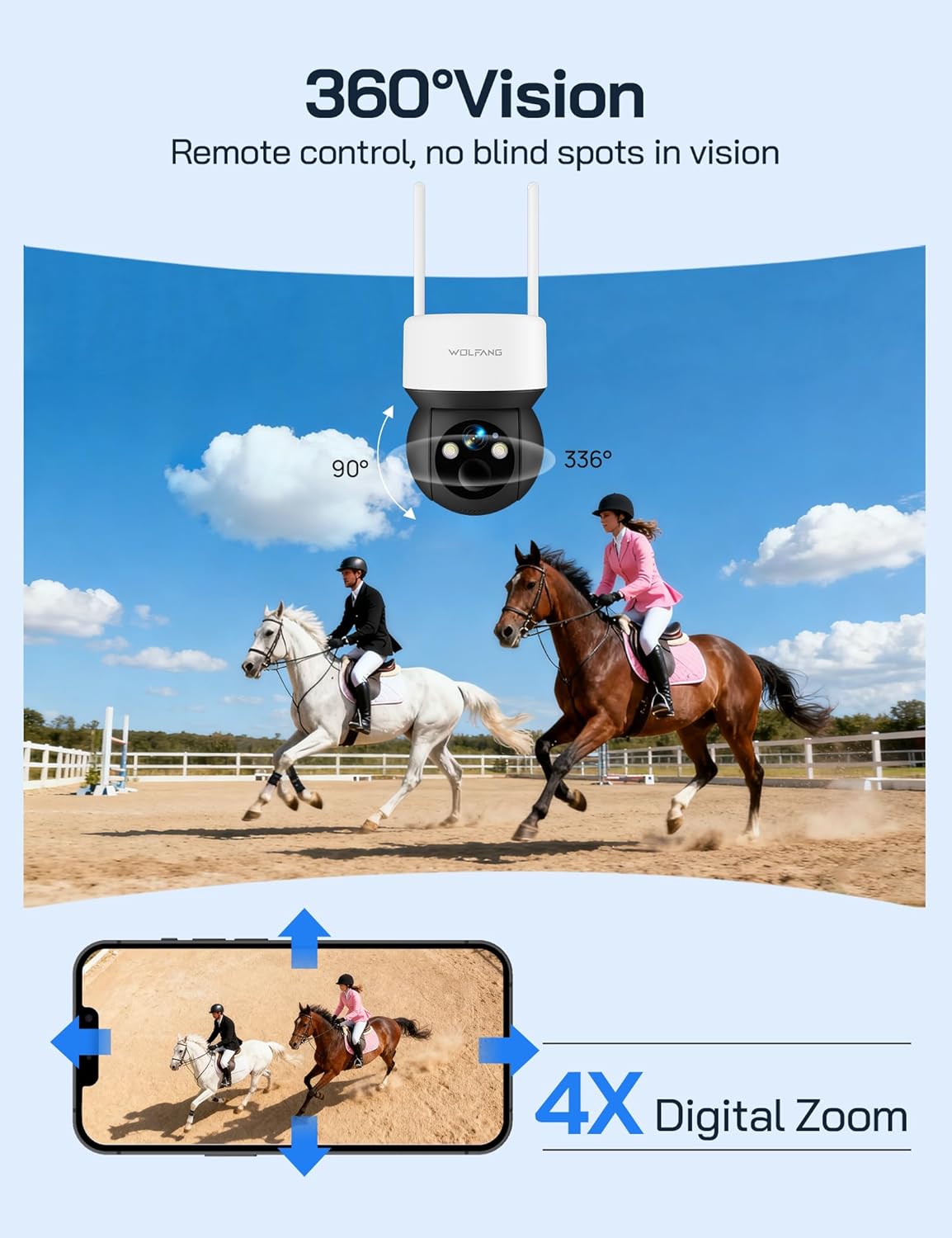
Image: The camera's 360-degree vision is depicted with directional arrows for pan and tilt, alongside a smartphone interface illustrating the 4x digital zoom function.
- Kwenye moja kwa moja view screen in the UBox app, use the directional controls to pan (355° horizontally) and tilt (90° vertically) the camera.
- Pinch to zoom on the live feed to utilize the 4x digital zoom feature.
4.3 Njia za Maono ya Usiku
The camera offers two night vision options for different surveillance needs.

Image: A demonstration of the camera's night vision capabilities, including full-color night vision with spotlight, infrared (IR) black-and-white night vision, and smart night vision that automatically activates the spotlight.
- Maono ya Usiku wa IR: Automatically activates in low-light conditions, providing clear black-and-white video without visible light.
- Maono ya Usiku ya Rangi: When enabled, the camera's built-in spotlights illuminate the area, allowing for full-color video recording at night. This can be manually activated or set to trigger upon motion detection.
- Adjust night vision settings in the UBox app.
4.4 Utambuzi wa Mwendo na Tahadhari
Receive instant notifications when motion is detected.
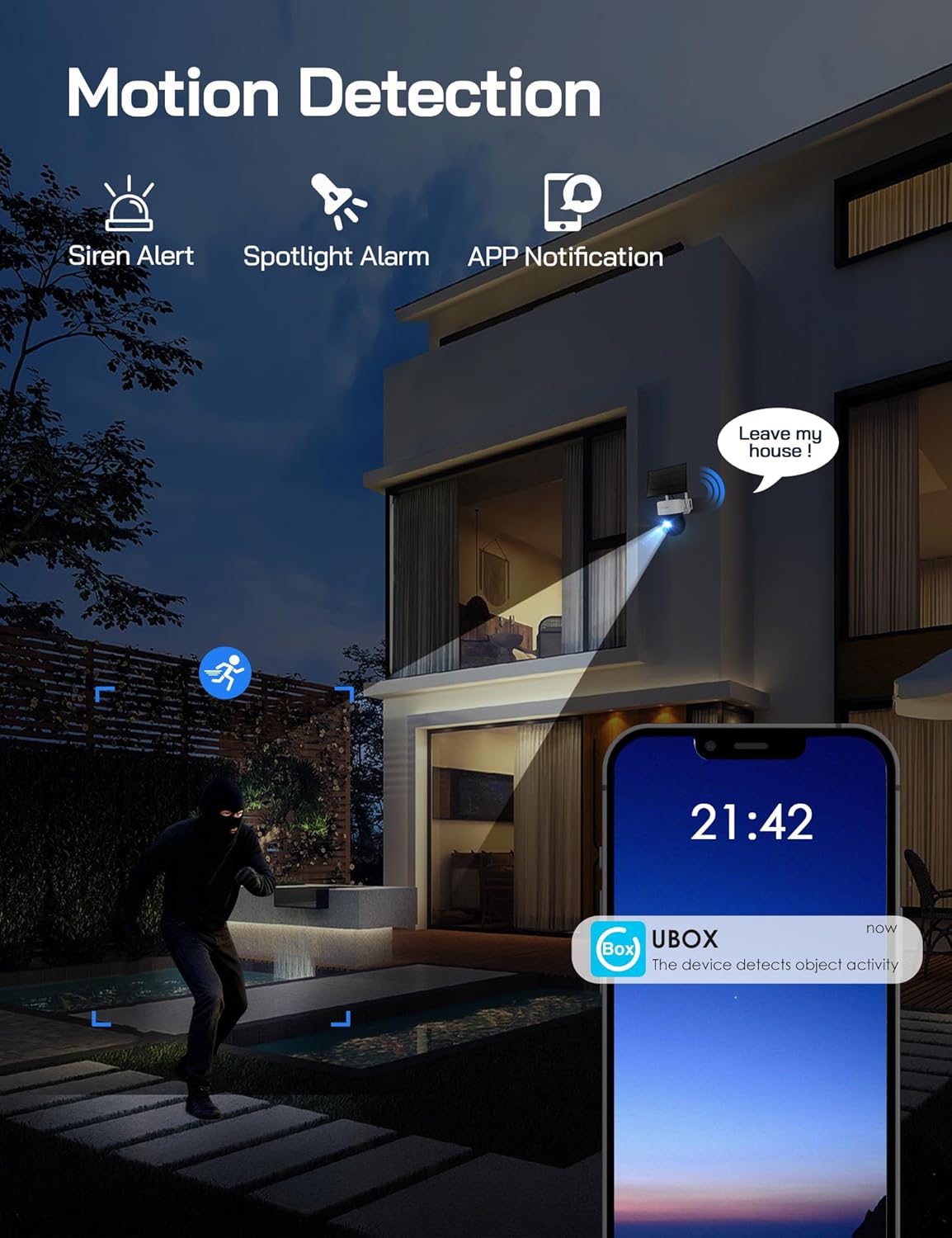
Image: A visual representation of the camera's motion detection system, showing a person being detected, which activates a spotlight, an audible siren, and sends an immediate notification to the user's smartphone via the UBox app.
- Enable motion detection in the UBox app settings.
- Adjust PIR sensitivity to minimize false alarms.
- When motion is detected, the camera will record a video clip, send a notification to your phone, and can optionally activate the spotlight and siren.
4.5 Sauti ya Njia Mbili
Communicate through the camera using the UBox app.
- Kwenye moja kwa moja view screen, tap the microphone icon to speak through the camera's speaker.
- Gusa aikoni ya spika ili kusikiliza sauti kutoka kwa maikrofoni ya kamera.
5. Matengenezo
5.1 Kusafisha
- Safisha lenzi ya kamera na paneli ya jua mara kwa mara kwa kutumia kifaa laini, chenye rangi ya jua.amp kitambaa ili kuhakikisha picha wazi na malipo ya ufanisi.
- Usitumie kemikali kali au vifaa vya abrasive.
5.2 Usimamizi wa Betri
- The solar panel is designed to keep the built-in battery charged. Ensure the solar panel is free from obstructions and receives adequate sunlight.
- Monitor battery levels through the UBox app. If the battery level is consistently low, check the solar panel's placement and cleanliness.
5.3 SIM Card Data
- The included SIM card provides 300MB of trial data. After this is used, you will need to renew the data package through the UBox app or replace the SIM card with one from your preferred provider.
- Ensure your SIM card has an active data plan for continuous 4G connectivity.
5.4 Sasisho za Firmware
- Periodically check the UBox app for available firmware updates. Updates can improve performance, add new features, and enhance security.
- Follow the app's instructions carefully when performing firmware updates.
6. Utatuzi wa shida
6.1 Camera Not Connecting to 4G Network
- Angalia SIM Kadi: Ensure the SIM card is correctly inserted and has an active data plan.
- Nguvu ya Mawimbi: Verify that the camera is in an area with sufficient 4G signal coverage. Relocate the camera if necessary.
- Restart Camera: Power cycle the camera by temporarily removing and reinserting the SIM/SD card cover (if accessible) or by pressing the reset button if available.
6.2 Betri Haichaji
- Uwekaji wa Paneli ya Jua: Ensure the solar panel is positioned to receive direct sunlight for several hours daily.
- Vizuizi: Clear any dirt, dust, or debris from the solar panel surface.
- Muunganisho wa Kebo: Check that the solar panel cable is securely connected to the camera.
6.3 Ugunduzi wa Mwendo Haufanyi Kazi au Kengele Nyingi Sana za Uongo
- Enable Feature: Confirm motion detection is enabled in the UBox app settings.
- Rekebisha Unyeti: Lower the PIR sensitivity in the app settings to reduce false alarms caused by small animals or environmental factors. Increase sensitivity if detections are missed.
- Eneo la Utambuzi: Hakikisha eneo la kamera view covers the desired detection area.
6.4 Ubora duni wa Video
- Safi Lenzi: Safisha lenzi ya kamera ili kuondoa uchafu au uchafu wowote.
- Mawimbi ya 4G: A weak 4G signal can affect live stream quality. Ensure good signal strength.
- Mipangilio ya Programu: Check video quality settings in the UBox app; higher quality settings require more bandwidth.
7. Vipimo
| Kipengele | Vipimo |
|---|---|
| Nambari ya Mfano | WT08-WB |
| Azimio la Video | 2.5K HD |
| Muunganisho | 4G LTE (No Wi-Fi) |
| Chanzo cha Nguvu | 3W Solar Panel, 7800mAh Built-in Battery |
| Pembe ya Kusonga | 355° |
| Pembe ya Kuinamisha | 90° |
| Zoom ya dijiti | 4x |
| Maono ya Usiku | IR (Black & White), Color (with Spotlight) |
| Hifadhi | 32GB SD Card (included), Cloud Storage Support |
| Sauti | Intercom ya Njia Mbili |
| Upinzani wa hali ya hewa | IP66 |
| Joto la Uendeshaji | -15°C hadi 50°C |
| Vipimo (L x W x H) | 11 x 13.8 x 14.8 cm |
| Uzito | 1.04 kg |
8. Udhamini na Msaada
For warranty information or technical assistance, please contact WOLFANG customer service. Our support team is available to help with any questions or issues you may encounter with your WT08-WB camera.
- Barua pepe ya Usaidizi: support.vc@wolfang.co
- Please provide your model number (WT08-WB) and a detailed description of your issue when contacting support.