
1. Utangulizi
This manual provides detailed instructions for the installation, configuration, and operation of your ASRock X870 Taichi Creator Motherboard. This high-performance ATX motherboard is designed to support AMD Ryzen 9000, 8000, and 7000 Series Processors with an AM5 socket, offering advanced features for creators and enthusiasts.
2. Taarifa za Usalama
Please read the following safety guidelines carefully before installing or operating your motherboard to prevent damage to the product or injury to yourself.
- Daima ondoa kebo ya umeme kutoka kwa sehemu ya ukuta kabla ya kugusa vifaa vyovyote.
- Wear an anti-static wrist strap to prevent electrostatic discharge (ESD) when handling components.
- Hakikisha uingizaji hewa mzuri ndani ya kipochi chako cha Kompyuta ili kuzuia joto kupita kiasi.
- Weka ubao wa mama mbali na unyevu na joto kali.
- Refer to the CPU and other component manuals for specific installation instructions.
3. Yaliyomo kwenye Kifurushi
Thibitisha kwamba vitu vyote vilivyoorodheshwa hapa chini vipo kwenye kifurushi chako cha ubao mama. Ikiwa bidhaa yoyote haipo au imeharibika, wasiliana na muuzaji wako.
- Ubao wa Mama wa ASRock X870 Taichi
- Mwongozo wa Ufungaji wa Haraka
- Ilani ya Udhibiti
- Kebo za Data za SATA
- Antenna ya Wi-Fi
- M.2 Screws na Standoffs
- ASRock Graphics Card Holder
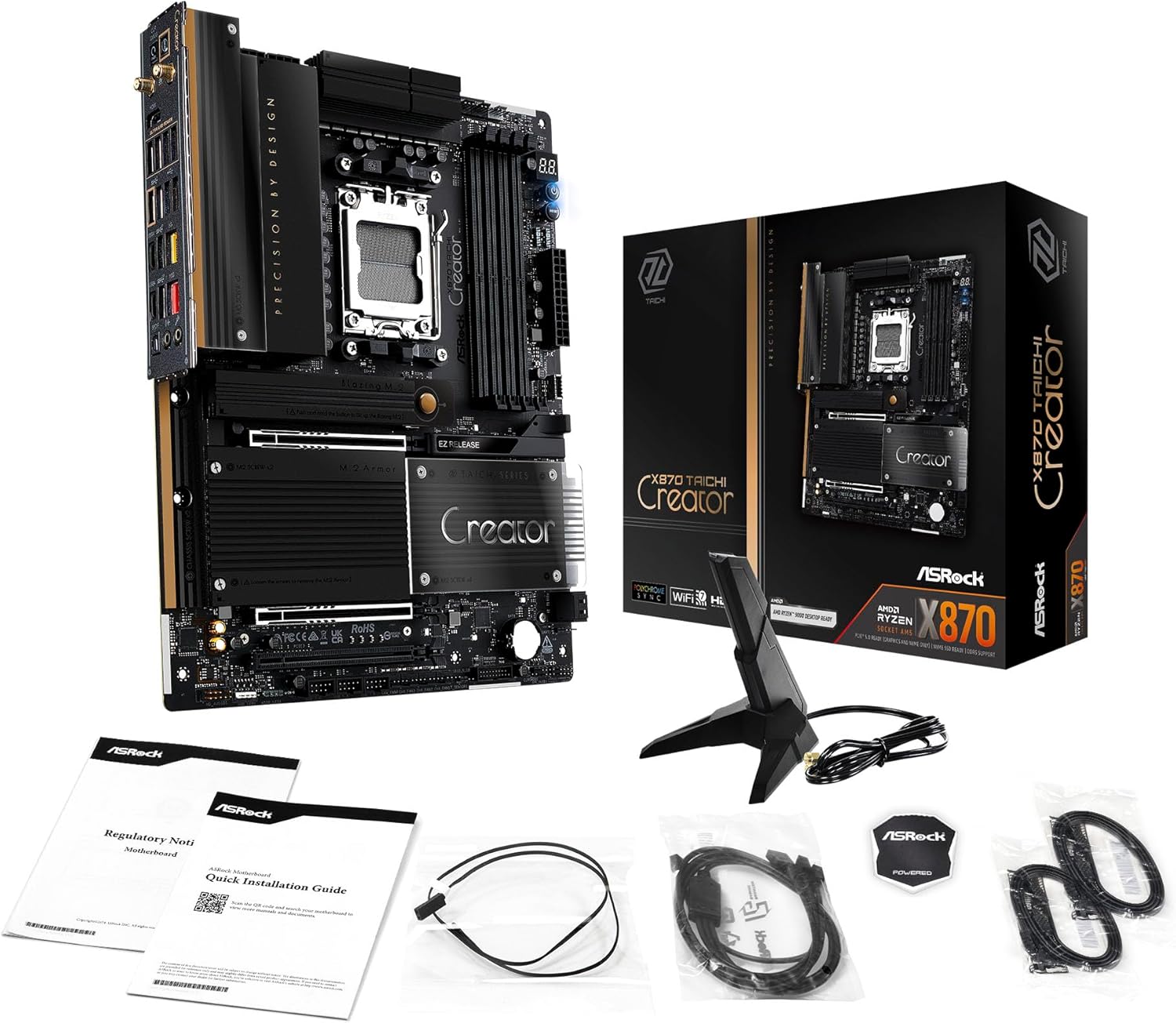
Image: The ASRock X870 Taichi Creator Motherboard shown alongside its retail packaging and various accessories, including cables, documentation, and a graphics card holder.
4. Kuweka na Kuweka
Fuata hatua hizi kwa usakinishaji sahihi wa ubao wako wa mama na vipengele vyake.
4.1. CPU Installation (Socket AM5)
- Tafuta tundu la AM5 CPU kwenye ubao wa mama.
- Gently lift the CPU retention lever.
- Align the triangular mark on your AMD Ryzen processor with the corresponding mark on the socket.
- Carefully place the CPU into the socket without applying force.
- Lower the retention lever until it clicks into place, securing the CPU.

Picha: Juu-chini view of the ASRock X870 Taichi Creator Motherboard, highlighting the central AM5 CPU socket and surrounding components like VRMs and RAM slots.
4.2. Ufungaji wa Kumbukumbu (RAM).
The motherboard supports 4 x DDR5 DIMM slots for dual-channel memory technology.
- Fungua klipu kwenye ncha zote mbili za slot ya DIMM.
- Pangilia alama kwenye moduli ya kumbukumbu ya DDR5 na ufunguo katika slot ya DIMM.
- Ingiza moduli ya kumbukumbu kwa uthabiti kwenye nafasi hadi klipu ziingie mahali pake.
- For dual-channel configuration, refer to your motherboard manual for recommended slot pairing.
4.3. Ufungaji wa Kifaa cha Hifadhi
The motherboard features M.2 slots and SATA3 ports for storage.
4.3.1. Ufungaji wa M.2 SSD
The board includes 1 Ultra M.2 (PCIe Gen3x4), 1 Hyper M.2 (PCIe Gen4x4), and 2 Blazing M.2 (PCIe Gen5x4) slots.
- Locate the desired M.2 slot and remove the M.2 heatsink if present.
- Ingiza M.2 SSD kwenye slot kwa pembe ya digrii 30.
- Gently push down the SSD and secure it with the provided M.2 screw or standoff.
- Ambatisha tena heatsink ya M.2 kwa utendakazi bora wa mafuta.
4.3.2. Usakinishaji wa Kifaa cha SATA
Connect SATA storage devices (HDDs/SSDs) to the 4 SATA3 ports using SATA data cables.
4.4. Ufungaji wa Kadi ya PCIe
The motherboard provides 2 PCIe 5.0 x16 (x8/x8) slots and 1 PCIe 3.0 x16 slot.
- Select an available PCIe slot.
- Ondoa kifuniko sambamba cha upanuzi kutoka kwa kipochi chako cha Kompyuta.
- Align your PCIe card with the slot and press down firmly until it is seated correctly.
- Salama kadi na screw kwenye kesi ya PC.
4.5. Uunganisho wa Nguvu
Connect the 24-pin ATX power connector and the 8-pin (or 4+4-pin) CPU power connector from your power supply unit (PSU) to the corresponding ports on the motherboard.
4.6. Jopo la Mbele na Viunganisho vya Nyuma vya I/O
Connect your PC case's front panel connectors (power button, reset button, USB ports, audio jacks) to the appropriate headers on the motherboard. Connect peripherals to the rear I/O panel.

Picha: Karibu view of the rear I/O panel of the ASRock X870 Taichi Creator Motherboard, showing various ports including USB, HDMI, Ethernet, and audio jacks.
5. Maagizo ya Uendeshaji
5.1. Boot ya awali na Usanidi wa BIOS/UEFI
- After assembling your PC, connect a monitor, keyboard, and mouse.
- Power on your system. During startup, repeatedly press the Del or F2 ufunguo wa kuingiza matumizi ya kuanzisha BIOS/UEFI.
- Configure boot order, enable XMP/EXPO for memory, and adjust other settings as needed.
- Hifadhi mabadiliko na uondoke BIOS / UEFI. Mfumo utaanza upya.
5.2. Ufungaji wa Dereva
After installing your operating system, install the necessary drivers for the motherboard components. These can typically be found on the ASRock support website or the included driver CD/USB drive.
- Madereva ya Chipset
- LAN Drivers (10Gbps, 5Gbps)
- Wi-Fi 7 + Bluetooth Drivers
- Viendeshi vya Sauti (Realtek ALC4082)
- Viendeshaji vya USB
6. Matengenezo
6.1. Kusafisha
Regularly clean your PC to prevent dust buildup, which can lead to overheating. Use compressed air to remove dust from fans, heatsinks, and other components. Ensure the system is powered off and unplugged before cleaning.
6.2. Sasisho za BIOS
Angalia ASRock mara kwa mara website for BIOS/UEFI updates. Updates can improve system stability, add support for new CPUs, or fix bugs. Follow the instructions provided by ASRock carefully when performing a BIOS update.
7. Utatuzi wa shida
Ukikumbana na matatizo, rejelea hatua zifuatazo za kawaida za utatuzi:
- Hakuna Nguvu: Ensure all power cables (24-pin ATX, 8-pin CPU) are securely connected. Check your PSU and wall outlet.
- Hakuna Onyesho: Verify that your monitor is connected to the correct graphics output (dedicated GPU or integrated graphics). Reseat your graphics card and RAM modules.
- Uthabiti wa Mfumo: Check CPU and GPU temperatures. Ensure RAM is properly seated and configured (XMP/EXPO settings). Update drivers and BIOS.
- Kurudi nyuma kwa BIOS: The motherboard features a BIOS Flashback button on the rear I/O panel. This allows you to update the BIOS without a CPU or RAM installed. Refer to the ASRock website for detailed instructions on using this feature.
- Futa CMOS: If your system fails to boot after changing BIOS settings, you can clear the CMOS to reset BIOS settings to default. Locate the 'CLR CMOS' button or jumper on the motherboard (often near the rear I/O).
8. Vipimo
| Kipengele | Vipimo |
|---|---|
| Chapa | ASRock |
| Jina la Mfano | X870 |
| Nambari ya Mfano wa Kipengee | 90-MXBTE0-A0UAYZ |
| Soketi ya CPU | Soketi AM5 |
| Wachakataji Sambamba | AMD Ryzen 9000, AMD Ryzen 8000, AMD Ryzen 7000 Series |
| Aina ya Chipset | AMD X870 |
| Teknolojia ya Kumbukumbu ya RAM | DDR5 |
| Nafasi za Kumbukumbu | 4 x DDR5 DIMM Slots (Dual Channel, up to 8000+(OC), 256GB max) |
| Matokeo ya Michoro | 2 x USB4 Type-C (up to 8K 30Hz), 1 x HDMI 2.1 (up to 4K 120Hz) |
| PCIe inafaa | 2 x PCIe 5.0 x16 (x8/x8), 1 x PCIe 3.0 x16 |
| Hifadhi | 4 x SATA3, 1 x Ultra M.2 (PCIe Gen3x4), 1 x Hyper M.2 (PCIe Gen4x4), 2 x Blazing M.2 (PCIe Gen5x4) |
| LAN | 10Gbps LAN, 5Gbps LAN |
| LAN isiyo na waya | 802.11be Wi-Fi 7 + Bluetooth |
| Sauti | Kodeki ya Sauti ya Realtek ALC4082 7.1 CH HD, Sauti ya Nahimic |
| Bandari za USB (Nyuma) | 2 x USB 2.0, 6 x USB 3.2 Gen1, 2 x USB 3.2 Gen2, 2 x USB4 Type-C |
| Milango ya USB (Mbele) | 6 x USB 2.0, 4 x USB 3.2 Gen1, 1 x USB 3.2 Gen2x2 Type-C |
| Kipengele cha Fomu | ATX |
| Power Phase Design | 18+2+1 Power Phase, 80A SPS |
9. Taarifa za Udhamini
ASRock motherboards typically come with a limited manufacturer's warranty. The duration and terms of the warranty may vary by region and retailer. Please retain your proof of purchase for warranty claims. For detailed warranty information, refer to the official ASRock webtovuti au wasiliana na kituo chako cha ununuzi.
10. Msaada wa Kiufundi
For technical assistance, driver downloads, BIOS updates, and further product information, please visit the official ASRock support webtovuti:
You may also contact ASRock customer service directly through their webtovuti kwa usaidizi wa kibinafsi.