
1. Utangulizi
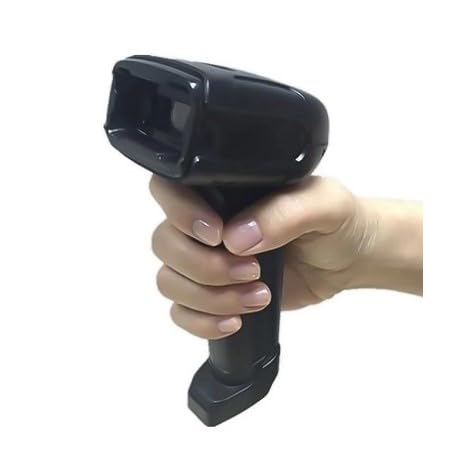
The ALFA-500 is an advanced professional 2D handheld barcode scanner designed for high performance and ease of use. This device is capable of reading both 2D codes and linear (1D) barcodes with high speed and accuracy. It is specifically engineered to meet the demands of commercial stores, offices, warehouses, and point-of-sale (POS) systems.
The scanner features a sleek, durable black design and includes a dedicated stand for convenient, continuous hands-free scanning. Its ergonomic grip ensures comfortable use during extended periods, minimizing user fatigue. The ALFA-500 provides a practical and efficient solution for daily barcode scanning requirements in professional work environments, supporting both manual and automatic scanning modes.
2. Bidhaa Imeishaview
The ALFA-500 barcode scanner is a versatile tool equipped with features for efficient data capture.
- 2D Scanning Technology: Accurately reads all types of 1D and 2D barcodes.
- Muundo wa Ergonomic: Comfortable grip for prolonged use and a lightweight, portable design.
- Stable Desktop Stand: Included for hands-free operation, ideal for retail and office settings.
- Chomeka na Ucheze: Easy to use with no complex setup or additional software required.
- Programu Inayotumika Mbalimbali: Suitable for stores, warehouses, and offices, capable of reading barcodes from screens and various surfaces.
3. Kuweka
Follow these steps to set up your ALFA-500 barcode scanner:
- Fungua Kichanganuzi: Ondoa kwa uangalifu skana na sehemu yake ya kusimama kutoka kwenye kifungashio.
- Assemble the Stand (Optional): If using the stand for hands-free operation, connect the scanner to the stand base. Ensure it is securely attached.
- Unganisha kwenye Kifaa cha Kupangisha: Plug the USB cable from the scanner into an available USB port on your computer (laptop, desktop, or POS system).
- Ufungaji wa Dereva: The scanner is plug-and-play. Your operating system should automatically detect and install the necessary drivers. No additional software installation is typically required.
- Muunganisho wa Jaribio: Open a text editor (e.g., Notepad, Word) or a compatible application on your computer. Scan any barcode to verify that the data appears correctly in the application.

4. Maagizo ya Uendeshaji
The ALFA-500 scanner supports both manual and automatic scanning modes.
4.1. Kuchanganua kwa Mwongozo
- Hold the scanner in your hand, ensuring a comfortable grip.
- Elekeza dirisha la kichanganuzi kwenye msimbopau unaotaka kuchanganua.
- Press and hold the trigger button. A red aiming line or light will appear.
- Align the aiming line across the entire barcode.
- Once the barcode is successfully read, the scanner will emit a beep and the data will be transmitted to your connected device.
4.2. Automatic Scanning (Hands-Free)
- Place the scanner securely in its desktop stand.
- Ensure the scanner is configured for automatic mode (refer to the advanced configuration guide if needed, typically by scanning a specific setup barcode).
- Present the barcode in front of the scanner's window. The scanner will automatically detect and read the barcode without needing to press the trigger.
- A successful scan will be indicated by a beep, and the data will be sent to your device.
4.3. Aina za Msimbopau Zinazoungwa Mkono
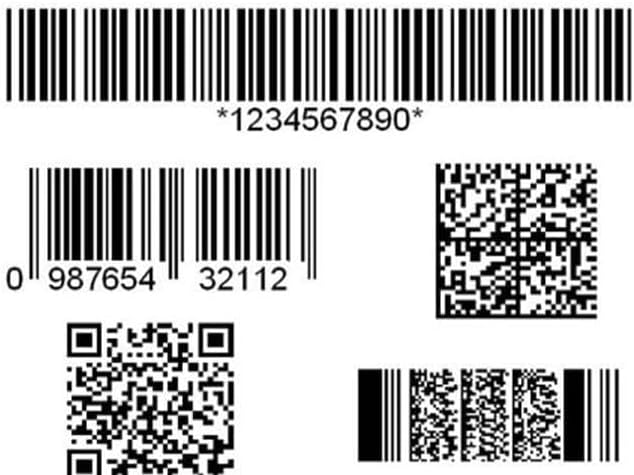
The ALFA-500 can read a wide range of 1D and 2D barcodes, including:
- Misimbo ya 1D: UPC/EAN, Code 128, Code 39, Code 93, Interleaved 2 of 5, Industrial 2 of 5, Matrix 2 of 5, Codabar, MSI, etc.
- Misimbo ya 2D: QR Code, Data Matrix, PDF417, Aztec Code, etc.
5. Matengenezo
Utunzaji sahihi huhakikisha uimara na utendaji bora wa skana yako.
- Kusafisha: Tumia kitambaa laini kisicho na pamba kidogo dampened with water or a mild cleaning solution to wipe the scanner's exterior. Do not use abrasive cleaners or solvents.
- Kusafisha Dirisha la Kuchanganua: Gently wipe the scan window with a clean, dry, soft cloth. Avoid scratching the surface.
- Hifadhi: Hifadhi skana mahali pakavu na penye baridi mbali na jua moja kwa moja na halijoto kali.
- Huduma ya Cable: Epuka kupinda au kupotosha kebo ya USB kupita kiasi ili kuzuia uharibifu.
6. Utatuzi wa shida
If you encounter issues with your ALFA-500 scanner, try the following solutions:
- Kichanganuzi Hakijibu:
- Hakikisha kebo ya USB imeunganishwa salama kwenye kichanganuzi na kifaa cha mwenyeji.
- Try plugging the scanner into a different USB port.
- Anzisha tena kompyuta yako.
- No Data Output After Scanning:
- Verify that the application you are using (e.g., text editor, POS software) is active and ready to receive input.
- Check if the scanner emits a beep after a successful scan. If not, ensure proper aiming and lighting conditions.
- Hakikisha msimbopau haujaharibika au haujachapishwa vibaya.
- Pato la Data Si Sahihi:
- The scanner might be configured for a different keyboard layout. Refer to the advanced configuration guide for setting the correct keyboard language.
- Ensure the barcode symbology is enabled in the scanner's settings (if applicable).
- Scanner Beeps Continuously:
- This may indicate a configuration error or a hardware issue. Disconnect and reconnect the scanner. If the issue persists, consult the advanced configuration guide or contact support.
7. Vipimo
| Kipengele | Maelezo |
|---|---|
| Vifaa Sambamba | Laptop, Desktop, Point of Sale (POS) |
| Chanzo cha Nguvu | USB |
| Chapa | ALFA |
| Teknolojia ya Uunganisho | USB |
| Betri Inahitajika | Lithium Ion (internal, not user-replaceable) |
| Kiwango cha Uchanganuzi | 100 scans/sekunde |
| Vipimo vya Bidhaa (D x W x H) | Sentimita 6.6 x 9.5 x sentimita 17 |
| Kiwango cha Juu cha Joto la Uhifadhi | 50°C (122°F) |
| Uendeshaji Voltage | 5 Volts |
| Aina za Msimbo Pau Zinazotumika | 2D Barcode (QR, Data Matrix, PDF417), Linear Barcode (1D) |
| Optical Scan Rate | 100 scans/sekunde |
| Kweli View Pembe | digrii 60 |
| Mtengenezaji | Alfa |
| Nchi ya Asili | China |
| Uzito wa Kipengee | gramu 200 |
8. Udhamini na Msaada
The ALFA-500 barcode scanner comes with a dhamana ya mwaka 1 from the date of purchase, covering manufacturing defects under normal use. Please retain your proof of purchase for warranty claims.
For technical support, troubleshooting assistance, or warranty inquiries, please refer to the contact information provided by your retailer or the official ALFA support channels. Do not attempt to repair the device yourself, as this may void the warranty.


