
Utangulizi
The ShanWan Wireless Controller is a versatile gaming peripheral designed for use across multiple platforms, including PC, iPhone, Android, Nintendo Switch, and Steam. It offers tri-mode connectivity (Bluetooth, 2.4G wireless, and USB-C wired) to ensure a seamless gaming experience. This manual provides detailed instructions for setup, operation, maintenance, and troubleshooting to help you maximize your controller's performance.
Note: This controller is not compatible with Xbox or PlayStation 4/5 consoles.
Yaliyomo kwenye Kifurushi
- ShanWan Wireless Controller
- Kebo ya Kuchaji ya USB-C
- Dongle Isiyotumia Waya ya 2.4G
- Mwongozo wa Mtumiaji (hati hii)
Mdhibiti Zaidiview
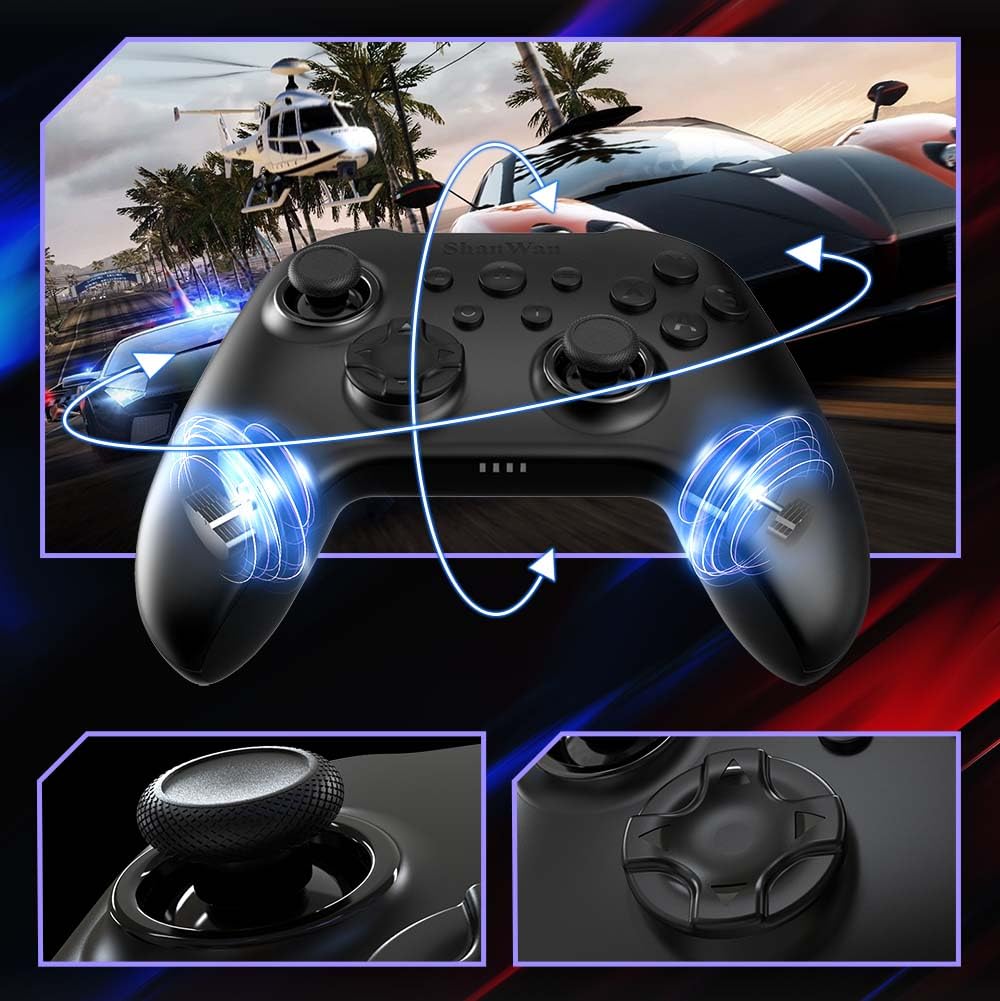
Picha: Mbele view of the ShanWan Wireless Controller, showcasing its ergonomic design, dual joysticks, D-pad, and face buttons (A, B, X, Y).
Picha: Nyuma view of the ShanWan Wireless Controller, highlighting the mode switch for different platforms (X, D, S).
Sifa Muhimu:
- Vijiti vya Athari ya Ukumbi: Designed for precision with no dead zones and anti-drift capabilities.
- Durable Gel Buttons: Conductive gel buttons tested for 1 million clicks for long-lasting performance.
- Gyroskopu ya Mihimili 6: Provides precise motion sensing for immersive gameplay.
- Mota za Mtetemo Mbili: Delivers strong and subtle haptic feedback for an enhanced gaming experience.
- Kazi ya Turbo: Allows for rapid, repeated button presses.
Sanidi
1. Kuchaji Kidhibiti
Before initial use, fully charge the controller using the provided USB-C cable. Connect the USB-C end to the controller and the USB-A end to a power source (e.g., computer USB port, USB wall adapter). The charging indicator lights will show charging status and turn off when fully charged.
2. Kuunganisha kwa Vifaa
The ShanWan Wireless Controller supports three connection modes: Bluetooth, 2.4G Wireless, and USB-C Wired. Ensure the mode switch on the back of the controller is set to the appropriate platform before attempting to connect.

Picha: Visual representation of the controller's tri-mode connectivity, illustrating Bluetooth, 2.4G wireless, and USB-C wired options.
Mode Switch Settings:
- Hali ya 'S': For Nintendo Switch.
- 'X' Mode: For PC (X-input), Android.
- 'D' Mode: For PC (D-input), iOS.
Uunganisho wa Bluetooth:
- Set the mode switch on the back of the controller to the desired platform ('S', 'X', or 'D').
- Press and hold the pairing button (usually a small button on the top or back) until the indicator lights flash rapidly.
- On your device (PC, iPhone, Android, Switch), go to Bluetooth settings and search for new devices.
- Select "ShanWan Controller" or a similar name from the list to pair.
- Once paired, the indicator lights on the controller will become solid.
2.4G Wireless Connection (for PC/Switch):
- Set the mode switch on the back of the controller to 'X' (for PC) or 'S' (for Switch).
- Insert the 2.4G wireless dongle into a USB port on your PC or Switch dock.
- Press the Home button on the controller to power it on. It should automatically connect to the dongle.
- The indicator lights will become solid once connected.
Muunganisho wa Waya wa USB-C:
- Connect the USB-C cable to the controller and the other end to your PC or Switch dock.
- The controller will automatically be recognized as a wired device.
- No specific mode switch setting is required for wired connection, but setting it to the correct platform mode ('X' for PC, 'S' for Switch) is recommended for optimal compatibility.
Maagizo ya Uendeshaji
Washa/Zima:
- Washa: Press the Home button once.
- Zima umeme: Press and hold the Home button for 3-5 seconds, or the controller will automatically power off after a period of inactivity.
Udhibiti wa Mwendo:
The built-in 6-axis gyroscope provides motion control capabilities, particularly useful for games on Nintendo Switch or other compatible platforms. Ensure the game supports motion controls for this feature to function.
Maoni ya Mtetemo:
The dual vibration motors provide haptic feedback during gameplay. The intensity of the vibration can often be adjusted through game settings or the Gamepad Space app.
Kazi ya Turbo:
To activate the Turbo function for a specific button:
- Press and hold the button you wish to set to Turbo.
- While holding the button, press the Turbo button (refer to controller layout for location).
- The button will now repeatedly register presses as long as it is held down.
To deactivate Turbo for a button, repeat the process.
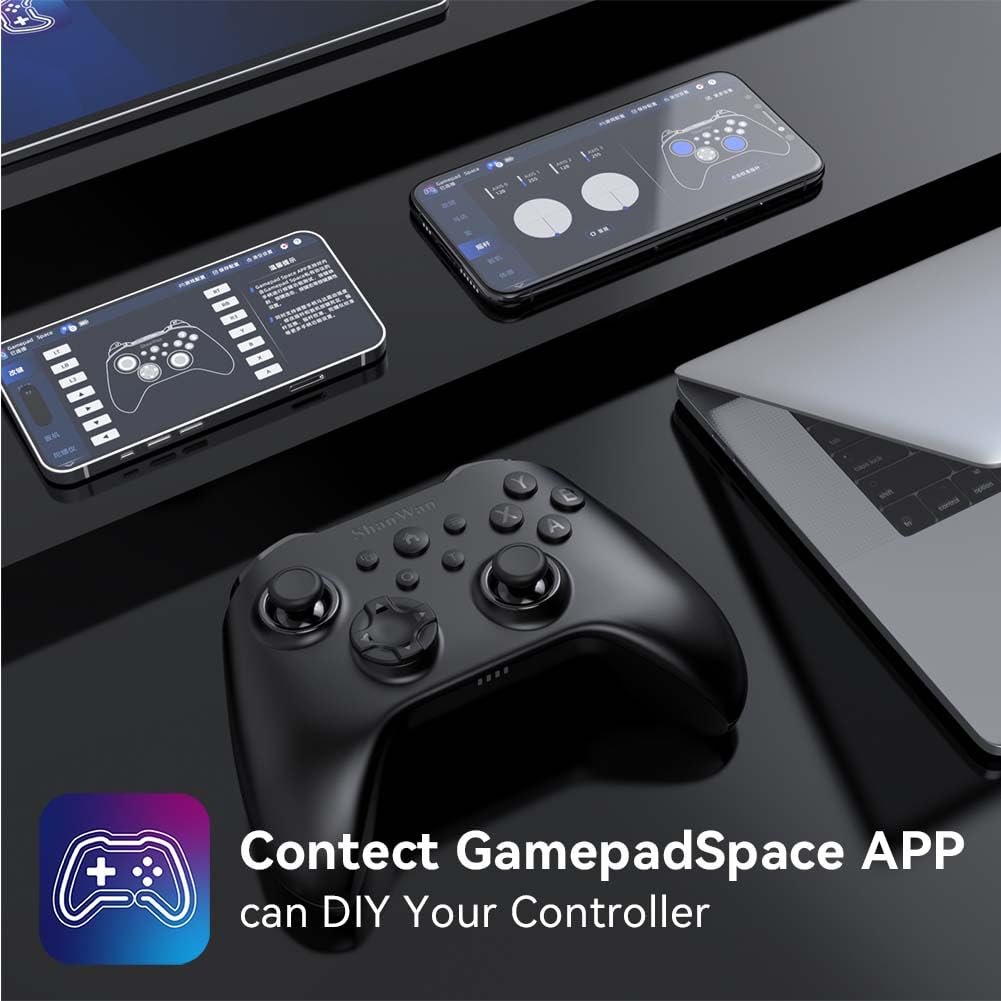
Software Customization (Gamepad Space App):
Enhance your gaming experience by customizing controller settings using the Gamepad Space mobile application.

Picha: A ShanWan controller alongside smartphones displaying the Gamepad Space app, illustrating options for calibration and on-the-fly adjustments.
- Download the "Gamepad Space" app from your mobile device's app store.
- Unganisha kidhibiti chako kwenye kifaa chako cha mkononi kupitia Bluetooth.
- Ndani ya programu, unaweza:
- Pata toleo jipya la firmware.
- Rekebisha kijiti na anzisha maeneo yaliyokufa.
- Badilisha kiwango cha mtetemo.
- Vifungo vya majaribio.
Matengenezo
- Kusafisha: Tumia kitambaa laini na kavu kusafisha kidhibiti. Epuka kutumia kemikali kali au vifaa vya abrasive.
- Hifadhi: Hifadhi kidhibiti mahali pa baridi, pakavu mbali na jua moja kwa moja na joto kali.
- Utunzaji wa Betri: Ili kuongeza muda wa matumizi ya betri, epuka kutoa chaji kamili ya kidhibiti mara kwa mara. Kichaji mara kwa mara, hata kama hakitumiki kila wakati.
Kutatua matatizo
Kidhibiti Hakiunganishi:
- Hakikisha kuwa kidhibiti kimechajiwa.
- Verify the mode switch on the back of the controller is set correctly for your platform (S, X, or D).
- Kwa Bluetooth, hakikisha kuwa Bluetooth ya kifaa chako imewashwa na kidhibiti kiko katika hali ya kuoanisha.
- For 2.4G wireless, ensure the dongle is properly inserted and the controller is in the correct mode.
- Jaribu kuwasha tena kidhibiti na kifaa chako.
Kuchelewa kwa Ingizo au Kukata Muunganisho:
- Hakikisha hakuna mwingiliano mkubwa wa sumakuumeme karibu.
- Move closer to your device for a stronger wireless signal.
- Hakikisha betri ya kidhibiti haiko chini.
- Consider using a wired USB-C connection for the most stable experience.
Joystick Drift or Unresponsive Buttons:
- Calibrate the joysticks and test buttons using the Gamepad Space app.
- Ensure the controller's firmware is up to date via the Gamepad Space app.
- Safisha vitufe na vijiti vya kuchezea ili kuondoa uchafu wowote.
Vipimo
| Mfano | B0FS13DT2B |
| Teknolojia ya Uunganisho | Bluetooth, 2.4G Isiyotumia Waya, USB-C Inayotumia Waya |
| Vifaa Sambamba | Android, iOS, Nintendo Switch, Nintendo Switch 2, PC |
| Aina ya Kidhibiti | Pedi ya mchezo |
| Kiasi cha Kitufe | 12 |
| Vipengele Maalum | Hall Effect Joysticks, 6-Axis Gyroscope, Dual Vibration, Turbo Function, Software Customization |
| Chanzo cha Nguvu | Inaendeshwa na Betri |
| Uzito wa Kipengee | Gramu 300 |
| Vipimo vya Kipengee (D x W x H) | 2.5" x 4" x 6" |
Udhamini na Msaada
ShanWan products are designed for reliability and performance. For specific warranty information, please refer to the documentation included with your purchase or visit the official ShanWan support website. If you encounter any issues not covered in this manual, please contact ShanWan customer support for assistance.
Msaada mkondoni: Visit the ShanWan Store on Amazon