
1. Utangulizi
This manual provides detailed instructions for the setup, operation, and maintenance of your WAVLINK 13-in-1 USB-C Triple Display Docking Station. Please read this manual thoroughly before using the product to ensure proper functionality and to prevent damage.
2. Bidhaa Imeishaview
The WAVLINK 13-in-1 USB-C Triple Display Docking Station expands your laptop's connectivity, offering multiple ports for displays, peripherals, network, and power delivery. It is designed to enhance productivity by supporting various display configurations.
Yaliyomo kwenye Kifurushi
- WAVLINK 13-in-1 USB-C Triple Display Docking Station
- Kebo ya USB-C hadi C
- Adapta ya umeme ya 130W
- Cable ya Nguvu ya AC
- Mwongozo wa Kuanza Haraka

Image: Contents of the WAVLINK 13-in-1 USB-C Triple Display Docking Station package, including the docking station, cables, power adapter, and quick start guide.
Mpangilio wa Bandari
The docking station features a comprehensive array of ports to connect various devices:

Image: Diagram showing the front and rear ports of the WAVLINK 13-in-1 USB-C Triple Display Docking Station, with each port clearly labeled.
- Power Port (DC 20V): Huunganisha kwenye adapta ya umeme ya 130W iliyojumuishwa.
- Upstream USB-C Port: Connects to your host laptop for data, video, and power delivery.
- Bandari ya HDMI: Connects to an HDMI display.
- 2 x DisplayPort: Connects to DisplayPort displays.
- Gigabit Ethernet Port (RJ45): Hutoa muunganisho thabiti wa mtandao wa waya.
- 4 x USB 3.0 Bandari: For connecting USB peripherals, with one supporting BC 1.2 fast charging.
- Kisomaji cha Kadi ya SD: For reading standard SD cards.
- Kisomaji cha Kadi Ndogo ya SD: For reading Micro SD cards.
- 4-Pole Phone Jack (3.5mm Audio): Kwa ajili ya kuunganisha vipokea sauti vya masikioni au spika.
- Kitufe cha Nguvu: Ili kuwasha/kuzima kituo cha kuegesha.
3. Maagizo ya Kuweka
Follow these steps to set up your WAVLINK docking station:
- Unganisha Nguvu: Connect the included 130W power adapter to the DC 20V power port on the docking station, then plug the AC power cable into a wall outlet.
- Unganisha kwenye Kompyuta Mpakato ya Mwenyeji: Use the provided USB-C to C cable to connect the upstream USB-C port on the docking station to a compatible USB-C port on your laptop. Ensure your laptop's USB-C port supports DisplayPort Alternate Mode and Power Delivery.
- Unganisha Maonyesho: Connect your external monitors to the HDMI and DisplayPort outputs on the docking station using appropriate cables.
- Unganisha Pembeni: Connect your USB devices (keyboard, mouse, external drives), Ethernet cable, and audio devices to the corresponding ports on the docking station.
- Washa: Press the power button on the docking station. Your laptop should detect the connected devices and displays automatically.
4. Maagizo ya Uendeshaji
Maonyesho ya Njia
The docking station supports various display configurations depending on your operating system.
Mifumo ya Windows
Windows systems support both Mirror and Extend modes for multiple displays.

Image: Illustration of Windows multi-display modes, showing a laptop connected to three external monitors in both Extend Mode (each monitor displays unique content) and Mirror Mode (all monitors display the same content).
- Kuongeza Modi: Each external monitor can display different content, extending your desktop workspace.
- Hali ya Kioo: All external monitors will display the same content as your primary display.
macOS Systems
macOS systems support Mirror mode and a non-mirror mode. They do not support Multi-Stream Transport (MST) for extended displays with unique content on each external monitor.
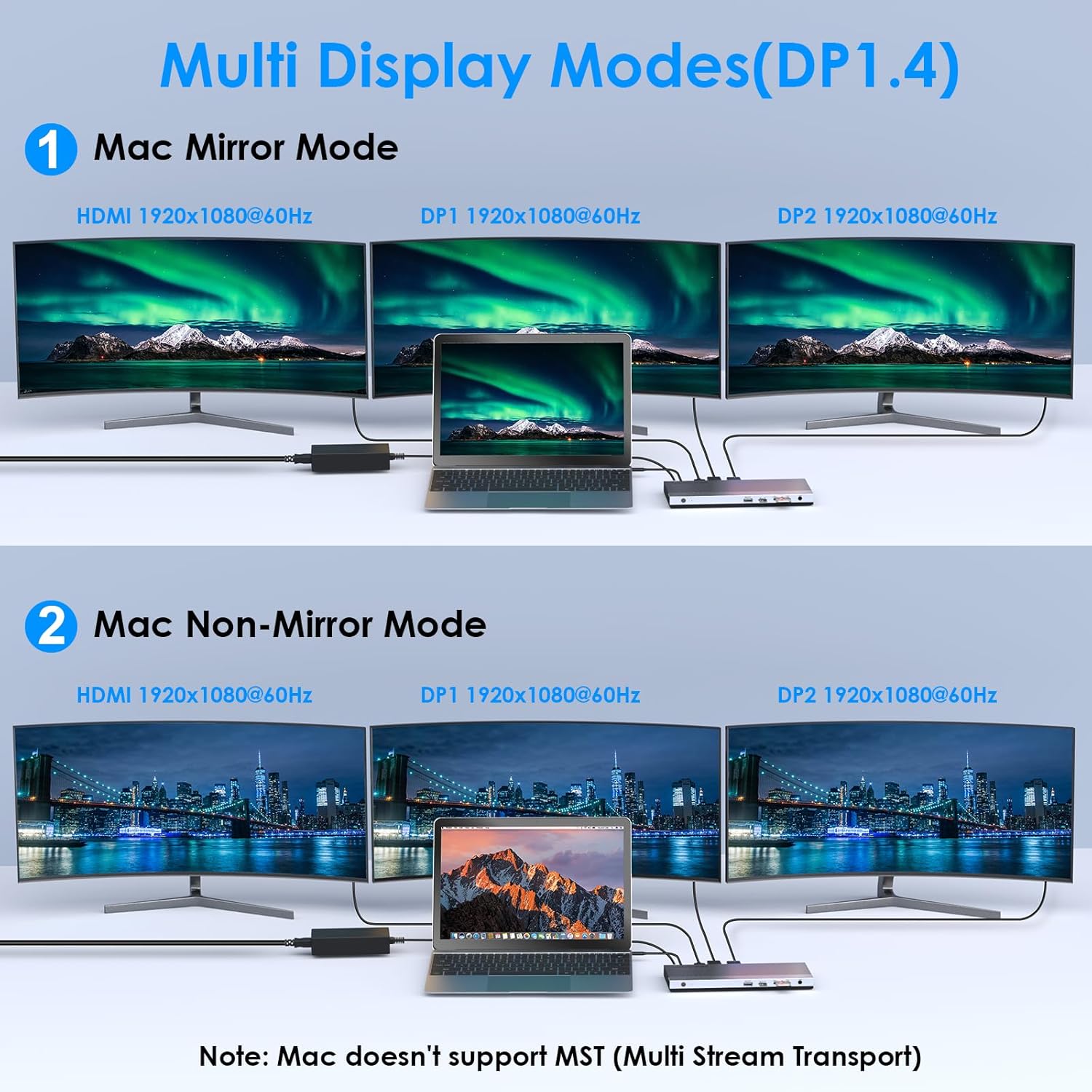
Image: Illustration of Mac multi-display modes, showing a laptop connected to three external monitors in both Mirror Mode (all monitors display the same content) and Non-Mirror Mode (all external monitors display the same content, but different from the laptop screen).
- Hali ya Kioo: All external monitors will display the same content as your primary display.
- Non-Mirror Mode: The three external monitors (HDMI+DP+DP) will display the same content, which is different from the laptop's built-in screen.
Resolution Capabilities
- Single HDMI/DP display: Up to 4K@60Hz (with DP1.3/DP1.4 source).
- Dual displays simultaneously: Up to 2K@60Hz.
- Triple displays (HDMI + DP + DP) simultaneously: Up to 1920x1080@60Hz.
Kuchaji kwa Uwasilishaji wa Nishati (PD).
The upstream USB-C port provides up to 100W Power Delivery 3.0 to charge your connected laptop. Additionally, one USB 3.0 port supports BC 1.2 fast charging, delivering up to 7.5W for mobile devices.

Image: A laptop and a smartphone connected to the docking station, illustrating 100W Power Delivery to the laptop and BC 1.2 fast charging to the smartphone.
Uhamisho wa Data
The docking station features four USB 3.0 ports, offering data transfer speeds up to 5Gbps. The built-in SD and Micro SD card readers support speeds up to 104MBps and can operate simultaneously.

Image: A laptop connected to the docking station, with USB flash drives and an SD card inserted, highlighting 5Gbps USB 3.0 speeds and 104MB/s SD/TF card reader speeds.
Gigabit Ethernet
The RJ45 Ethernet port provides a stable and high-speed wired network connection up to 1000Mbps, ideal for reliable internet access.
5. Utangamano
This docking station is compatible with most Type-C and Thunderbolt 3/4 devices running Windows, macOS, Chrome OS, Linux, and Android.

Image: Visual representation of the docking station's compatibility with various devices like smartphones, tablets, laptops, desktops, and cameras, as well as operating systems including Windows, Chrome OS, Mac OS, Linux, and Android.
Vidokezo Muhimu vya Utangamano
Kabla ya kununuaasing or using, ensure your host system's USB-C interface supports:
- DisplayPort Alternate Mode (Alt Mode): Essential for video output.
- USB Power Delivery (PD) Protocol: Required for laptop charging via the docking station.
- Uhamisho wa Data: For USB peripheral functionality.
If your USB-C port only supports data transfer or charging without DisplayPort Alt Mode, video output will not function.

Image: A visual guide showing various types of USB-C ports (Thunderbolt 3, Data+DisplayPort+Power Delivery, Data Transfer only, Data+Power Delivery only, Data+DisplayPort only, Charging only) and indicating which are compatible with the docking station for full functionality.
6. Vipimo
| Kipengele | Maelezo |
|---|---|
| Mfano | B0DXF92DL1 |
| Chapa | WAVLINK |
| Kiunzi cha vifaa | Ethernet, HDMI, USB 3.0, DisplayPort, USB-C, SD/TF Card Reader, 3.5mm Audio Jack |
| Idadi ya Bandari | 13 |
| Jumla ya Bandari za USB | 4 (USB 3.0) |
| Kiwango cha Uhamisho wa Data | 5 Gbps (USB 3.0), 104 MBps (SD/TF Card Reader) |
| Utoaji wa Nguvu | Up to 100W (Host Charging), 7.5W (BC 1.2 USB 3.0 Port) |
| Pato la Video | HDMI 1x (4K@60Hz), DisplayPort 2x (4K@60Hz) |
| Ethaneti | Gigabit (10/100/1000 Mbps) |
| Utangamano wa Mfumo wa Uendeshaji | Windows, macOS, Chrome OS, Linux, Android |
| Nyenzo ya Uzio | Plastiki |
Vipimo

Image: Technical drawing showing the dimensions of the WAVLINK 13-in-1 USB-C Triple Display Docking Station: 8.15 inches (207mm) length, 3.27 inches (83mm) width, and 0.71 inches (18mm) height.
7. Utatuzi wa shida
Ukikumbana na matatizo na kituo chako cha kuegesha, rejelea matatizo na suluhisho zifuatazo za kawaida:
- Hakuna Toleo la Kuonyesha:
- Ensure your laptop's USB-C port supports DisplayPort Alternate Mode.
- Verify all display cables are securely connected to both the docking station and monitors.
- Check monitor input settings to ensure the correct input source (HDMI/DisplayPort) is selected.
- Anzisha upya kompyuta yako ya mkononi na kituo cha kupakia data.
- For triple display, ensure your graphics card supports at least 4 displays (including your laptop's screen).
- Kompyuta Mpakato Haichaji:
- Thibitisha kuwa adapta ya umeme ya 130W imeunganishwa kwa usahihi kwenye kituo cha kupakia umeme na soketi ya umeme inayofanya kazi.
- Ensure your laptop's USB-C port supports USB Power Delivery (PD) protocol.
- Verify the USB-C cable connecting the laptop to the docking station is capable of PD.
- Vifaa vya USB Havitambuliwi:
- Hakikisha kituo cha kuwekea kimewekwa na kimeunganishwa kwenye kompyuta yako ya mkononi.
- Try connecting the USB device to a different USB 3.0 port on the docking station.
- Connect the USB device directly to your laptop to confirm it is functional.
- Hakuna Muunganisho wa Ethaneti:
- Hakikisha kebo ya Ethaneti imeunganishwa vizuri kwenye kituo cha kuwekea na kipanga njia/modemu chako.
- Thibitisha mipangilio ya mtandao kwenye kompyuta yako ya mkononi.
- Hakikisha kipanga njia/modemu yako inafanya kazi ipasavyo.
- Muunganisho wa Muda:
- Hakikisha nyaya zote zimeunganishwa kwa uthabiti.
- Epuka kuweka kituo cha kupandia karibu na vyanzo vikali vya kuingiliwa kwa umeme.
- Update your laptop's USB-C port drivers if available.
8. Matengenezo
To ensure the longevity and optimal performance of your WAVLINK docking station, follow these maintenance guidelines:
- Kusafisha: Tumia kitambaa laini na kikavu kusafisha sehemu ya nje ya kituo cha kizimbani. Usitumie kusafisha kioevu au erosoli.
- Hifadhi: Hifadhi kituo cha kizimbani mahali pa baridi, pakavu mbali na jua moja kwa moja na halijoto kali.
- Kushughulikia: Epuka kuangusha au kuelekeza kifaa kwenye athari kali.
- Uingizaji hewa: Ensure the docking station has adequate ventilation to prevent overheating, especially during prolonged use with multiple connected devices.
9. Udhamini na Msaada
Taarifa ya Udhamini
This WAVLINK product comes with an 18-month warranty from the date of purchase. An additional 6 months of warranty may be available for registered members. Please retain your proof of purchase for warranty claims.
Usaidizi wa Wateja
For technical assistance or support, please contact WAVLINK customer service:
- Simu: +1 8889730883 (UTC -5) Monday - Friday, 9 AM - 6 PM
- Barua pepe: Contact@wavlink.com