
Utangulizi
The Trust Gaming GXT 498B Forta Gaming Headset is officially licensed for PlayStation 5 and PlayStation 4 consoles, designed to provide an immersive audio experience. This wired over-ear headset features 50mm drivers for powerful sound, a detachable microphone with a pop filter for clear communication, and comfortable ear pads for extended gaming sessions. This manual provides instructions for setup, operation, maintenance, and troubleshooting to ensure optimal performance of your headset.
Ni nini kwenye Sanduku
- Trust Gaming GXT 498B Forta Gaming Headset
- Detachable Microphone with Pop Filter
- 1.2m Audio Cable (3.5mm jack)
- Mwongozo wa Mtumiaji

Image: The retail packaging for the Trust Gaming GXT 498B Forta Gaming Headset, showing the headset and included accessories.
Maagizo ya Kuweka
- Unganisha Kebo ya Sauti: Locate the 3.5mm audio jack on your PlayStation 5 DualSense wireless controller or PlayStation 4 DualShock 4 wireless controller. Insert the 3.5mm audio cable from the headset firmly into the controller's audio jack.
- Ambatisha Maikrofoni: The microphone is detachable. Align the microphone's connector with the port on the left earcup of the headset and push it in until it clicks securely into place. Ensure the pop filter is correctly positioned over the microphone for optimal voice clarity.
- Rekebisha Usawa wa Vifaa vya Sauti: Extend or retract the adjustable padded headband to fit comfortably over your head. The earcups are moveable to ensure a snug fit over your ears.
- Configure Audio Settings (PlayStation):
- Kwa PS5: Nenda kwa Mipangilio > Sauti > Pato la Sauti. Chagua Vipokea sauti vya masikioni as the output device. Adjust the volume and microphone levels as needed.
- Kwa PS4: Nenda kwa Mipangilio > Vifaa > Vifaa vya Sauti. Chagua Kifaa cha Sauti Kimeunganishwa kwa Kidhibiti as the input and output device. Adjust the volume and microphone levels.
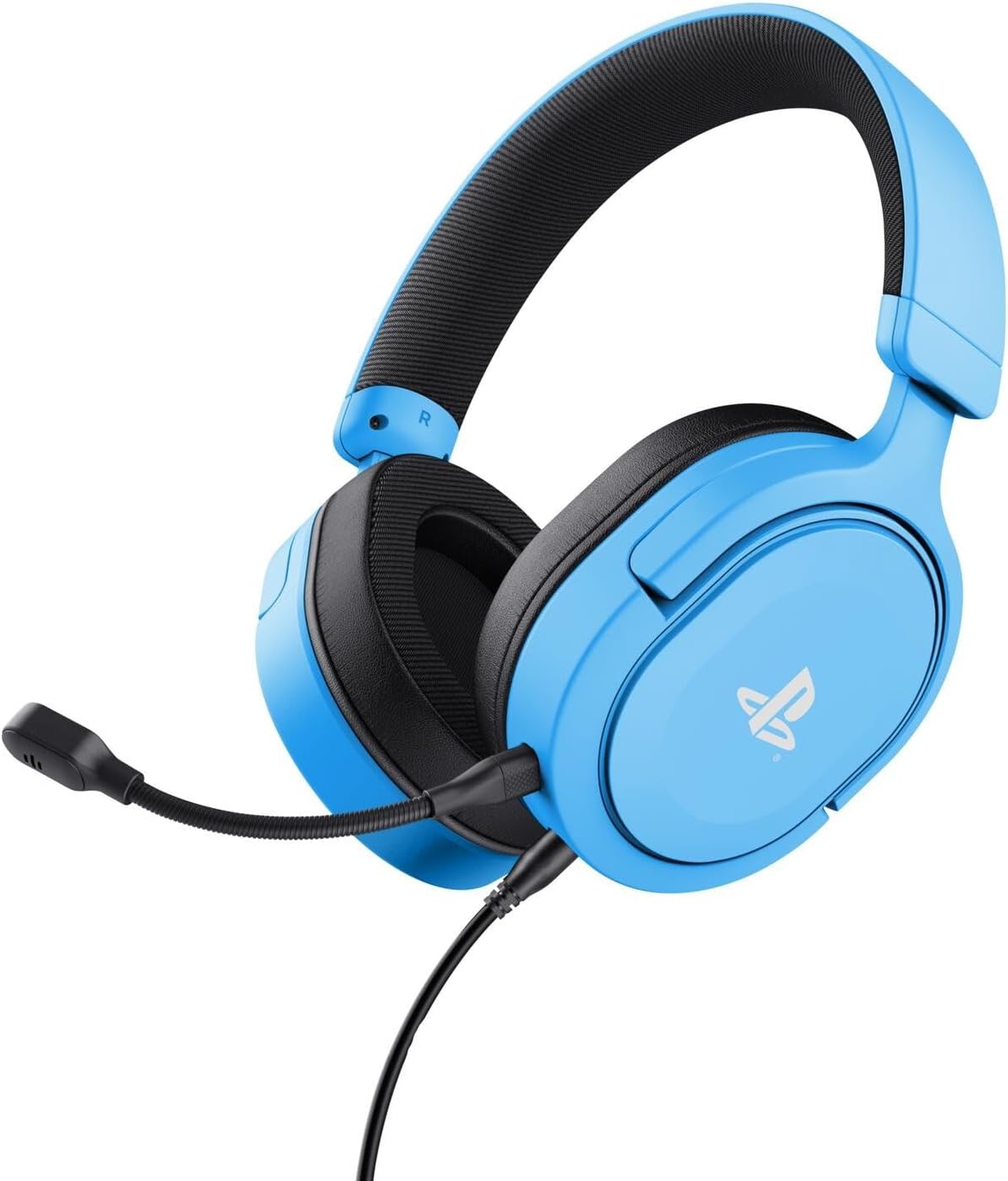
Image: The Trust Gaming GXT 498B Forta Gaming Headset, showcasinmuundo wake na maikrofoni inayoweza kutolewa.
Maagizo ya Uendeshaji
- Udhibiti wa Sauti: The headset features an in-line volume control wheel on the audio cable. Rotate the wheel up or down to adjust the audio output level.
- Zima maikrofoni: An in-line mute switch is located on the audio cable. Slide the switch to mute or unmute the microphone.
- Sauti ya 3D: The headset supports 3D Audio on compatible PlayStation 5 games, providing an enhanced spatial sound experience. Ensure 3D Audio is enabled in your PS5 sound settings for optimal immersion.
- Maikrofoni Inayoweza Kuondolewa: The microphone can be detached when not in use for a more streamlined headset profile. Store it safely to prevent loss or damage.

Picha: Karibu view of the Trust Gaming GXT 498B Forta headset, highlighting the earcups and the attached audio cable with controls.
Matengenezo
- Kusafisha: Use a soft, dry cloth to clean the headset. For ear pads, a slightly damp kitambaa kinaweza kutumika, lakini hakikisha hakuna unyevu unaingia kwenye grilles za spika. Usitumie kemikali kali au visafishaji vya abrasive.
- Hifadhi: Hifadhi vifaa vya masikioni mahali pakavu na penye baridi, mbali na jua moja kwa moja na halijoto kali. Epuka kuweka vitu vizito kwenye vifaa vya masikioni.
- Huduma ya Cable: Avoid sharp bends or kinks in the audio cable. Do not pull the cable forcefully when disconnecting.
- Utunzaji wa Maikrofoni: Handle the detachable microphone with care. When not in use, detach it and store it safely to prevent damage.
Kutatua matatizo
- Hakuna Sauti kutoka kwa vifaa vya sauti:
- Ensure the 3.5mm audio cable is fully inserted into both the headset and the controller.
- Check the in-line volume control wheel on the cable and turn it up.
- Verify audio settings on your PlayStation console (refer to "Setup Instructions" section).
- Test the headset with another device (e.g., smartphone, PC) to determine if the issue is with the headset or the console.
- Maikrofoni Haifanyi kazi:
- Hakikisha maikrofoni inayoweza kutolewa imeunganishwa vizuri kwenye vifaa vya sauti.
- Check the in-line microphone mute switch and ensure it is in the "unmute" position.
- Verify microphone input settings on your PlayStation console (refer to "Setup Instructions" section).
- Ensure the pop filter is not obstructing the microphone's input.
- Sound Quality Issues (Distortion, Low Volume):
- Adjust the volume levels on both the headset's in-line control and your console's settings.
- Hakikisha kebo ya sauti haijaharibika au kukatika.
- Try connecting the headset to a different audio source to rule out console-specific issues.
Vipimo
| Jina la Mfano | GXT 498B Forta |
| Nambari ya Mfano | 25556 |
| Muunganisho | Inayotumia Waya (Jack ya 3.5mm) |
| Urefu wa Cable | mita 1.2 |
| Ukubwa wa Dereva | 50 mm |
| Masafa ya Marudio | 20 Hz - 20,000 Hz |
| Impedans | 32 ohm |
| Unyeti | 90 dB |
| Aina ya Maikrofoni | Detachable with Pop Filter |
| Uwekaji wa Masikio | Zaidi ya Sikio |
| Uzito wa Kipengee | Gramu 253 |
| Vifaa Sambamba | PlayStation 5, PlayStation 4, Kompyuta |
| Nyenzo | Plastic (up to 65% recycled) |
Udhamini na Msaada
This Trust Gaming GXT 498B Forta Gaming Headset is covered by the manufacturer's standard warranty. For detailed warranty information, please refer to the documentation included with your purchase or visit the official GXTrust website. For technical support, troubleshooting assistance beyond this manual, or warranty claims, please contact GXTrust customer service through their official support channels.
Tafadhali hifadhi uthibitisho wako wa ununuzi kwa madhumuni ya udhamini.