
Utangulizi
This manual provides essential information for the proper setup, operation, maintenance, and troubleshooting of your KTC H27T27 27-inch WQHD IPS Flat Monitor. Please read this manual thoroughly before using the product to ensure optimal performance and safety.
The KTC H27T27 monitor features a 27-inch WQHD (2560x1440) IPS panel with a 100Hz refresh rate, designed to deliver clear and detailed images with smooth motion. It includes FreeSync technology for enhanced visual fluidity during dynamic content. The IPS panel ensures vivid colors and wide viewpembe za pembe.

Figure 1: KTC H27T27 27-inch WQHD IPS Flat Monitor Front View
Sanidi
1. Kufungua
Carefully remove all components from the packaging. Ensure all items listed in the packing list are present and undamaged. Retain the original packaging for future transport or service needs.
2. Bunge la Kudumu
- Weka kifusi uso chini kwenye uso laini na safi ili kuzuia mikwaruzo.
- Ambatisha msingi wa kusimama kwenye shingo ya kusimama kwa kutumia skrubu zilizotolewa.
- Panga stendi iliyokusanyika na nafasi ya kupachika nyuma ya kifuatiliaji na uifunge vizuri.
3. Upachikaji wa VESA (Si lazima)
The monitor supports VESA 100x100mm mounting. If using a VESA mount, remove the stand and attach the VESA compatible bracket to the monitor's rear panel using appropriate screws.
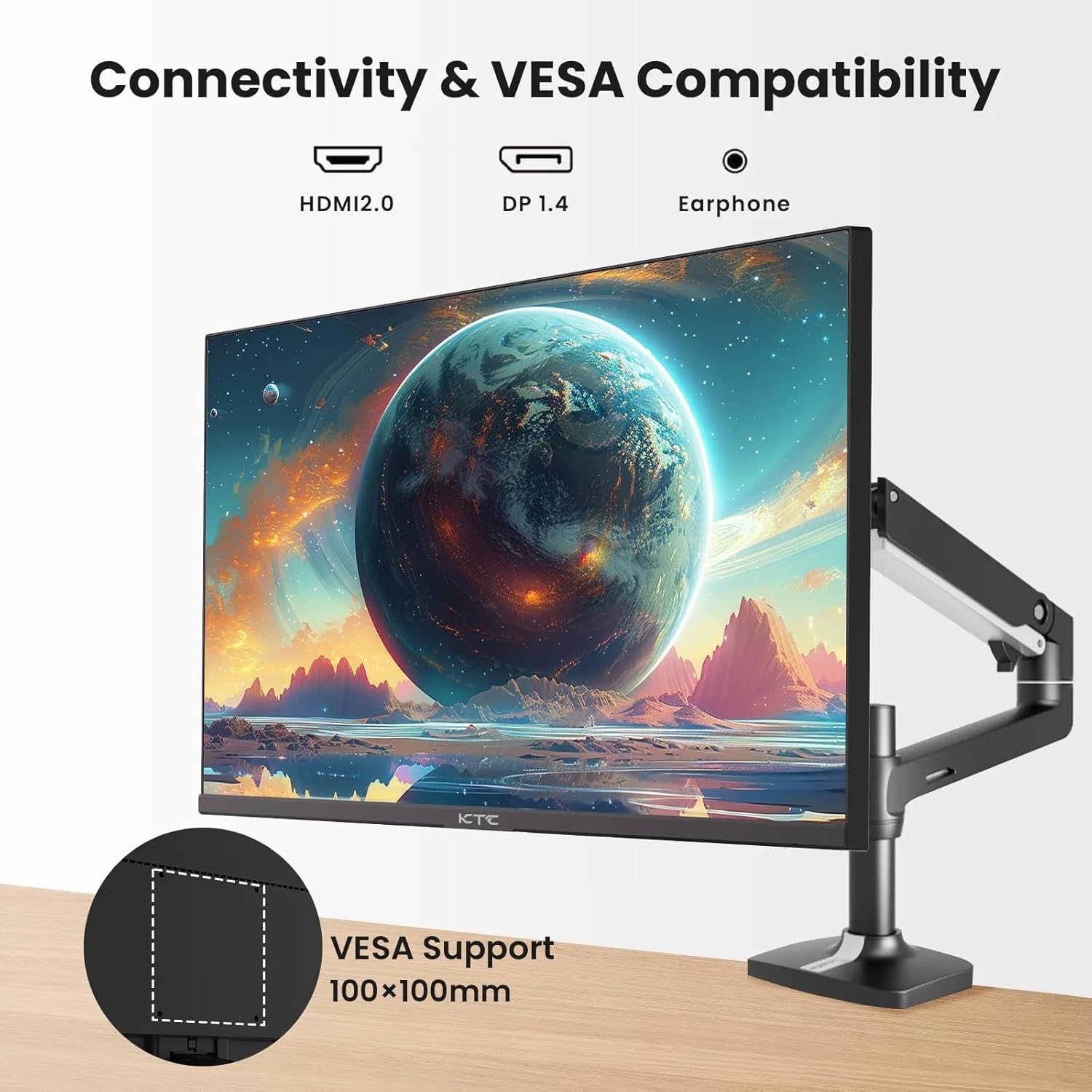
Figure 2: VESA Compatibility and Connectivity Ports
4. Kuunganisha Cables
Connect the necessary cables to the monitor and your computer or other devices. Ensure all connections are secure.
- Cable ya Nguvu: Unganisha adapta ya umeme kwenye mlango wa kuingiza data wa DC wa kifuatiliaji, kisha chomeka kebo ya umeme kwenye soketi ya umeme.
- Kebo ya Video: Connect either an HDMI cable (HDMI 2.0) or a DisplayPort cable (DP 1.4) from your computer's graphics card to the corresponding input port on the monitor.
- Pato la Sauti: If desired, connect headphones or external speakers to the 3.5mm audio output jack.

Mchoro 3: Milango ya Kuingiza ya Kifuatiliaji
5. Umeme wa Awali
Press the power button on the monitor. The power indicator light will illuminate. If no image appears, ensure your computer is powered on and the correct input source is selected on the monitor.
Uendeshaji
1. Washa/Zima
Press the power button located on the monitor to turn it on or off. The power indicator will show the monitor's status.
2. Menyu ya Onyesho la Skrini (OSD).
Menyu ya OSD inakuwezesha kurekebisha mipangilio mbalimbali ya kufuatilia. Tumia vitufe vya kudhibiti (kawaida viko nyuma au chini ya kichungi) ili kusogeza kwenye menyu.
- Bonyeza kitufe ili kuamilisha menyu ya OSD.
- Tumia vitufe vya kusogeza ili kupitia chaguo za menyu.
- Bonyeza kitufe cha kuchagua ili kuingiza menyu ndogo au kuthibitisha mpangilio.
- Bonyeza kitufe cha kutoka ili kufunga menyu ya OSD.
3. Kurekebisha Mipangilio
Mipangilio ya kawaida inayoweza kurekebishwa ni pamoja na:
- Mwangaza/Utofautishaji: Rekebisha mwangaza wa jumla na tofauti kati ya maeneo ya mwanga na giza.
- Mipangilio ya Rangi: Rekebisha halijoto ya rangi, gamma, na thamani za RGB za kila mmoja.
- Chanzo cha Ingizo: Chagua mwenyewe kati ya HDMI 1, HDMI 2, au ingizo za DisplayPort.
- Hali ya Picha: Select predefined display modes (e.g., Standard, Game, Movie).
4. Kiwango cha Kuburudisha
The KTC H27T27 supports a 100Hz refresh rate, providing smoother motion compared to standard 60Hz displays. Ensure your graphics card and operating system are configured to output at 100Hz for the best experience.

Figure 4: 100Hz Refresh Rate Benefit
5. Teknolojia ya FreeSync
This monitor is compatible with AMD FreeSync technology, which synchronizes the monitor's refresh rate with your graphics card's frame rate. This helps eliminate screen tearing and stuttering for a smoother gaming and video experience. Ensure FreeSync is enabled in both the monitor's OSD menu and your graphics card's control panel.
Figure 5: FreeSync Technology in Action
Matengenezo
1. Kusafisha Skrini
- Zima kifuatiliaji na uchomoe kebo ya umeme.
- Futa skrini kwa upole kwa kitambaa laini kisicho na pamba.
- Kwa alama za ukaidi, nyepesi dampjw.org sw kitambaa chenye maji au kisafishaji skrini maalum (usinyunyize moja kwa moja kwenye skrini).
- Epuka kutumia visafishaji vyenye abrasive, alkoholi, au myeyusho unaotokana na amonia, kwani hivi vinaweza kuharibu uso wa skrini.
2. Utunzaji wa Jumla
- Weka kifuatiliaji mbali na jua moja kwa moja, joto kali, na unyevunyevu.
- Hakikisha kuwa kuna uingizaji hewa wa kutosha karibu na kifuatilizi ili kuzuia joto kupita kiasi.
- Epuka kuweka vitu vizito kwenye mfuatiliaji au nyaya zake.
Kutatua matatizo
Ukikumbana na matatizo na kifuatiliaji chako, rejelea matatizo na suluhu zifuatazo za kawaida:
- Hakuna Nguvu:
- Ensure the power cable is securely connected to both the monitor and the power outlet.
- Verify the power outlet is functional. - Hakuna Ishara:
- Check that the video cable (HDMI or DisplayPort) is securely connected to both the monitor and your computer.
- Ensure your computer is powered on and not in sleep mode.
- Select the correct input source via the monitor's OSD menu. - Picha Inayopepesuka au Iliyopotoka:
- Check the video cable for damage or loose connections.
- Adjust the refresh rate settings on your computer.
- Disable or enable FreeSync in the OSD menu and graphics card settings to test. - Rangi Zisizo Sahihi:
- Reset color settings to factory defaults in the OSD menu.
- Adjust color temperature or individual RGB values.
Tatizo likiendelea baada ya kujaribu suluhu hizi, tafadhali wasiliana na usaidizi kwa wateja.
Vipimo
| Kipengele | Vipimo |
|---|---|
| Chapa | CTC |
| Nambari ya Mfano | H27T27 |
| Ukubwa wa skrini | inchi 27 |
| Azimio | 2560 x 1440 (WQHD) |
| Kiwango cha Kuonyesha upya | 100 Hz |
| Aina ya Kuonyesha | IPS |
| Muda wa Majibu | Milisekunde 7 |
| Usawazishaji Unaojirekebisha | FreeSync |
| Muunganisho | 2x HDMI 2.0, 1x DisplayPort 1.4, 1x 3.5mm Audio Out |
| Uwiano wa kipengele | 1.78:1 |
| Uso wa Skrini | Matte |
| Vipimo vya Kipengee (D x W x H) | 1.85"D x 24.25"W x 14.33"H |
| Uzito wa Kipengee | Kilo 4 |
Udhamini na Msaada
Taarifa ya Udhamini
This KTC monitor is covered by a manufacturer's warranty. Please refer to the warranty card included in your product packaging for specific terms, conditions, and duration of coverage. Keep your purchase receipt as proof of purchase for warranty claims.
Usaidizi wa Wateja
For technical assistance, warranty service, or any product-related inquiries, please contact KTC customer support. Contact details can typically be found on the official KTC webtovuti au kwenye kadi ya udhamini.
When contacting support, please have your monitor's model number (H27T27) and serial number ready.