
1. Bidhaa Imeishaview
The VSDISPLAY 19-inch IPS Stretched Bar LCD Monitor (Model VS190ZJ-V823) is a versatile display designed for various applications, including advertising, extra display for gaming cabinets, and digital signage. It features a 19-inch IPS panel with a resolution of 1920x360, offering a wide 178° viewing angle and vibrant colors. The monitor supports USB video input with autoplay functionality for videos and pictures, and allows for 180° display rotation. It is designed for easy setup and installation, with multiple mounting options.
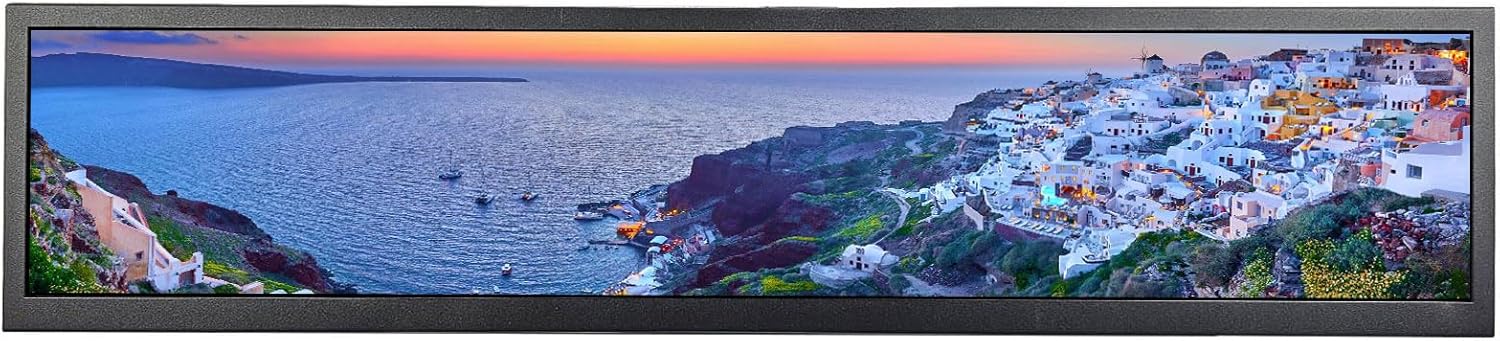
Figure 1: VSDISPLAY 19-inch IPS Stretched Bar LCD Monitor in operation.
2. Yaliyomo kwenye Kifurushi
Tafadhali thibitisha kuwa bidhaa zote zilizoorodheshwa hapa chini zimejumuishwa kwenye kifurushi chako. Ikiwa bidhaa yoyote haipo au kuharibiwa, tafadhali wasiliana na usaidizi kwa wateja.
- 1 x VSDISPLAY 19-inch 1920x360 IPS LCD Monitor (Model VS190ZJ-V823)
- Adapta ya Nguvu ya 1 x 12V 2A
- 1 x Kebo ya HDMI
- 1 x USB-A hadi USB-C Cable
- 1 x USB-C hadi USB-C Cable
- 2 x Mabano ya Kuweka
- 1 x Mwongozo wa Mtumiaji

Figure 2: Contents of the VSDISPLAY monitor package.
Video ya 1: Kufungua kisanduku na kumalizia kwa herufi ya kwanzaview of the VSDISPLAY 19-inch monitor, including package contents and basic connections.
3. Sifa Muhimu
- 19-inch IPS Stretched Bar LCD: 1920x360 resolution with IPS 178° full viewing angle for a superior visual experience.
- Bandari za USB: Supports USB signal input with autoplay functionality for videos and pictures (Dolby sound effects not supported).
- Chomeka na Ucheze: Easy setup; simply connect signal and power for immediate display.
- 180° Display Rotation: Supports picture or video 180° display rotation for flexible orientation.
- Chaguzi Nyingi za Kupachika: Includes brackets for installation and features 75x75MM/100x100MM VESA mounting holes for desk or wall mounts.
- Programu pana: Ideal for PC case internal screens, gaming marquee monitors, supermarket shelf advertising, outdoor kiosks, and digital signage.

Figure 3: Visual representation of key features including IPS viewing angle and resolution.
4. Mipangilio na Viunganisho
4.1. Monitor Ports and Controls
Familiarize yourself with the monitor's ports and control buttons for optimal use.

Figure 4: Monitor control buttons and input/output ports.
- Kitufe cha KUWASHA/KUZIMA: Huwasha au kuzima kifuatiliaji.
- Kitufe cha MENU: Hufikia menyu ya Onyesho la Skrini (OSD).
- RIGHT/LEFT Buttons: Navigates menu options or adjusts settings.
- Kitufe cha KURUDISHA: Exits menu or confirms selection.
- Mlango wa Ugavi wa Nguvu: Connects to the 12V 2A power adapter.
- HD Port (HDMI): Connects to devices via HDMI for video input.
- Mlango wa USB: Connects to devices for USB video input and autoplay features.
4.2. Connecting to a PC/Laptop
The monitor supports both HDMI and USB-C connections for video input from your computer.
4.2.1. Using HDMI Connection
Connect the provided HDMI cable from your PC/laptop's HDMI output to the monitor's HD port. Ensure the monitor is powered on using the 12V adapter.
Video 2: Demonstrates connecting the monitor to a PC/laptop via USB-C and HDMI, showcasing touchscreen functionality and various display modes.
4.2.2. Using USB-C Connection
For devices with a full-featured USB-C port (supporting video, power, and touch), use the provided USB-C to USB-C cable. Connect one end to your device and the other to the monitor's USB-C port. If your device's USB-C port does not provide sufficient power, you may need to connect the 12V power adapter to the monitor.
Video 3: Illustrates connecting the monitor to a PC/laptop and a smartphone using USB-C, demonstrating touchscreen and OSD menu access.
4.3. Connecting to a Smartphone
For smartphones with a full-featured USB-C port, connect directly using the USB-C to USB-C cable. This enables touchscreen functionality, signal transmission, and power supply. If the power supply is insufficient, an additional power adapter may be required.
Video 4: Shows connecting the monitor to a smartphone via USB-C, demonstrating desktop and mirror modes, and touchscreen interaction.
5. Maagizo ya Uendeshaji
5.1. Kuwasha/Kuzima na Urambazaji wa Msingi
Use the ON/OFF button to power the monitor. The MENU, RIGHT, LEFT, and RETURN buttons allow for navigation and selection within the OSD menu.
5.2. Njia za Kuonyesha
The monitor supports various display modes when connected to a PC/laptop:
- Njia Iliyoongezwa: Hupanua eneo-kazi lako kwenye skrini zote mbili, na kutoa nafasi zaidi ya kazi.
- Hali ya Pili ya Skrini: Duplicates your primary display, showing the same content on both screens.
- Njia ya Picha: Allows the monitor to be used in a vertical orientation, ideal for long documents or social media feeds.
Video 5: Demonstrates switching between extended, second screen, and portrait modes, highlighting the versatility of the monitor.
5.3. Utendaji Kazi wa Skrini ya Kugusa
When connected to a compatible device via USB-C, the monitor offers full touchscreen capabilities, allowing for intuitive interaction with your content.
Video 6: Shows direct touchscreen interaction with the monitor, demonstrating navigation and application control.
5.4. Menyu ya Onyesho la Skrini (OSD).
The OSD menu allows you to adjust various display settings such as brightness, contrast, color temperature, and input source. Access the menu using the dedicated MENU button and navigate with the directional buttons.
Video 7: Demonstrates accessing and navigating the OSD menu to adjust monitor settings.
5.5. PC Monitoring Secondary Screen
The monitor can be used as a secondary display for PC monitoring, showing system information like CPU/GPU usage, temperatures, and network activity.
Video ya 8: Example of using the monitor as a PC monitoring secondary screen.
6. Ufungaji
6.1. Using Included Brackets
The monitor comes with two brackets for easy desktop placement or integration into custom setups. Secure the brackets to the monitor using the provided screws.
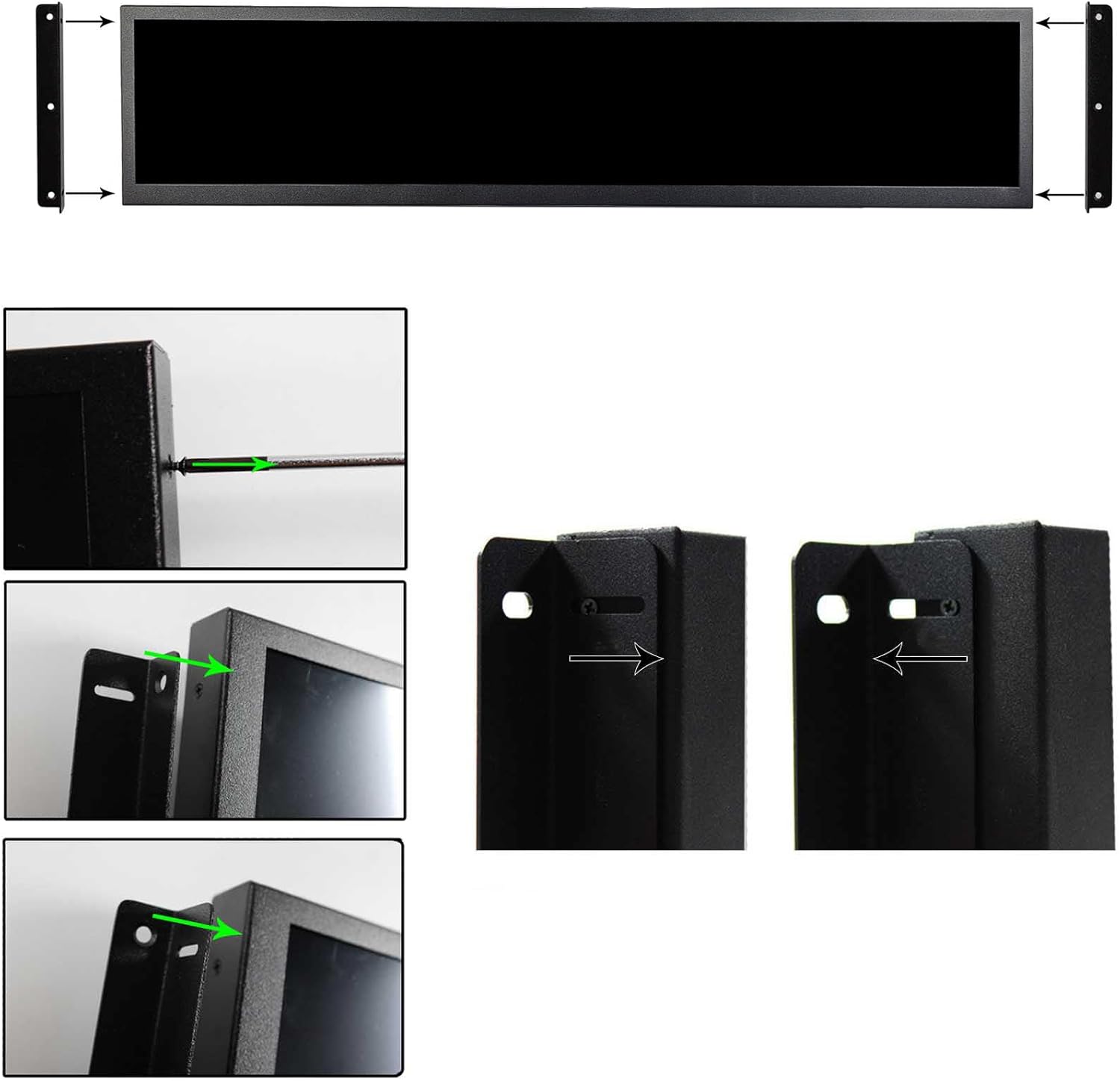
Figure 5: Steps for attaching the mounting brackets.
6.2. PC Case Internal Screen Installation
The monitor can be installed as an internal screen within a PC case, such as the 9000D. This requires removing the side panel of the PC case and securing the monitor using its mounting points or custom solutions.
Video 9: Shows the process of installing the 19-inch stretched bar LCD as an internal screen in a PC case.
7. Utatuzi wa shida
- Tatizo: Monitor does not auto-display normally when connected via USB.
Suluhisho: Check USB settings on your device. Ensure the correct display output is selected and drivers are up to date. Refer to video hii for detailed USB setting adjustments.Video 10: Guide on adjusting USB settings if the monitor does not auto-display correctly.
- Tatizo: Display is not full screen or has incorrect aspect ratio.
Suluhisho: Adjust the refresh rate. For optimal full-screen display, try setting the refresh rate to 56.89Hz instead of 60Hz in your device's display settings. Refer to video hii kwa maelekezo.Video 11: Instructions for resolving non-full screen display by adjusting the refresh rate.
- Tatizo: Monitor does not turn off when the computer shuts down.
Suluhisho: This behavior may depend on your computer's power management settings and the monitor's default power state. Check your computer's BIOS/UEFI settings for USB power delivery options when shut down. Manually power off the monitor using its ON/OFF button if automatic shutdown is not desired. - Tatizo: Touchscreen not responding.
Suluhisho: Ensure the USB-C cable is properly connected and supports touch functionality. Some USB-C cables only support power or video. Verify your device's operating system supports external touchscreens and that necessary drivers are installed.
8. Maelezo ya kiufundi

Kielelezo 6: Vipimo vya bidhaa.
| Kipengele | Maelezo |
|---|---|
| Nambari ya Mfano | VS190ZJ-V823 |
| Ukubwa wa skrini | Inchi 19 |
| Azimio | Pixels 1920x360 |
| Uwiano wa kipengele | 16:9 (Stretched) |
| Aina ya Paneli | IPS |
| ViewAngle | 178° Kamili ViewAngle |
| Mwangaza wa Picha | 300 cd/m2 |
| Uso wa Skrini | Matte |
| Bandari za Kuingiza | HDMI, USB |
| Vipimo vya Bidhaa | Inchi 1.18 x 19.57 x 4.57 |
| Uzito wa Kipengee | Pauni 5 |
9. Udhamini na Msaada
9.1. Dhamana ya Bidhaa
This VSDISPLAY monitor is covered by a manufacturer's warranty. Please refer to the warranty card included in your package or visit the official VSDISPLAY webtovuti kwa sheria na masharti ya udhamini wa kina.
9.2. Msaada kwa Wateja
For technical assistance, troubleshooting, or any product-related inquiries, please contact VSDISPLAY customer support. You can find contact information on the official VSDISPLAY website or through their Amazon store page.