
Displays2go DF043TLB2
Mwongozo wa Mtumiaji wa Displays2go Advertising Multimedia Kiosk (DF043TLB2)
Model: DF043TLB2 | Brand: Displays2go
1. Utangulizi
This manual provides comprehensive instructions for the setup, operation, and maintenance of your Displays2go Advertising Multimedia Kiosk, model DF043TLB2. This 43-inch multi-touch kiosk is designed for displaying interactive digital content in various public and commercial environments. Please read this manual thoroughly before use to ensure proper functionality and safety.
2. Taarifa za Usalama
- Hakikisha kioski kimewekwa kwenye uso thabiti na tambarare ili kuzuia kuelea.
- Usiweke kifaa kwenye unyevu, mvua, au halijoto kali.
- Tumia tu adapta ya nguvu iliyotolewa.
- Weka fursa za uingizaji hewa wazi ili kuzuia overheating.
- Usijaribu kufungua au kutengeneza kitengo mwenyewe. Rejelea huduma zote kwa wafanyikazi waliohitimu.
- Kata umeme kabla ya kusafisha au kuhamisha kifaa.
3. Yaliyomo kwenye Kifurushi
Thibitisha kuwa vipengee vyote vipo kwenye kifurushi:
- Displays2go Advertising Multimedia Kiosk (DF043TLB2)
- Cable ya Nguvu
- Four Locking Casters (pre-installed or to be installed)
- Mwongozo wa Mtumiaji (hati hii)
4. Maagizo ya Kuweka
4.1. Kufungua na Kuweka
Carefully remove the kiosk from its packaging. Place the unit on a flat, stable surface. Ensure adequate space around the kiosk for ventilation and access.

Kielelezo 1: Mbele view of the Displays2go Advertising Multimedia Kiosk.

Kielelezo 2: Upande view of the kiosk displaying content.

Kielelezo cha 3: Nyuma view of the kiosk, showing ventilation and access panel.
Video 1: digrii 360 view of the 43-inch Floor Standing Poster, showcasing its physical design and features from all angles.
4.2. Caster Installation (if not pre-installed)
If the four locking casters are not pre-installed, carefully tilt the kiosk and attach each caster to the designated mounting points on the base. Ensure they are securely fastened. Lock the casters once the kiosk is in its final position to prevent unintended movement.
4.3. Uunganisho wa Nguvu
- Locate the power input port on the back of the kiosk.
- Connect the provided power cable to the kiosk and then to a standard electrical outlet.
- Flip the power switch to the "ON" position. The kiosk will begin to boot up.

Kielelezo 4: Kina view of the kiosk's connectivity ports and power switch.
5. Maagizo ya Uendeshaji
5.1. Initial Boot-Up and Android 11 OS
Upon powering on, the kiosk will boot into the Android 11 operating system. The initial setup may require you to configure basic settings such as language, Wi-Fi connection, and time zone. Follow the on-screen prompts.
Video 2: Product Showcase of the Displays2go Digital Poster, highlighting various features and applications. This video provides a general overview of the kiosk's capabilities, including its touch functionality and design.
5.2. Using the Multi-Touch Screen
The kiosk features a 10-point IR touchscreen, allowing for interactive gestures such as tapping, swiping, and multi-finger operations. Navigate the Android interface and interactive applications by touching the screen directly.
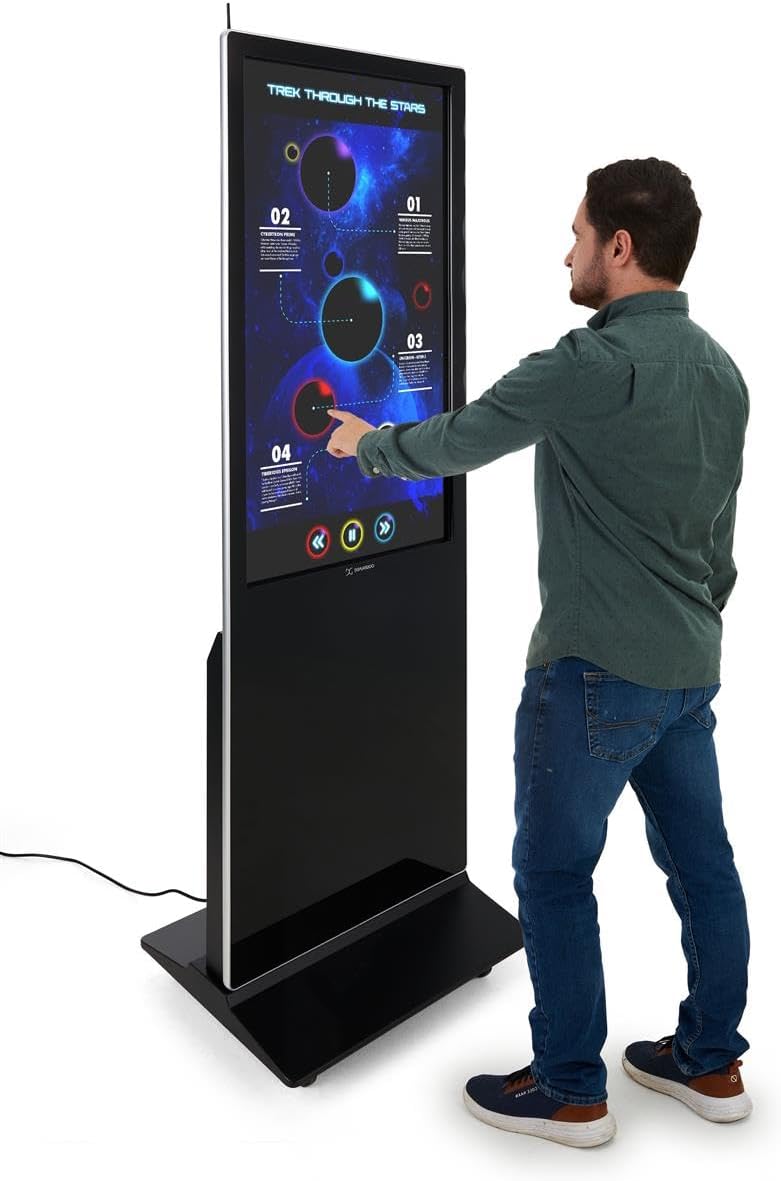
Figure 5: A user interacting with the multi-touch screen of the kiosk.
5.3. Content Upload and Management
There are several methods to upload and manage content on your kiosk:
- USB Plug-and-Play: Connect a USB drive to one of the three available USB ports. The kiosk will detect the drive, allowing you to transfer media files (images, videos, documents) directly to the internal storage.
- Cloud Storage/CMS: Connect the kiosk to your network via Wi-Fi or Ethernet (LAN port). You can then access your personal cloud storage accounts or integrate with a connected content management system (CMS) for remote content updates.
5.4. Using the DiViEX Slideshow App
The kiosk comes with the DiViEX slideshow app pre-installed. This application allows you to create and manage captivating slideshows with various borders, aspect ratios, and theme sharing capabilities. Refer to the in-app help or the DiViEX documentation for detailed usage instructions.
Video 3: Demonstration of the DiViEX Slideshow App. This video illustrates how to use the pre-installed application to create and customize digital content for display on the kiosk.
5.5. Pato la Sauti
The kiosk is equipped with dual 8W speakers for audio output. Adjust the volume through the Android operating system settings or within the media playback application.
6. Matengenezo
6.1. Cleaning the Screen and Casing
- Daima tenganisha kebo ya umeme kabla ya kusafisha.
- Tumia kitambaa laini kisicho na pamba kidogo dampimepakwa maji au kisafisha skrini kisicho na ukali ili kuifuta skrini.
- Kwa casing, tumia kitambaa laini na kavu. Epuka kemikali kali au vifaa vya abrasive.
6.2. Sasisho za Programu
Periodically check for system updates through the Android settings menu to ensure optimal performance and security. Ensure the kiosk is connected to the internet during updates.
7. Utatuzi wa shida
| Tatizo | Sababu inayowezekana | Suluhisho |
|---|---|---|
| Kioski haiwaki. | Power cable disconnected; power switch off; no power from outlet. | Check power cable connection; ensure power switch is ON; test outlet with another device. |
| Skrini ya kugusa haifanyi kazi. | Software glitch; screen dirty; external interference. | Restart the kiosk; clean the screen; ensure no objects are blocking the IR sensors. |
| No content displayed. | No media loaded; incorrect app selected; network issue for streaming content. | Thibitisha media files are present; ensure the correct application (e.g., DiViEX) is running; check network connection. |
| Hakuna sauti. | Volume too low; audio muted; application audio settings. | Increase volume in Android settings; unmute audio; check audio settings within the playing application. |
8. Vipimo
| Kipengele | Maelezo |
|---|---|
| Mfano | DF043TLB2 |
| Ukubwa wa skrini | Inchi 43 |
| Azimio | 1920 x 1080 (HD 1080p) |
| Teknolojia ya Kugusa | 10pt IR Touchscreen |
| Mfumo wa Uendeshaji | Android 11 |
| Hifadhi ya Ndani | GB 32 |
| RAM | GB 4 |
| Bandari za USB | 3 |
| Wazungumzaji | 8W mbili |
| Uwiano wa kipengele | 1.78:1 |
| Uwiano wa Tofauti ya Picha | 1200:1 |
| Vipimo vya Bidhaa (W x H x D) | Inchi 24.4 x 56 x 9 |
| Mtengenezaji | Maonyesho2go |
9. Udhamini na Msaada
For warranty information and technical support, please refer to the Displays2go official webtovuti au wasiliana na huduma kwa wateja wao. Hifadhi risiti yako ya ununuzi kwa madai ya udhamini.
Displays2go Contact Information:
- Webtovuti: www.displays2go.com
- Simu: 1-844-221-3393
Ask a question about this manual
Ask about setup, troubleshooting, compatibility, parts, safety, or missing instructions. Manuals+ will review the question and use this page’s manual context to help answer it.