
Bidhaa Imeishaview
The CHUYI Wireless Mouse offers versatile connectivity with both 2.4G USB and dual Bluetooth modes (BT5.0 & BT3.0), allowing connection to up to three devices simultaneously. It features three adjustable DPI levels (800/1200/1600) for precise cursor control and an ergonomic design for comfortable use. The mouse is rechargeable via a Type-C port, providing extended battery life.
Sifa Muhimu:
- Dual-Mode Connectivity: 2.4G USB and Bluetooth (BT5.0 & BT3.0)
- Inaunganisha hadi vifaa 3
- 3 Adjustable DPI Levels: 800, 1200, 1600
- Ergonomic Design for comfort
- Inaweza kuchajiwa kwa kutumia kebo ya kuchaji ya Aina ya C
- Wide Compatibility: Windows, Mac OS, iOS 13+, Linux, etc.
Yaliyomo kwenye Kifurushi
Thibitisha kuwa vipengee vyote vipo kwenye kifurushi:
- 1 x CHUYI Wireless Mouse
- Kipokezi cha USB 1 x (kilichohifadhiwa ndani ya kipanya)
- 1 x Kebo ya Kuchaji ya Aina ya C
Vipengele vya Panya

Image: Detailed diagram showing the mouse's left click, right click, scroll wheel, DPI button, back/forward keys, Type-C charging port, switch button, optical sensor, ON/OFF switch, and USB receiver storage. Dimensions are also indicated.
- Kitufe cha Kubofya Kushoto
- Kitufe cha Bonyeza kulia
- Gurudumu la Kutembeza
- DPI Button (800/1200/1600)
- Ufunguo wa Nyuma
- Mbele ya Ufunguo
- Aina ya C ya kuchaji
- Switch Button (for mode selection)
- Sensorer ya Macho
- ON/OFF Swichi
- Hifadhi ya Kipokeaji cha USB
Kuanzisha na Muunganisho
The mouse supports two connection modes: 2.4G Wireless via USB receiver and Bluetooth (BT1/BT2).
1. Hali Isiyotumia Waya ya 2.4G
- Locate the USB receiver: The USB receiver is stored in the compartment at the bottom of the mouse.
- Insert the receiver: Plug the USB receiver into an available USB-A port on your computer.
- Power on the mouse: Slide the ON/OFF switch at the bottom of the mouse to the "ON" position.
- Switch to 2.4G mode: Press the mode switch button on the bottom of the mouse until the 2.4G indicator light (often red or green, refer to mouse markings) illuminates briefly.
- The mouse should now be connected and ready for use.

Image: Illustration demonstrating how to connect the 2.4G USB receiver and switch the mouse to 2.4G mode.
2. Bluetooth Mode (BT1 / BT2)
The mouse supports two separate Bluetooth channels (BT1 and BT2) for connecting to different devices.
- Power on the mouse: Slide the ON/OFF switch at the bottom of the mouse to the "ON" position.
- Select Bluetooth channel: Press the mode switch button on the bottom of the mouse to select either BT1 or BT2. The corresponding indicator light (e.g., blue for BT1, green for BT2) will flash slowly.
- Enter pairing mode: Press and hold the mode switch button for 3-5 seconds until the selected Bluetooth indicator light starts flashing rapidly. This indicates the mouse is in pairing mode.
- Washa Bluetooth kwenye kifaa chako:
- Kwa Windows: Go to Settings > Devices > Bluetooth & other devices. Click "Add Bluetooth or other device" and select "Bluetooth".
- Kwa Mac OS: Go to System Preferences > Bluetooth.
- For iPad/iOS: Nenda kwa Mipangilio > Bluetooth.
- Select the mouse: In your device's Bluetooth list, look for "BT5.0 Mouse" or "BT3.0 Mouse" (or similar, depending on the channel selected) and click to connect.
- Once connected, the indicator light on the mouse will stop flashing and remain solid for a few seconds, then turn off.
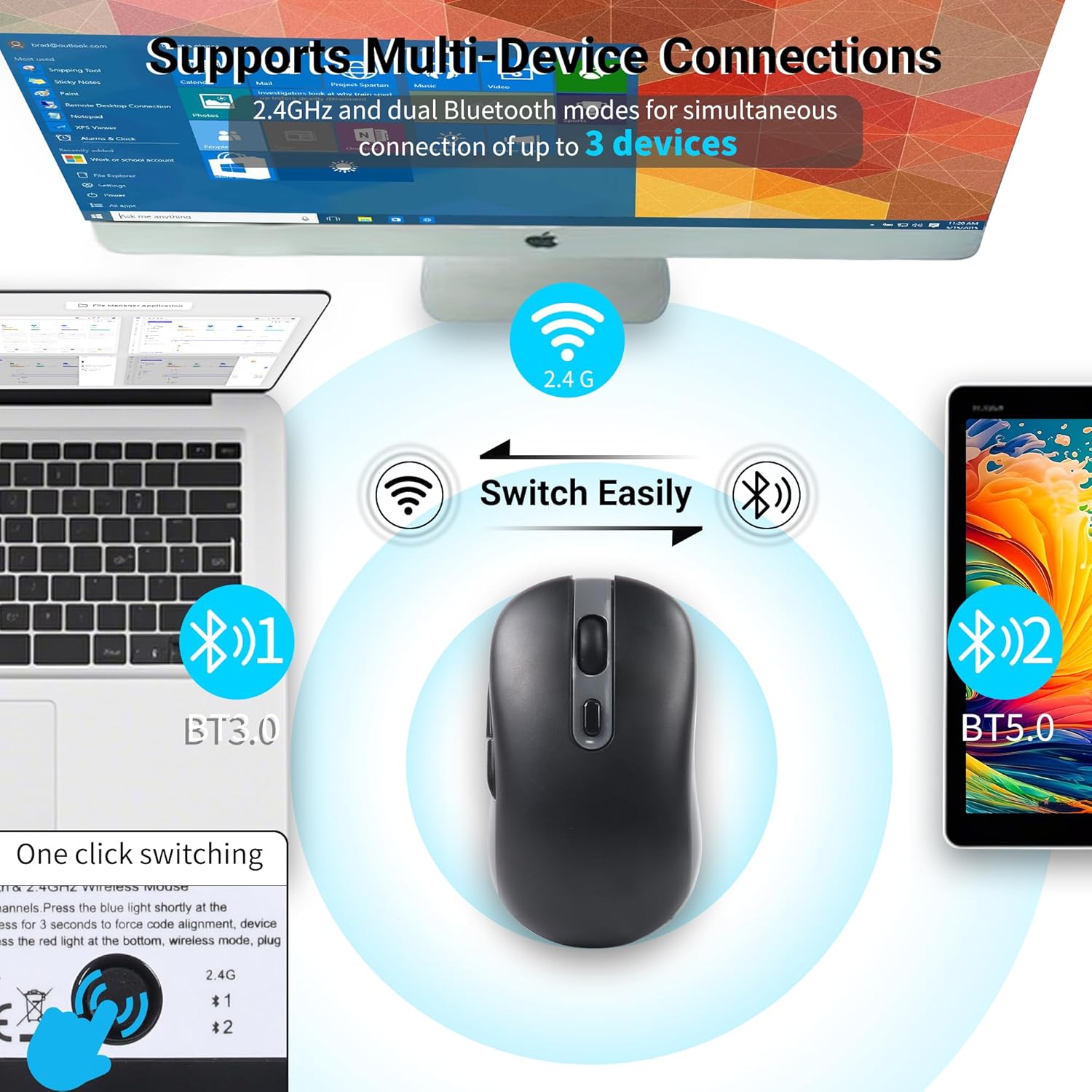
Image: Visual representation of the mouse connecting to a laptop via BT3.0, a desktop via 2.4G, and a tablet via BT5.0, highlighting the easy switching capability.
Kubadilisha Kati ya Vifaa: To switch between connected devices (2.4G, BT1, BT2), simply press the mode switch button on the bottom of the mouse. The corresponding indicator light will briefly illuminate to confirm the active mode.
Maagizo ya Uendeshaji
Marekebisho ya DPI
The mouse features three adjustable DPI (Dots Per Inch) levels to control cursor sensitivity and speed. Press the DPI button located on the top of the mouse, behind the scroll wheel, to cycle through the settings:
- 800 DPI: Mwendo wa kielekezi polepole, unaofaa kwa kazi sahihi.
- 1200 DPI: Standard cursor movement, suitable for general use.
- 1600 DPI: Faster cursor movement, suitable for quick navigation or gaming.

Image: Diagram showing the three DPI settings (800, 1200, 1600) and how they affect cursor sensitivity.
Back/Forward Buttons
The mouse is equipped with convenient Back and Forward buttons on the left side. These buttons allow for quick navigation in web vivinjari, file explorers, and other applications, such as switching between documents or browsing web kurasa.
Kuchaji na Maisha ya Betri
The CHUYI Wireless Mouse has a built-in rechargeable battery. When the battery is low, the mouse may exhibit erratic behavior or stop responding. Charge the mouse using the provided Type-C charging cable.
- Connect the Type-C end of the charging cable to the charging port on the front of the mouse.
- Unganisha mwisho wa kebo ya kuchaji ya USB-A kwenye chanzo cha umeme cha USB (km, mlango wa USB wa kompyuta, adapta ya ukuta ya USB).
- A charging indicator light (if present) will illuminate during charging and typically turn off or change color when fully charged.
- A full charge takes approximately 3-4 hours and provides up to 40 hours of battery life.
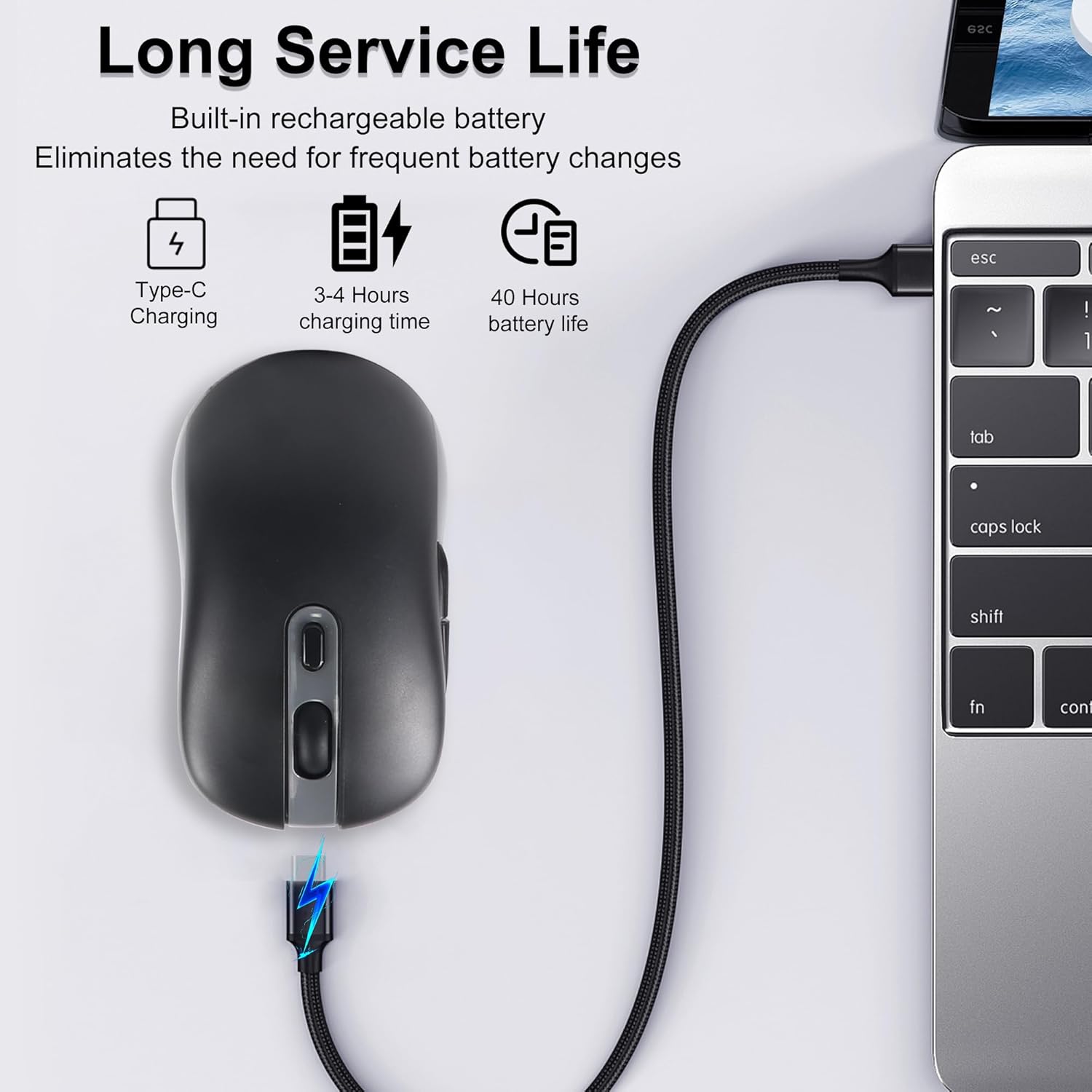
Image: Illustration of the mouse connected to a laptop via its Type-C charging cable, indicating charging time and battery life.
Kutatua matatizo
Maswali Yanayoulizwa Mara Kwa Mara
- Q: Where is the USB receiver for the mouse?
- A: The receiver is generally located at the bottom of the mouse, often in a small compartment. You may need to open a cover to access it.
- Q: Is this mouse compatible with MacBook or Chromebook?
- A: This mouse uses a USB-A receiver for 2.4G mode, which is suitable for computers with a USB-A interface. For devices with only a Type-C interface (like some MacBooks or Chromebooks), you will need a USB-A to USB-C adapter (not included) to use the 2.4G mode. The Bluetooth mode offers wider compatibility with devices supporting Bluetooth connectivity, including Mac OS and iOS 13 and above.
Vidokezo vya Jumla vya Utatuzi
- Panya haijibu:
- Hakikisha kuwa kipanya kimewashwa.
- Angalia kiwango cha betri na chaji ikiwa ni lazima.
- For 2.4G mode, ensure the USB receiver is securely plugged in and the mouse is in 2.4G mode.
- For Bluetooth mode, ensure Bluetooth is enabled on your device and the mouse is correctly paired to the selected BT channel. Try re-pairing if connection is lost.
- Try connecting the mouse to a different USB port or a different device to rule out port or device issues.
- Mwendo wa kishale usio na mpangilio:
- Safisha kitambuzi cha macho chini ya kipanya.
- Hakikisha unatumia kipanya kwenye uso unaofaa (sio kuakisi sana au uwazi).
- Rekebisha mpangilio wa DPI hadi thamani ya chini ikiwa kielekezi ni nyeti sana.
- Muunganisho hupungua mara kwa mara:
- Ensure the mouse is within the effective operating range (up to 10 meters).
- Punguza kuingiliwa kutoka kwa vifaa vingine visivyo na waya.
- Chaji betri ya kipanya tena.
Vipimo
| Kipengele | Maelezo |
|---|---|
| Vipimo vya Bidhaa | Inchi 4.01 x 2.32 x 0.04 |
| Uzito wa Kipengee | 2.36 wakia |
| Teknolojia ya Uunganisho | Bluetooth (BT5.0 & BT3.0), 2.4GHz USB |
| Viwango vya DPI | 800 / 1200 / 1600 |
| Teknolojia ya kugundua harakati | Macho |
| Aina ya Betri | Betri 1 ya Lithium Polymer (imejumuishwa) |
| Kuchaji Bandari | Aina-C |
| Muda wa Kuchaji | Saa 3-4 |
| Maisha ya Betri | Hadi saa 40 |
| Utangamano | Windows XP/Vista/2000/Win7/Win8/Win10/ME/NT/Linux/Mac OS, iOS 13 and above |
Udhamini na Msaada
This product comes with a standard return policy, typically 30 days from the date of purchase. For specific warranty details, returns, or technical support, please refer to your purchase documentation or contact CHUYI customer service through the retailer where the product was purchased.
Video Rasmi ya Bidhaa
Video: An official product video demonstrating the CHUYI Dual Mode Wireless Bluetooth Mouse in use, highlighting its features and functionality.